MemoPop — Memo Cheat Sheet Widgets for Your Home Screen
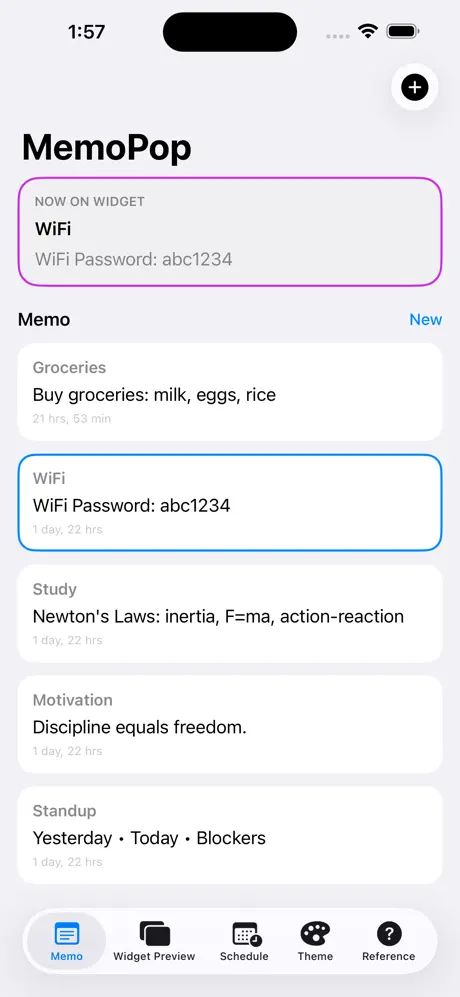
Turn your iPhone Home Screen and Lock Screen into a smart notice board. MemoPop lets you pin short notes, reminders, study tips, Wi-Fi passwords, motivational quotes, and any text snippet directly onto a beautiful widget — always one glance away.
No more digging through Notes, Messages, or Safari tabs to find that one line you keep forgetting. With MemoPop, the right note shows up at the right time, automatically.
KEY FEATURES
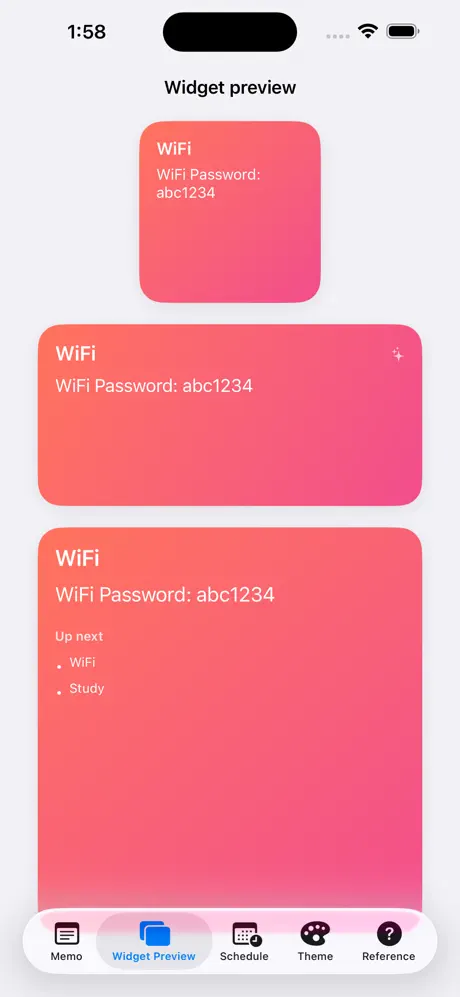
• Beautiful Widgets — Small, Medium, and Large Home Screen widgets, plus Lock Screen widgets for instant access.
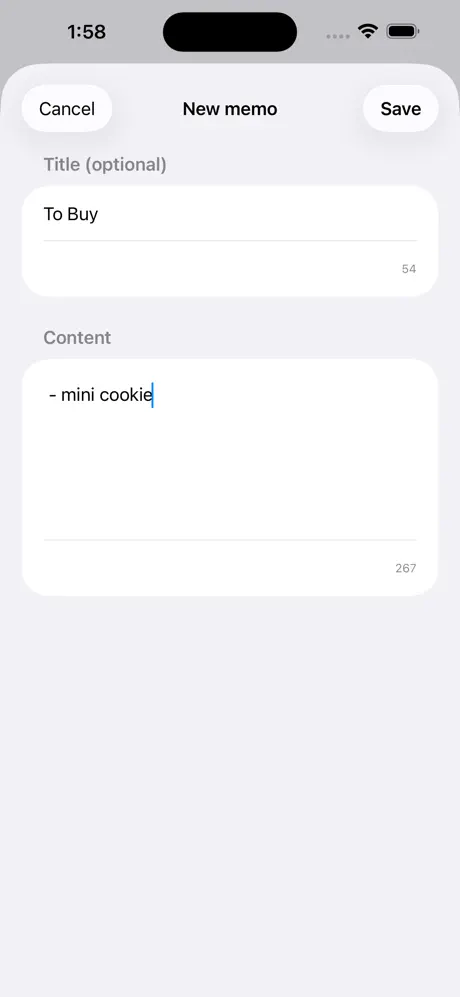
• Unlimited Memos — Create as many notes as you need, with optional titles and a clean character-limited editor.
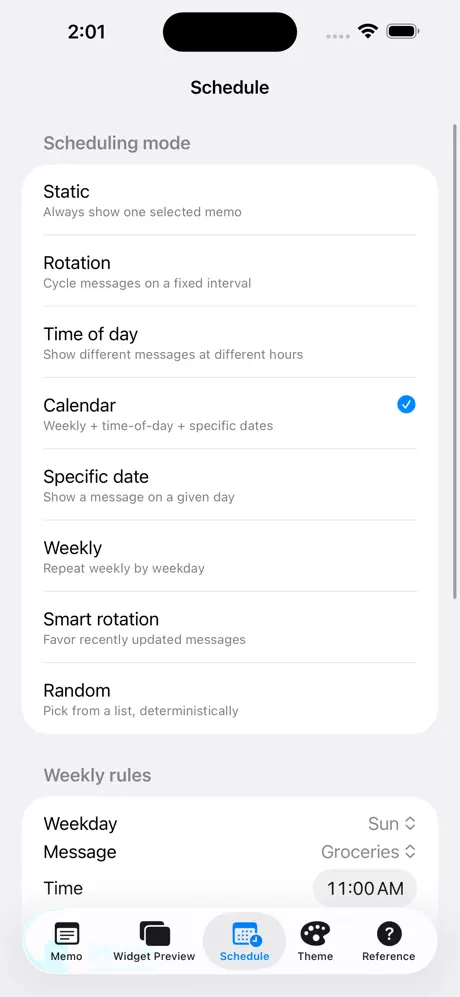
• Smart Scheduling — Pick a static message, rotate notes every few minutes, schedule by time of day, or set specific dates with weekly repeat.
• Smart Rotation & Random Mode — Surface a fresh tip, quote, or reminder from your chosen list automatically.
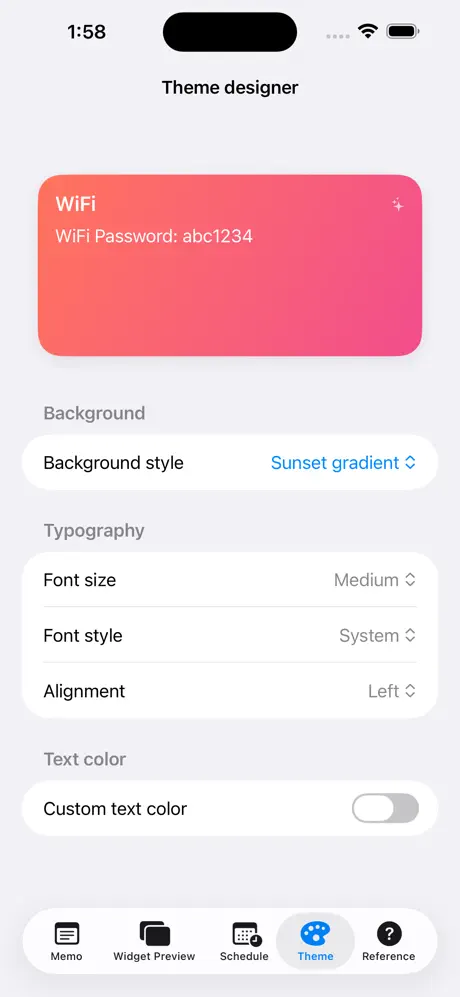
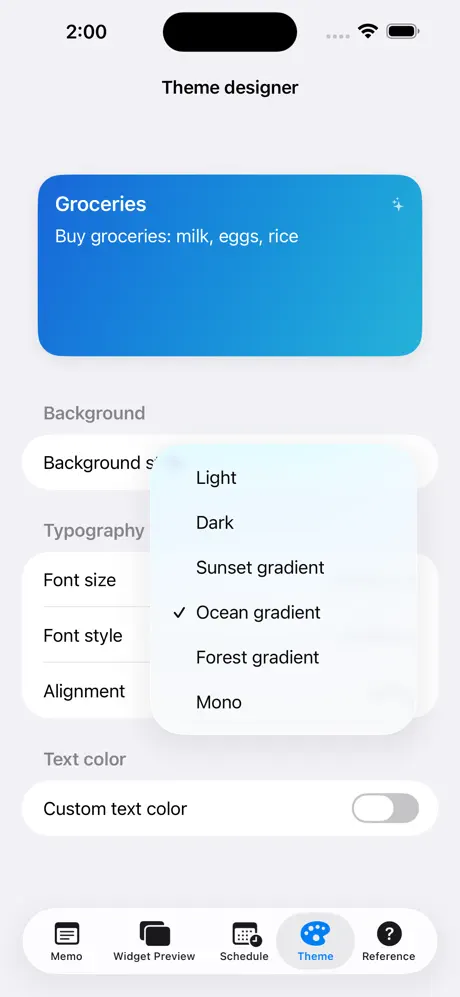
• Full Customization — Choose backgrounds (light, dark, gradient), text color, font size, font style (system, mono, bold), and alignment.
• Live Widget Preview — See exactly how your widget will look before adding it to your Home Screen.
• Built-in Theme Designer — Match your wallpaper, mood, or aesthetic in seconds.
• Privacy First — All your notes stay on your device. No accounts, no tracking, no cloud uploads.
PERFECT FOR
– Students memorizing formulas, vocabulary, or Newton's Laws
– Remembering Wi-Fi passwords and door codes for guests
– Daily affirmations, mantras, and motivational quotes
– Shopping lists, errands, and quick reminders
– Meeting agendas, focus goals, and to-dos
– Anyone who loves a tidy, useful Home Screen
To add a widget on an iPhone/iPad:
- Touch and hold an empty area on the Home Screen until the apps start jiggling.
- Tap the Edit button or the + button in the top corner.
- Search for app, name "MemoPop".
- Tap the widget you want.
- Swipe left or right to choose the widget size.
- Tap Add Widget.
- Drag it to the position you want.
- Tap Done.
To add a widget for the Lock Screen (iOS 16+):
- Touch and hold the Lock Screen.
- Tap Customize.
- Choose Lock Screen.
- Tap the widget area below the clock.
- Select "MemoPop" widget app.
- Tap the widget to add it.
- Tap Done.
WHY MEMOPOP
MemoPop is built with native SwiftUI and WidgetKit for fast, lightweight performance and zero bloat. No subscriptions, no ads, no sign-up. Just a clean, modern interface.
Pin what matters. Forget less. Glance more.
Download MemoPop today and make every glance at your Home Screen count.