DGArt:RT — User Manual
How each tool works, what it needs selected, and what it gives you. Every picture is taken on the same box from the same viewpoint, so you can see what a tool changed and nothing else.
Before you start
DGArt has two modes. Scene mode is where you arrange a world — objects, lights and cameras. Modeler mode opens one of those objects so you can reshape it. The button at the top left switches between them, and the left-hand tool bar changes to match.
Nearly everything works on a selection: tap to select, tap again to deselect. A tool whose button is dimmed is waiting for a selection it can use — usually that means you are in the wrong edit mode, or nothing is picked yet.
The chapters below follow the tool bar from top to bottom, so what you read here is in the order you see it on screen.
Getting around
Scene mode
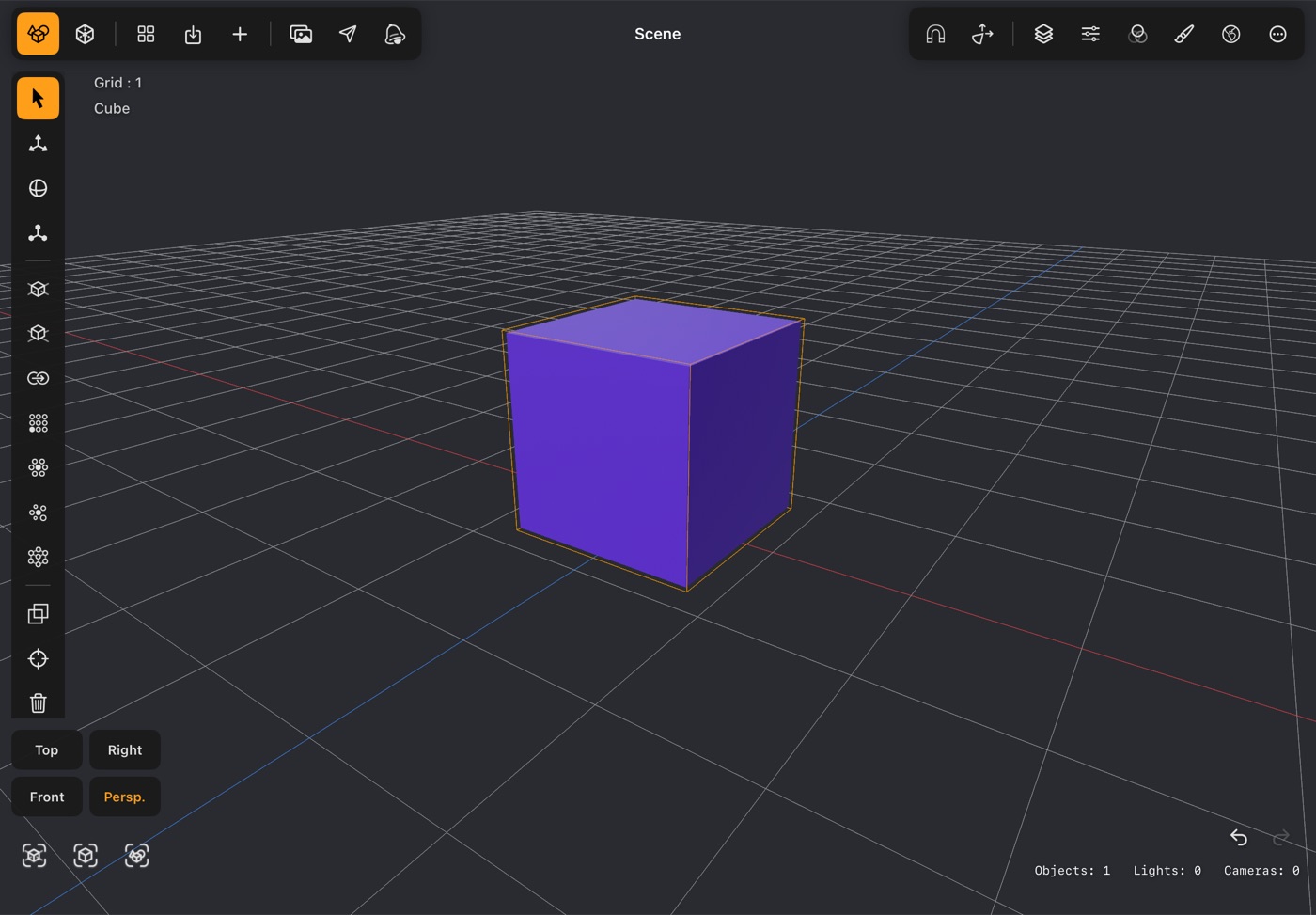
- Where you build a world: add objects, lights and cameras, arrange them, and set up the shot.
- The top bar holds the mode switch, the project and save buttons, add object, the image library, the action menu and RT:Render. The bar on the right opens the panels.
- The left bar holds the tools — select, move, rotate, scale, then the placement and cloning tools, then delete at the bottom.
- Array clone repeats the selected object in a grid: Count U and Count V go up to 24 each, 576 in all. A dense object gets fewer, so the whole grid stays light enough to work with: the counts stop where the copies would pass Clone Array Limit (Settings ▸ Advanced, 200,000 polygons to start with), and the panel says how many copies fit. The two counts share that budget, so a heavy object can still make a long row — lower one count and the other can go higher.
- The bottom left has the view buttons and, under them, reset view, frame selected and frame all.
Top Bar - Left group
- Scene — lit, showing which mode you are in.
- Modeler — opens the selected object for point, edge and polygon editing. Dimmed until a mesh object is selected.
- Library — saves the project first, then opens the project library.
- Save — writes the project; the icon turns to a checkmark when it is done. A brand-new project asks for a name first.
- Add Object (+) — primitives, text, saved custom objects and importing a model file.
- Image Library — the images stored with this project, and assigning one as a texture.
- Action menu — Turntable Preview, AR Preview (it uses the device camera: follow the on-screen guide until a surface is found, then tap to place the scene, tap again to move it, pinch to scale it — 100% is real size — and twist two fingers to turn it; an animated scene gets a play/pause button at the bottom right, starting from where the timeline's playhead is and looping), Snapshot to Photos, Share Project, the Animation Timeline, and Export to OBJ, STL, GLB or USDZ.
- RT:Render — opens the ray-traced render view.
Top Bar - Right group
- Snap — what dragging snaps to (surface, object pivot, bounding box, grid) and the step size.
- Gizmo World / Local — whether the transform gizmo follows world axes or the object's own.
- Layer, Property, Material and Environment — the four panels, covered in Panels.
- Paint — paint straight onto the selected object. Dimmed unless a mesh object is selected.
- More (⋯) — AI Command Palette, RT:Render settings, Settings, Manual and About.
Modeler mode
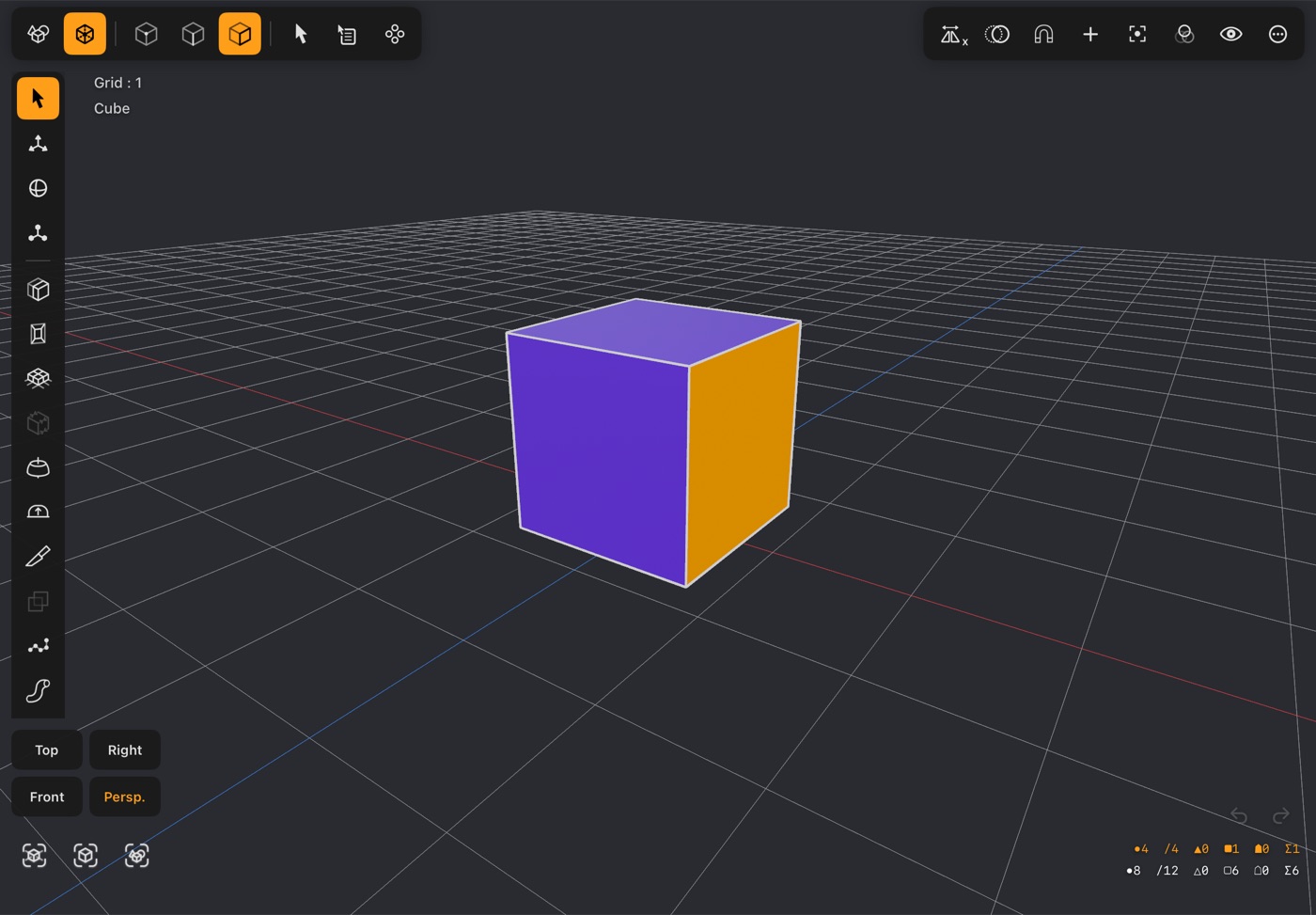
- Opens one object for editing its points, edges and polygons. Tap Modeler in the top bar with an object selected.
- The three buttons beside it choose what you are editing: point, edge or polygon. The left bar changes with your choice.
- The counters at the bottom right show what is selected and what the object is made of — points, edges, triangles, quads, n-gons and the total.
- Tap Scene in the top bar to come back out. Your edits stay with the object.
Top Bar - Left group
- Scene — leaves the modeler and returns to the scene. Your edits stay with the object.
- Modeler — lit, showing which mode you are in.
- Point / Edge / Polygon — what you are selecting and editing. The left bar changes with the choice.
- Select — opens the selection bar described under Select — Modeler mode.
- Action menu — Assign Material, Cut, Copy, Paste, Duplicate, Dissolve, Separate and Delete, acting on the current selection.
- Dissolve removes without leaving a hole. In point mode the selected points go and their neighbours join up — handy for thinning out a drawn shape. In edge mode an edge between two polygons merges them; an edge on the outline takes its points with it. Every polygon keeps at least three points. Delete, by contrast, removes the polygons too.
- Clone menu — Clone, Radial Clone and Random Clone, plus the mirror options.
Top Bar - Right group
- Mirror edit — mirrors your edits across an axis as you make them, so a symmetrical model only has to be built once.
- X-ray — makes the mesh see-through so you can select components on the far side.
- Snap — what dragging snaps to (vertex, edge, face, grid) and the step size.
- Add (+) — the same shapes as Scene mode's Add Object, added into the mesh you are editing rather than as a new object. Its popup adjusts the new part until you edit something else.
- Precision — the numeric panel. This button exists only here.
- Material — the material panel for the object being edited, including per-face slots.
- Visibility — hide the selected or unselected polygons, hide the rest of the scene, and unhide everything again.
- More (⋯) — Measure, Optimize Mesh, Mesh Tools, Reference Objects, Hide Scene Objects, SubD and Save.
- SubD switches the object's smooth subdivision on and off while you edit: on, you see the smoothed surface with your editable cage around it. It is the object's own setting, so it carries over to Scene mode, the render and export. Off remembers the level, and On brings it back; an object that has never been subdivided starts at level 2. Change the level itself with Subdivision in the Property panel.
Reference objects
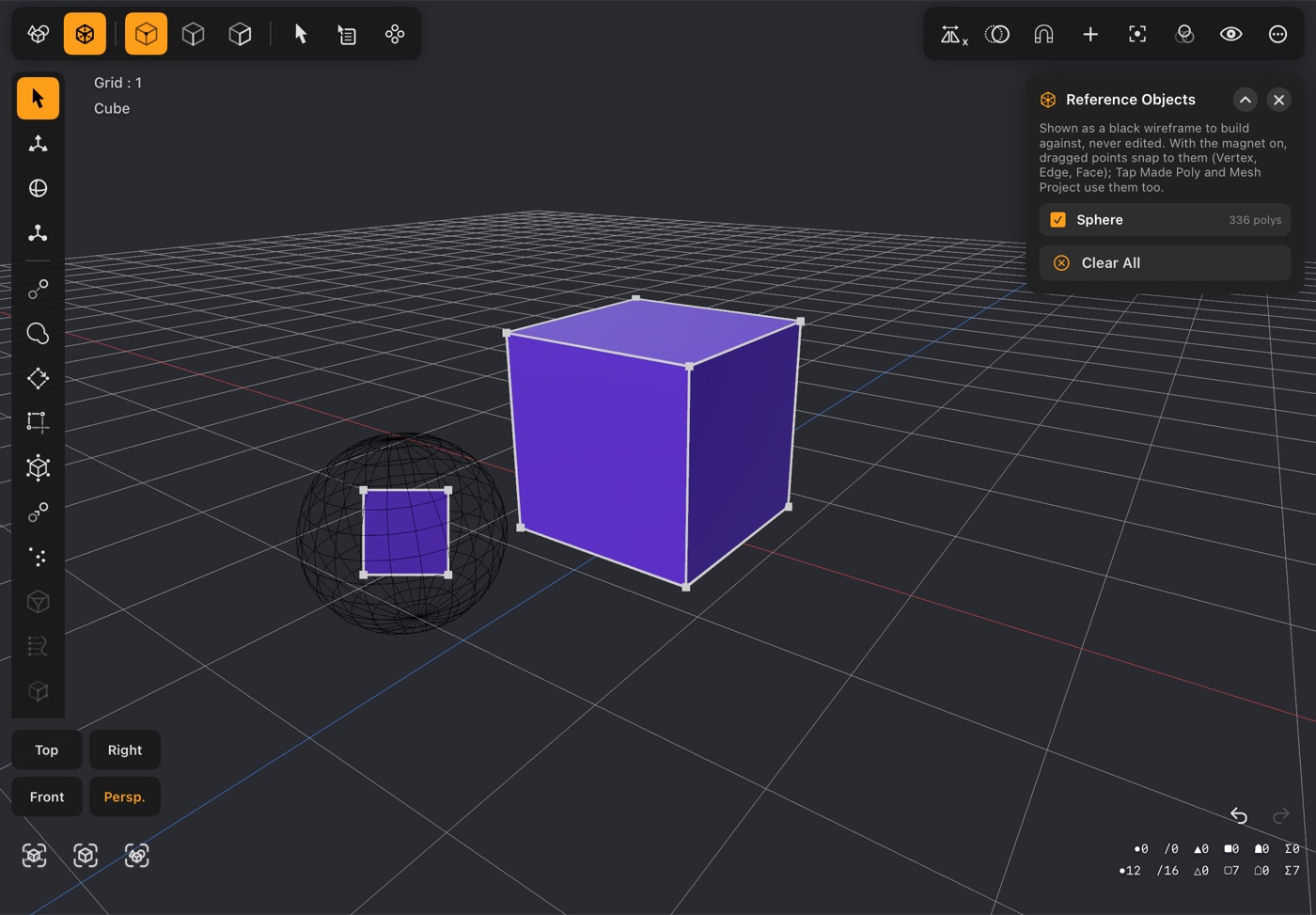
- Brings other objects into the modeler to build against — tracing over a scan, laying new topology over a sculpt, fitting one part to another — without touching them.
- More (⋯) ▸ Reference Objects lists every other mesh in the scene; tap one to make it a reference, and again to drop it. Objects hidden in the scene can be used too (they show dimmed). Clear All drops them all.
- A reference is drawn as a black wireframe with all its edges showing. It can't be selected or changed, and stays on screen even with Hide Scene Objects on.
- Snapping. With Snap (the magnet) on, points dragged with Point Drag snap to a reference's vertices, edges or faces — whichever the Snap menu has ticked. Only the side facing you counts, so a point never jumps to the back.
- Tap Made Poly lands its points on a reference's surface, and with Snap on also on its vertices and edges. Draw Poly, Clone Along Path and Sweep Along Path place their points and paths on it with Snap on. Mesh Project can lay polygons onto it.
- A subdivided object that would make a very dense wireframe is shown with fewer subdivisions, and a message says so. Its row gets an Off / 1 / 2… choice to change that. This only changes how the reference is drawn and snapped to, never the object.
- References last until you leave the modeler. They are not saved, and they don't change the scene, the render or undo.
Mesh Tools
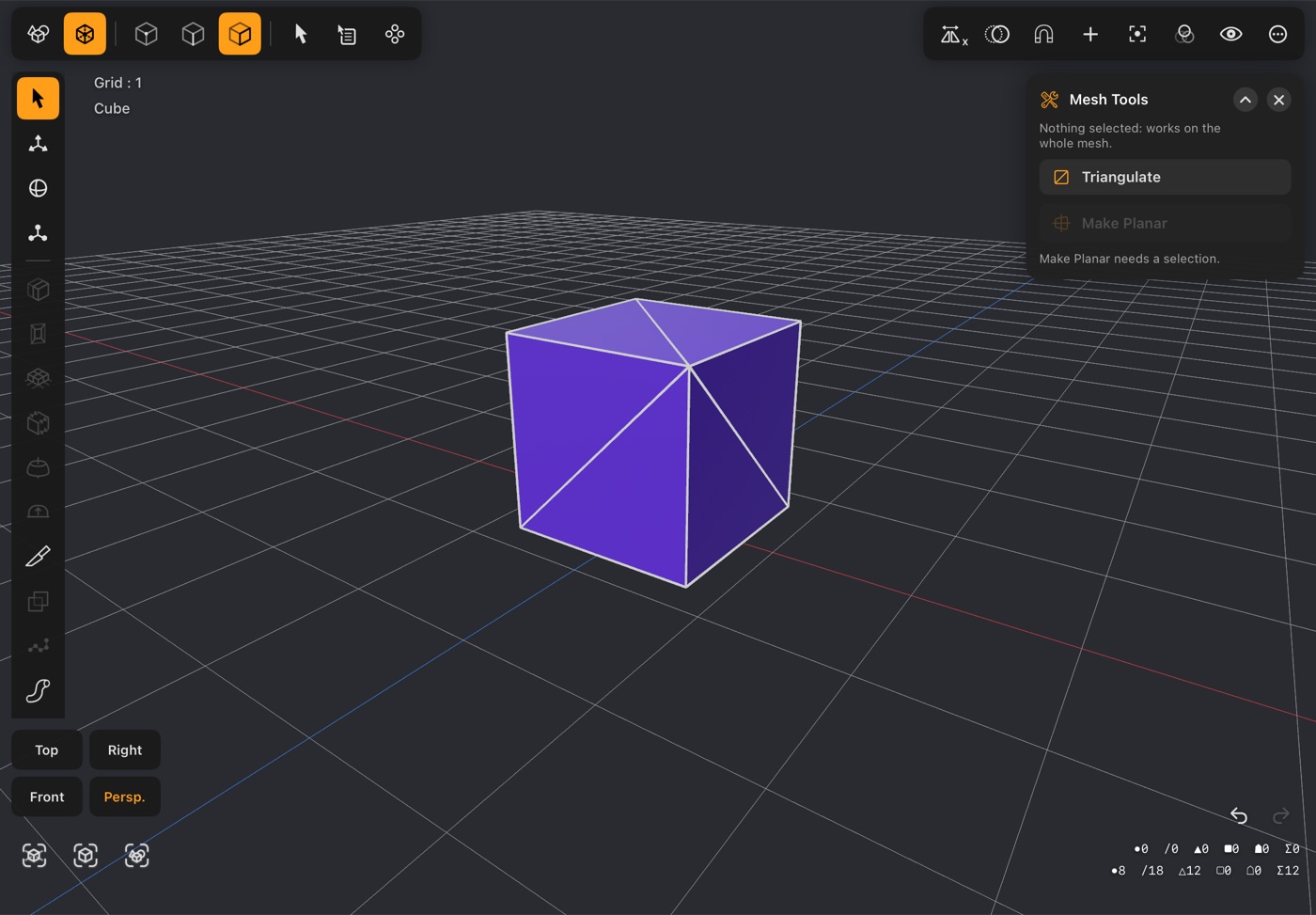
- More (⋯) ▸ Mesh Tools opens a small popup at the top right with two clean-up tools. Each tap applies at once as one undo step, and the popup stays open for the next selection. The line under the title says whether it will work on the selection or on the whole mesh.
- Triangulate splits the selected polygons into triangles — or every visible polygon when nothing is selected. In point mode it takes the polygons with every corner selected, in edge mode those with every side selected. The triangles keep their face's material and UVs, edges keep their creases, and the new triangles stay selected.
- A flat face is split into triangles as even as its outline allows, concave shapes included. A face that isn't flat keeps exactly the triangles you already see on screen, so its shape doesn't change.
- Make Planar needs a selection. In polygon mode each selected polygon with four or more corners is flattened onto its own plane, and points shared by several selected faces are settled so that every face ends up flat. In point or edge mode the selected points move onto the one plane that fits them best — handy for levelling a ragged rim or a bumpy patch.
- Triangles are always flat, so Make Planar leaves them alone. Both tools stay within the Selection Op limit in Settings.
- Smooth used to live here; it is now on the point-mode left bar as Smooth, with a live preview.
Navigation & views
- Pinch to zoom, two fingers to pan, one finger on empty space to orbit.
- On an iPad with a mouse or trackpad, and a keyboard for the keys below, the same moves are:
- Scroll — the mouse wheel or a two-finger trackpad scroll — to zoom. The direction follows your system scrolling setting.
- Control-drag, or drag with the right button, to zoom. Drag up to zoom in.
- Command-drag to pan.
- Option-drag to orbit. A plain drag on empty space orbits too, just as a finger does.
- With one of those keys held, a drag always moves the camera — even one that starts on an object or a gizmo — so you can look around a selection without grabbing it by mistake.
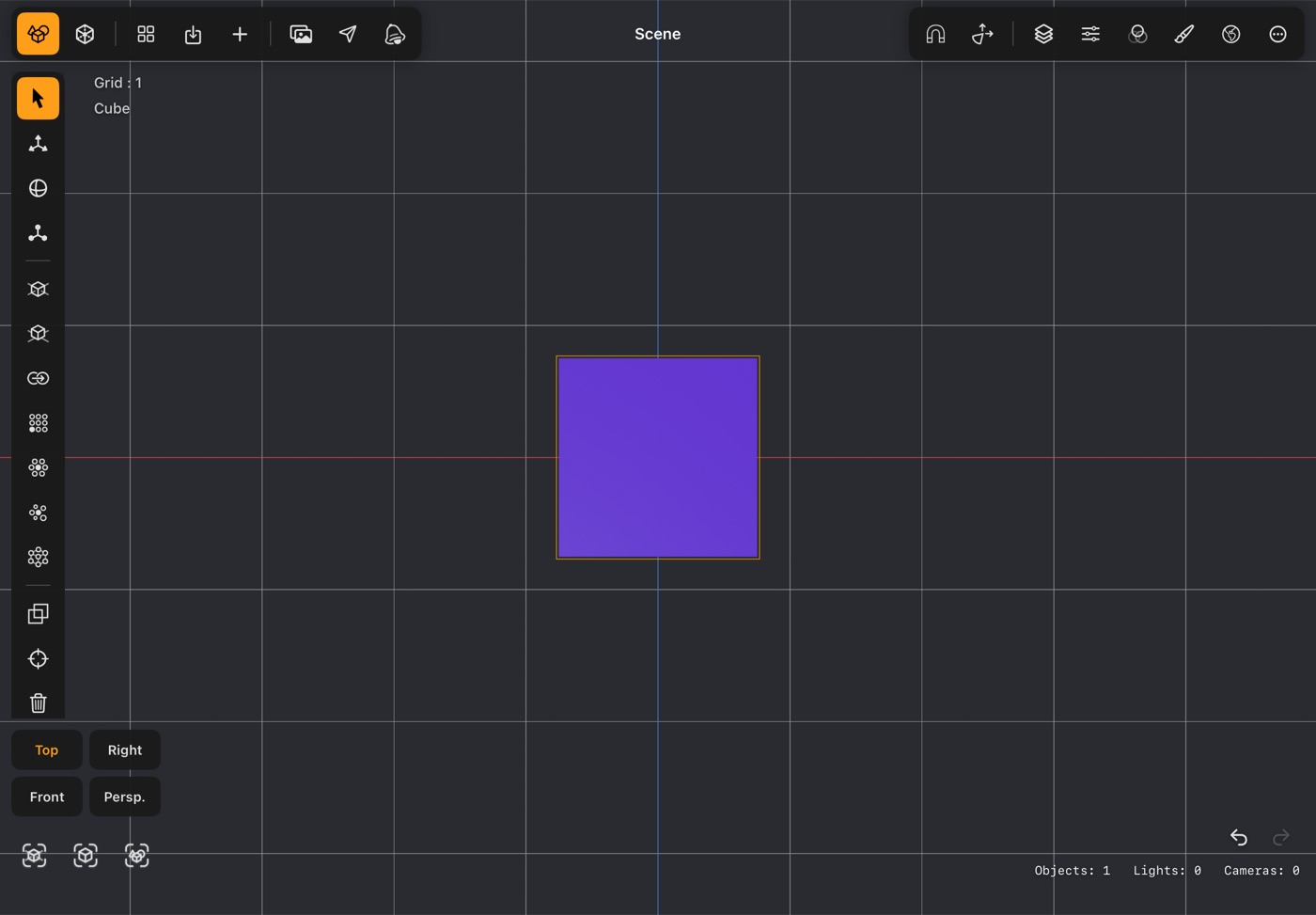
- Top, Right, Front and Persp. switch to a fixed view. Long press Top for Bottom, Right for Left, and Persp. for an orthographic view.
- The three buttons at the bottom left are reset view, frame selected and frame all.
- Grid at the top left shows the current grid spacing, which changes as you zoom: 0.1, 0.5, 1, 5, 10, 50 or 100, so there are always about a dozen cells in view. With Sub Grid on (Settings), fainter lines split each cell into smaller squares; the label still shows the main spacing only. Snapping goes by Snap Step in Settings, not by the grid on screen.
Project library
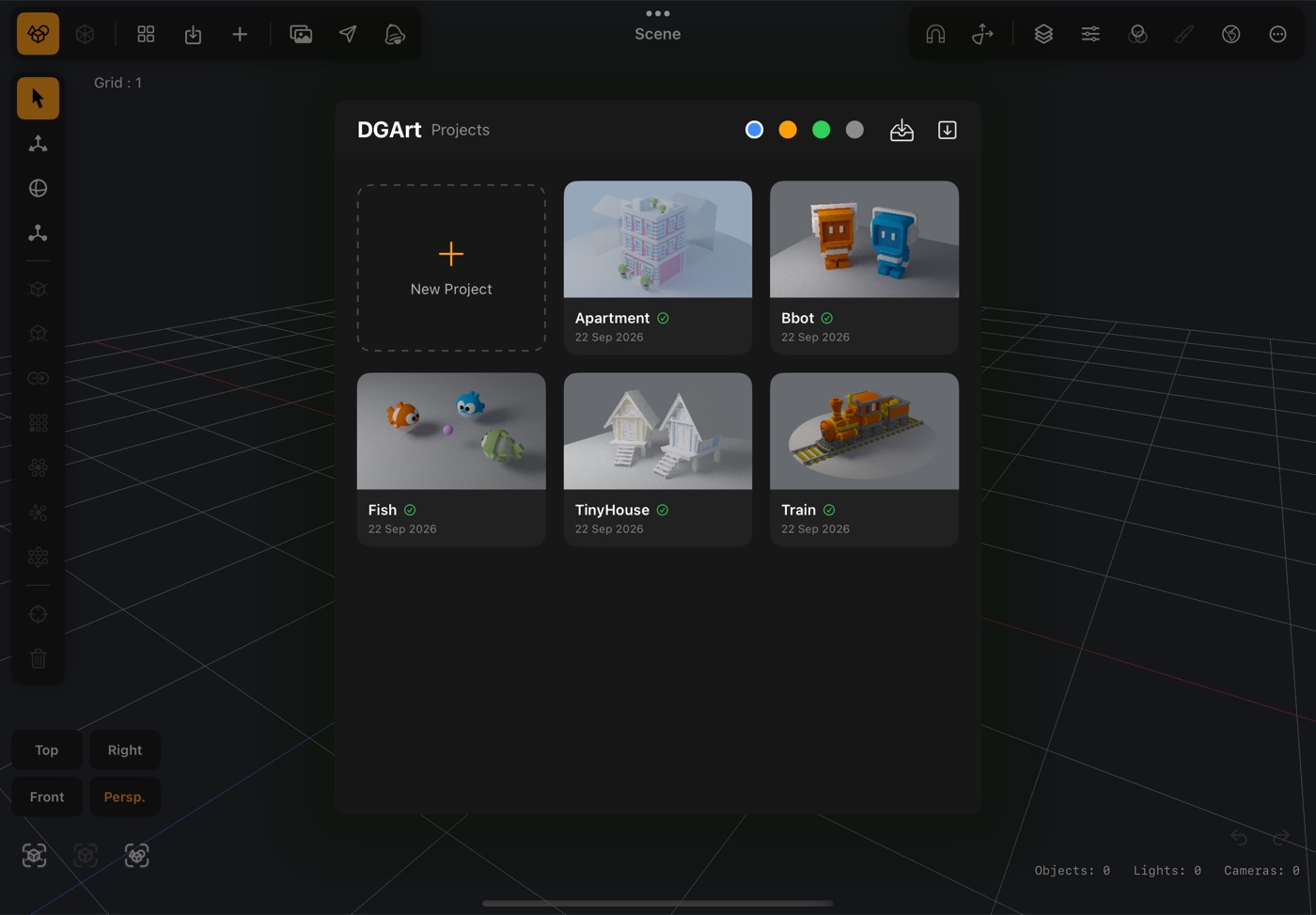
- Every project, with a rendered thumbnail of its last save.
- New Project starts an empty scene. Tap any tile to open it.
- The filter chips along the top narrow the list by status:
- All — everything.
- WIP — work in progress: anything not yet finished and not a template. Every new project starts here.
- Comp — completed. A project marks itself complete the first time you save a render to Photos, on the reasoning that you only do that once a piece is done. There is nothing to tick by hand.
- Tpl — templates. A project counts as a template when its name ends in
-tpl, so renaming a project toStudio lighting-tplis all it takes to park it here as a starting point for new work. - The two buttons at the top right import a project and export one, for moving work between devices or sending it on.
Transform tools
Move, Rotate and Scale sit at the top of the left bar in both modes, but they act on different things: whole objects in Scene mode, and whichever points, edges or polygons you have selected in Modeler mode. Selecting is where the two modes really part company, so it is covered separately below, and Precision exists only in Modeler mode.
Select — Scene mode
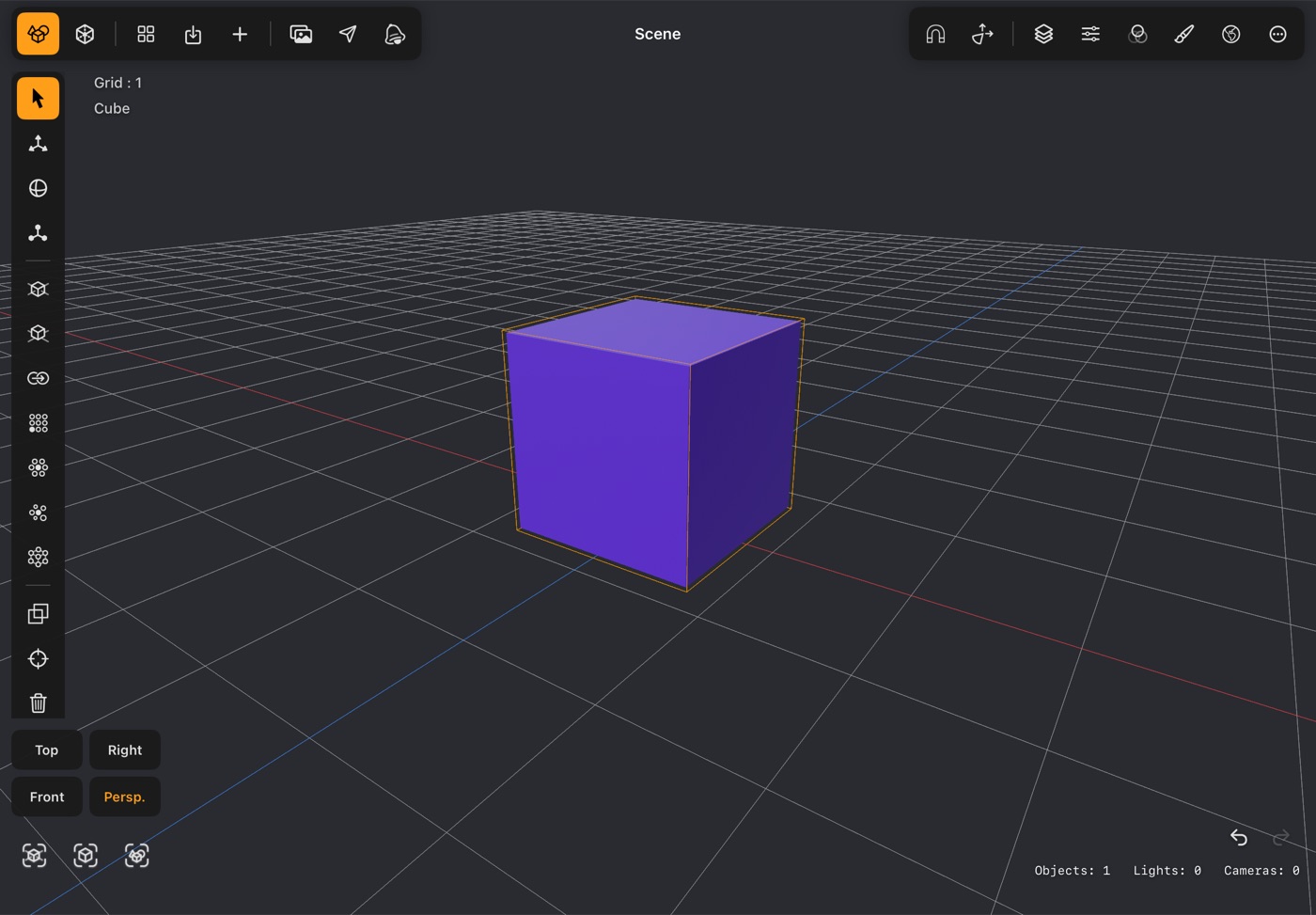
- Tap an object to select it, tap empty space to drop the selection. No gizmo is shown while Select is the active tool, so nothing can be moved by accident.
- Multi-select — tap the Select button a second time to turn it on; the icon changes to show it is active. Each tap then adds an object to the selection instead of replacing it.
- A multiple selection is what unlocks the group tools in the Property panel: Merge joins them into a single mesh, Align lines them up on an axis, and Space distributes them evenly. Each button names the count, so you can see what it is about to act on — "Align 3 Objects".
- Move, Rotate and Scale then act on the whole selection at once, and the anchor buttons decide whether it turns around the group centre or around each object's own pivot.
- There is no point, edge or polygon selection here. For that, open the object in Modeler mode.
Select — Modeler mode
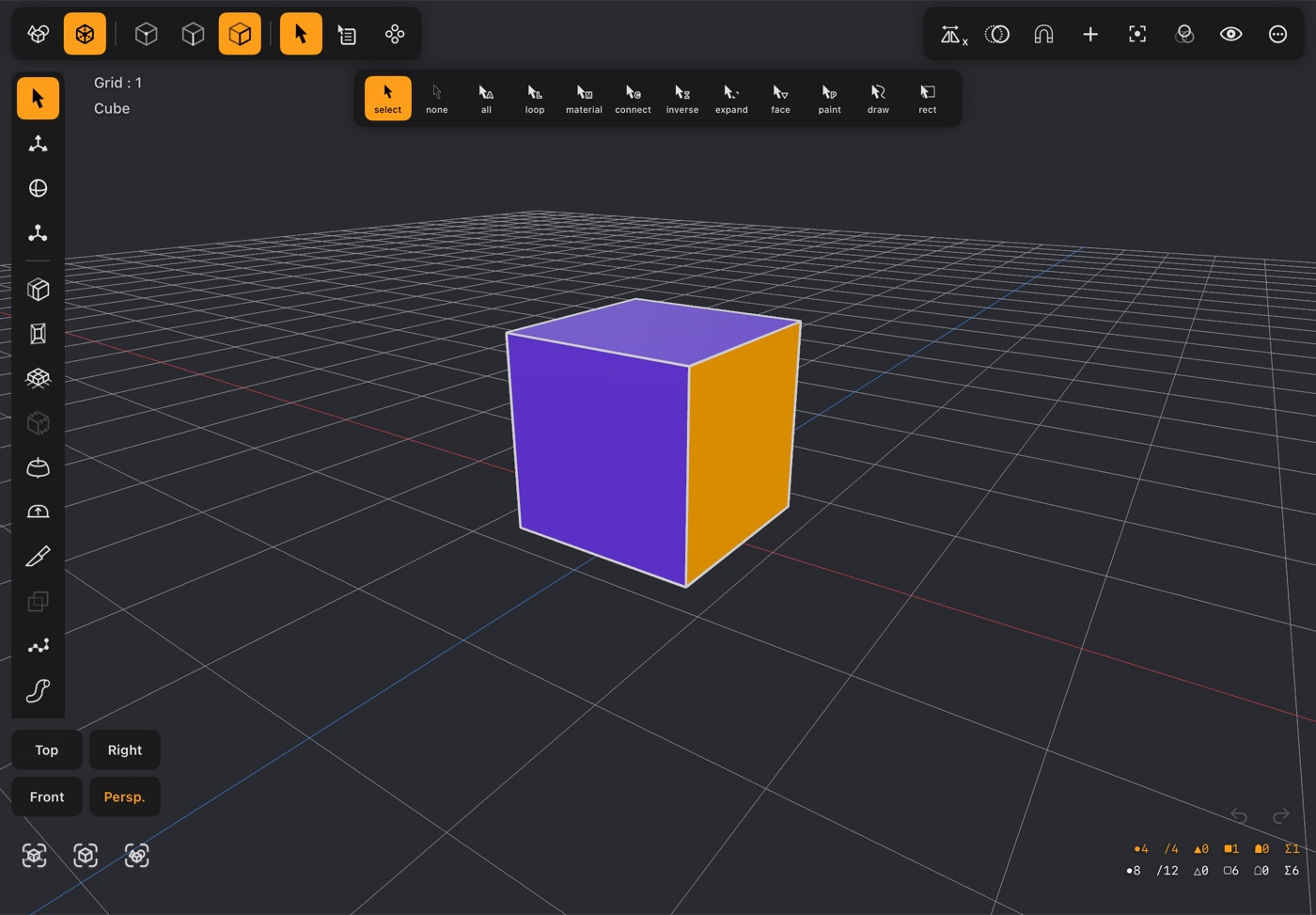
- First choose what you are selecting. The three buttons in the top bar switch between Point, Edge and Polygon, and the same tap means a different thing in each. The left bar changes with the choice, because the tools differ too.
- The Select button opens a second bar holding the selection tools proper — the part Scene mode has no equivalent for:
- Select — a plain tap, one component at a time.
- Paint select — drag across the model and everything under the brush joins the selection.
- Draw select — draw a freehand outline; everything inside it is taken.
- Rect select — drag a rectangle over the model.
- Select All and Select None.
- Select Loop — follows a continuous ring around the mesh, which is how you grab a whole band in one go rather than tapping your way around it.
- Select Boundary (edge mode) — every border edge of an open mesh, the edges around a hole. Useful before Cap, Thicken or Mesh Blend.
- Select Sharp (edge mode) — every edge where the two faces meet at 90° or less: all twelve edges of a cube, the rims of a cylinder, none at all on a sphere. Inside corners count too. Handy before Chamfer, Fillet or Crease. It can also go on the Quick Menu as Sharp Edges.
- Material (polygon mode) — while it is lit, a tap takes every face with the tapped face's material.
- Connect — grows the selection to everything joined to it: the whole piece it sits on.
- Inverse — selects everything that wasn't selected, and lets go of what was.
- Expand — grows the selection by one ring of neighbours. Tap again to keep growing.
- Face (polygon mode) — every face with as many corners as the first one selected: all the triangles, or all the quads.
- A tap, Paint, Draw and Rect select only take what you can see: a point, edge or face hidden behind the model is left alone. Turn on X-ray in the right bar to reach components on the far side. Select All, Loop and the other commands in the bar work on the whole mesh either way.
- The same tools are also a long press away, on the Quick Menu.
Quick Menu
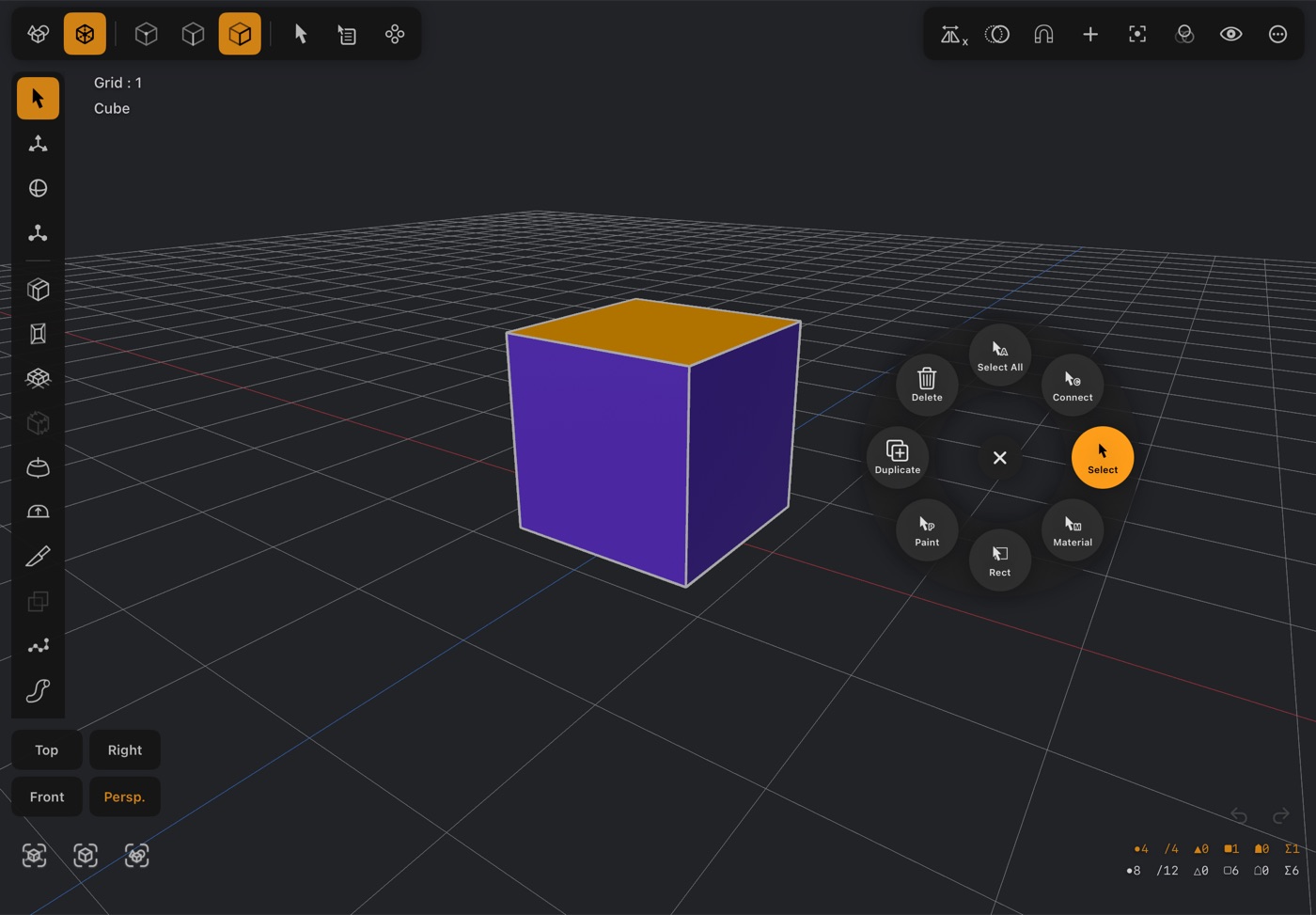
- Hold a finger still on the viewport in Modeler for about half a second and a circle of eight buttons opens around it: selection tools and edit commands, without reaching for the bars.
- Slide onto a button and let go to run it in one movement, or let go first and then tap a button. Tap the ✕ in the middle, or anywhere outside the circle, to close it. That tap doesn't select or deselect anything.
- Point, edge and polygon mode each have their own eight. Out of the box they are:
Point — Select All, Connect, Select, Inverse, Rect, Paint, Dissolve, Delete.
Edge — Select All, Connect, Loop, Boundary, Rect, Paint, Dissolve, Delete.
Polygon — Select All, Connect, Select, Material, Rect, Paint, Duplicate, Delete. - Select goes back to plain tap selection and to the Select tool at the top of the left bar, which puts away a Move, Rotate or Scale gizmo. Paint, Draw and Rect switch those selection modes on and off, as on the selection bar, and whichever is on is lit.
- A command with nothing to work on is greyed out: Cut or Delete with nothing selected, Paste with nothing copied. Every button does exactly what its twin on the selection bar or in the action menu does, with the same undo.
- The circle doesn't open while a tool has the viewport — a tool's popup, Tap Made Poly, Draw Poly, the Knife, a path tool or Point Drag — and a press held on a gizmo handle still starts a drag.
- Settings ▸ Modeler: the Quick Menu switch turns it off. Customize Quick Menu picks the eight buttons for each mode — slot 1 at the top, the rest clockwise — from the selection tools, Cut, Copy, Paste, Duplicate, Separate, Dissolve, Delete, and Move, Rotate and Scale. Reset to Default puts a mode back.
Move
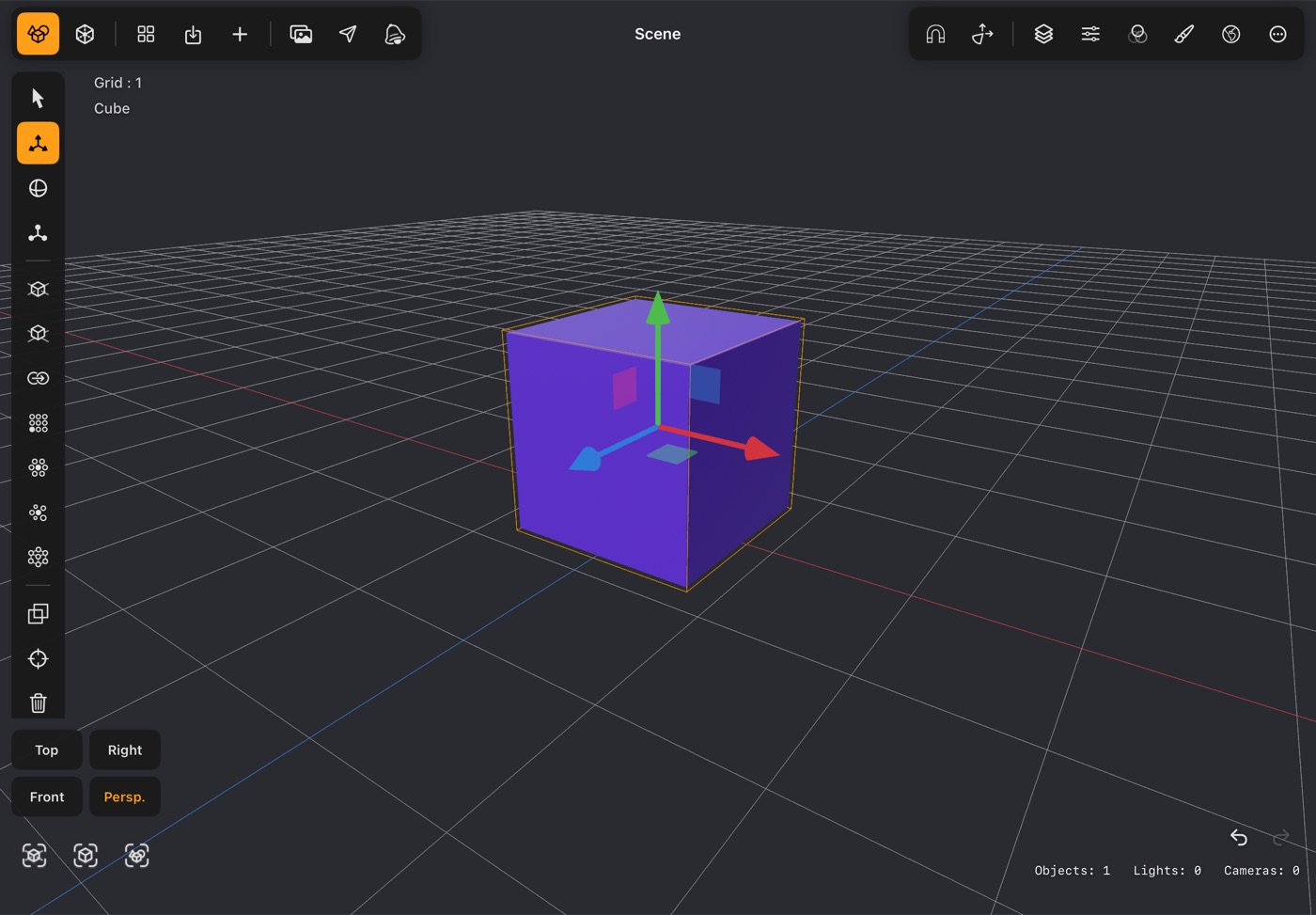
- Drag an arrow to move along one axis, or a square to move in the plane between two axes.
- The gizmo toggle in the top bar switches between world axes and the object's local ones.
- With snapping on, movement steps by the snap amount — see Precision below.
Rotate
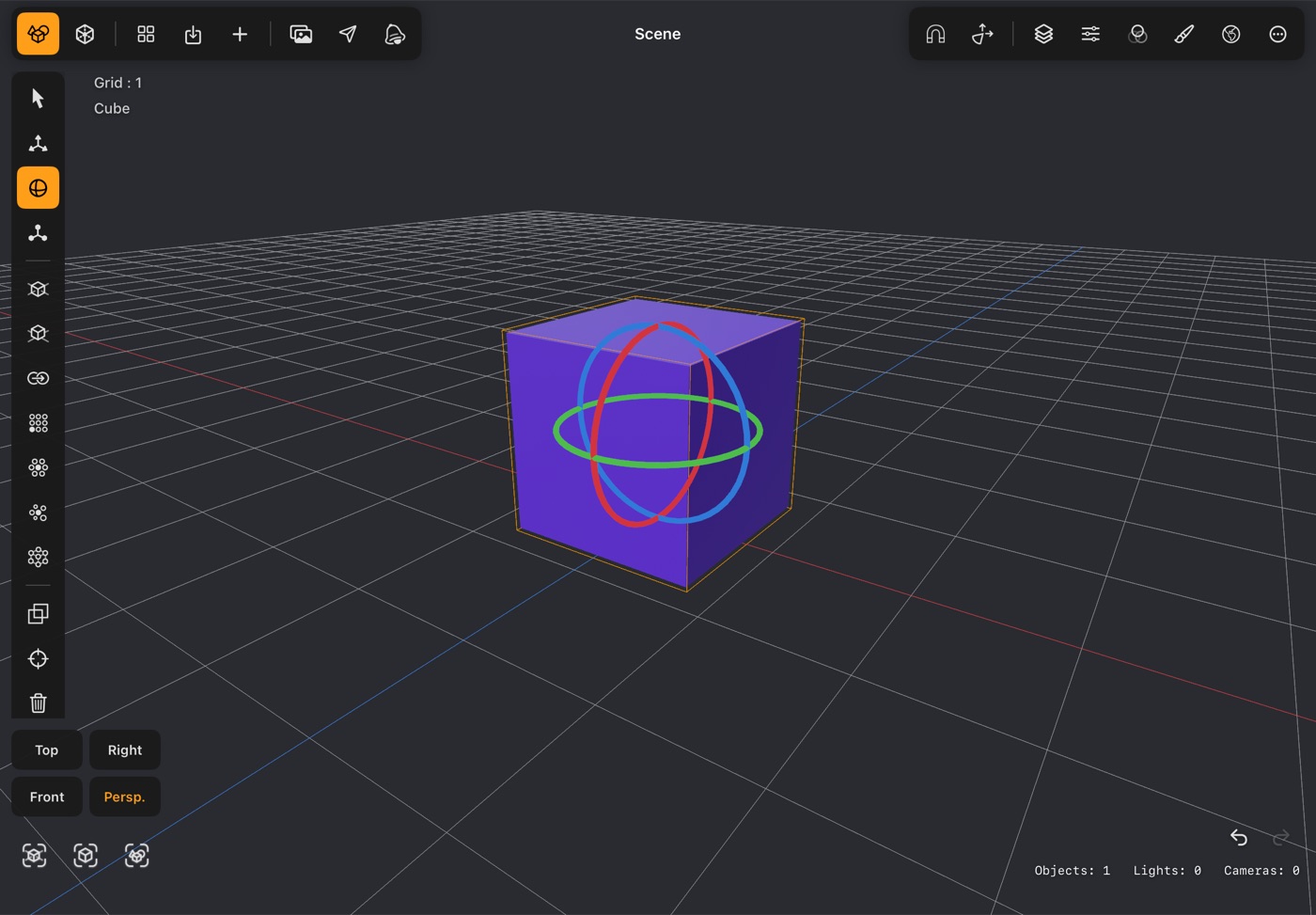
- Drag a ring to turn around that axis.
- In Modeler mode the selection turns around its own centre. In Scene mode, use the anchor buttons to turn a multiple selection around the group centre or around each object's own pivot.
Scale
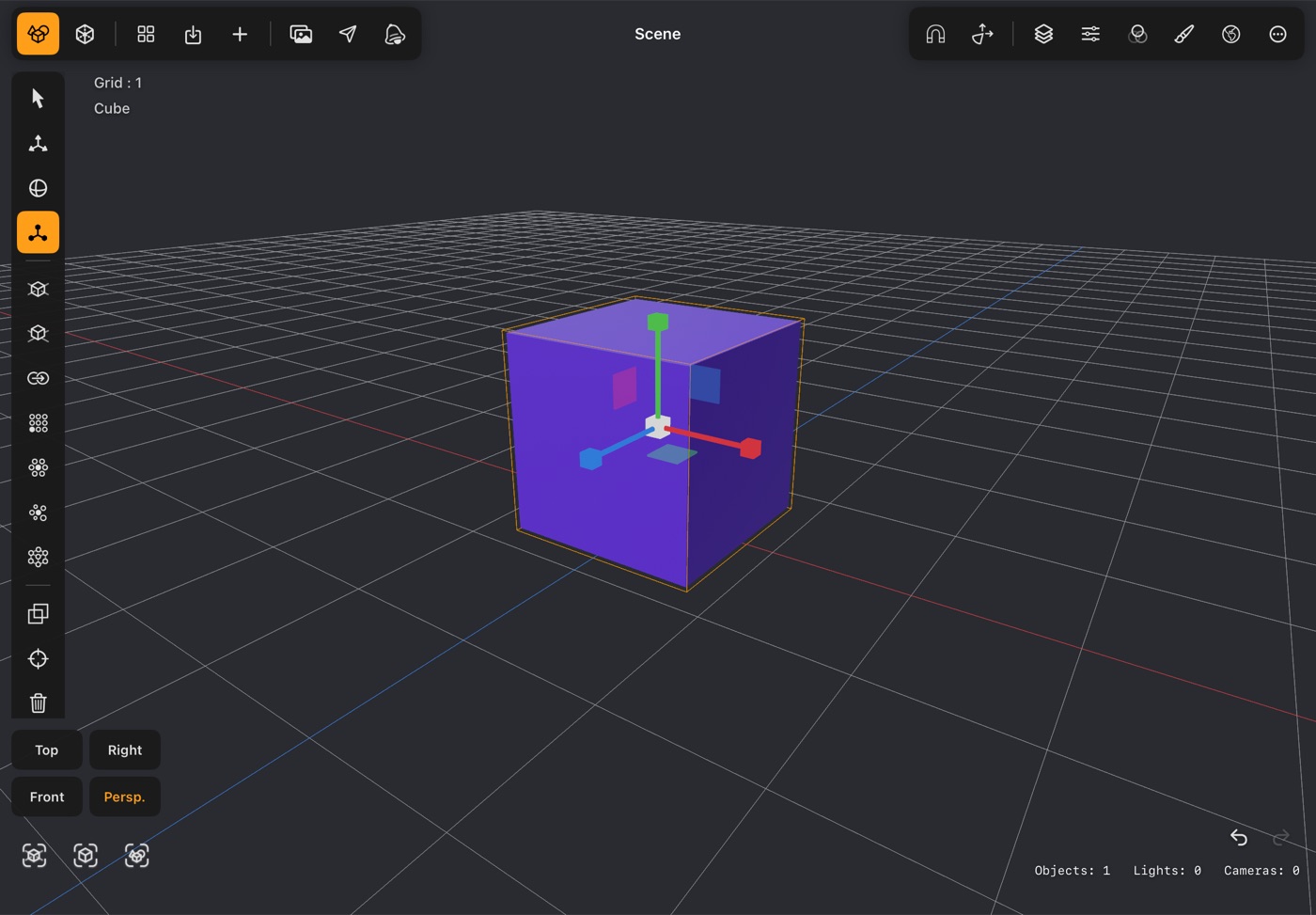
- Drag a handle to scale along one axis, or the centre to scale evenly.
- Scaling a selection in Modeler mode works from the middle of that selection, so it grows or shrinks in place.
- Lights and cameras have no size, so Scale shows no gizmo for them: a spot's cone, a camera's frame and a point light's reach all come from their own settings. The exception is an area light, where Scale resizes the panel — the red handle sets its Width, the green its Height.
- A Null scales as usual, and everything parented to it scales with it — the quick way to resize a whole group. When a group with lights or cameras in it is scaled, they move with the group but keep their own size.
Precision — Modeler mode only
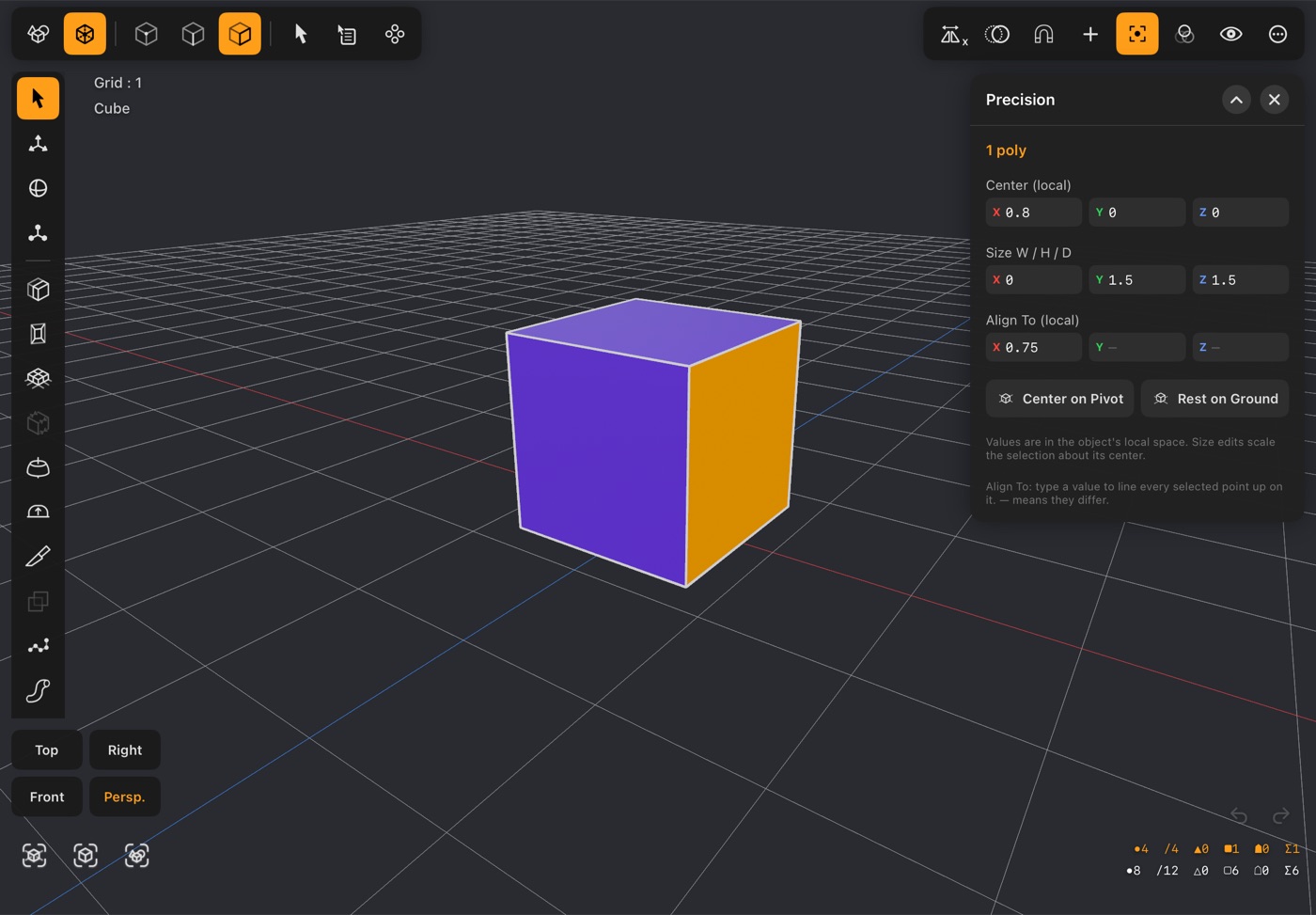
- Type exact numbers instead of dragging. Select points, edges or polygons and the panel shows the selection's centre and its size, ready to be set.
- Scene mode has no Precision panel — the button only exists in the Modeler top bar. To place a whole object exactly, use the Position, Rotation and Scale fields in the Property panel instead; they do the same job one object at a time.
- Handy for making something exactly flat, exactly square, or exactly a certain size.
- Align To lines points up exactly: type a value in X, Y or Z and press Return, and that coordinate of every selected point becomes the value. Pick a few scattered points, type 5.2 in X, and they all sit at X 5.2 — the other two coordinates stay as they were. A field shows the value the points already share, or — when they differ. One undo step.
- Center on Pivot moves the selection so its centre sits on the object's pivot. Rest on Ground moves it straight up or down until its lowest point sits on the ground grid — even when the object itself is moved, turned or scaled. Each is one undo step.
- The Snap menu sets the step that dragging follows, and the Grid readout shows what that step currently is. Snap itself is available in both modes.
Panels
The buttons on the right of the top bar open the panels. They dock down the right-hand side, and more than one can be open at once.
Layer panel
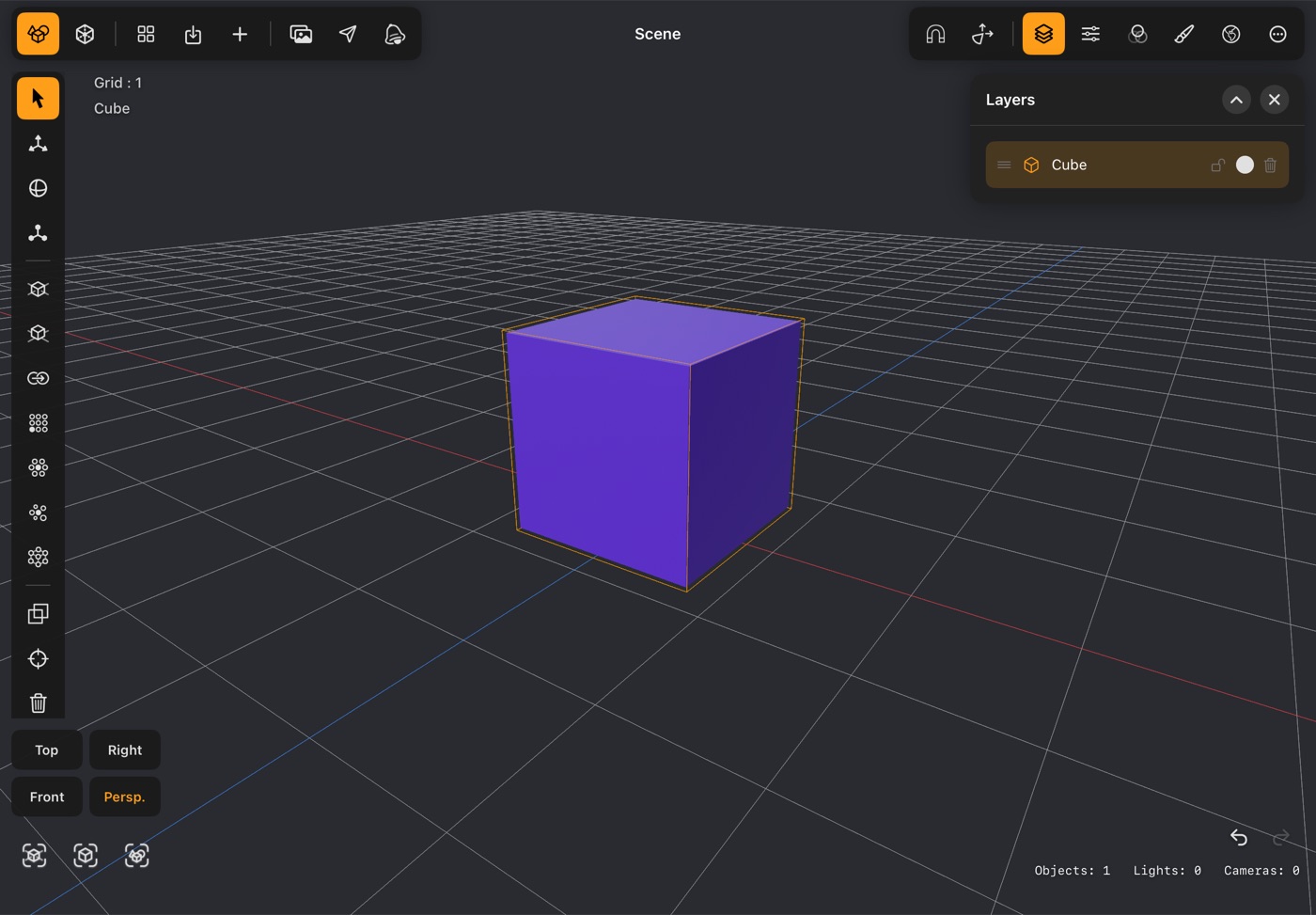
- Every object in the scene, in order, with children indented under their parents.
- Each row has an eye to hide the object and a lock to stop it being picked by accident.
- Drag a row by its handle to reorder it within its own level; its children come with it.
- Long press a row for renaming, parenting (Parent To, Unparent, and Merge on a row with children), Lock, and Delete. A camera's row can also make it the active camera.
- Move to Top and Move to Bottom in the same menu send the row, children and all, to the first or last place within its own level — the quick way instead of a long drag. Each is dimmed when the row is already there.
Property panel
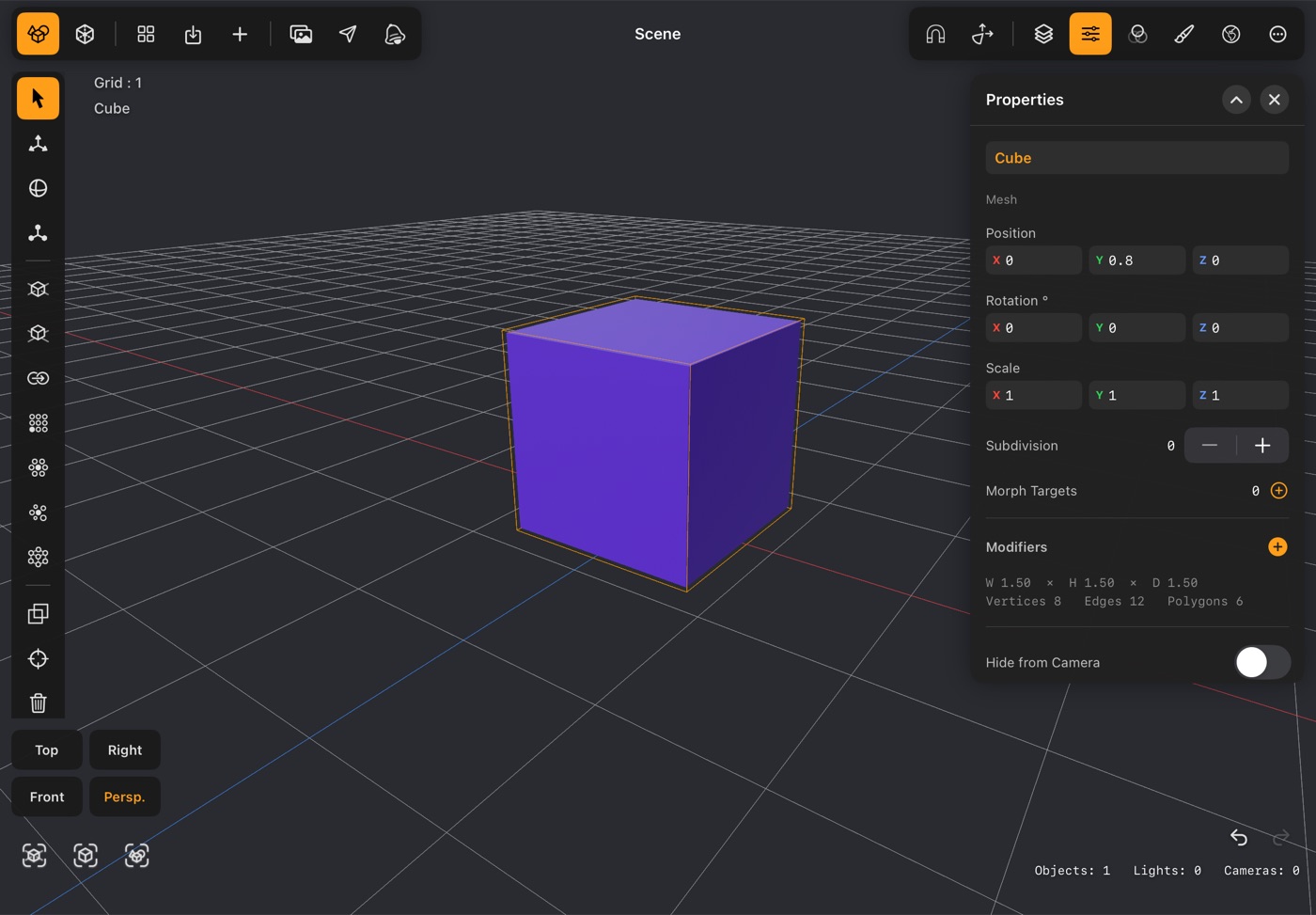
- Exact position, rotation and scale for the selected object.
- Subdivision smooths the object for display without changing the mesh, so your editable cage stays simple. Set it back to 0 at any time.
- Morph targets and modifiers are further down — modifiers stack in order and can be turned off individually.
- For a light or a camera, this panel shows that object's own settings instead — see Lights & cameras.
- Hide from Camera (objects and Null groups) keeps the object out of the RT render while it still does its job in the scene — see RT:Render. Hiding a Null hides everything in it.
Material panel
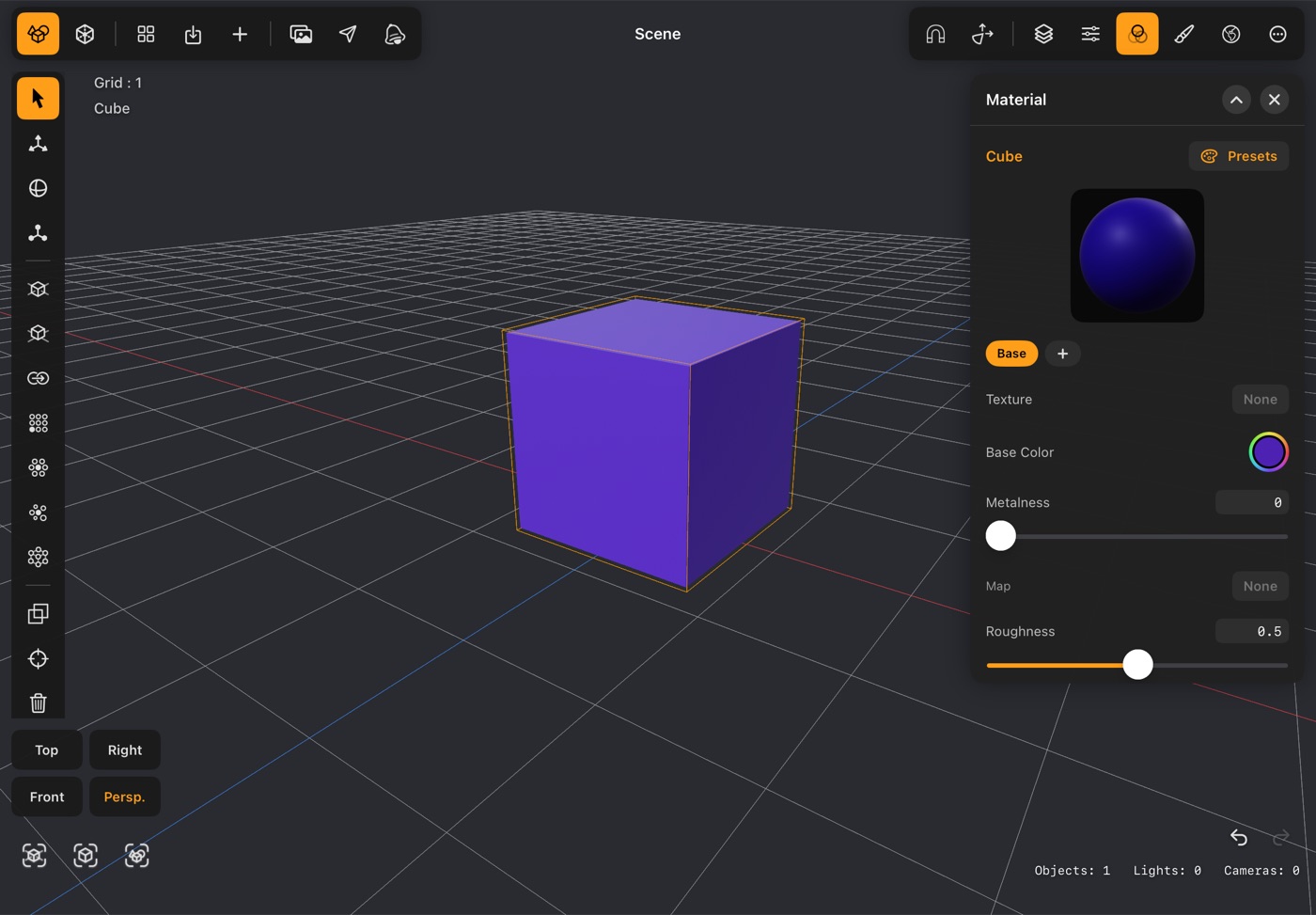
- Sets how the surface looks: base colour, metalness, roughness, emission and transparency.
- The sphere at the top is a live preview of the current material, so you can judge it without hunting round the viewport.
- Presets opens a grid of saved materials — tap to apply, and save your own from here.
- An object can carry more than one material: assign extra slots to selected polygons in Modeler mode.
Environment panel
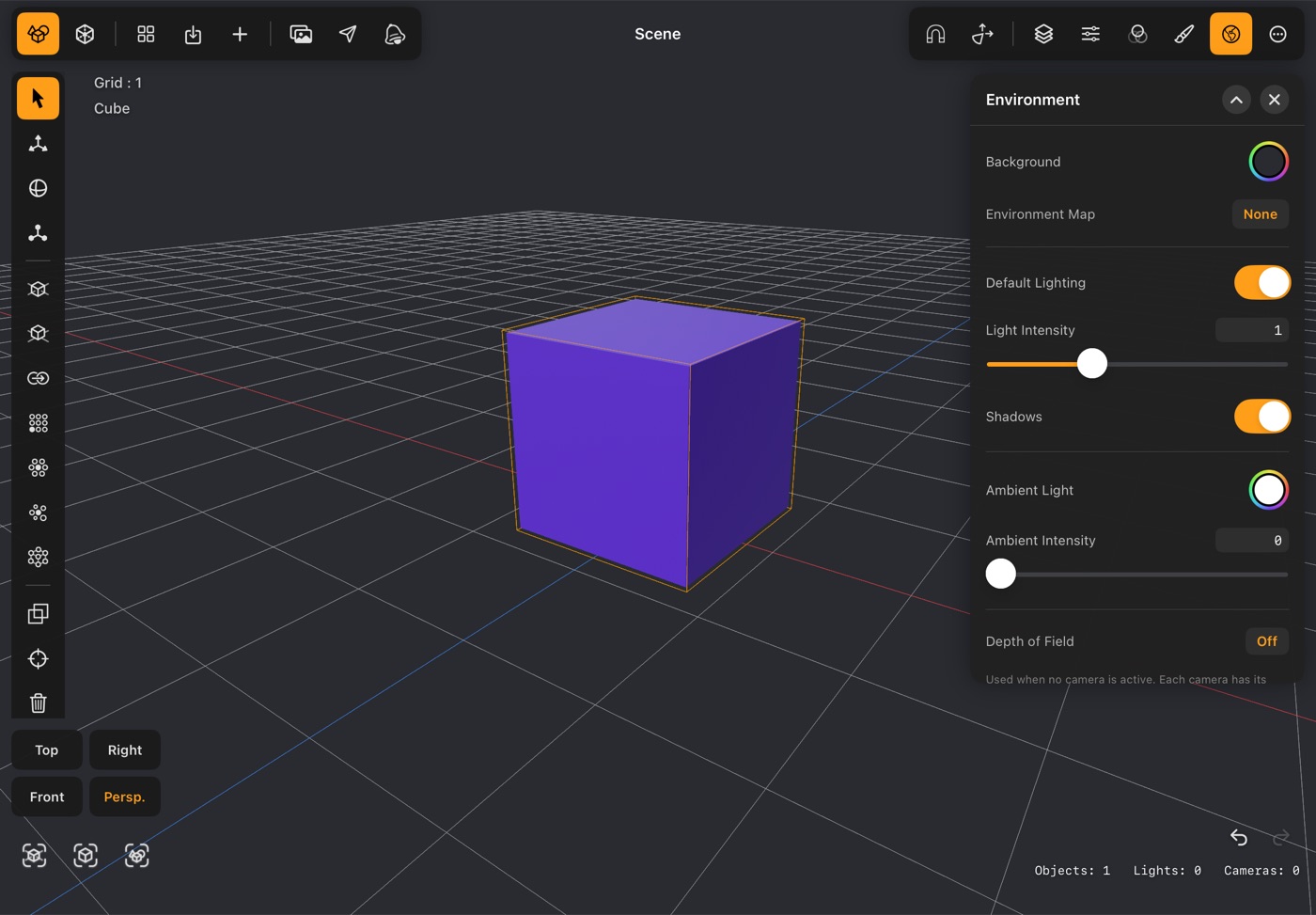
- Settings for the scene as a whole rather than any one object.
- Background colour, and an environment map for image-based lighting and reflections.
- Default lighting gives you a usable studio setup until you add lights of your own; turn it off once you have.
- Shadows, ambient light and depth of field live here too — depth of field applies to the RT:Render output. This one is for the free view; a camera's own (in its Property panel) takes over while you look through it.
Image library
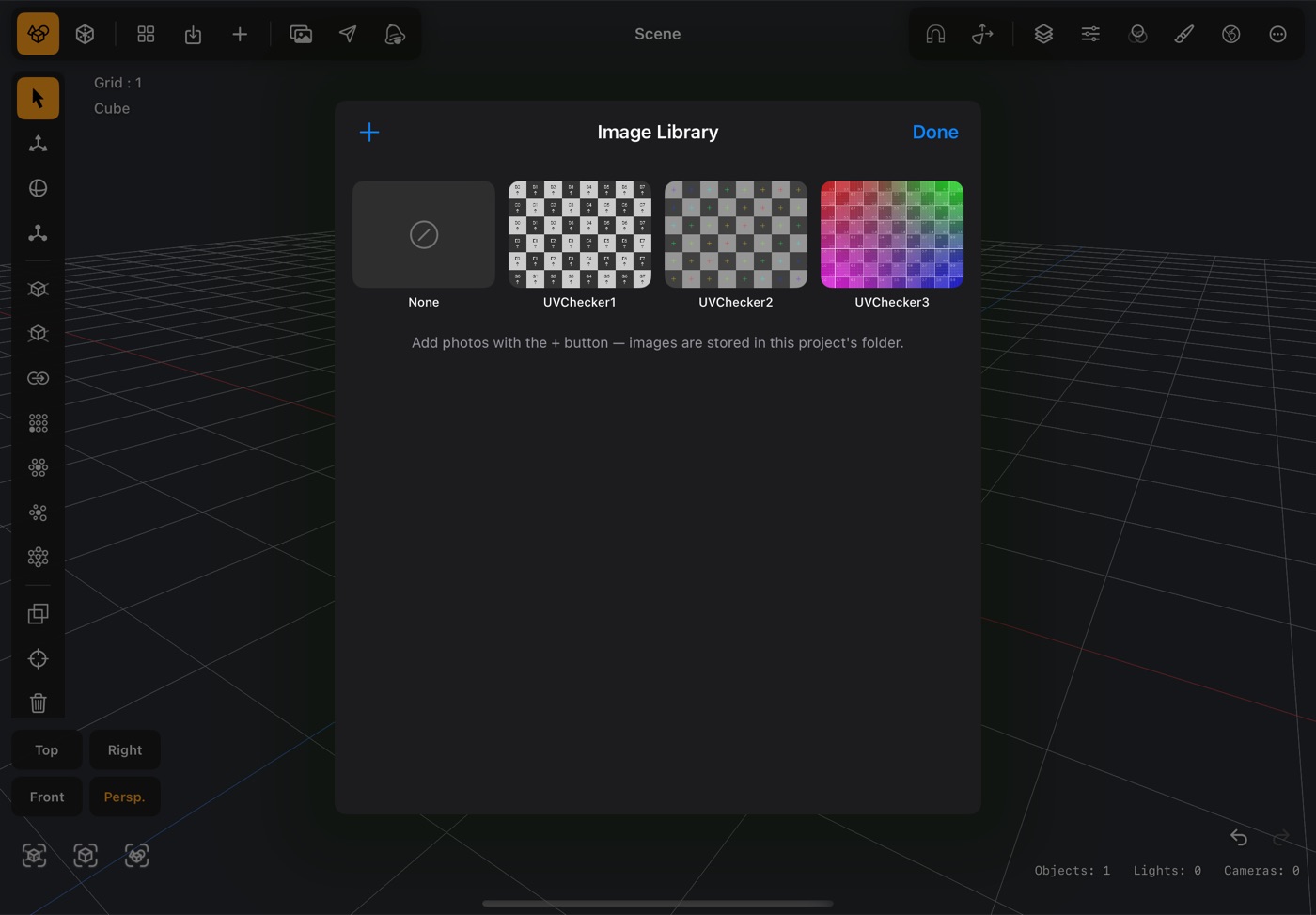
- Holds the images this project can use — texture maps, reference images and environment maps.
- Add your own with +; they are copied into the project's own folder, so the project stays self-contained.
- The bundled UV checkers are useful for seeing how a texture is being laid out before you paint anything.
Lights & cameras
Lights and cameras are objects like any other: add them from the + menu in Scene mode (the Light and Camera sections), move and turn them with the gizmo, parent them, key them on the timeline, and find them in the Layer panel. Select one and the Property panel shows its own settings. They have no size, so Scale does nothing to them.
Lights
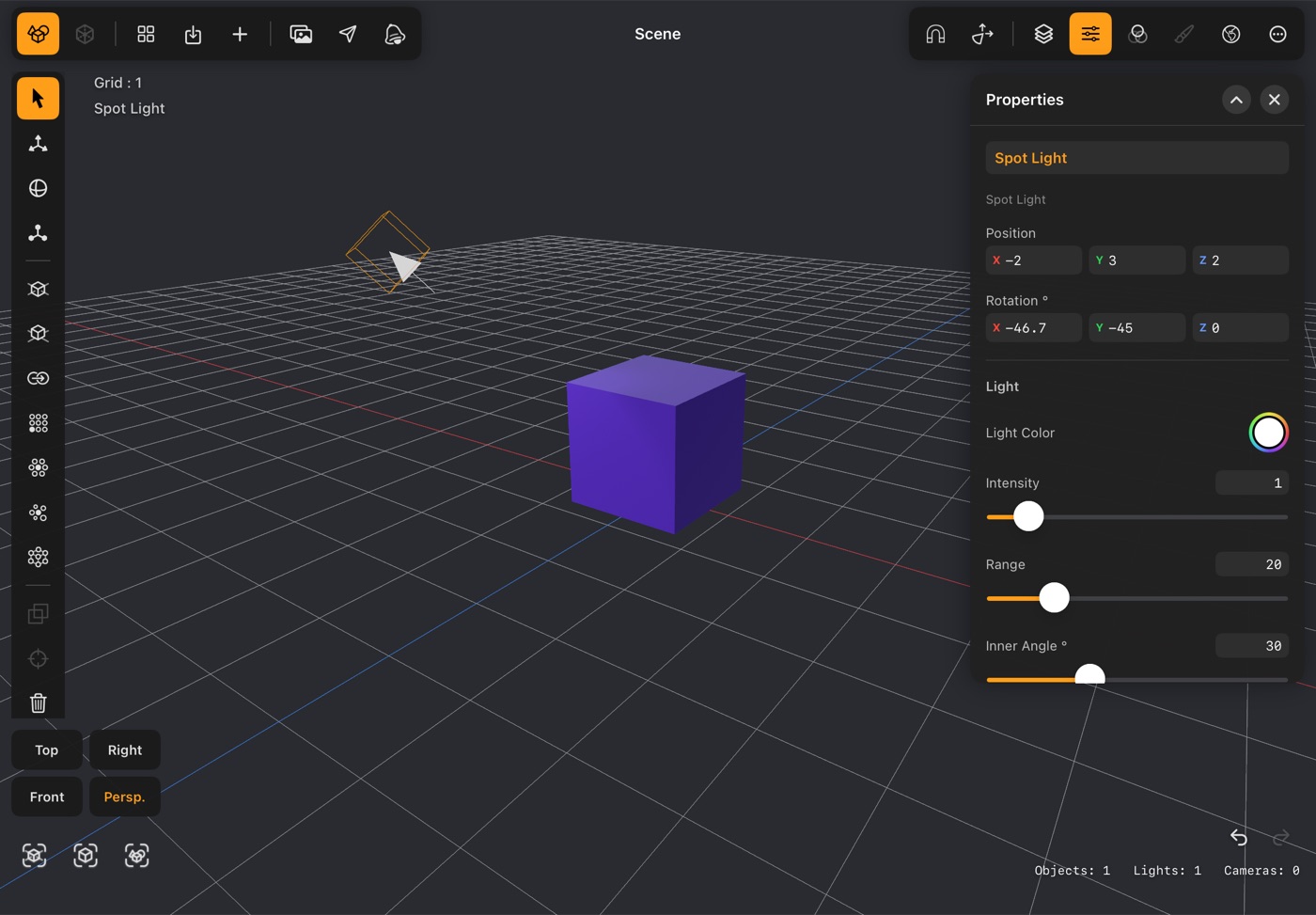
- There are four kinds. Directional is sunlight: parallel rays from one direction, the same strength everywhere, so only which way it points matters. Point shines in every direction from one spot, like a bare bulb. Spot shines a cone from one spot, like a torch or a stage light. Area is a glowing rectangular panel — a softbox or a window — and gives the softest shadows.
- A new light is placed up and to one side of the scene. Directional, spot and area lights come already aimed at the middle of the scene; rotate one to aim it somewhere else.
- Light Color and Intensity (0–10) are shared by every kind.
- Range (point and spot) is how far the light reaches before it fades out completely — useful for keeping a lamp from lighting the whole scene. The render uses the same limit as the viewport.
- Inner Angle and Outer Angle (spot) shape the cone: full strength inside the inner angle, fading to nothing at the outer one. Close together gives a hard-edged pool of light; far apart a soft one.
- Width and Height (area) set the size of the panel. A bigger panel means softer shadows.
- Distance Falloff (area) off makes the panel light the whole scene evenly, like a distant window. On, it becomes a local light that fades to nothing at Falloff Distance and only lights what is in front of it. This applies in RT:Render; the viewport still shows area lights as directional.
- Cast Shadow turns the light's shadows on or off. A shadowless light is handy as a fill. Point lights show no shadows in the viewport, but they do cast them in RT:Render. Shadows in the Environment panel switches every light's shadows at once.
- With the timeline open, the key button beside Light records the light's settings — colour, intensity, range, cone and panel size — at the playhead, so a light can fade, change colour or widen over time.
Cameras
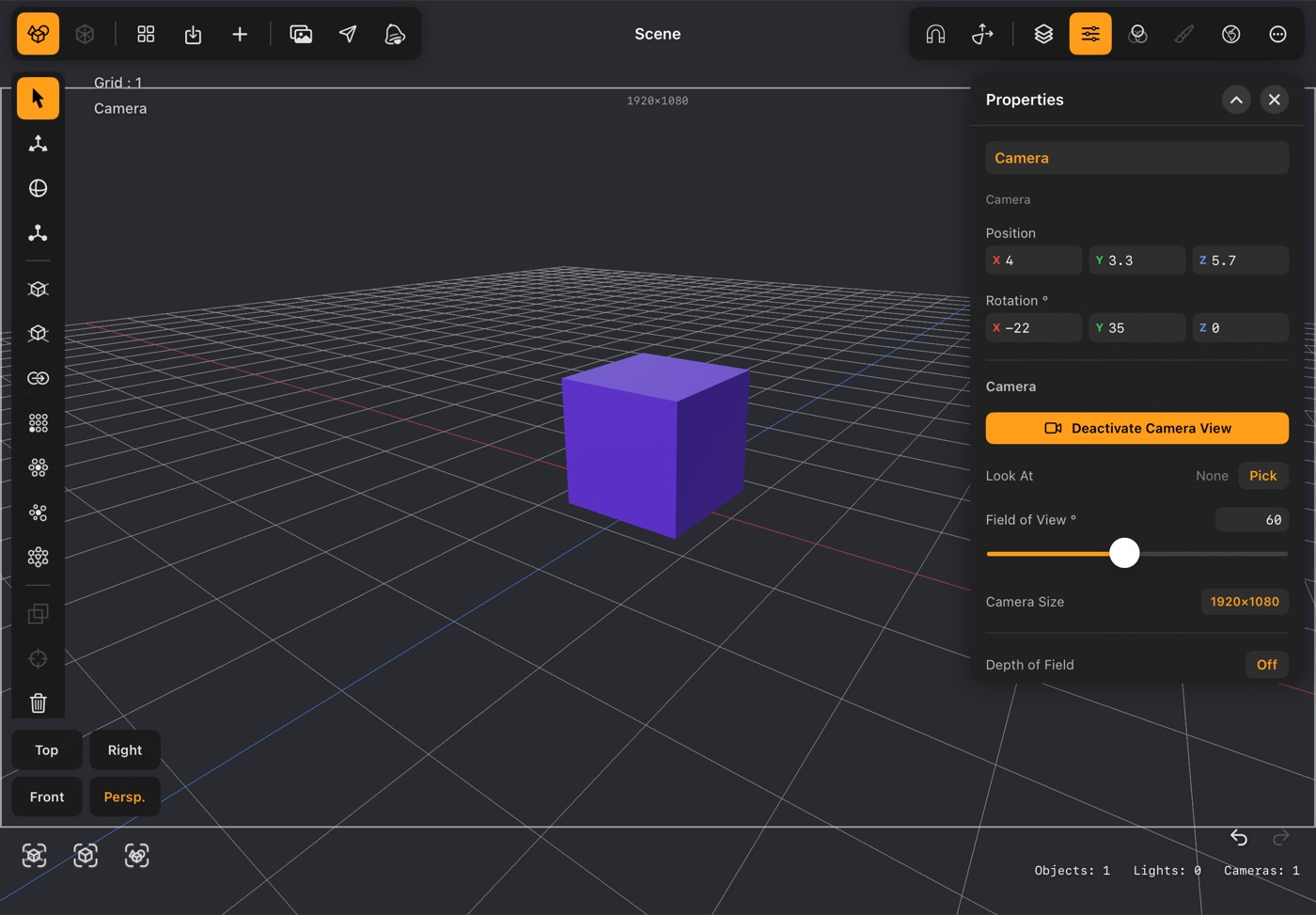
- A new camera starts exactly where your view is and becomes the active camera straight away. So the quickest way to set up a shot is to frame it in the viewport first, then add the camera.
- Set Active Camera (Property panel, or the Layer panel's menu) looks through that camera. Its output frame is drawn over the view, and RT:Render renders through it at its own size. Deactivate Camera View goes back to the free view. The project remembers which camera was active.
- Field of View is how wide the lens is, in degrees: small values zoom in like a telephoto, large ones take in more like a wide angle.
- Camera Size is the output resolution — pick a preset (1920×1080, 1080×1920, 1080×1080, 1280×720, 2048×2048, 3840×2160) or Custom for your own width and height. It sets the shape of the frame and the size of the render.
- Depth of Field blurs what is not in focus, in RT:Render. Choose an aperture — a smaller f-number blurs more — or Custom for an exact Aperture f/ value, and choose what it focuses on: Pivot (the view's orbit point), Selected (an object you pick) or Manual (a distance you set). Each camera has its own, set here and saved with the project; rendering through a camera uses that camera's. The Environment panel holds the one used when no camera is active.
- Opening Modeler mode steps out of the camera view so you can edit freely; it comes back when you return to Scene mode.
- Cameras animate like other objects, and their field of view can be keyed too — see What you can animate. With the timeline open, looking through an animated camera follows its keyed move.
Polygon tools
These need Modeler mode with the polygon edit button chosen. Tap a face to select it; the selection menu in the top bar has select-all, invert, loop, connected and the rest when you want more than one.
1Extrude
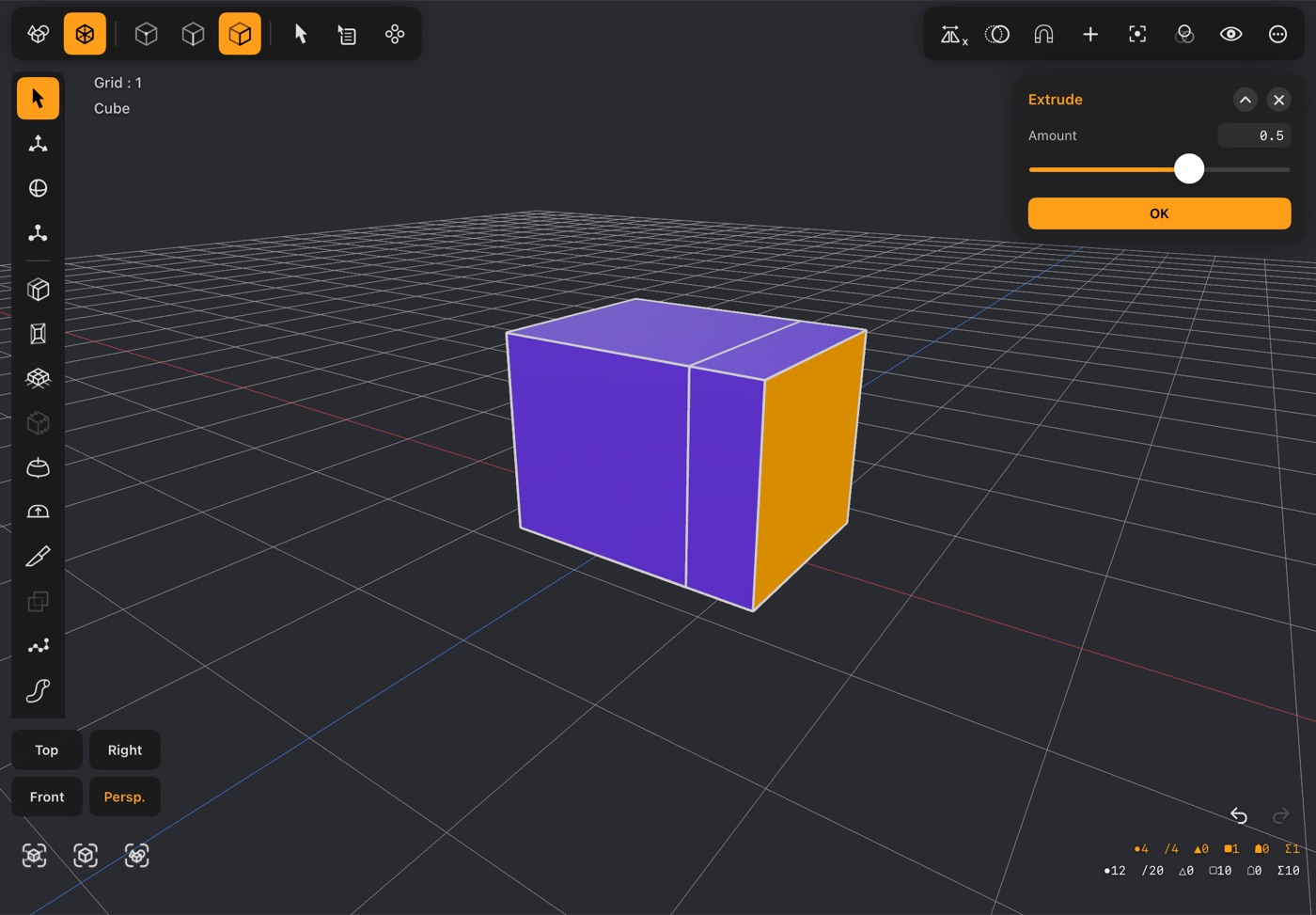
- Select one or more faces and tap Extrude.
- Drag Amount to push the faces out along their normal; a negative amount pushes them in.
- New side walls are built around the opening, so the mesh stays closed.
- With more than one face selected, Group / Individual appears: Group moves them as one region with shared walls, Individual pushes each face out along its own direction.
- Close Bottom appears when the object is open (a plane, say). It keeps the original face as a floor, so extruding a flat shape gives you a closed box instead of an open-bottomed one.
2Inset
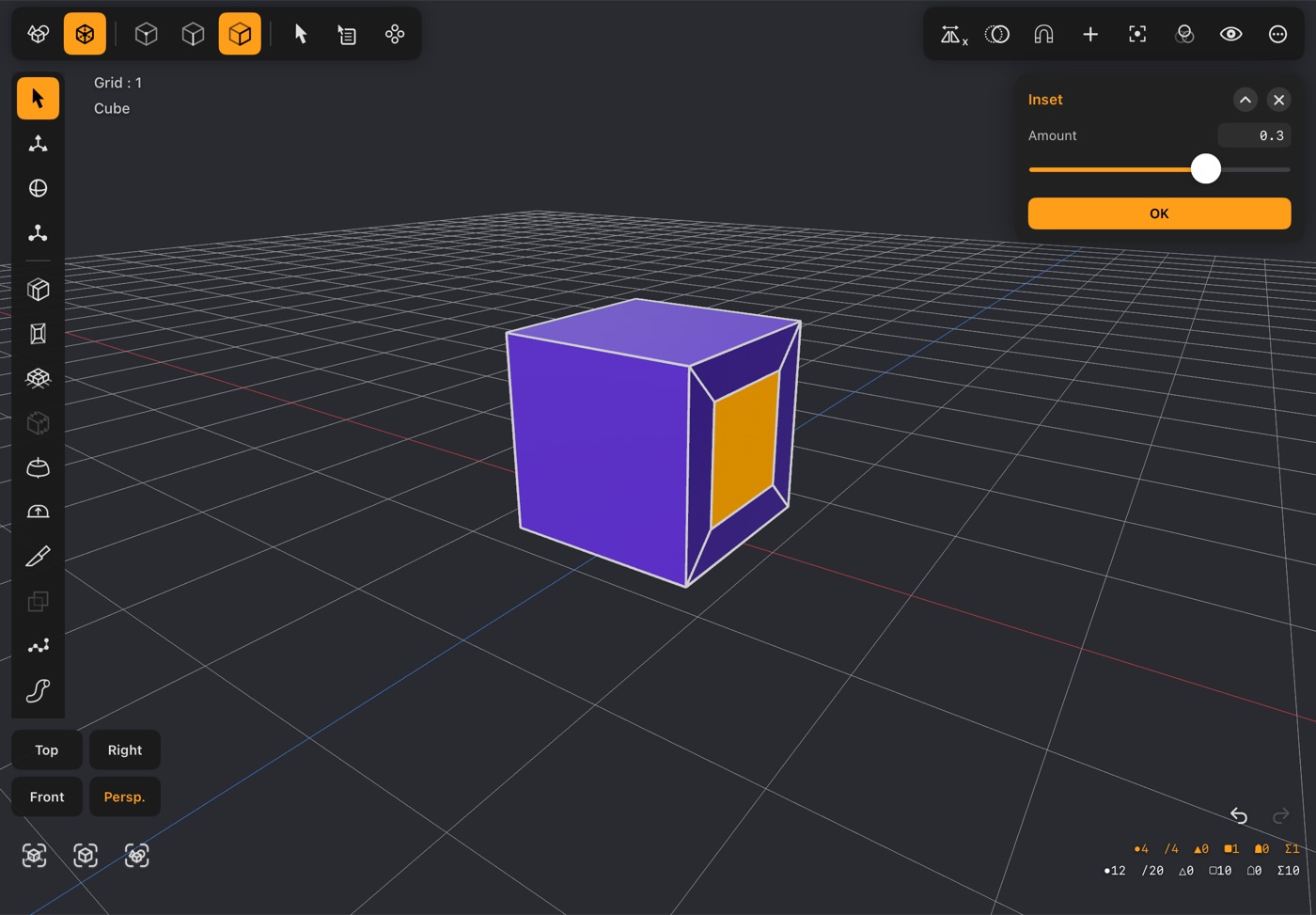
- Select faces and tap Inset.
- Amount shrinks a copy of the face inside the original, leaving a border ring of new faces around it.
- A negative amount outsets instead — the copy grows past the original edge.
- With several faces selected, Group insets them as one region with one border; Individual gives each face its own.
- The inner face is left selected, so Inset then Extrude is the usual way to sink a panel or raise a boss.
3Smooth Shift
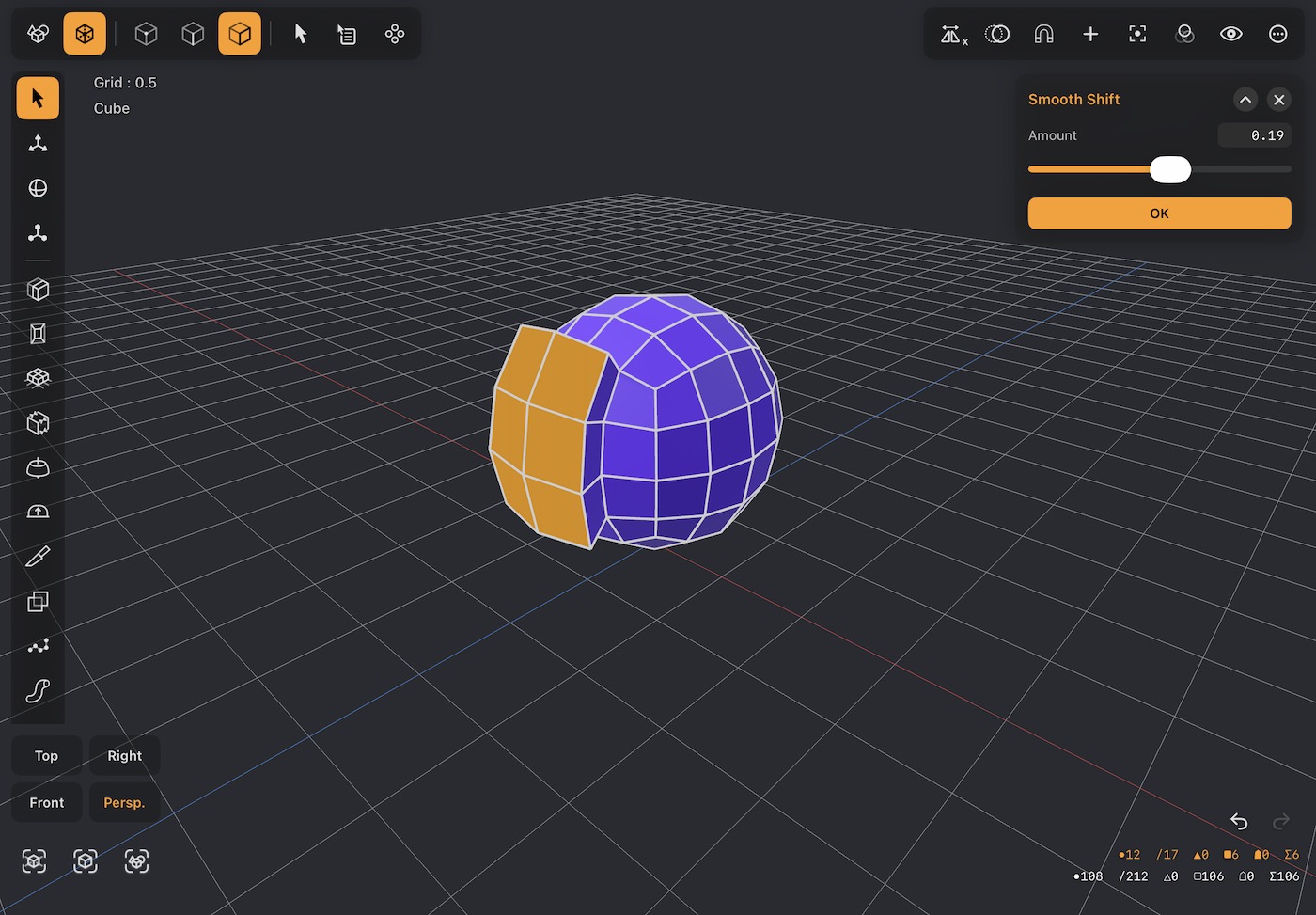
- Works like Extrude, but each point moves along the averaged direction of the surface at that point rather than straight out of the flat face.
- On a curved mesh that keeps the shifted region following the curvature instead of pointing off in one flat direction.
- Amount is how far the faces move; negative moves them in.
- On a flat face the two look the same — the difference shows on anything rounded or subdivided.
4Mesh Blend
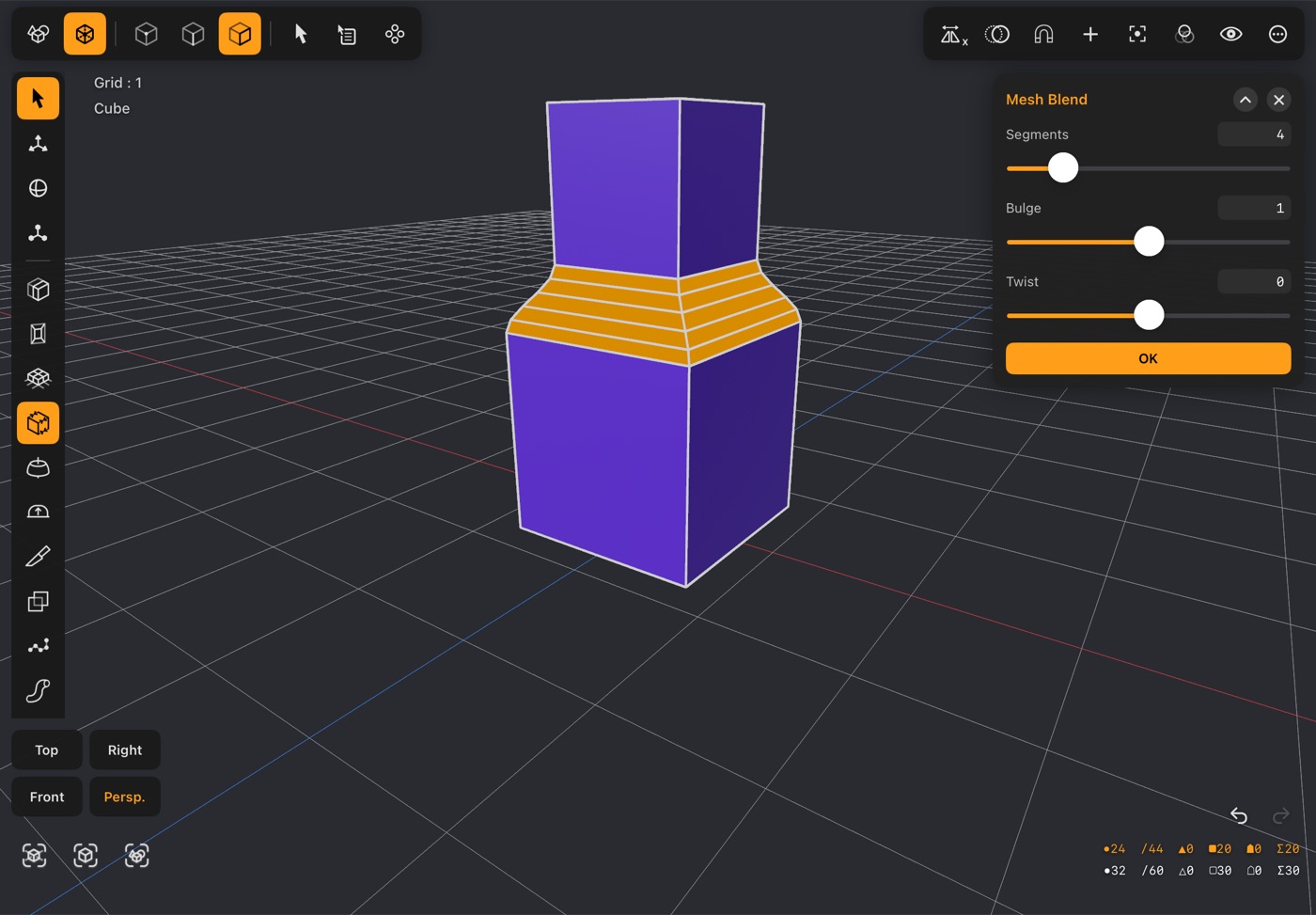
- Lofts a smooth bridge between two separate groups of faces in the same object.
- Select both groups, then tap Mesh Blend. The two groups must be separate islands, and their boundaries must have the same number of points. The button stays dimmed until at least two faces are selected.
- Segments sets how many rings the bridge is built from — 0 gives a straight connection, higher values a smooth curve.
- Bulge swells or pinches the middle; Twist rotates one end relative to the other.
5Lathe
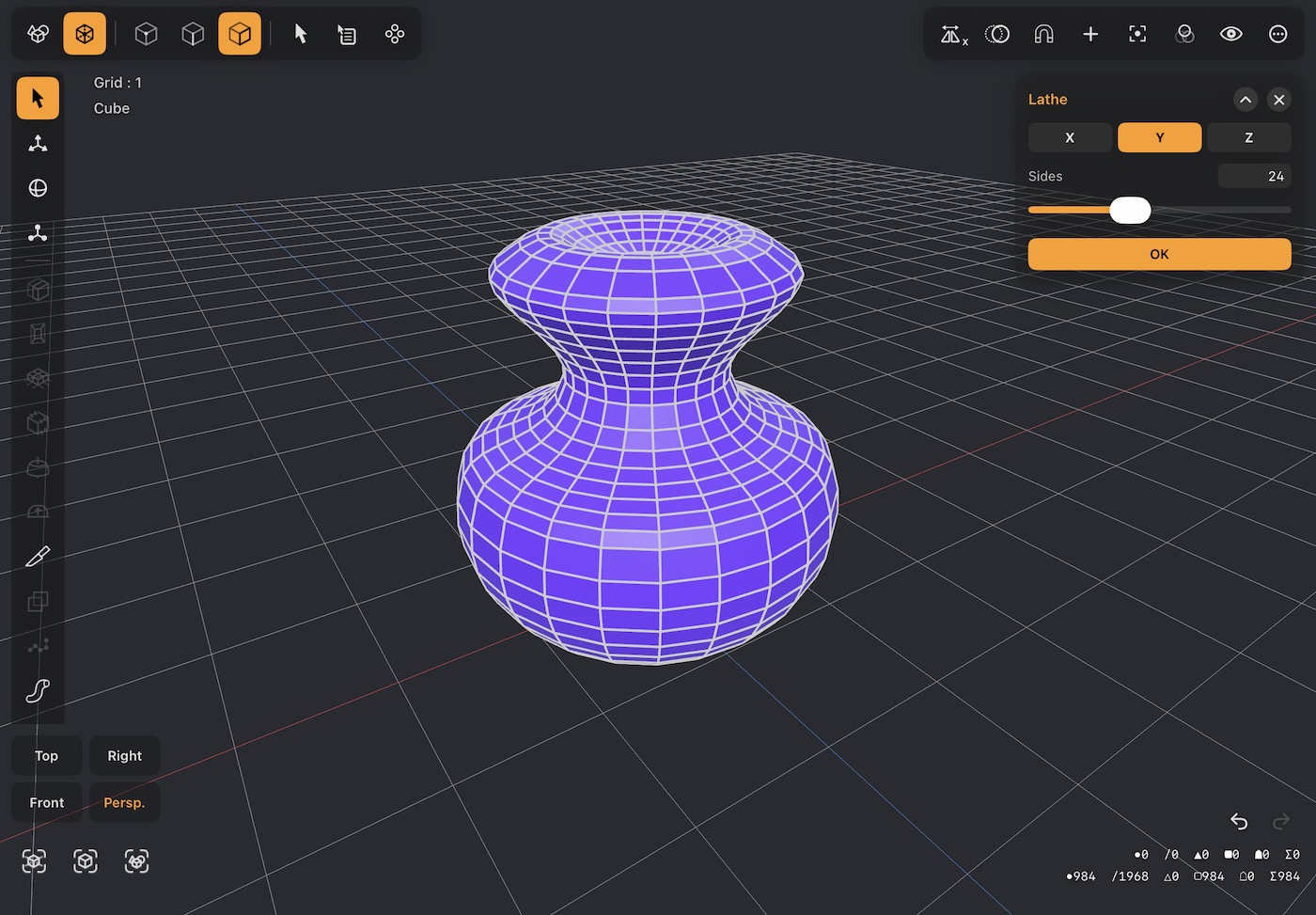
- Revolves the selected face around an axis to make a solid of revolution — a glass, a bottle, a wheel.
- Pick the axis with X / Y / Z, and Sides for how many steps go round.
- The face's distance from the axis becomes the radius, so move the face away from the centre first to open out the middle.
6Cap
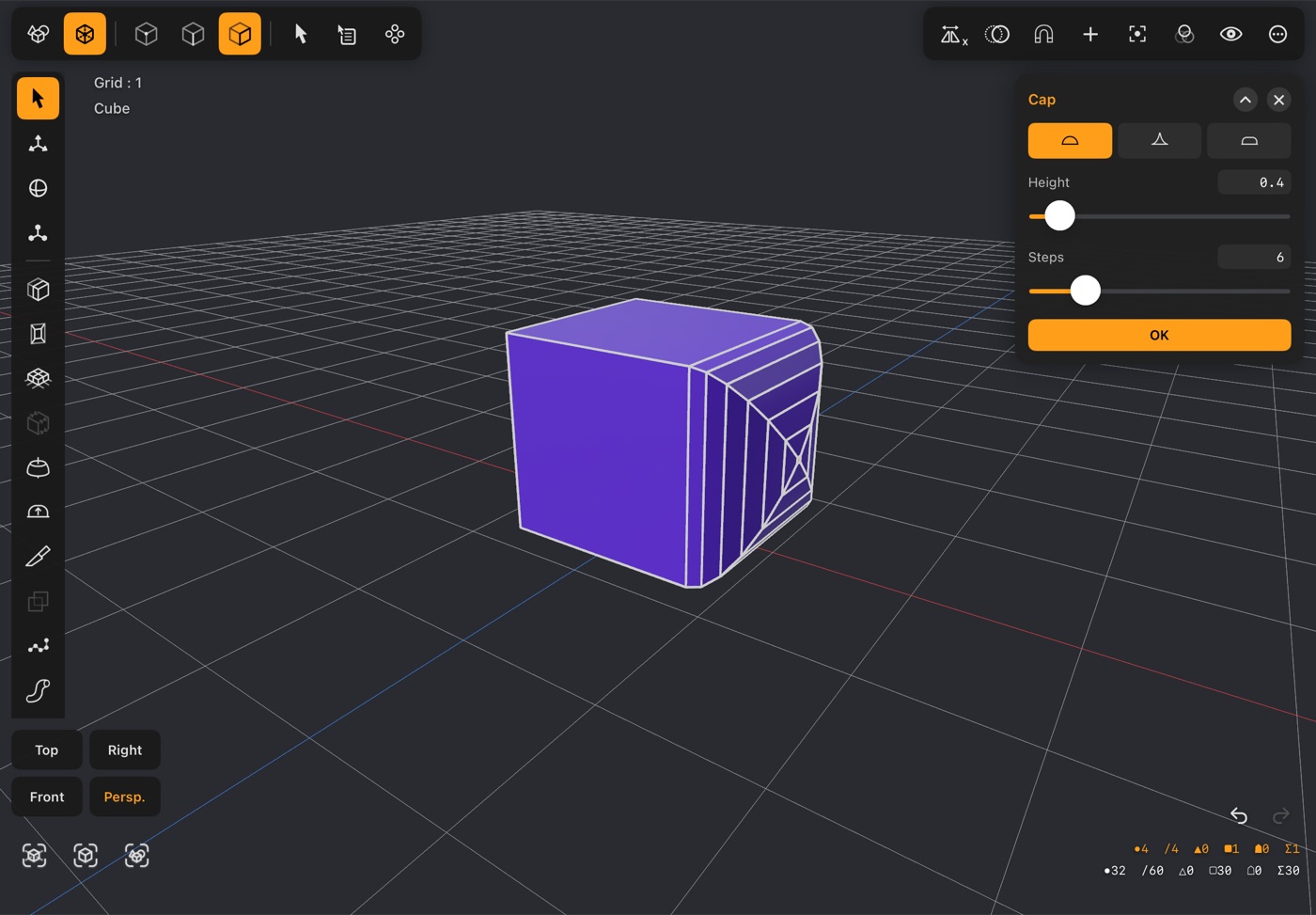
- Replaces the selected face with a raised profile, for a dome, a cone or a flat-topped boss.
- The three buttons pick the kind: dome, profile and flat-topped.
- Height (dome and profile) is how far the cap rises from the face.
- Profile (profile kind) runs from Pointy through a straight cone at 0 to fully Round.
- Flat Size (flat-topped kind) is how wide the flat top is, as a share of the face; the rounded sides follow from it.
- Steps is how many rings the curve is built from — more gives a smoother dome.
7Knife
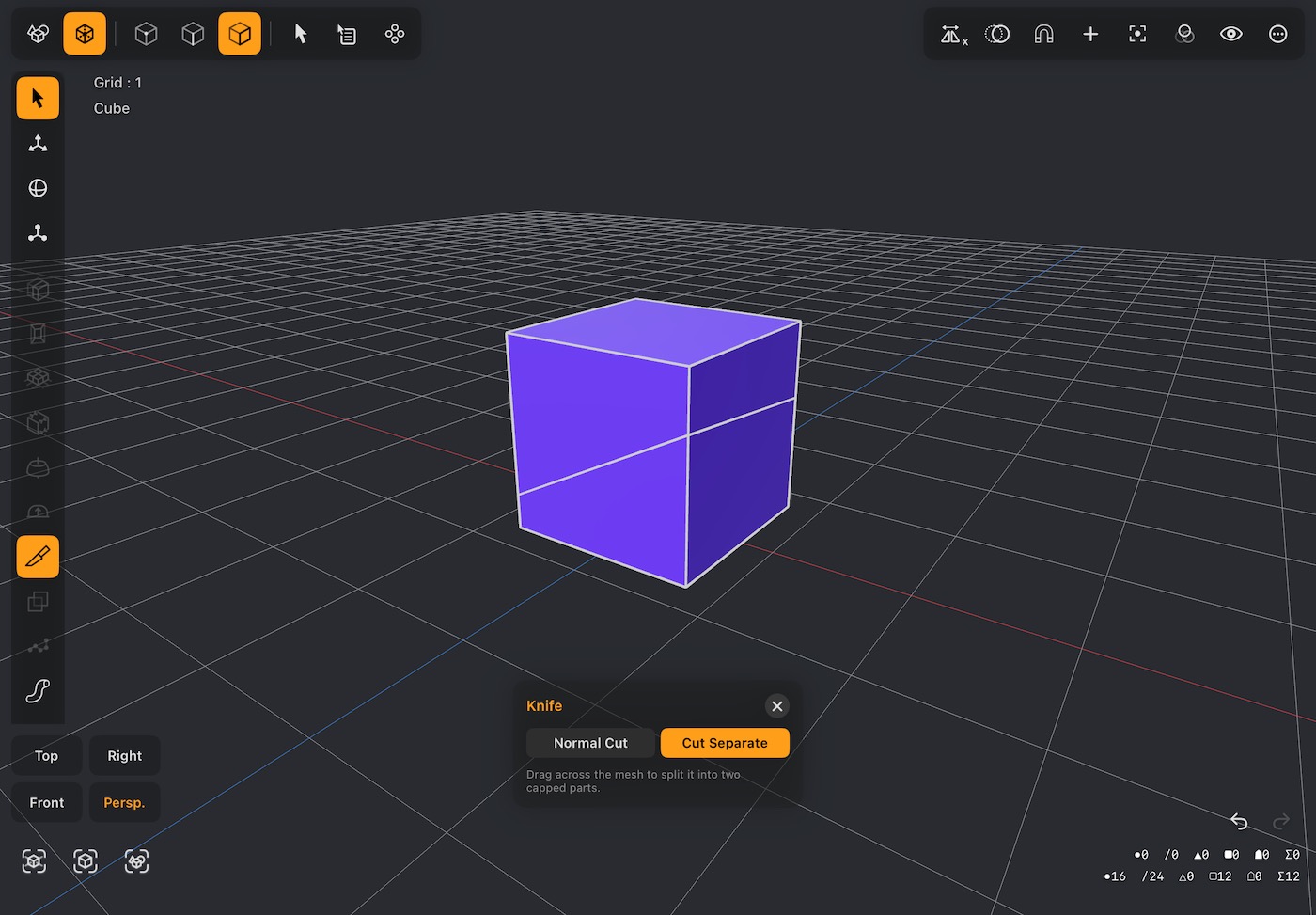
- Tap Knife, then drag across the mesh to slice a new edge where your finger crossed it.
- Normal Cut adds the edge and keeps the mesh in one piece.
- In poly mode with polygons selected, a Normal Cut whose line crosses the selection cuts only the selected polygons — handy for one band of faces, or a single face, without slicing the whole object. The polygons around them aren't split; they just share the new points, so nothing opens up. Both halves of each cut polygon stay selected. A line that misses the selection, or Cut Separate, still cuts the whole mesh. The Knife popup reminds you when this applies.
- Cut Separate splits the mesh along the cut, leaving two parts you can move independently.
- With Snap (the magnet) on, the line snaps to 10° steps and 45° — handy for straight, square or diagonal cuts in the Top, Front and Right views. 0° is horizontal on screen.
- On iPad, while you drag, the top-left line shows the cut's angle (Knife angle 45°).
- Tap the tool again to put the knife away.
8Boolean
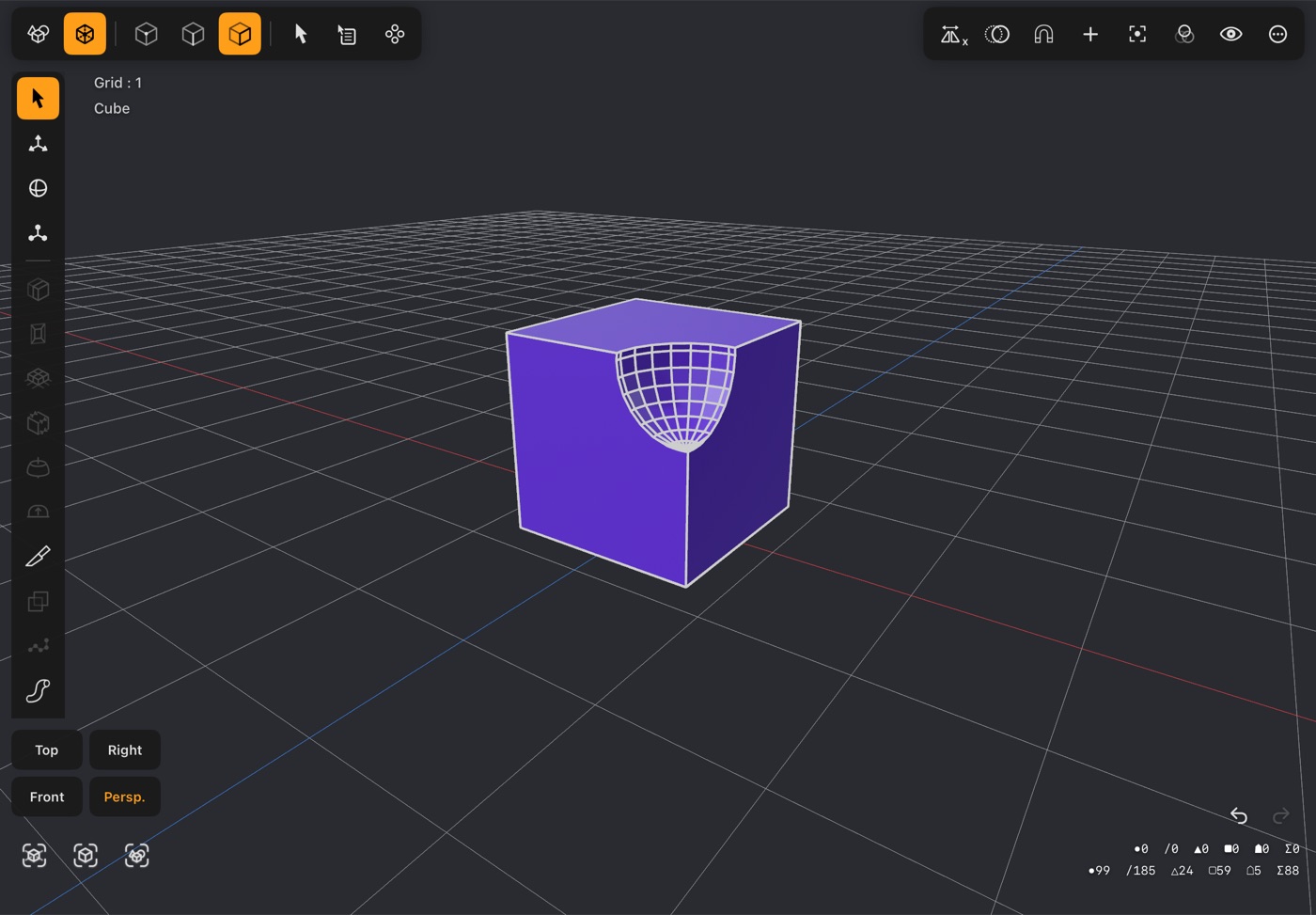
- Combines the selected part of the object with the rest of the same object. Both parts have to live in one object — add the second shape with + while in Modeler mode, which merges it into the mesh you are editing.
- Select the faces of the part you want to use, then choose from the menu. It stays dimmed until at least two faces are selected, and while every face is — then there is nothing left to combine them with:
- Union fuses the two into one solid.
- Subtract cuts the selected part out of the rest.
- Intersect keeps only the volume the two share.
9Clone Along Path
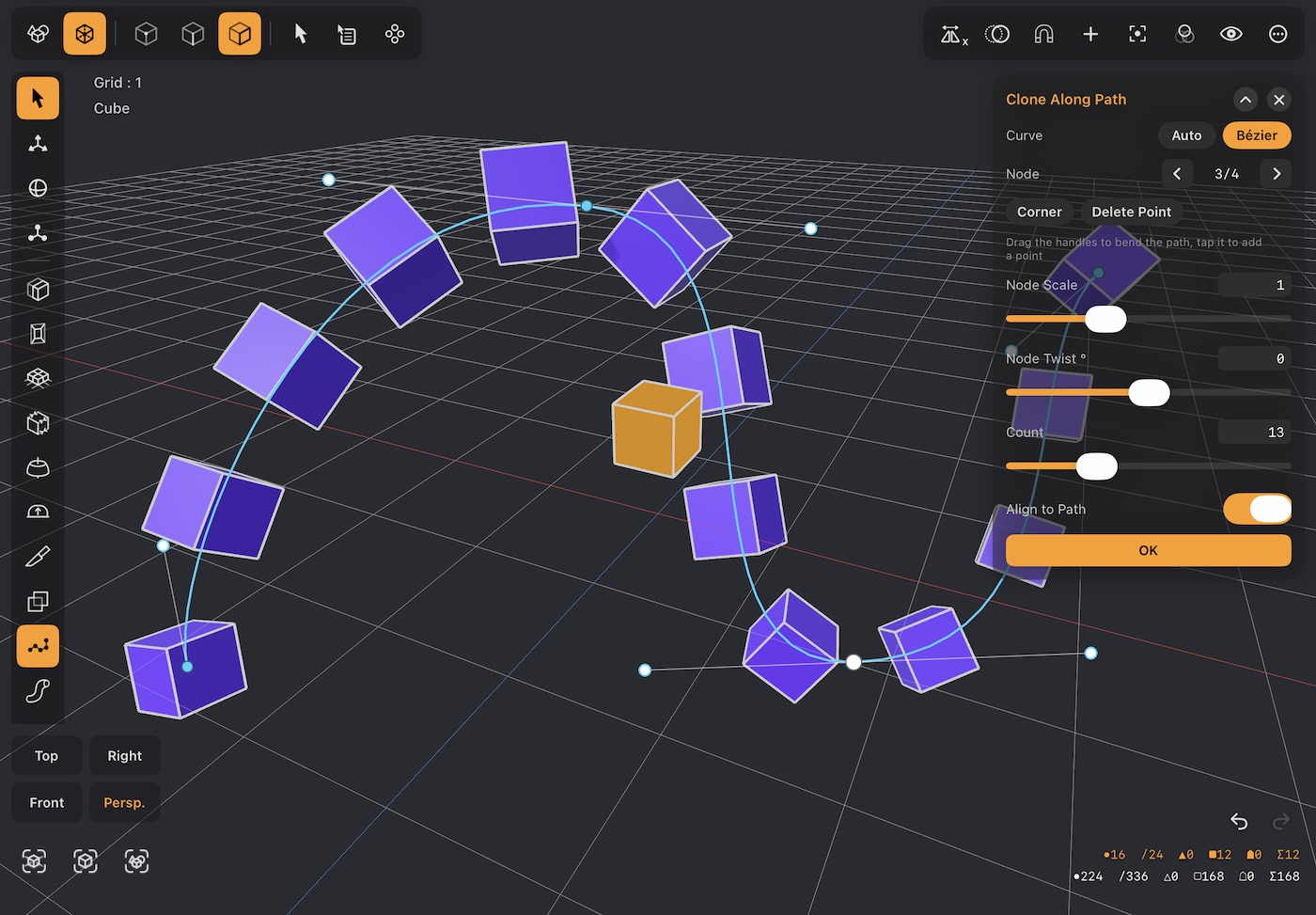
- Select the faces you want repeated, tap Clone Along Path, then draw a line in the viewport with your finger.
- Copies of the selection are placed along that line, evenly spaced however it bends.
- Count is how many copies (2–40), spread over the whole path.
- Align to Path on turns each copy to follow the direction of the line; off, they all keep the original's orientation.
- Node steps through the path's points (◀ ▶, or tap one in the view). Node Scale and Node Twist ° scale and turn the copies at that point, blending smoothly to the next — so the copies can grow, shrink or spin along the way.
- Tap OK to keep the copies; ✕ cancels.
- The path stays editable — drag its points to move the whole run of clones with it.
- Curve sets how the path bends. Auto runs smoothly through the points by itself. Bézier follows your line with just the few points its bends need, each with two handles: drag them to bend the path exactly how you want, tap the path to add a point, and use Corner / Smooth and Delete Point on the selected one. Until you change something, switching back to Auto brings the original points back. The app remembers your choice for the next path.
- With Snap on and Reference Objects on, the path you draw lands on a reference's surface, and a node you drag snaps onto it.
10Sweep Along Path
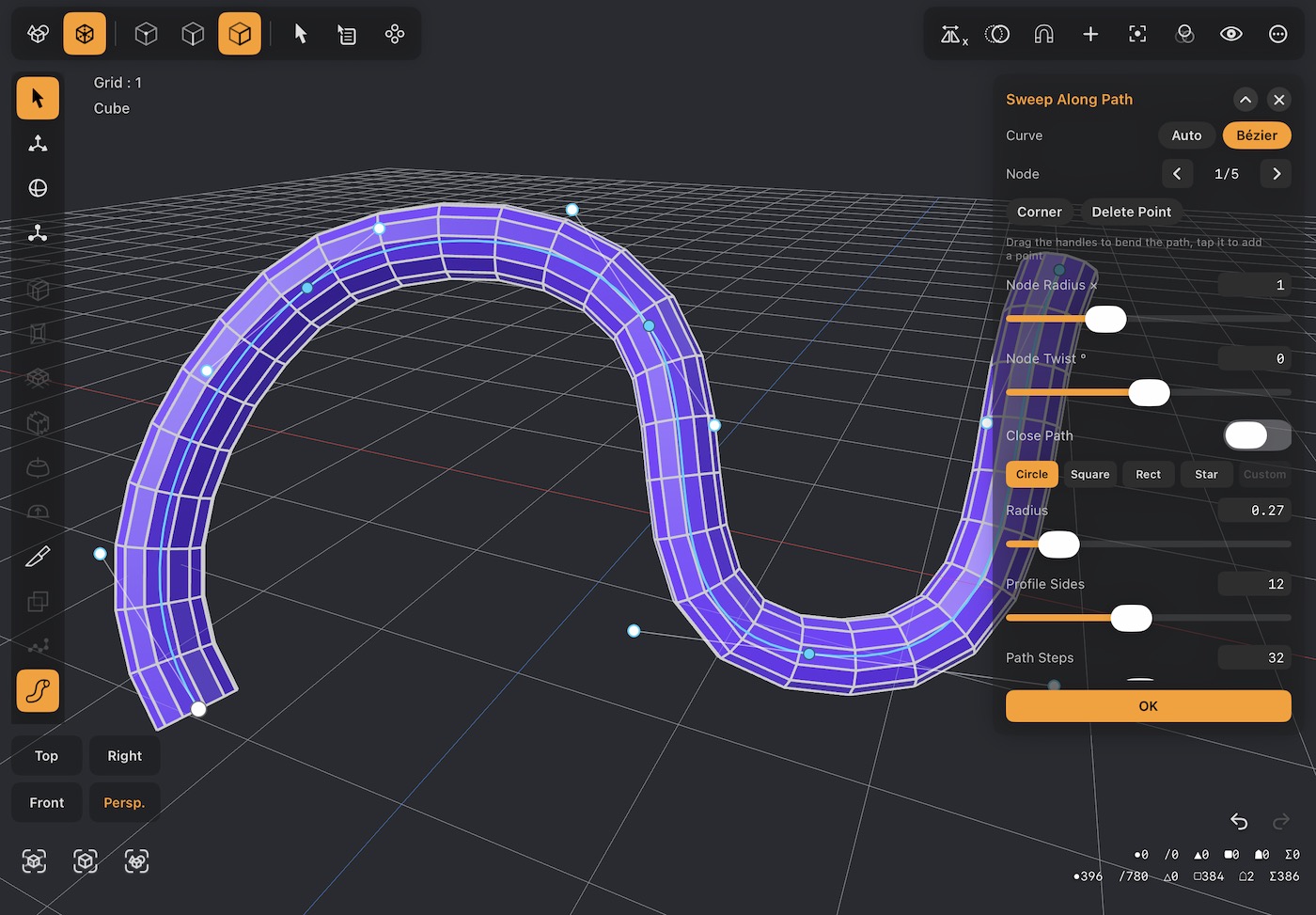
- Extrudes the selected face along a line you draw, so the face becomes the cross-section of a rail, a cable or a moulding.
- Tap Sweep Along Path and draw the path; the profile follows it and turns to stay square to the direction of travel.
- Path / Pipe at the top picks how you draw: Path is one freehand stroke, Pipe places points one tap at a time for a run of straight pieces with rounded corners — tubing, handrails, frames.
- Profile is the shape of the cross-section: Circle, Square, Rect, Star, or Custom — the shape of the face you selected (only when a face was selected).
- Radius sizes the section; Width and Height appear for Rect; Profile Sides (Circle) is how many sides the round section has.
- Close Path joins the end back to the start for a ring with no ends (needs at least three points). An open path is capped at both ends.
- Taper (open paths) scales the section from start to end — below 1 it narrows toward the end, above 1 it widens.
- Node, Node Radius × and Node Twist ° fatten, thin or turn the section at one point of the path, blending to the next.
- For a Pipe, Corner Radius is how round each corner is and Corner Smoothness how many steps go round it; 0 gives sharp mitred corners.
- A drawn path has the same Curve choice as Clone Along Path: Auto, or Bézier with a few points and their handles for exact control over the bends.
- Path Steps is how many rings the tube has from end to end. They are spread evenly along the path, and a Corner point always gets one, so the tube turns sharply there.
- With Snap on and Reference Objects on, the path — drawn or tapped as a Pipe — lands on a reference's surface, and a node you drag snaps onto it.
11Mesh Project
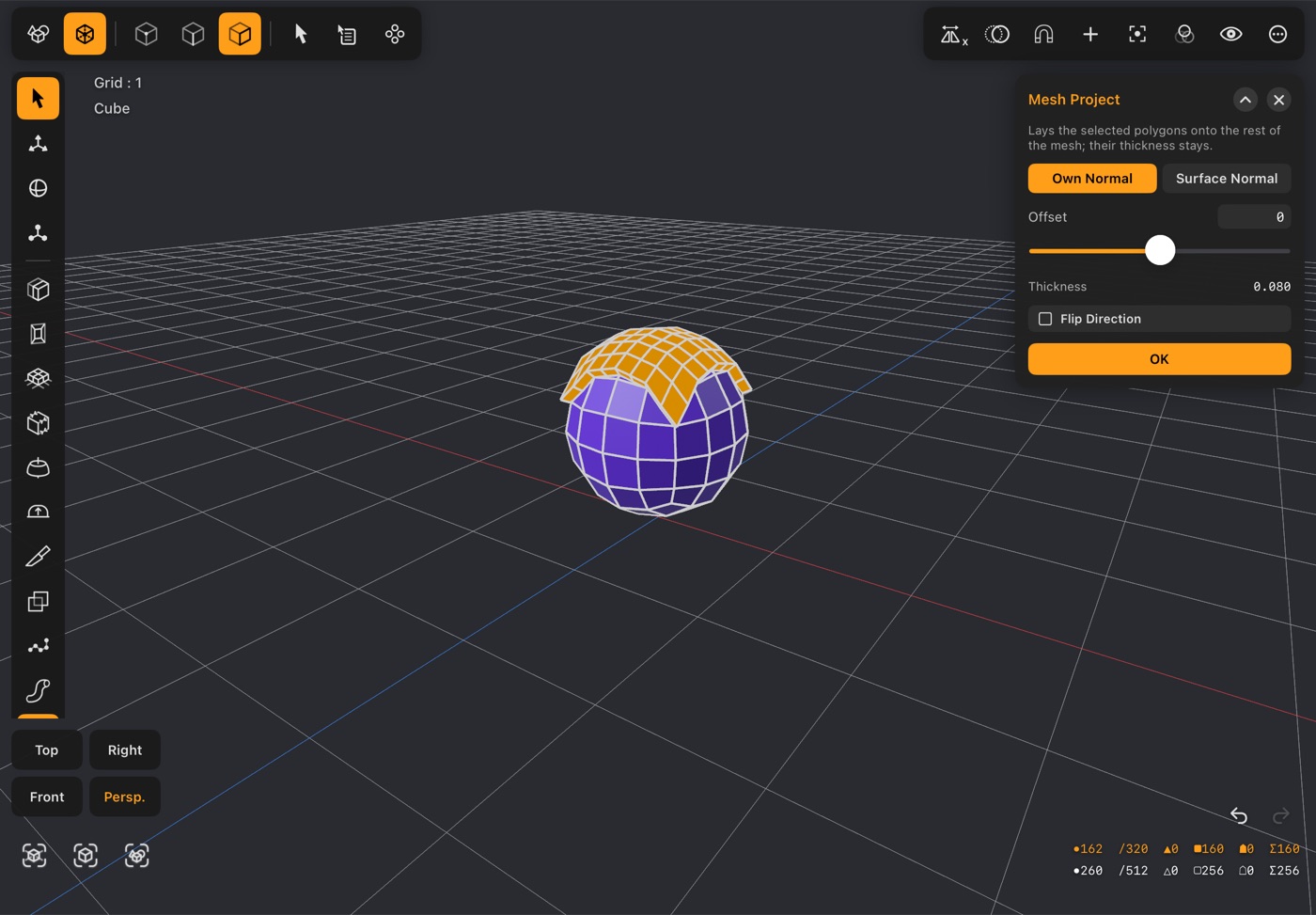
- Lays the selected polygons onto the rest of the object and keeps their thickness: a badge onto a curved shell, a plate onto a sloping side, a panel onto a hull.
- Select the polygons to move and tap Mesh Project. They land on every other visible part of the object that doesn't share a point with them.
- Own Normal lands them along the way the selection itself faces, like a projector, so the outline you see looking along it is kept. Surface Normal drops each point onto the nearest bit of surface instead, which pulls a badge held away from a curve in onto it.
- Every point keeps its height above the back of the selection, measured along the surface where it lands, so a thick badge is just as thick on a curve. Thickness shows how thick the selection is.
- Offset lifts the result off the surface (below 0 it sinks in). Flip Direction projects the other way — onto the other wall, or with the other side down.
- With Reference Objects on, This Mesh / Reference picks whether it lands on the rest of the object or on the references.
- Points that find no surface under them move with the rest, and the popup says how many. OK keeps the result as one undo step; ✕ cancels.
12Make Circle
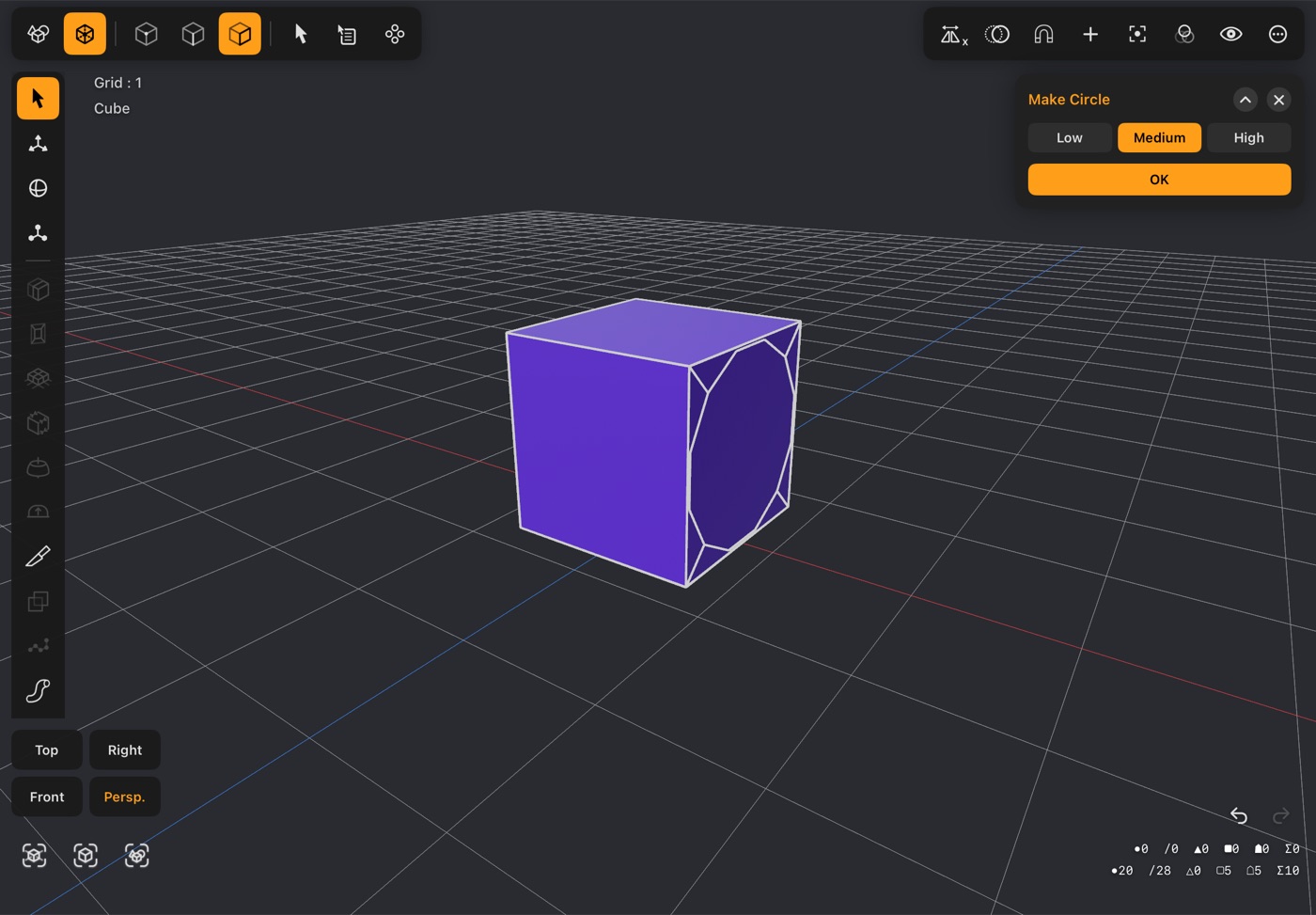
- Turns the selected face into the largest circle that fits inside it.
- Low, Medium and High set how many points the circle is built from.
- Useful as the first step in a hole: make the circle, then Extrude it inward.
13Merge
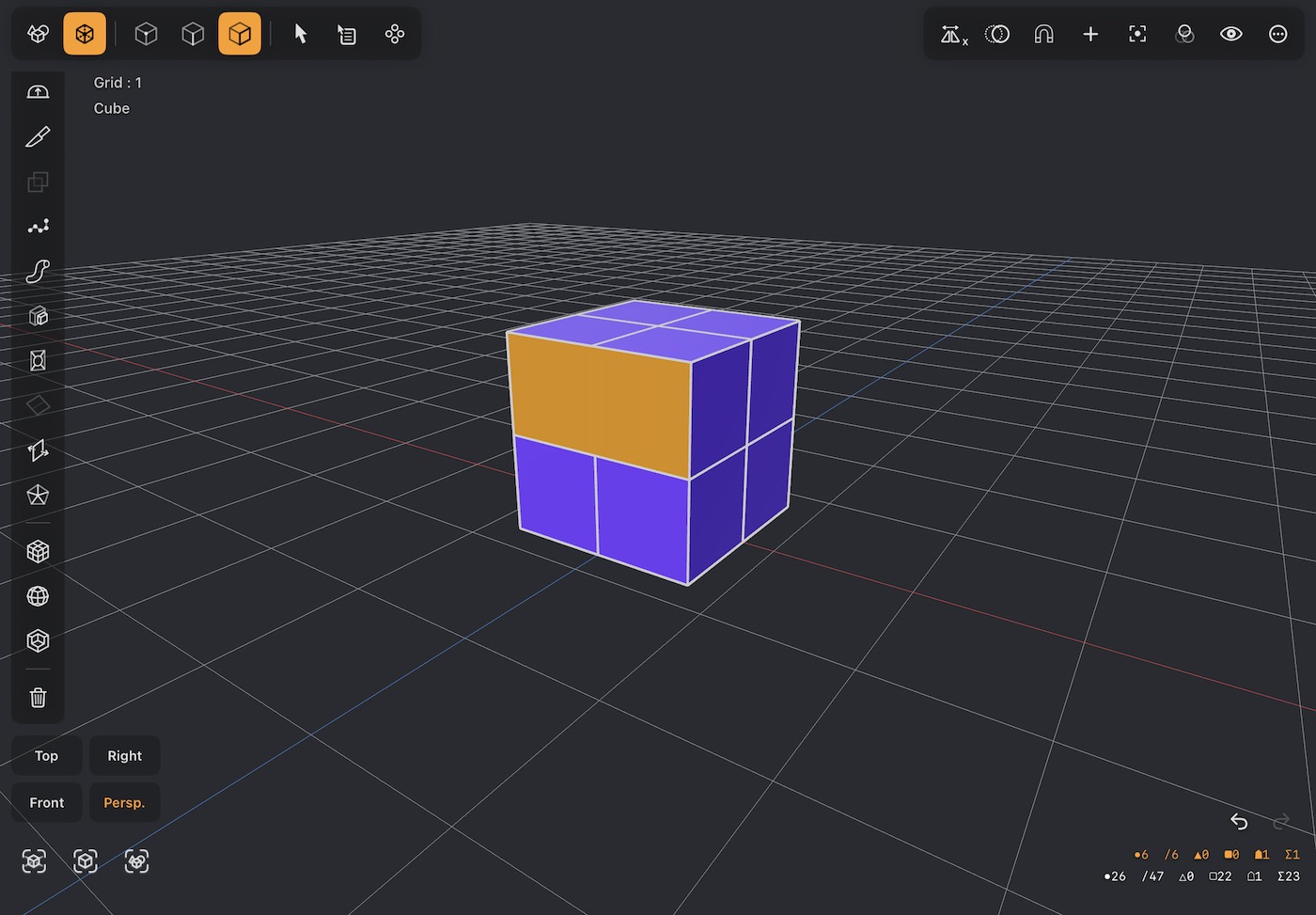
- Joins the selected faces into a single polygon and removes the edges that were between them.
- The faces have to touch. Merging faces that are not flat with each other leaves one bent polygon, which is fine to model with but worth tidying before subdividing. With fewer than two faces selected the button is dimmed.
14Flip
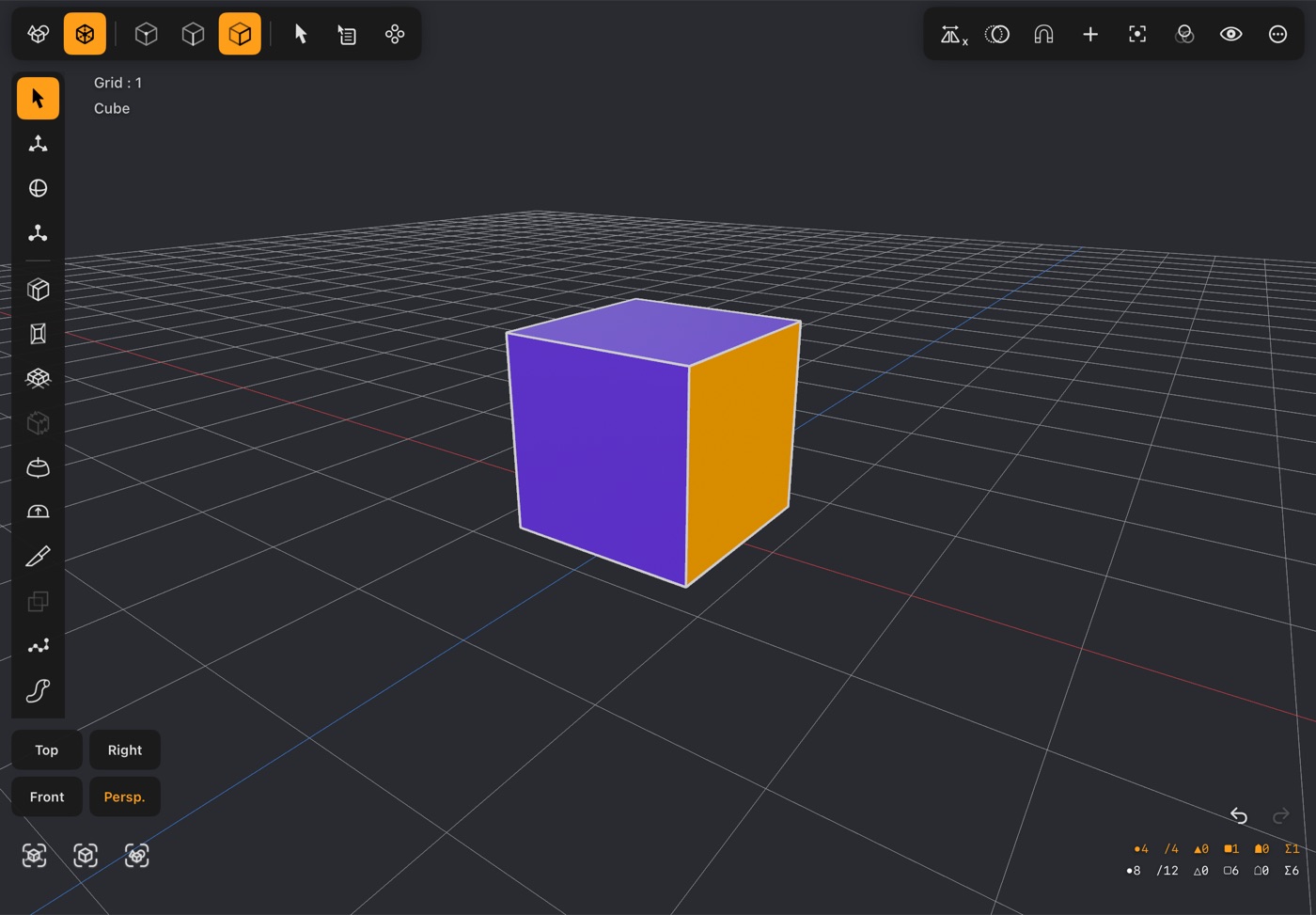
- Reverses which way the selected faces face.
- Use it when a face looks dark or disappears from one side — that is a face pointing inward.
- Faces drawn by hand, or imported from elsewhere, are the usual reason to need this.
15Make Pole
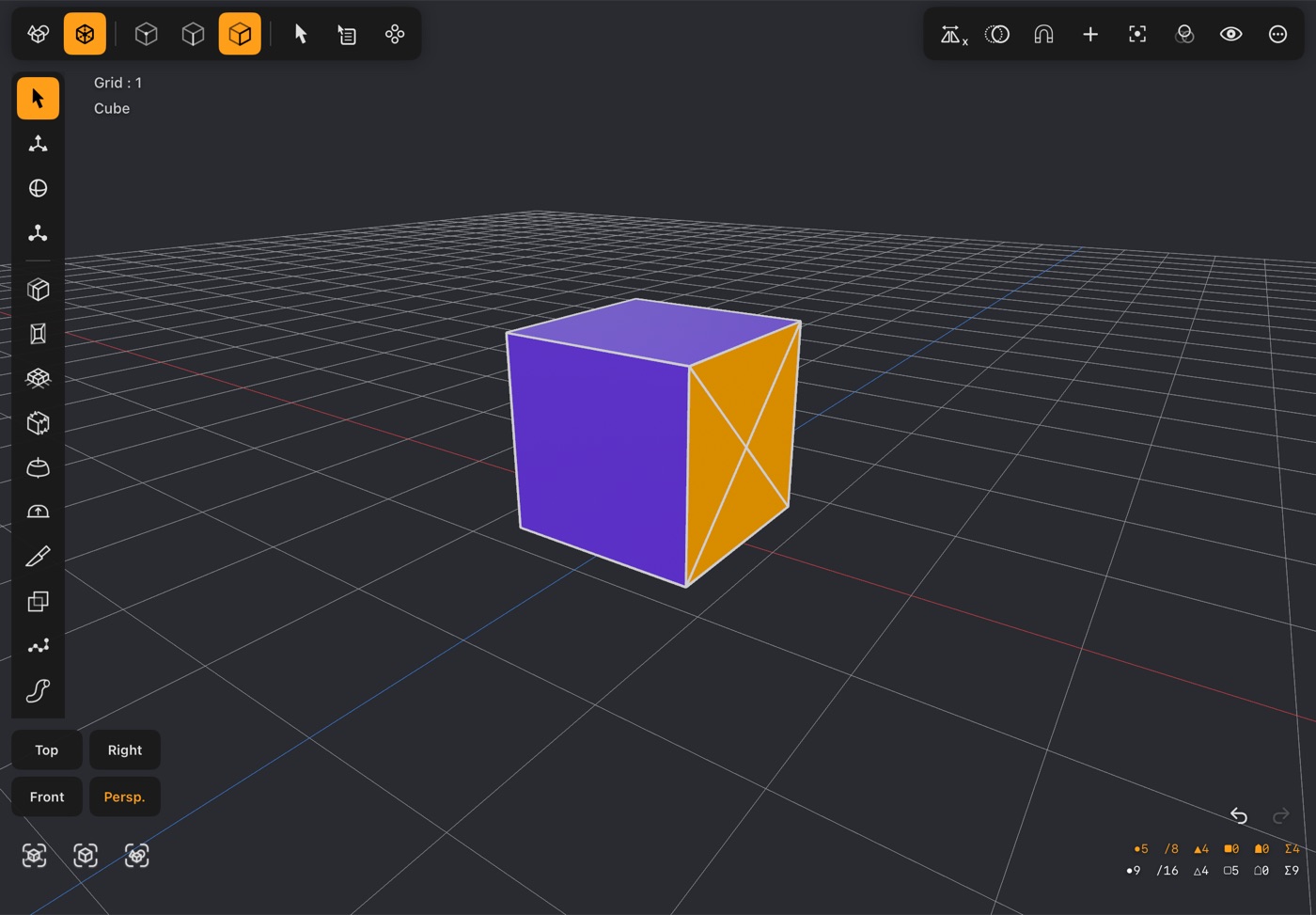
- Adds a point in the middle of the selected face and fans triangles out to every corner.
- That centre point can then be pulled out to a spike, or in to a dent, with one move.
16Subdivide
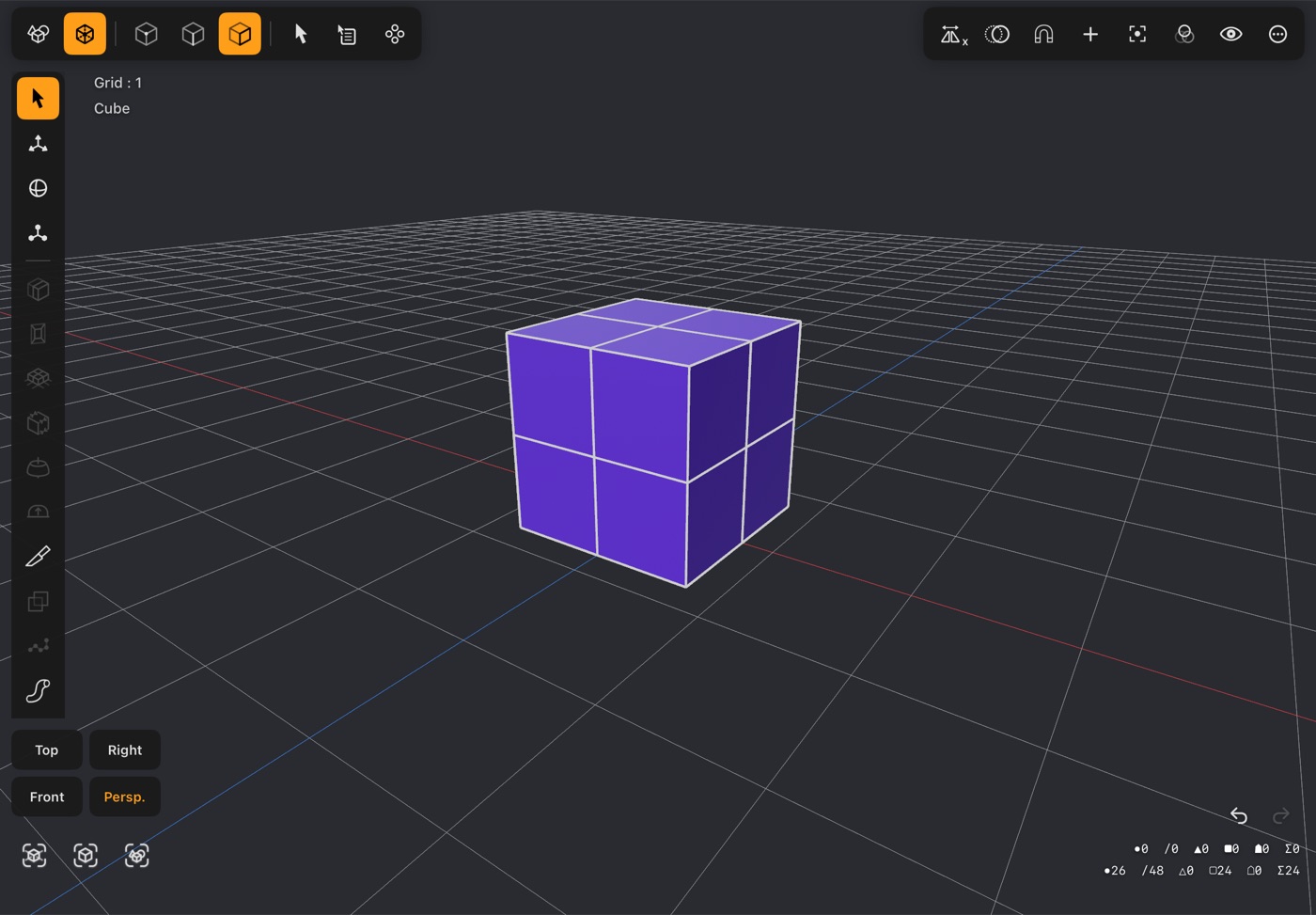
- Splits every face of the whole object into four, giving you more to work with.
- The shape does not change — corners stay sharp. This is the one to use when you want more detail to push around, not a smoother object.
17Catmull-Clark Subdivide
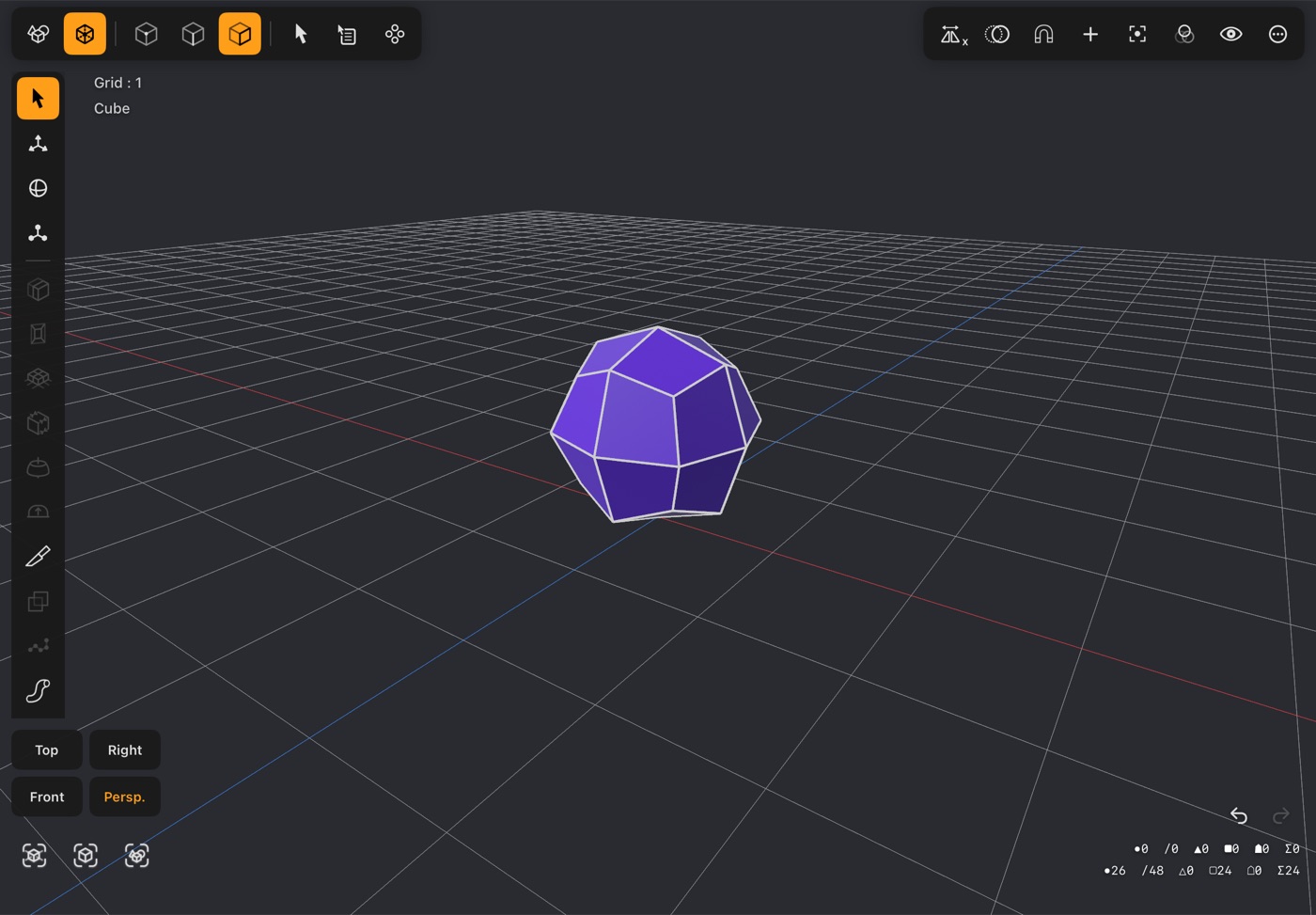
- Splits every face and smooths the result, so a box rounds off toward a ball.
- Each round smooths further. Two is usually enough for a soft edge; more quickly gets heavy.
- Edges you have creased stay sharp through the smoothing — see Edge Crease in the point tools.
18Thicken
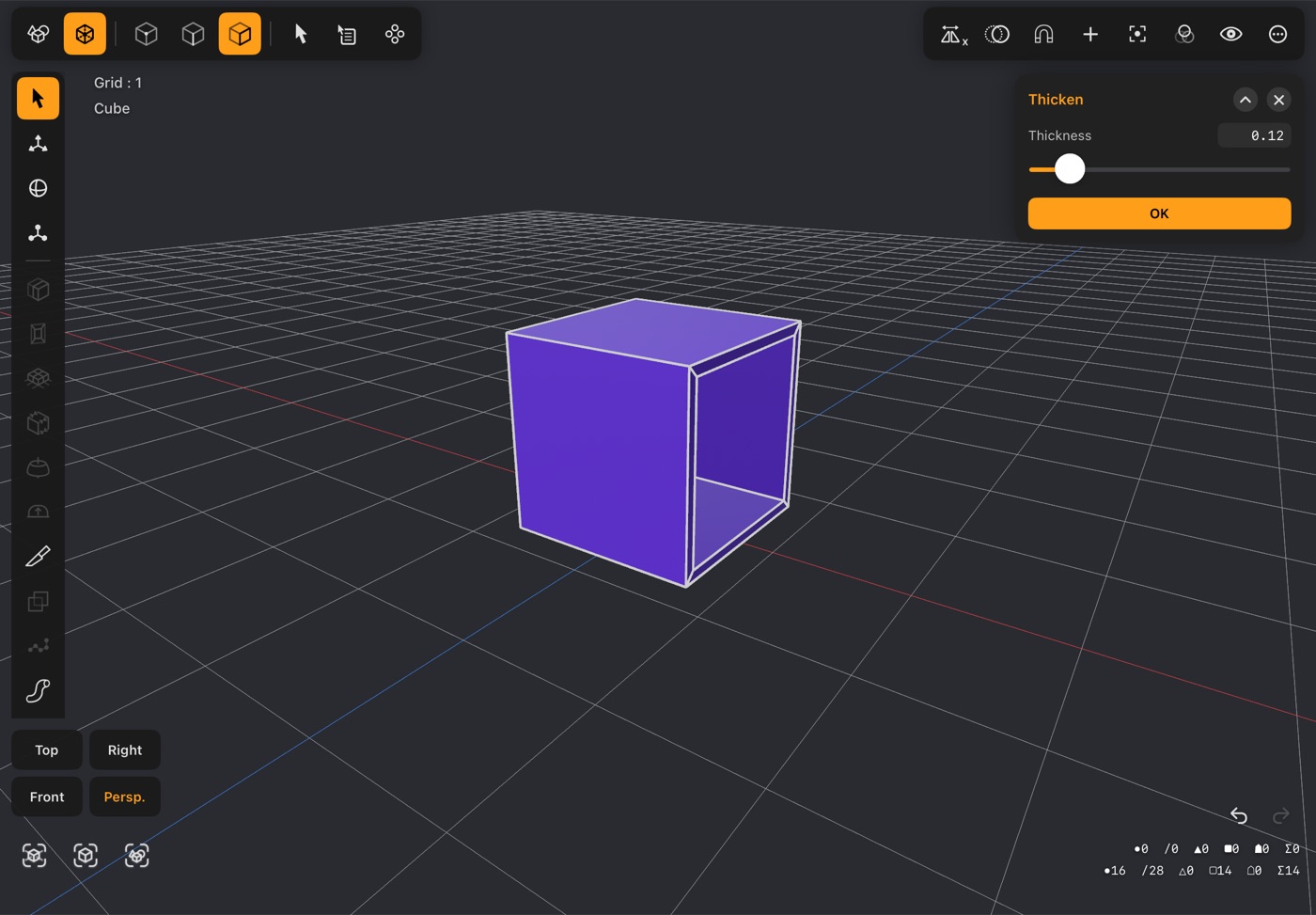
- Gives an open mesh a wall thickness, turning a surface into a shell — a cup from a tube, a case from a box with its lid removed.
- Drag Thickness for how thick the wall is.
- The object has to be open, or have only part of it selected; a fully closed mesh has nothing to thicken and the tool stays dimmed.
Edge tools
Switch the edit mode to edge and the bar changes to the tools that work on edges. Tap an edge to select it; the selection menu's loop and connected options are the quick way to grab a whole ring at once.
19Loop Cut
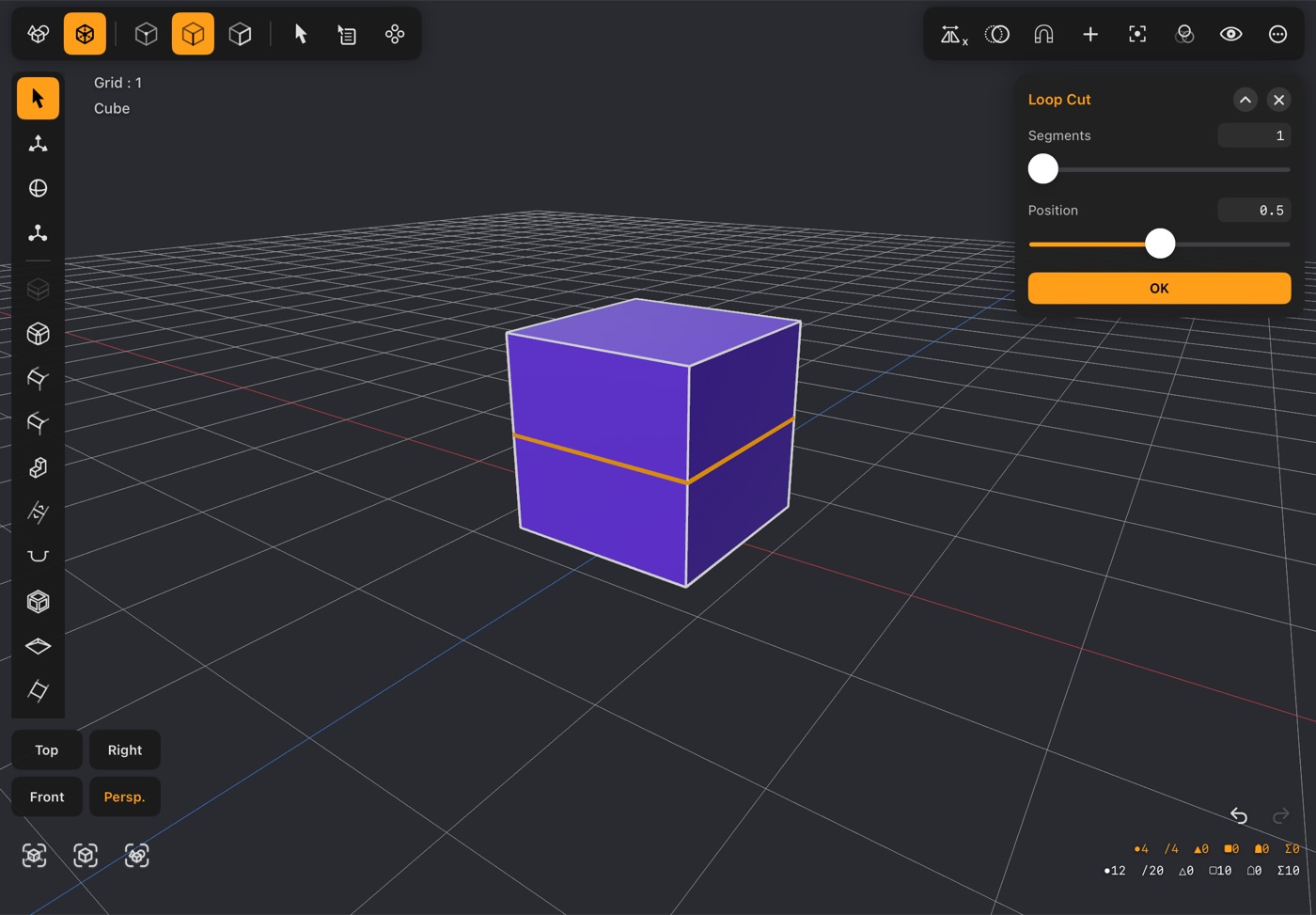
- Select an edge and tap Loop Cut to run a new edge ring all the way round the mesh, square to the edge you picked.
- Segments adds more than one ring at a time, evenly spaced.
- Position slides the ring along between its neighbours — at 0.5 it sits exactly in the middle. It is there for a single cut only; with more segments they are always evenly spaced.
- This is the usual way to add detail where you need it without subdividing the whole object.
- It follows a ring of four-sided faces — or triangles fanned round one point, like the sides of a cone or pyramid or the cap of a sphere: pick an edge running to the tip and the ring goes round it, each triangle keeping a smaller one at the tip. Position is then measured from the tip.
- Where no ring can be cut through the edge — a many-sided face beside it, such as a cone's base — a message says so and nothing opens.
20Bevel
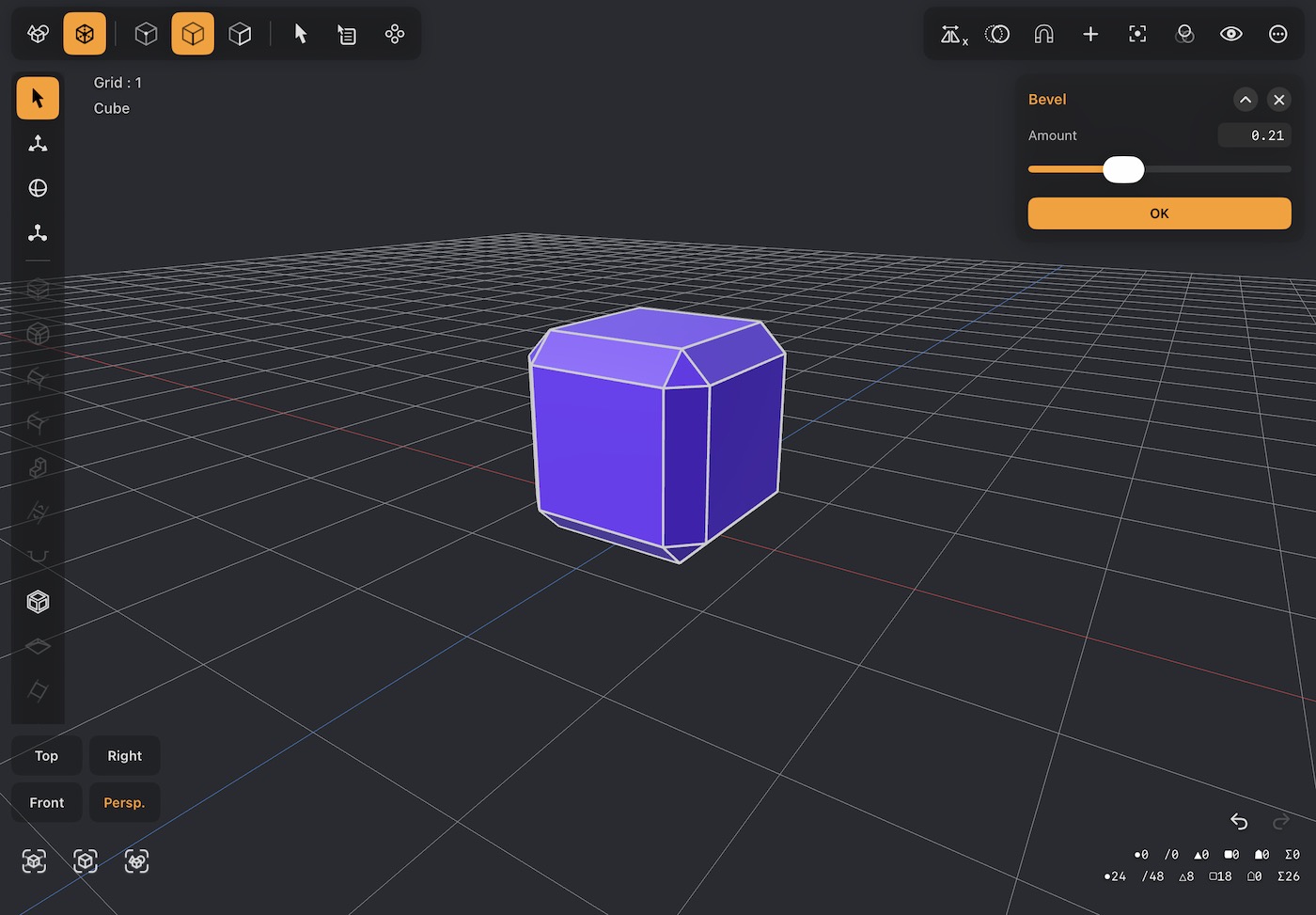
- Replaces the selected edge with a flat strip, taking the sharpness off the corner.
- Amount is how wide the strip is.
- Bevel several edges at once and the corners where they meet are filled in for you.
- For a rounded edge rather than a flat cut, use Fillet below.
21Chamfer
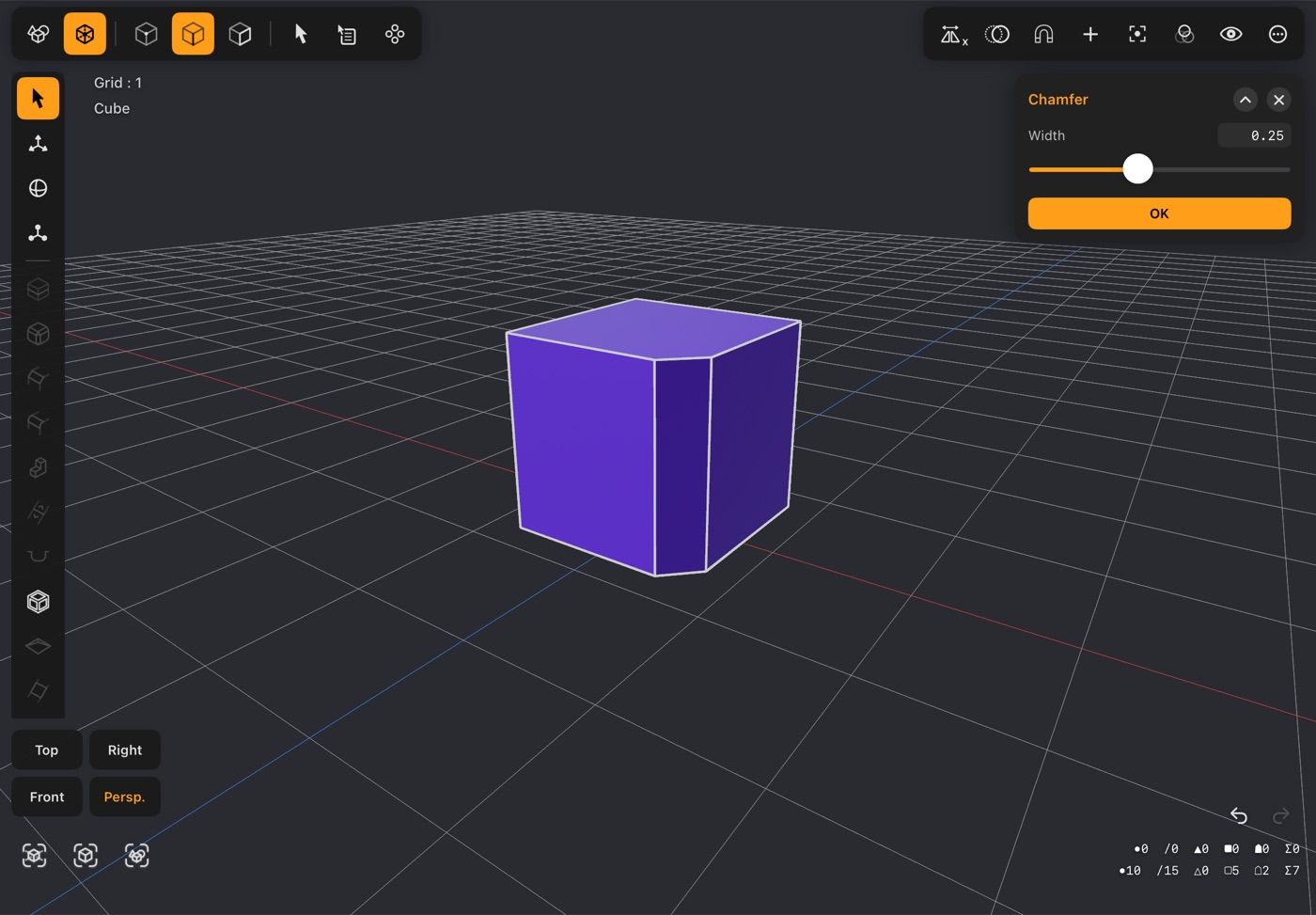
- A single flat cut across the edge, at 45° to both faces.
- Width sets how far back into each face the cut reaches.
- Chamfer is the one-segment case of Fillet — reach for it when you want a crisp machined edge rather than a soft one.
- Chamfering just a piece of a longer edge — the middle band of a corner cut by loop cuts, say — cuts only that piece: the faces beyond it keep their square corner, and a small flat face closes each end of the cut, like a notch.
22Fillet
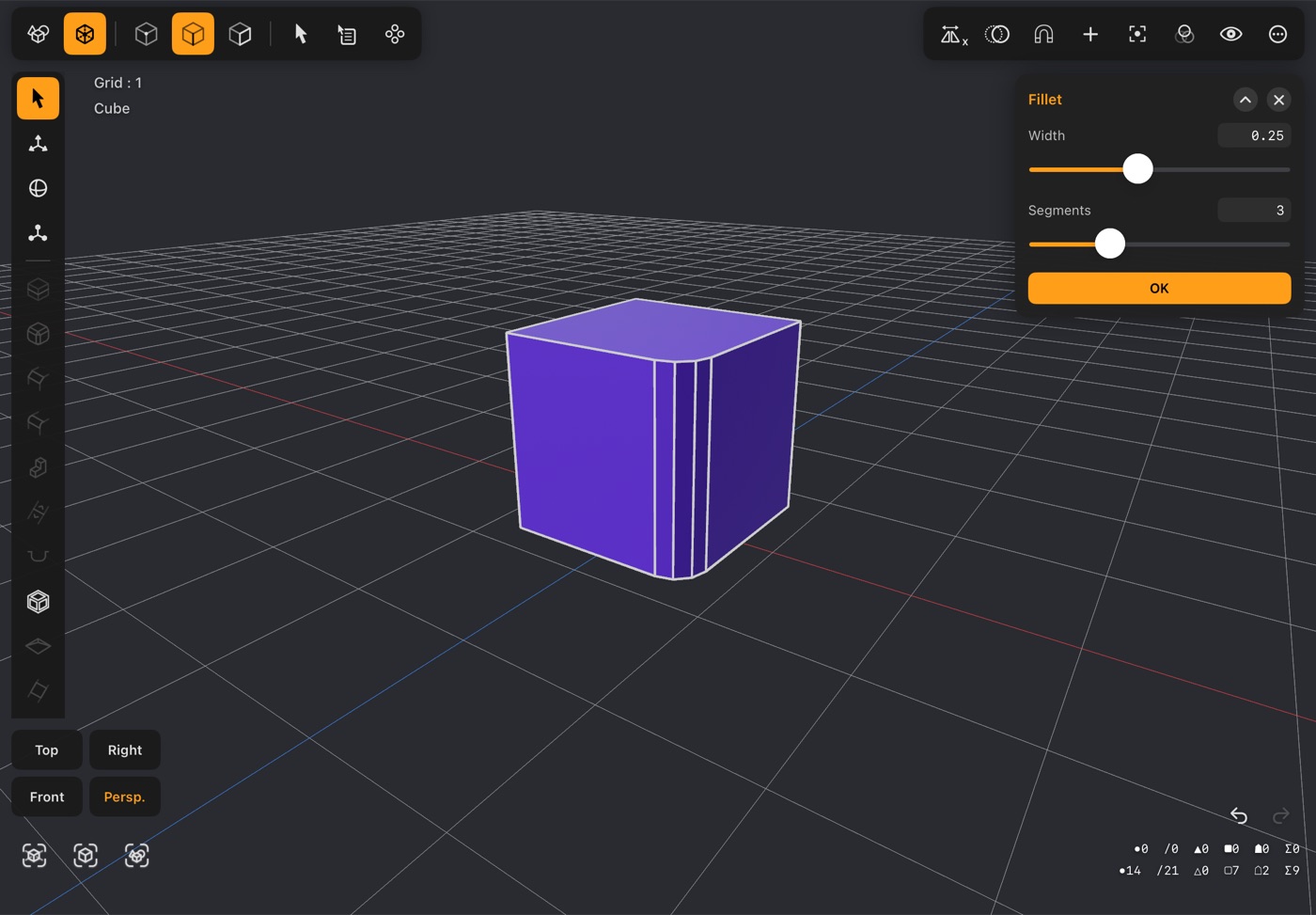
- Rounds the edge off along a true circular arc.
- Width is the radius; Segments is how many steps the curve is built from — more gives a smoother round at the cost of polygons.
- Where several filleted edges meet, the corner is filled with a matching patch, the same way Round Edge Cube builds its corners.
- Rounding only a piece of a longer edge leaves the faces beyond it square, with a flat end where the round stops, as with Chamfer.
23Pipe Along Edges
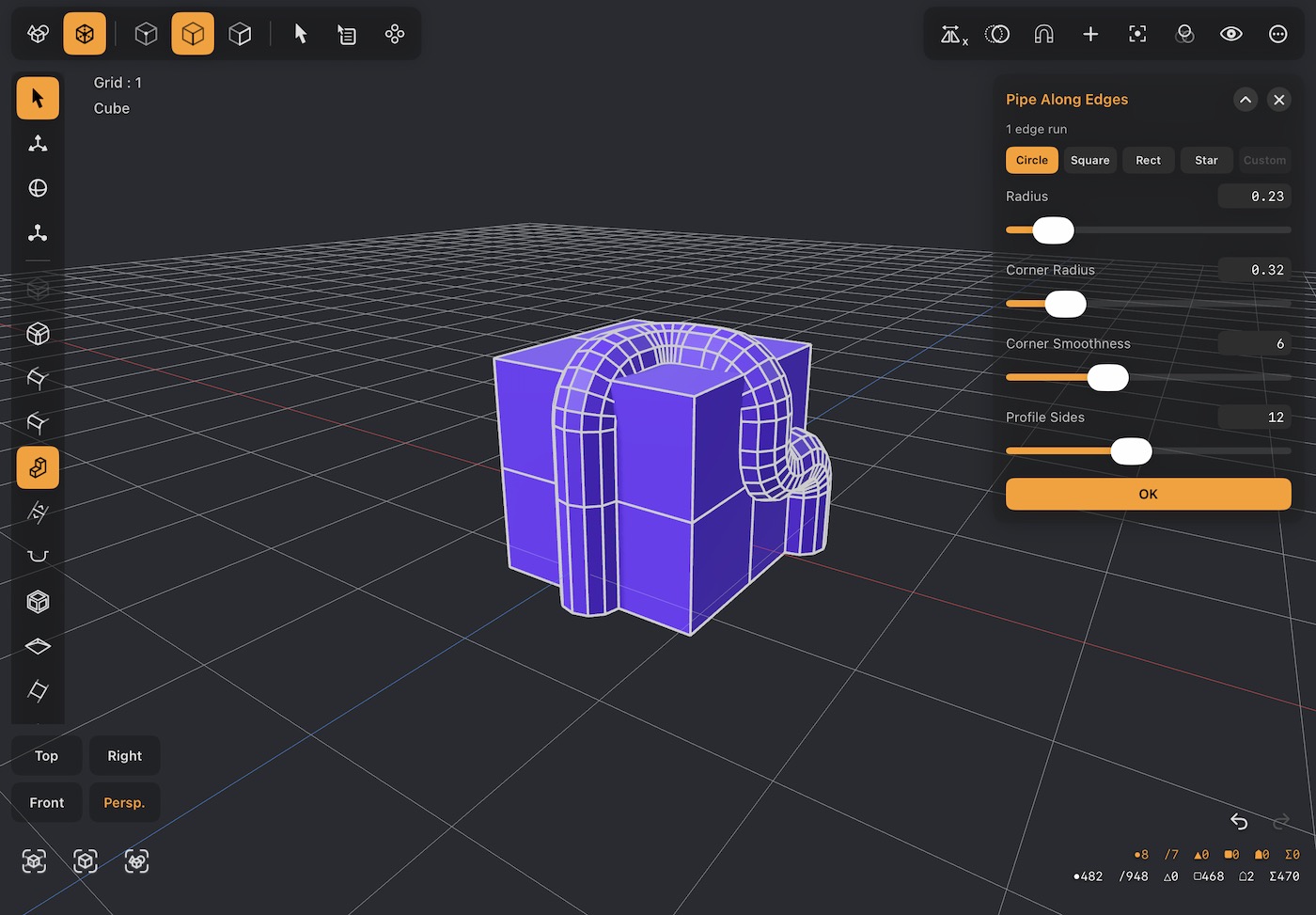
- Runs a tube along the selected edges, following them wherever they go, and adds it to the object. Good for railings, frames, wires and piping.
- Each connected run of selected edges gets its own tube; the line under the title counts them (edge runs, and how many are loops). A loop — a ring of edges that comes back on itself — becomes a closed ring with no ends. An open run is capped at both ends.
- Profile is the shape of the tube's cross-section: Circle, Square, Rect or Star.
- On a curved surface — round a torus or a cylinder, over a sphere — the profile sits square to the surface: a Square or Rect tube lies flat on it, the same way on every run, wherever the run happens to start. Along a box's sharp edges it lines up with the box's sides instead.
- Radius is the size of the section. It starts at a size to suit the edges you picked.
- Width and Height (Rect only) set the two sides of a rectangular section, for a flat strap or a beam.
- Profile Sides (Circle only) is how many sides the round section has, 3–24. More looks rounder; fewer is lighter.
- Corner Radius rounds the tube where the edges turn a corner, like a bent pipe. At 0 the corner is a sharp mitre. The rounding never eats more than about half of the shorter edge beside it.
- Corner Smoothness is how many steps each rounded corner is built from, 1–16.
- Tap OK to keep the tube, or ✕ to cancel. The tube is part of the same object, so you can select its faces and edit it like any other geometry.
24Edge Slide
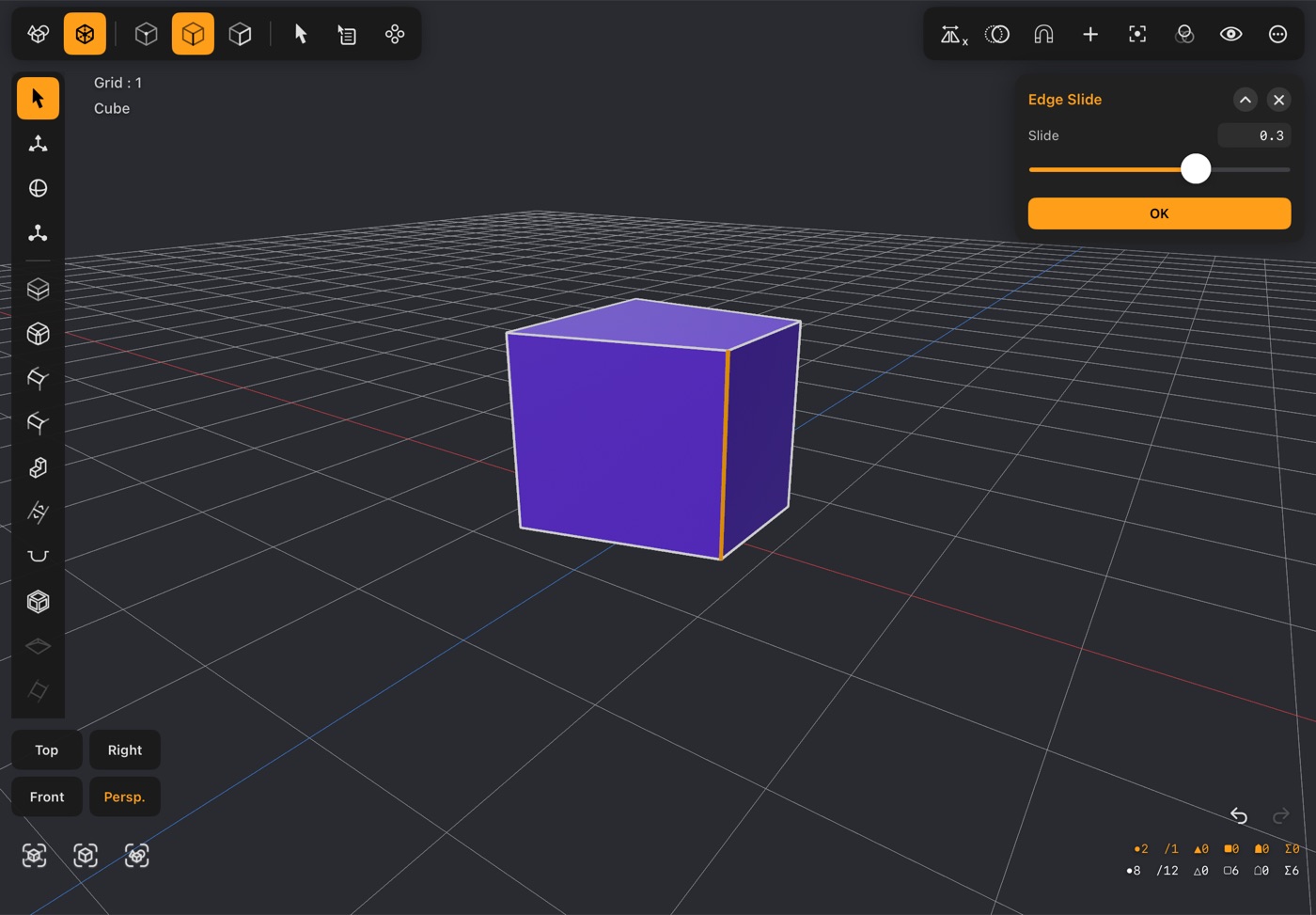
- Moves the selected edge along the surface, staying on the faces either side of it rather than moving freely in space.
- Slide runs from one neighbour to the other.
- Use it to adjust where a loop sits after cutting it, without denting the shape.
25Create Drain
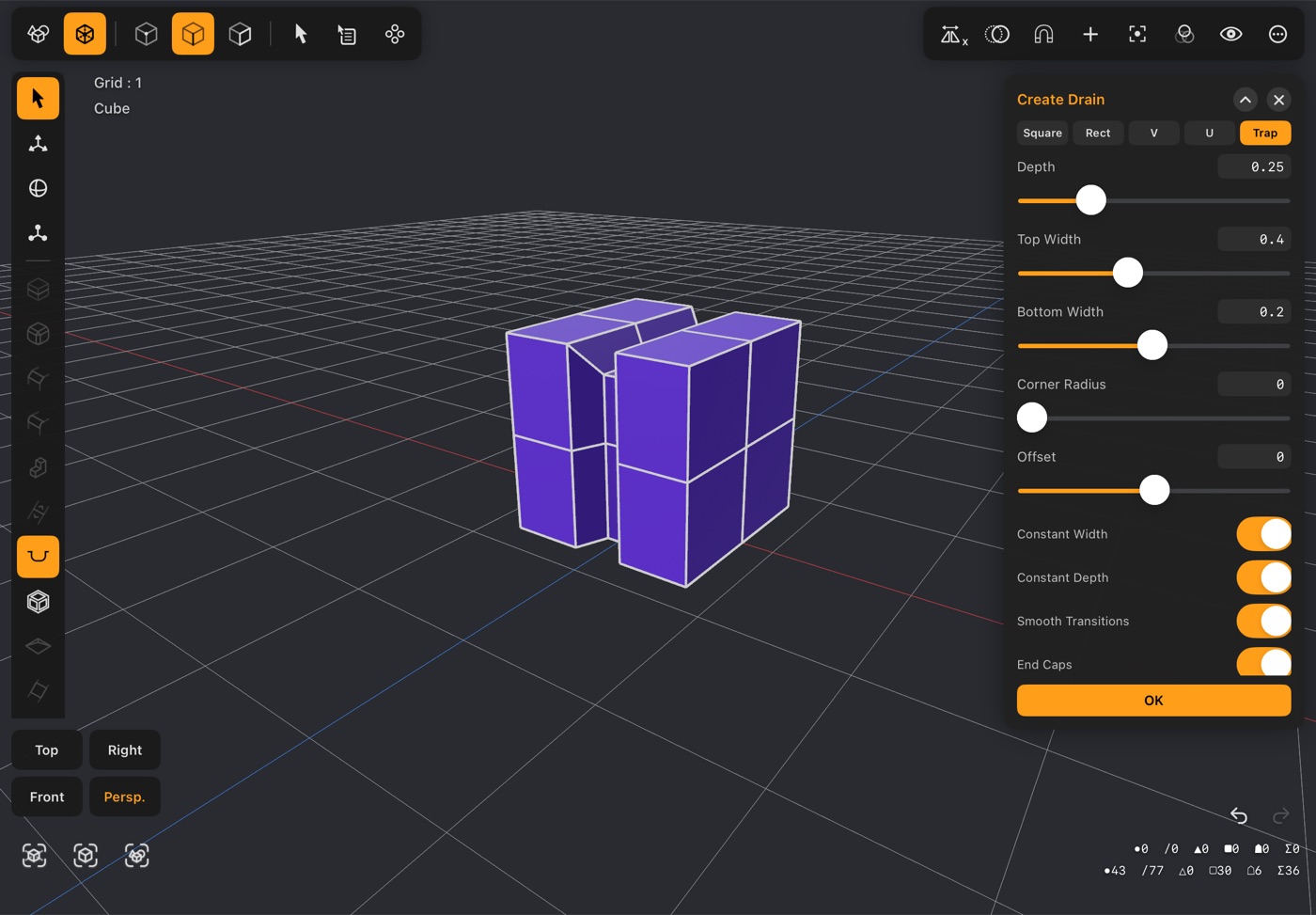
- Carves a channel along the selected edges: a gutter, a groove, a slot for a cable. It follows them wherever they go, round a turn, over the edge of the object, or all the way round a loop.
- The channel runs along edges that already exist, so make them first. A Loop Cut is the quick way to get a line down the middle of a face; the box above has two segments a side for that reason.
- The channel is cut out of the object like a Boolean subtract. On a closed object it goes into the solid; on an open surface such as a plane it goes in on the back of the surface, with its walls and floor, and stops where the surface ends — a channel run off the edge opens out there.
- Faces it doesn't reach stay as they were, even on a smoothed, curved object whose faces aren't flat; the faces it cuts through keep one piece each side of the channel instead of breaking into triangles.
- It works on rounded, bending shapes too: select a ring of edges round a pipe or tube, even where it curves, and the groove goes cleanly all the way round, with the pipe staying in one piece.
- The row at the top picks the shape of the channel:
- Square has upright walls and is exactly as deep as it is wide, so there is only a Width to set.
- Rect has upright walls too, with a Depth of its own.
- V is a groove that narrows to a point at the bottom; U is a trough with a round floor.
- Trap has walls that slope in to a narrower floor. Top Width is the opening at the surface and Bottom Width the floor, which can never be wider than the top — shrink the top and the floor follows.
- Corner Radius rounds the floor's corners on Square, Rect and Trap. Offset moves the channel to one side of the edges instead of centring it on them.
- Constant Width keeps the channel the same width through a turn or over an edge, with a clean mitred corner. Turn it off and the channel narrows at the turns; Smooth Transitions then decides whether each corner is angled halfway between the two stretches or cut square to the next one.
- Constant Depth measures the depth from the surface under each stretch. Off, the whole channel cuts in one averaged direction, so on a surface that bends it gets shallower in places.
- End Caps on stops the channel at the ends of the selection; off, it runs on past them and breaks out through the object.
26Create Cage
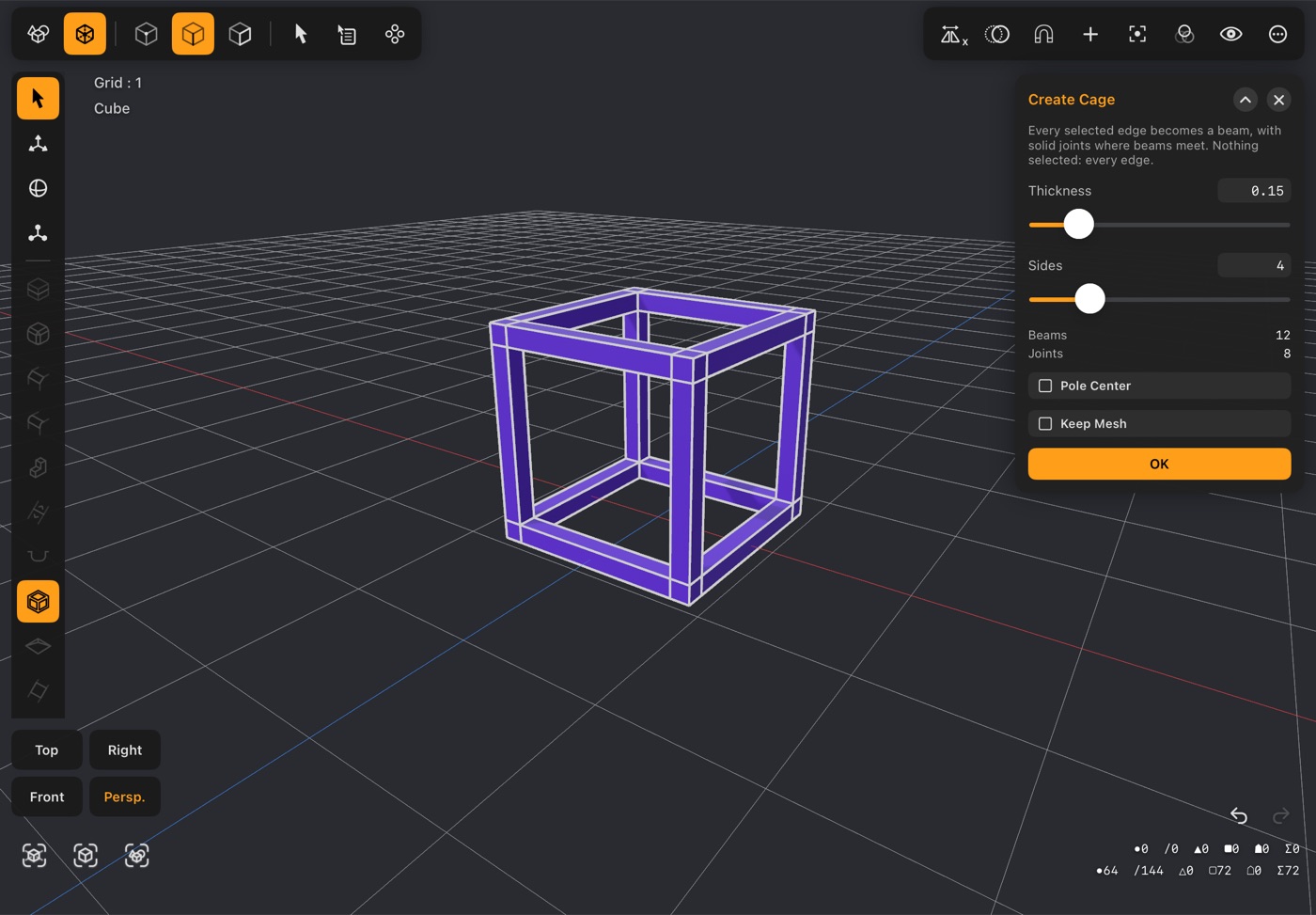
- Turns edges into a frame of beams with solid joints where they meet — a lattice, a scaffold, a wire sculpture, a cage.
- Select the edges to cage, or nothing at all to cage every edge of the object.
- Thickness is how wide the beams are; Sides (3–8) how many sides each beam has.
- Every joint is closed and solid, however many beams meet there. Where more than four meet, Pole Center gathers the joint's faces into a point instead of leaving one many-sided face.
- Keep Mesh keeps the original object with the cage added to it; off, the cage replaces it. It starts on when you selected edges and off when you didn't.
- Beams and Joints count what was made. If a joint can't be closed, the popup says so and those beams end in caps instead.
- OK keeps it as one undo step; ✕ cancels.
27Edge Lift
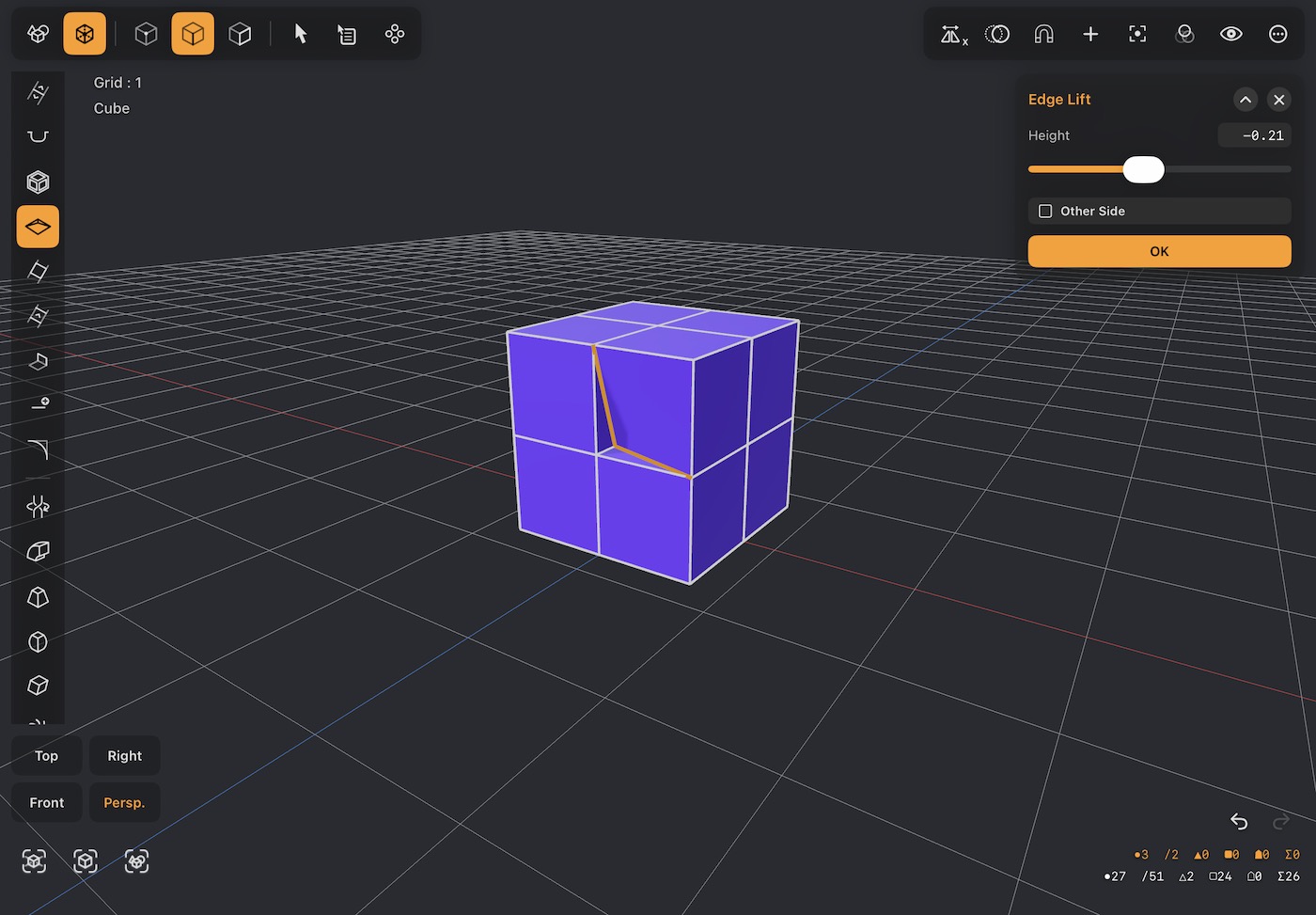
- Select a run of edges — two edges meeting at a corner, or several in a row — and tap Edge Lift (under Create Cage). The surface lets go of them and drops by the Height in the popup, leaving the edges where they were as a rim: a corner drop, a lip or a step.
- Along the edge of a surface, the surface is what drops. On edges inside a surface — an L or a U drawn across the top of a cut cube, say — the faces on one side drop and the others stay: first the side inside the bend (inside the L, inside the U, inside a loop). Other Side in the popup drops the faces on the other side instead; a straight run has no inside, so it starts on one side and Other Side picks the other.
- Drag Height below zero to drop the surface, above zero to lift it; the view updates as you drag. OK keeps it as one undo step; ✕ cancels.
- The run's two ends stay put, so the new strip between the rim and the moved surface starts and ends with a triangle and has a quad for every edge in between: two edges make two triangles, three make two triangles and a quad.
- Select a whole loop of border edges and the surface drops (or rises) inside its rim all the way round.
- It needs at least two edges in a row, all along a border or all inside a surface. The new faces take the surface's material, and the surface's moved edges are left selected.
28Edge Make Poly
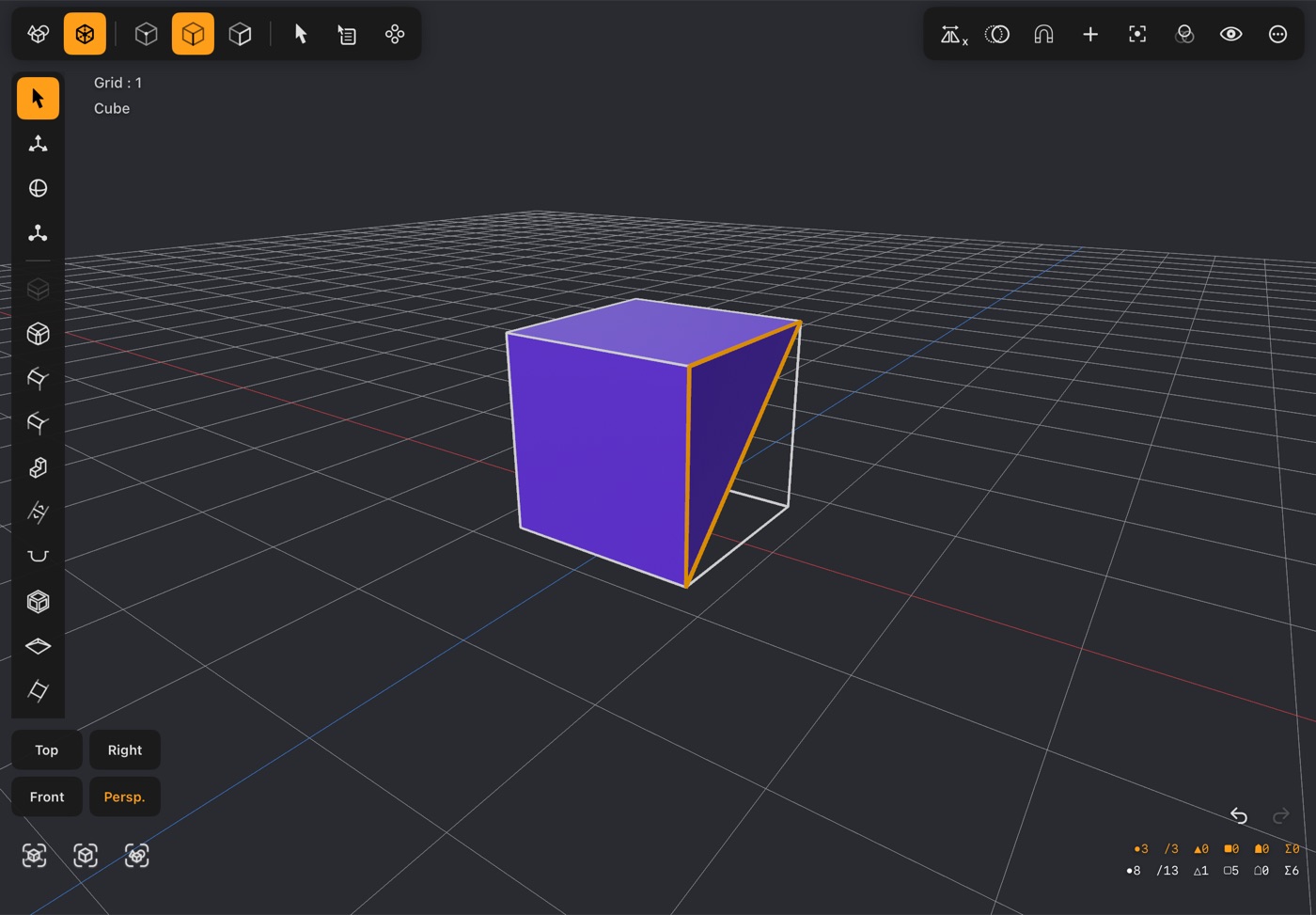
- Select edges and tap Edge Make Poly (under Create Cage) to build faces from them — the edge-mode way to Make Poly.
- Two edges apart get a quad between them. Two runs with the same number of edges — three here and three there — are bridged by a row of quads, one between each pair of facing edges, paired whichever way round puts them closest. Two loops, like the facing rims of two tubes, are bridged all the way round.
- Edges that meet at a point close up: two make a triangle, a U of three makes a quad, and the loop of edges round a hole fills it.
- The new faces turn the same way as the faces already on those edges, take their material, and are left with their edges selected. A face that is already there isn't made twice. One undo takes it back.
- The two runs need the same number of edges, and both open or both loops; if not, a message says what to change.
29Edge Merge
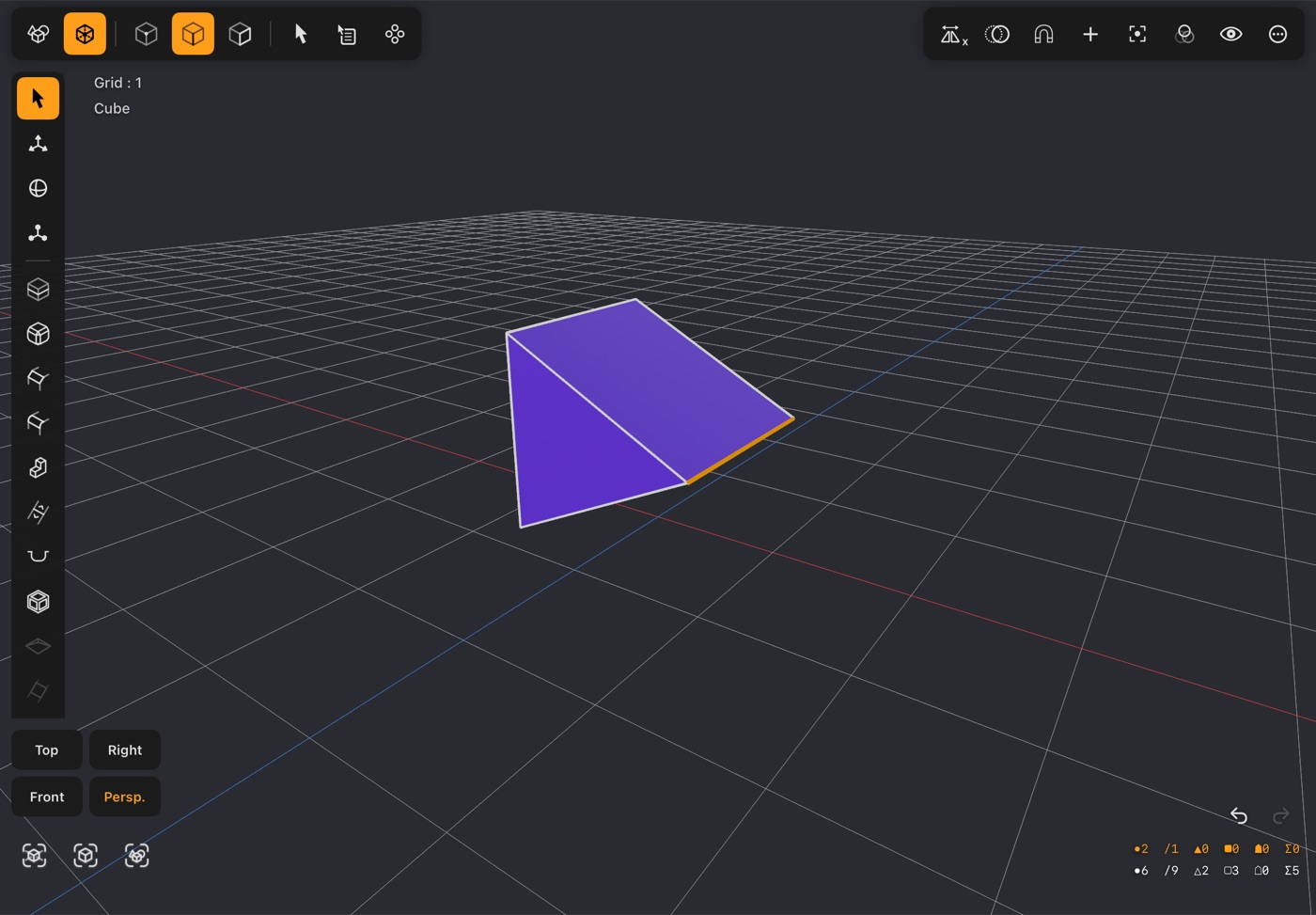
- Select two runs of edges — two single edges, three edges here and three there, or two loops — and tap Edge Merge (under Create Cage) to zip them into one. Each pair of points meets halfway between where they were.
- The points are paired off along the runs, whichever way round puts them closest, so it doesn't matter which end you started selecting from. Two loops — the facing rims of two tubes, say — are lined up the same way, even when one is turned a little.
- Everything that was attached to either run ends up on the merged one, so two separate pieces become one surface; faces caught between the runs (a strip you are closing up) collapse and go.
- Two edges meeting at a point fold shut about it, closing the V between them.
- The runs need the same number of edges, and both open or both loops; if not, a message says what to change. The merged run is left selected, and one undo takes it back.
30Extend Edges
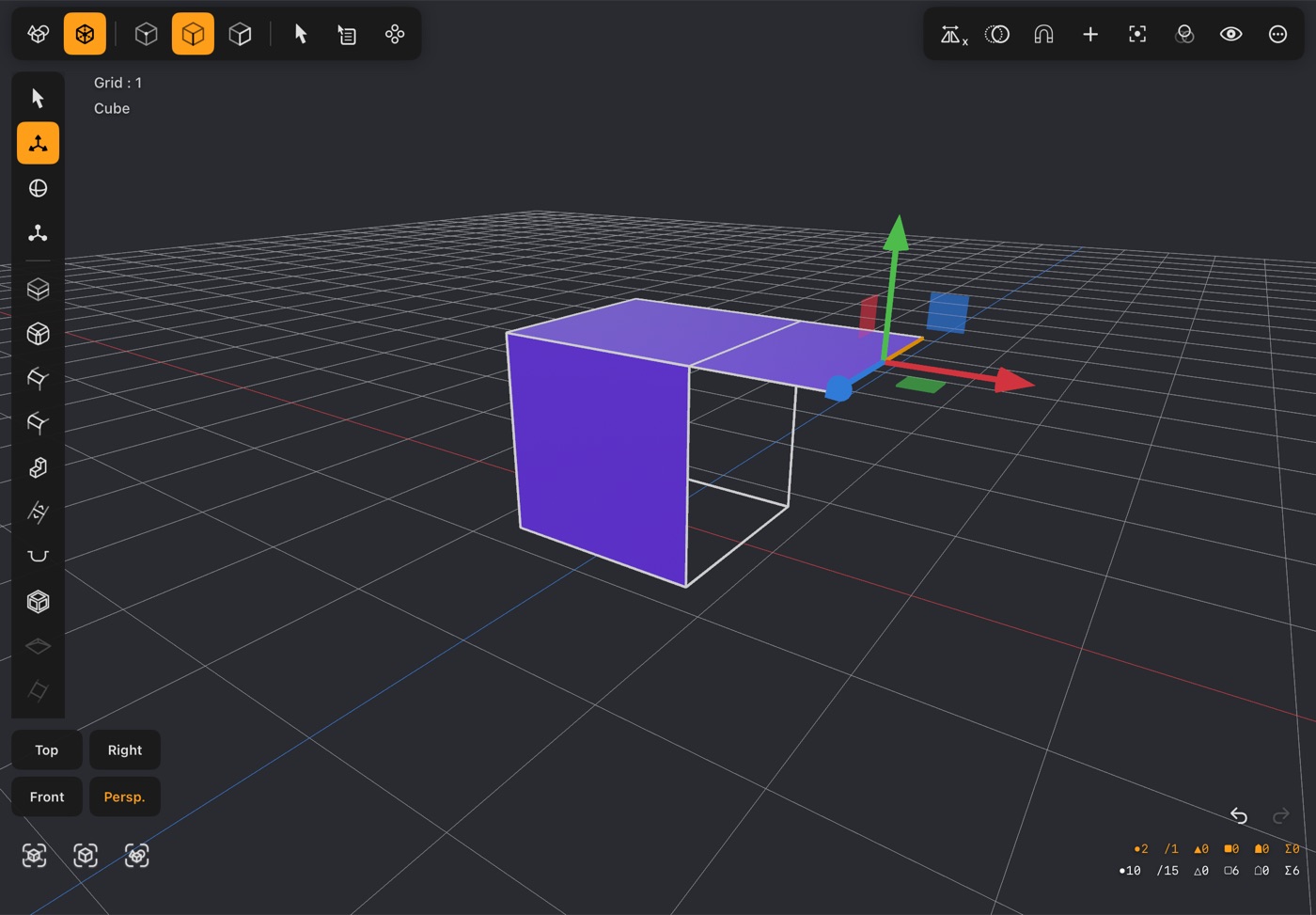
- Select edges and tap Extend Edges (under Create Cage) to grow a new quad out of each one — the edge-mode twin of Extend.
- A border edge carries its face straight on, outward and in the same plane, so extending the edge of a plane makes the plane bigger. An edge inside the mesh grows a fin, out between its two faces.
- Edges that join share their new point, so a run of edges extends as one strip; where two of them turn a corner, the corner is mitred and the strip keeps the same width all round. The new faces take their neighbour's material.
- The new outer edges are left selected with the Move tool ready, so you can drag them where they belong — and tap Extend Edges again to keep building out, one row at a time. One undo takes each step back.
31Add Edge
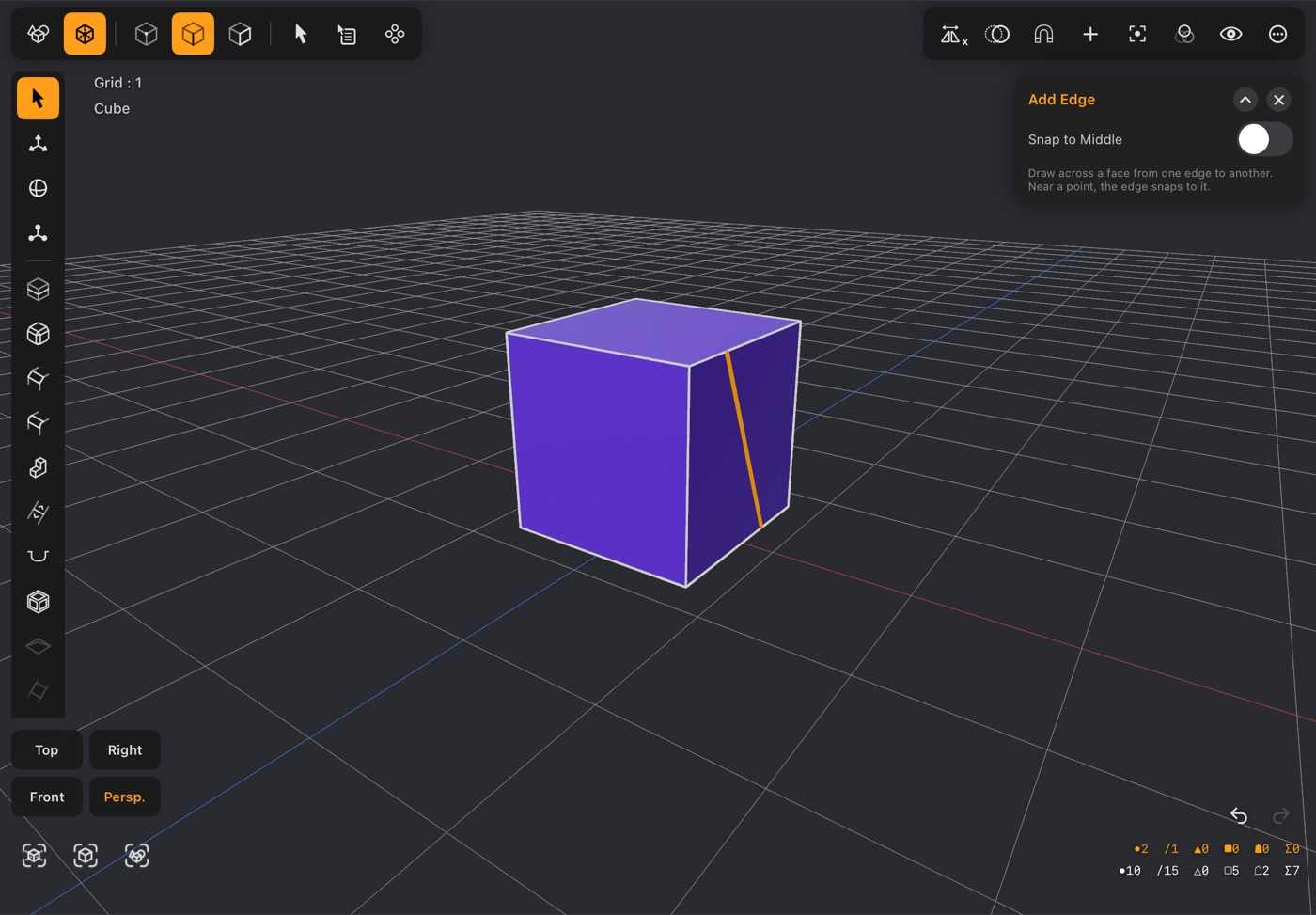
- Tap Add Edge (under Extend Edges) to turn it on, then drag across a face from one edge to another: a new edge runs between the two places, splitting the face in two. Tap the button again or ✕ in its popup when you're done.
- One stroke can cross several faces. Drag on over the next edge and across the next face, and each face you cross gets its own new edge, joined where the stroke met the edge — drawing a V over the corner of a box from the top edge, down to the upright edge and back up to the next top edge cuts the corner off with two edges.
- Start or end near a point of the mesh and the edge snaps to that point; otherwise the new edge meets the edge right where your finger crossed it. Turn on Snap to Middle to put the new points exactly halfway along their edges instead.
- While you drag, the edges the stroke will make are drawn in orange, with a ring on each point it snapped to. Lift your finger to make them: they're added to the selection, and one undo takes the whole stroke back.
- A stroke that only runs along an edge, or would cross a new edge already made by the same stroke, leaves that part out. A drag that starts off the object turns the view as usual, and a tap still selects edges. With mirror editing on, the mirror image of each new edge is added too, where it doesn't cross the original.
- For a single new point on an edge, use Add Point in point mode; to cut a whole object straight through, use Knife.
32Edge Crease
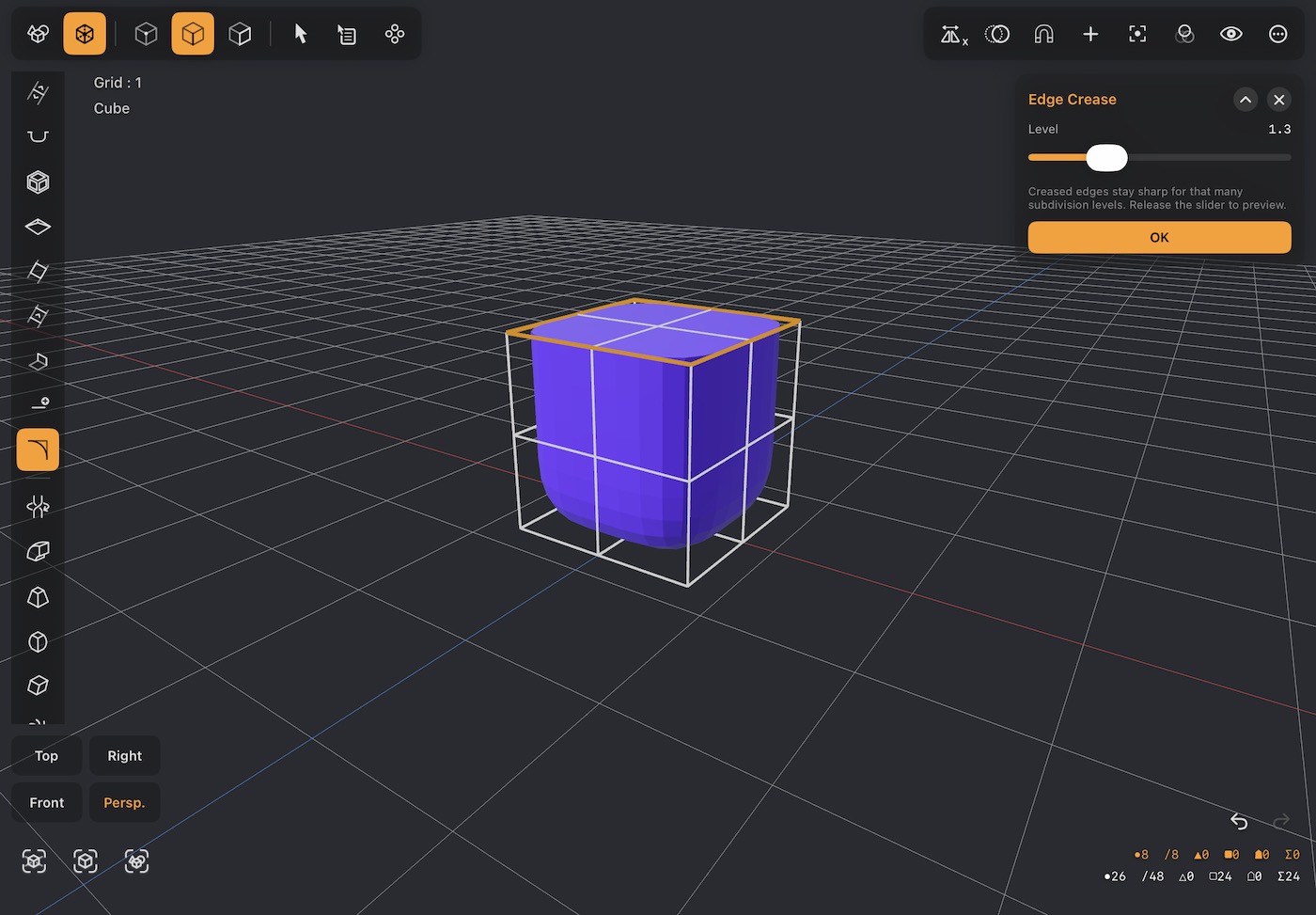
- Marks the selected edges as sharp so that Catmull-Clark subdivision does not round them away.
- Level (0–5) sets how sharp: the edge stays sharp for that many levels of subdivision, so higher values hold it through more rounds of smoothing. Release the slider to preview; OK keeps it. Level 0 removes the crease.
- Creases travel with the geometry: Mirror, Duplicate and the clone tools keep them on the copies.
- This is how you get a smooth object that still has a crisp lip or a hard seam.
Point tools
Switch the edit mode to point for the tools that work on individual vertices. Several of these are drawing tools — you tap them to arm the tool, then work in the viewport. Bezier Surface and Lattice Warp shape with control points you drag in the view: their settings dock at the top right, and OK keeps the result as one undo step. Warp Cylinder and Warp Sphere, at the end of the list, bend the selected points — or the whole object — round a cylinder or over a sphere. Smooth, just above them, relaxes the points toward their neighbours.
33Point Drag
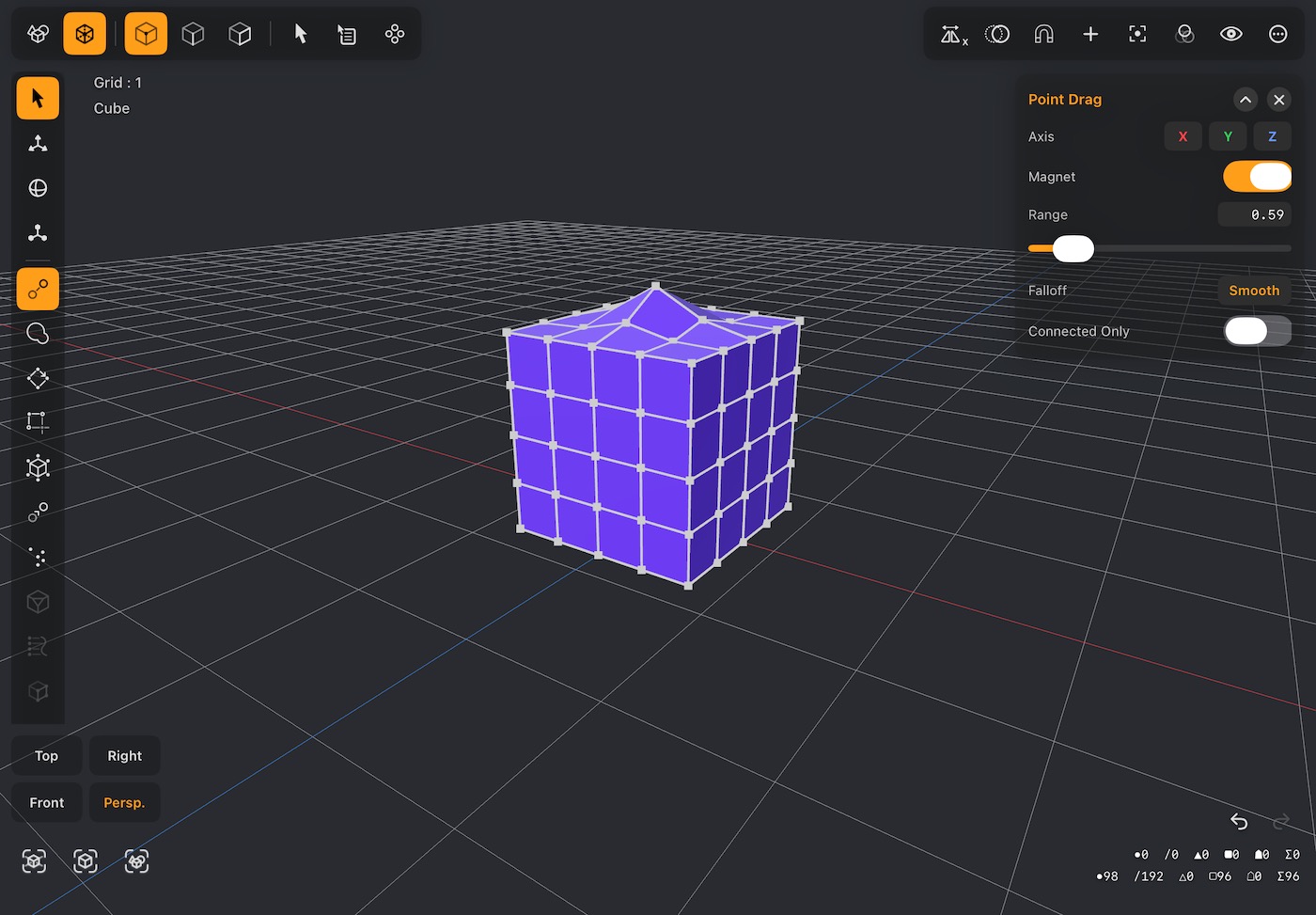
- Tap to arm, then drag points about directly with your finger — no gizmo needed.
- Axis keeps a drag to the axes you turn on: X, Y or Z alone slides the point along that axis only; two of them keep it in their plane (X and Z: across the floor, at the same height). With none on — or all three — the point moves freely, as before. While you drag, a dashed line in the axis's colour shows the way it can go. The axes are the scene's, as the grid and the gizmo show them.
- Turn on Magnet and a drag pulls the surrounding points along with it, less and less with distance, for shaping soft forms.
- Range is how far the pull reaches from the point you drag. While you move the Range slider — and for a moment after you change any magnet setting — the view shows that reach: a dashed circle around the point you last dragged (or the selected point, or the one in the middle of the view), with a dot on every point a drag there would move, brighter the further it would go. So you can see the falloff and Connected Only at work before you drag.
- The same shows while you drag with Magnet on: the circle stays where the point started — nothing outside it moves — and the dots ride along on the points being pulled. It goes when you lift your finger.
- Falloff is how the pull fades over that range: Smooth (a gentle bell), Sphere (full, then dropping away at the edge), Root, Inverse Square, Sharp (a pointed pull) or Linear.
- Connected Only limits the pull to points joined to the one you drag, so a nearby separate part — the other lip, the next finger — stays where it is.
- Tap the tool again to put it away. On iPhone its popup sits at the top right, with the tool bars still there; it also shows the dragged point's position while you drag.
- With Reference Objects on, a dragged point also snaps to a reference's vertices, edges and faces, as the Snap menu says.
34Draw Poly
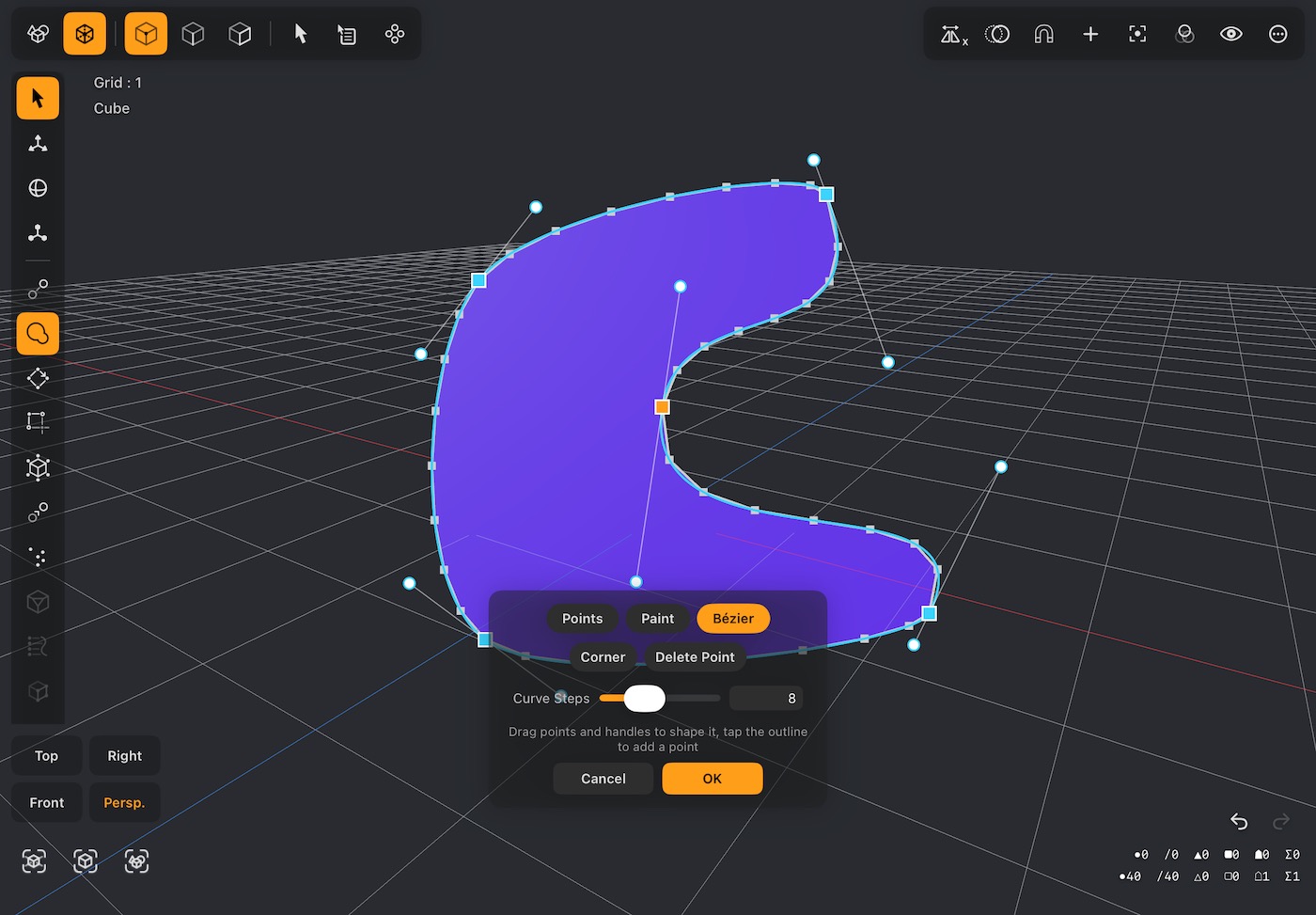
- Sketch a shape in the viewport and it becomes a polygon.
- Points places one corner per tap; Paint lets you draw a freehand outline in one stroke.
- Bézier places points by tapping too, but the outline curves smoothly through them. Drag a point or its round handles to reshape it, tap the outline to add a point, and use Corner / Smooth and Delete Point on the selected one — Corner makes a sharp point with straight-running sides. Curve Steps sets how many points each curved side becomes (straight sides add none).
- The new face always faces you, whichever way round you draw.
- Give the new face depth afterwards with Extrude.
- With Snap on and Reference Objects on, points, strokes and Bézier anchors land on a reference (its vertices and edges with those ticked in the Snap menu), and a curved side between two anchors on it follows its surface.
35Tap Made Poly
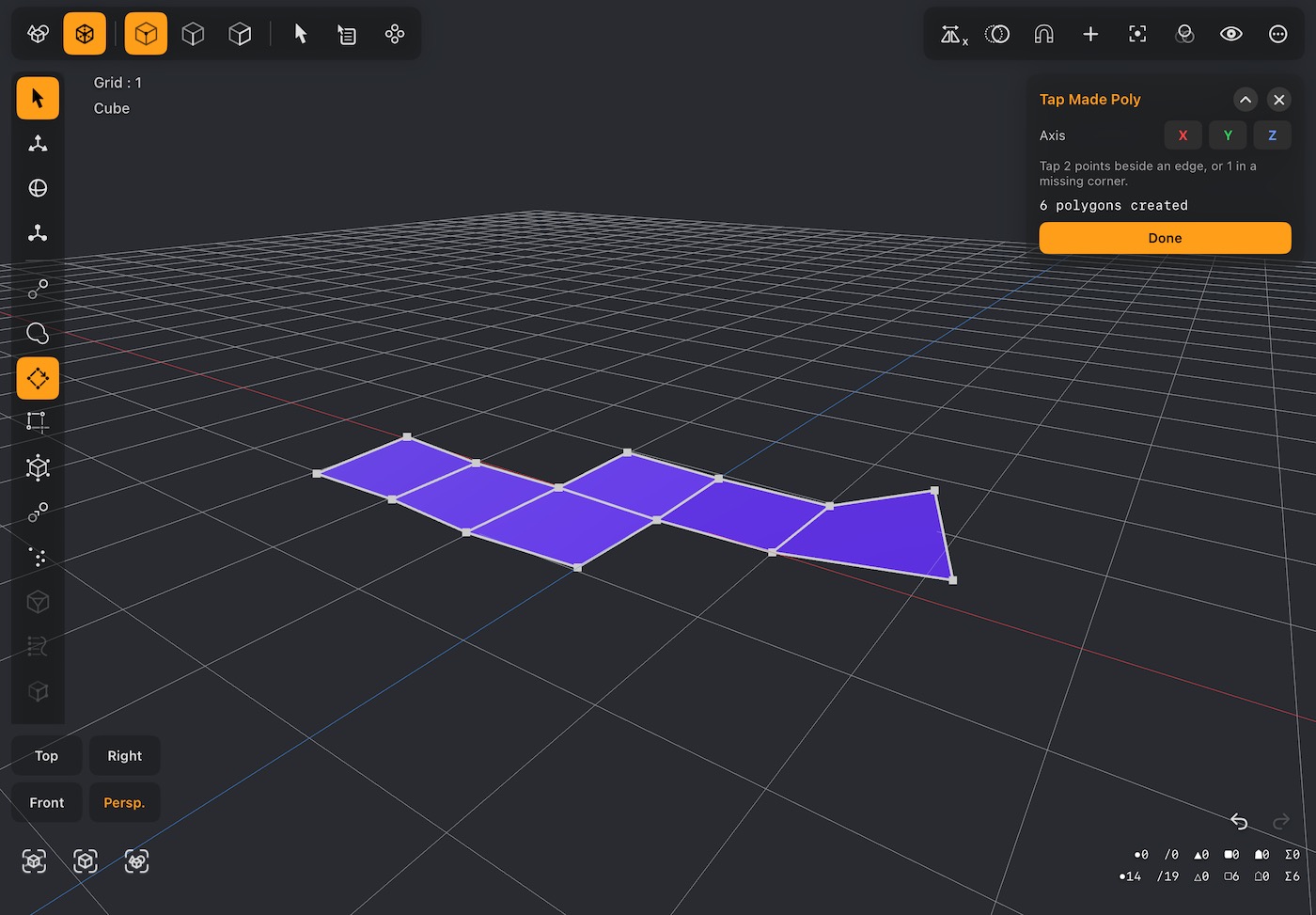
- Tap to drop points and quads are built from them as you go, using the nearest existing points and open edges to work out what you meant.
- Press and drag instead of tapping to place a point exactly, or to grab one that is already there.
- Axis works as in Point Drag (it is the same setting): with X, Y or Z on, a dragged point keeps to those axes. A new point still lands where your finger goes down, then moves on along the axes from there — press on the floor or a face with Y on and pull it straight up; with X and Z on it stays at the height it landed. A dashed line in the axis's colour shows the way while you drag.
- The counter shows how many polygons you have made; Done finishes.
- With Reference Objects on, points land on a reference's surface, and with Snap on also on its vertices and edges — only on the side facing you.
36Bezier Surface
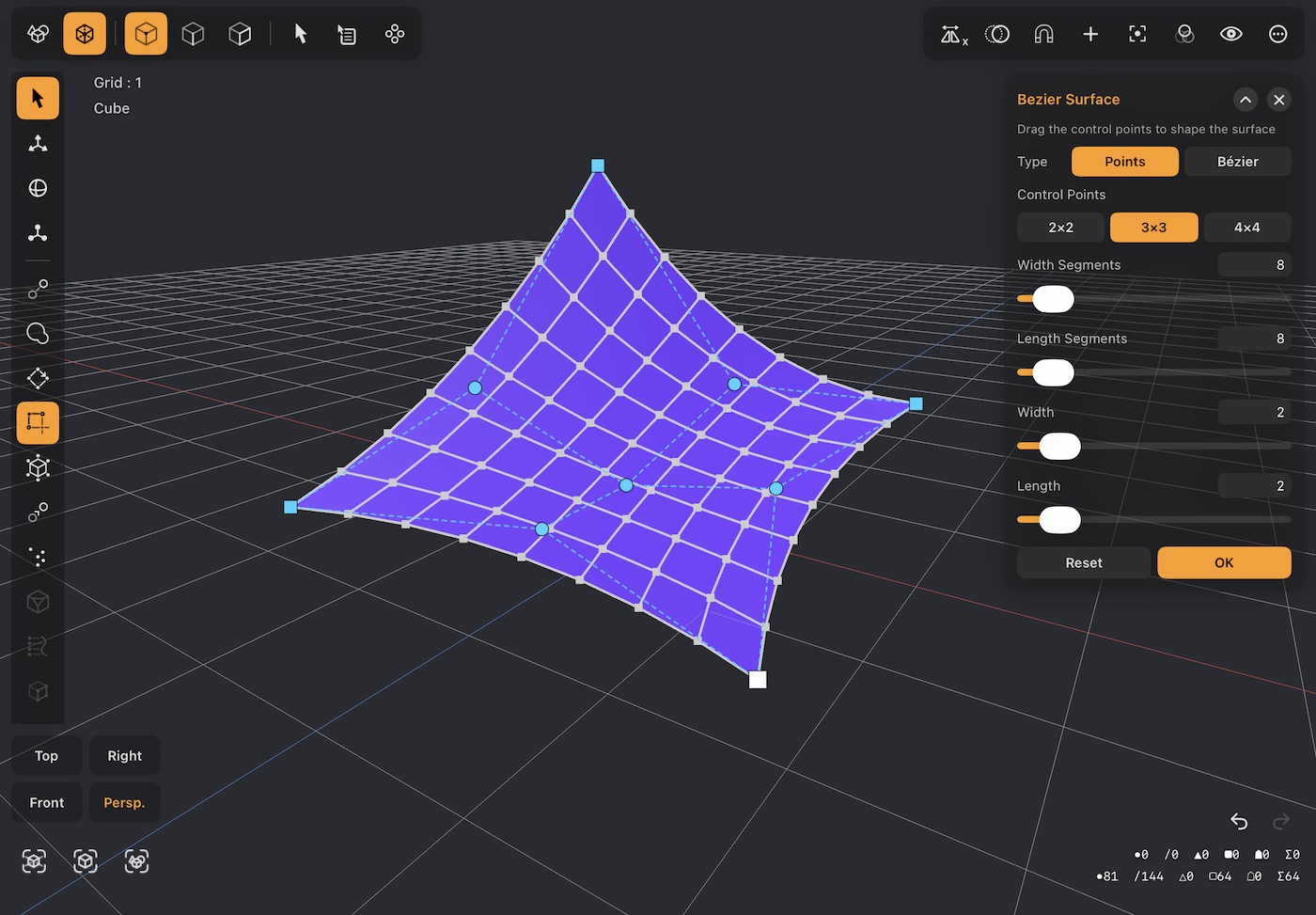
- Adds a subdivided plane to the object and lets you bend it into a smooth curved sheet by dragging control points in the view — for hoods, canopies, roofs, sails, terrain, anything with a flowing curve to it. The plane starts flat, just above the object you are editing and about as wide as it.
- Type picks how you shape it: Points (a net of control points that pull the surface) or Bézier (nodes the surface passes through, each with handles, like the other Bézier tools). You can switch at any time; the shape carries over as closely as it can.
- Points. The control points are drawn over the plane, joined by a dashed net — squares at the corners, circles in between. The corners of the plane sit exactly on the corner points; the inner points pull the surface toward them without touching it, so everything stays smooth. Control Points sets how many: 2×2 (just the corners — tilts and twists), 3×3 (adds edge points and a middle — domes, dips and saddles) or 4×4 (the most control, for S-curves). Going up keeps the shape exactly; going down keeps the corners and follows the rest as closely as it can.
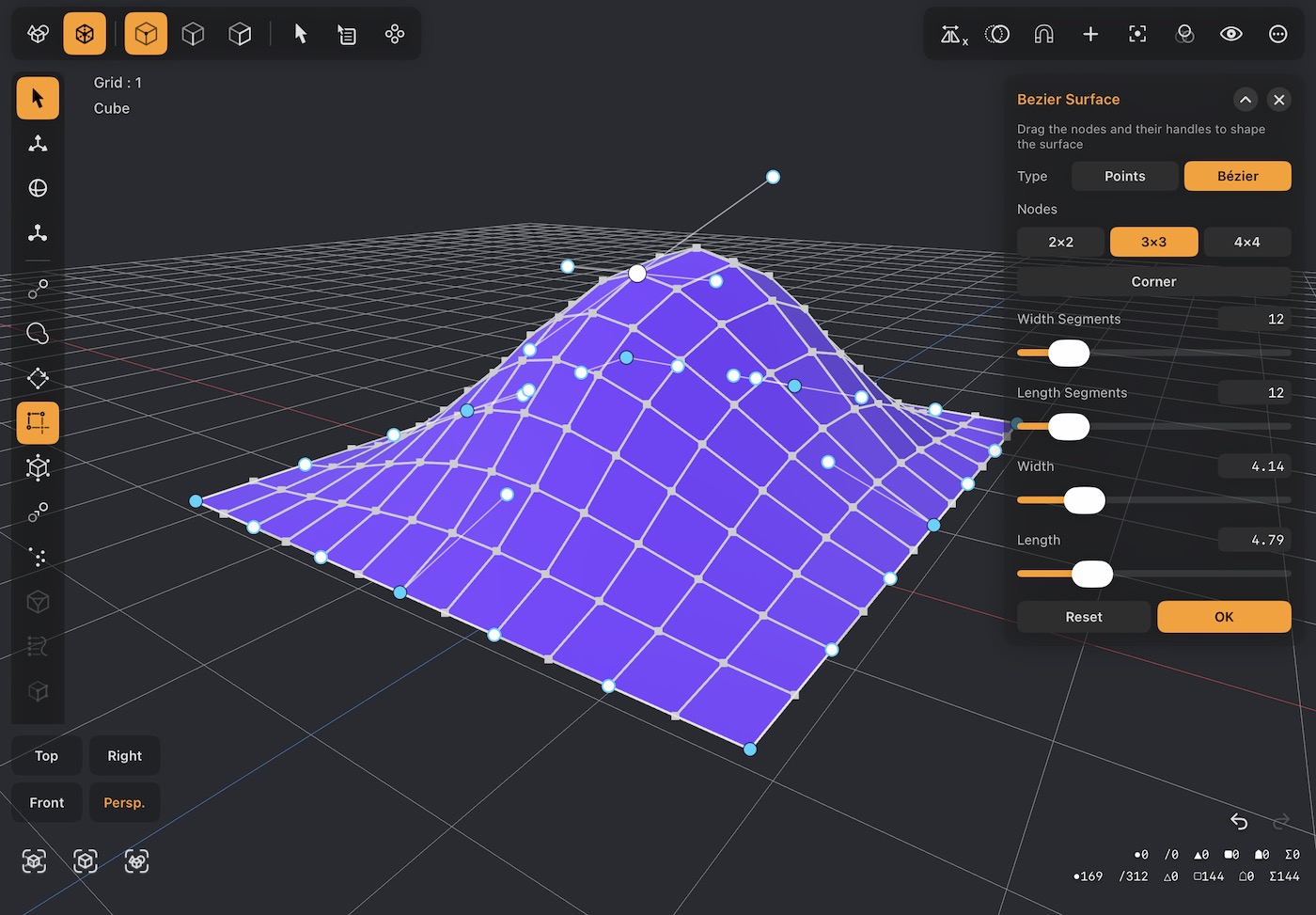
- Bézier. The surface runs through its nodes (Nodes 2×2, 3×3 or 4×4), and every node has a handle toward each neighbouring node — two on a corner, three on an edge, four on an inner node — drawn as a line out to a ring. Drag a node and its handles come with it; drag a handle to set how the surface leaves the node in that direction — a longer handle makes a fuller curve.
- Nodes are Smooth to start: dragging one handle turns the one opposite with it, so the surface flows through the node without a crease. The node you last dragged is the selected one — it turns white — and Corner lets its handles move on their own and put a crease there; a corner node is drawn as a diamond, and the same button then reads Smooth to turn it back.
- Whatever you drag moves in a plane facing you — turn the view to move it another way — and lands on the grid with Snap on. While you drag, the top-left line shows where it is (X, Y, Z).
- Width Segments and Length Segments (4–64 each, set separately — 4 × 6, 5 × 10…) decide how finely the plane is divided. More gives a smoother curve and more points to edit afterwards.
- Width and Length resize the plane; a shape you have made grows or shrinks with it.
- Reset flattens it again. OK keeps the surface as part of the object — one undo step — with its points selected, ready to move or refine with the other tools. ✕ takes it away.
- It is a single-sided sheet like any plane: give it thickness with Thicken in polygon mode, or turn on Double-Sided in the material to see it from underneath.
37Lattice Warp
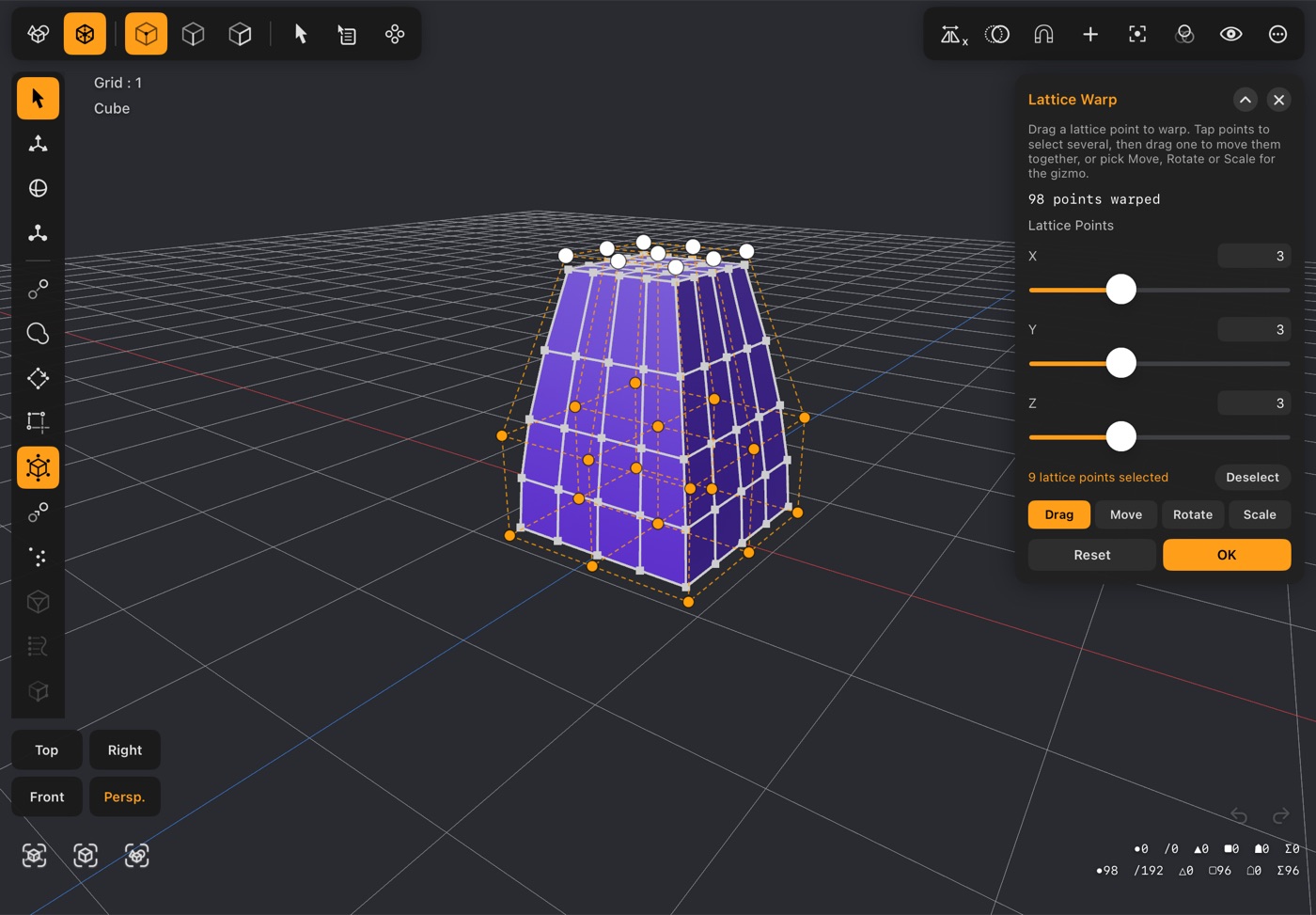
- Puts a box of control points — a lattice — round the selected points, or round the whole object when nothing is selected, and warps them smoothly as you move the lattice. Good for tapering, bulging, bending or squashing a shape as a whole without pushing points about one at a time. The popup shows how many points it is warping.
- Drag a lattice point and the geometry near it follows, the most right beside it and less and less further away. Points move in a plane facing you (turn the view to move them another way), and snap to the grid with Snap on.
- To move several together, tap them first — they turn white — then drag any one of them. Selecting a whole layer (the top nine of a 3 × 3 × 3 lattice, say) and dragging it stretches or squashes the shape; moving one side's layer out flares it. Deselect clears the selection. A drag on a lattice point that isn't selected moves just that one.
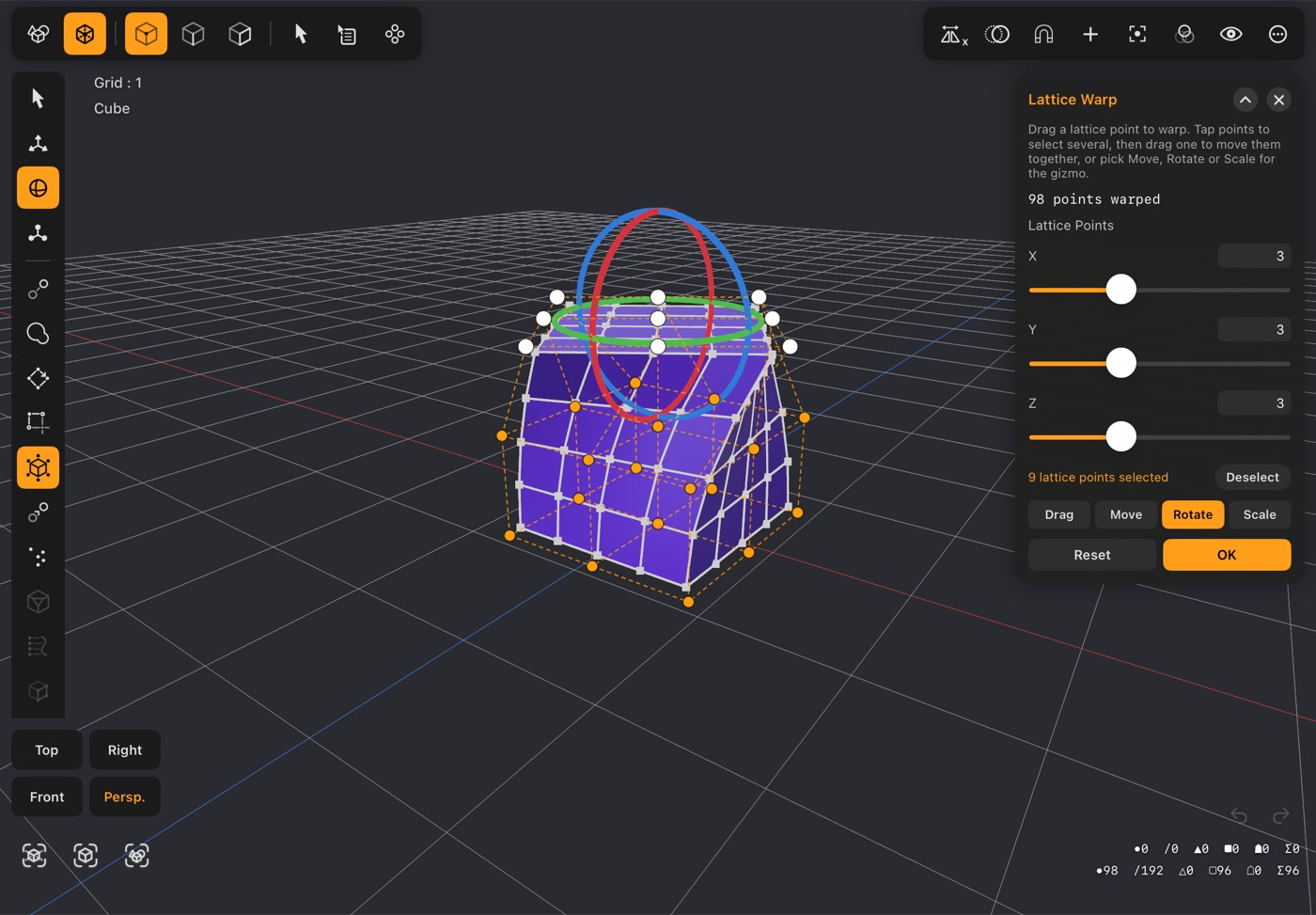
- To turn or resize the selected lattice points, pick Move, Rotate or Scale in the popup (or on the left bar). The usual handles appear on them and work just as they do on mesh points: drag an arrow or a ring to move or turn along one axis, the centre to scale evenly, with Snap if it's on — turning a layer twists the shape, scaling one tapers or swells it. Drag goes back to moving points by hand.
- Undo and Redo step back and forth through your lattice changes — moves, turns, point counts and Reset — while the tool stays open.
- With mirror editing on (Mirror on X, Y or Z in the top bar) and a symmetrical object, the lattice is built symmetrical about the mirror, and the popup says Mirrored on X (or Y, Z). Tapping a lattice point picks up its twin on the other side too, and whatever you do to one side is copied onto the other, so the shape stays symmetrical. Turn mirroring on before you start Lattice Warp.
- Lattice Points X / Y / Z (2–5 each) set how many control points run each way: more gives finer, more local control. Changing them keeps the warp you already have — exactly when adding points.
- Only the points inside the lattice move; with part of an object selected, the rest stays exactly where it is. The points it warps are fixed when you start it: while it is on, taps only pick lattice points, so select what you want first.
- Reset puts the lattice back square (Undo brings the warp back). OK keeps the result — the whole warp is one undo step — and gives you back the selection you had. ✕ cancels.
- Scene mode's Lattice modifier does the same warp without changing the mesh, so it can be adjusted or removed later; this tool bakes it in.
38Merge
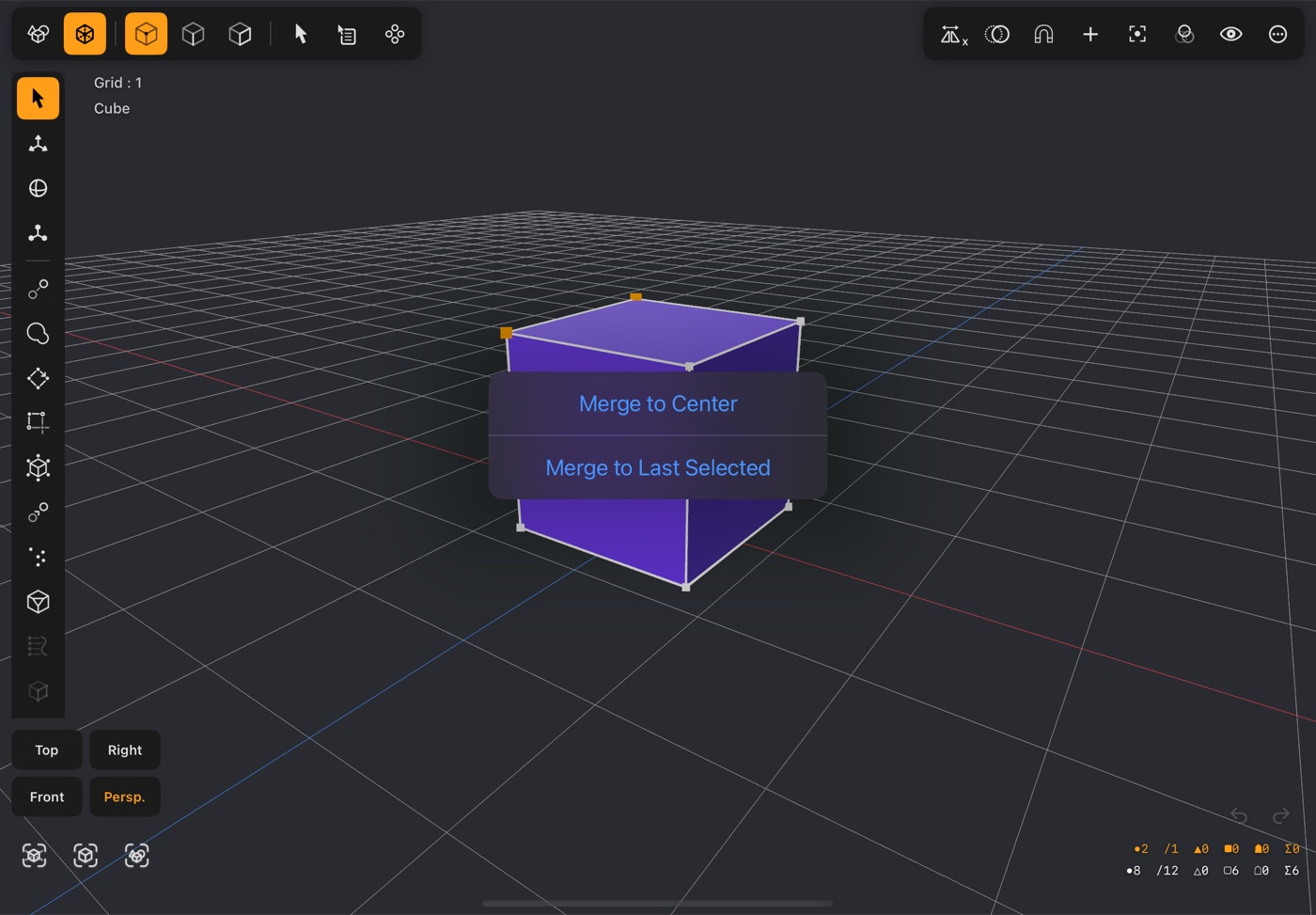
- With two or more points selected, choose Merge to Center to bring them together at their midpoint, or Merge to Last Selected to collapse them onto the last one you picked.
- With nothing selected it becomes Merge by Distance, which joins every pair of points closer together than the distance you set — the quick way to close up a seam after mirroring.
- With a single point selected the button is dimmed: there is nothing to merge it with.
39Randomize
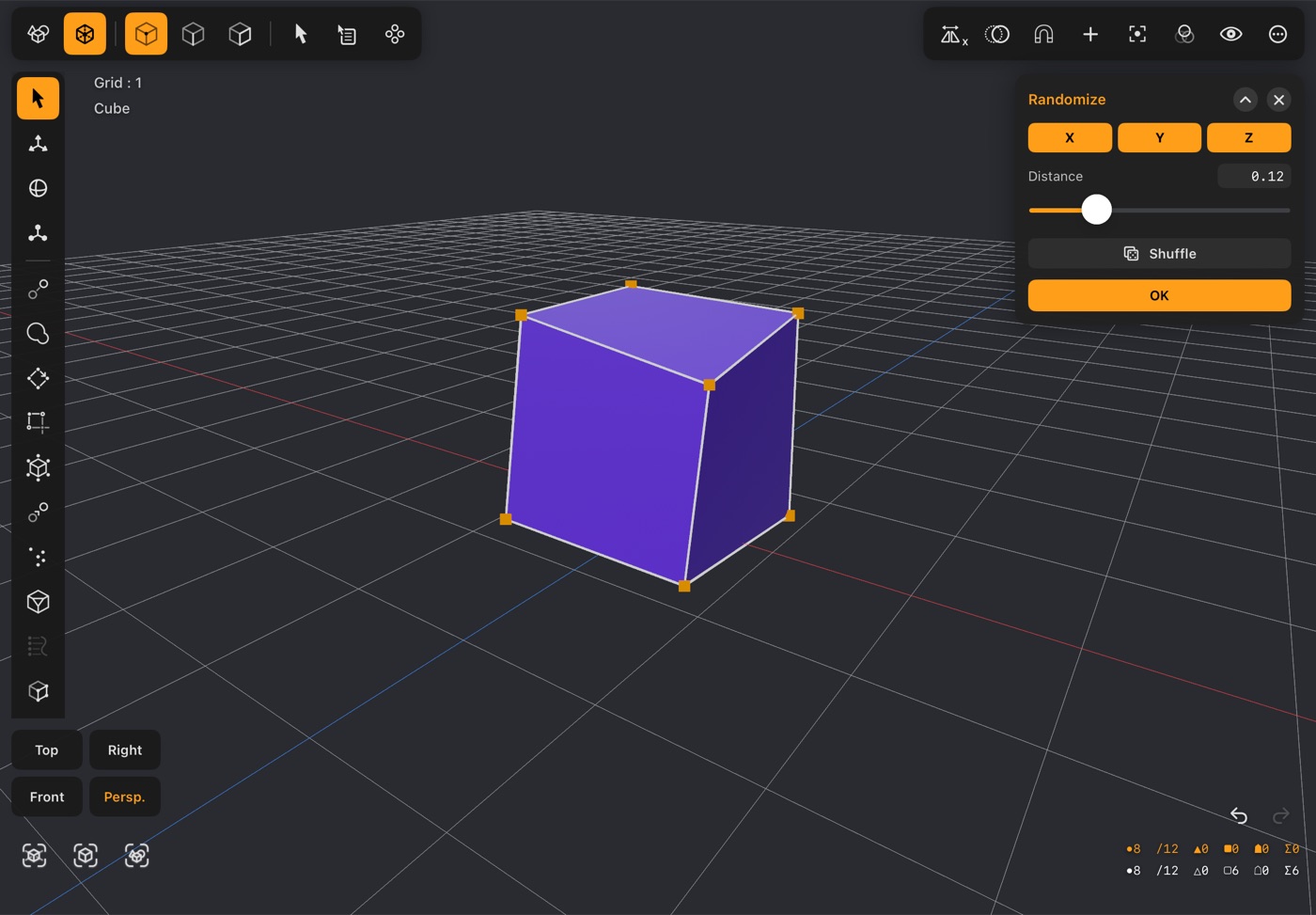
- Jitters the selected points by a random amount, or every point in the object when nothing is selected.
- X, Y and Z choose which directions the points may move in — the world axes the gizmo shows. Turn Y off to roughen a floor without lifting it; turning one off leaves the others' offsets exactly as they were.
- Distance is how far they can move.
- Shuffle rolls a new set of random offsets at the same distance, so you can keep trying until you like the result.
- Good for roughening a surface that looks too manufactured — rock, bark, damaged metal.
40Point Bevel
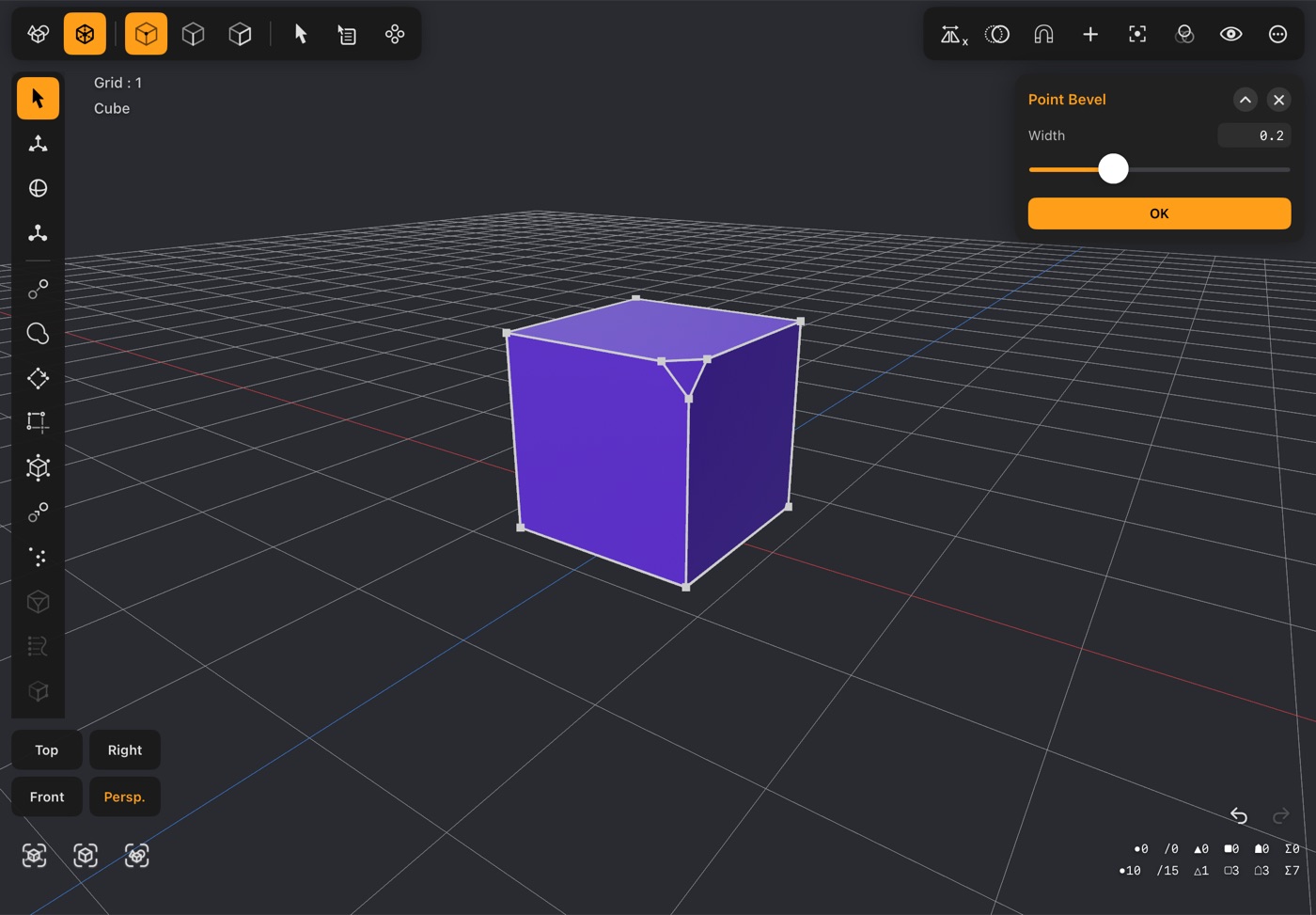
- Cuts the corner off a point, replacing it with a small face.
- Width is how far down each edge the cut reaches.
- Where Bevel works along an edge, this works at a single vertex — use it to knock the tip off a spike or a box corner.
41Snap Guide
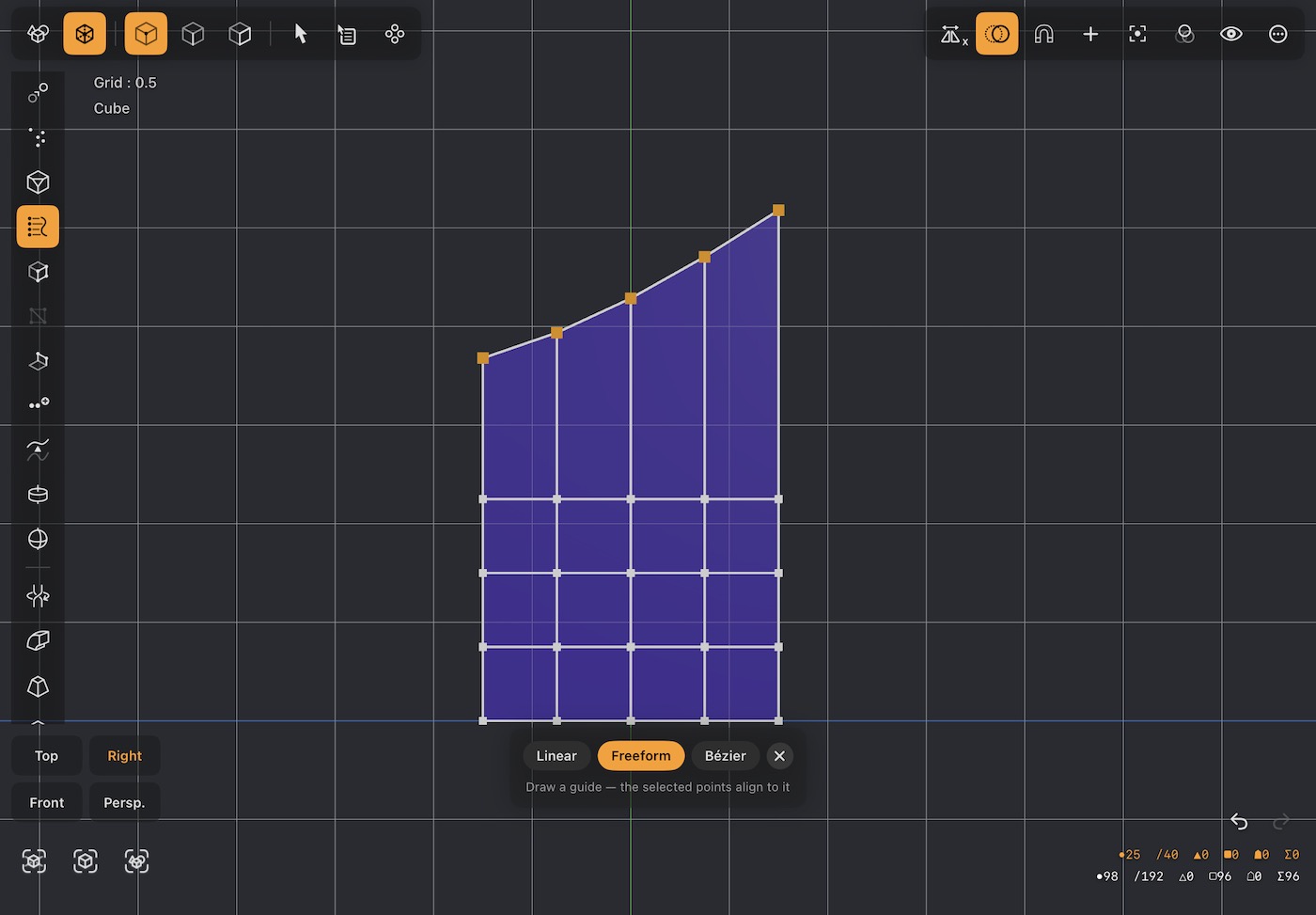
- For lining points up in the Top, Front and Right views. Select the points, then drag a guide across the view: when you lift your finger, the selected points move onto it.
- Each point moves straight across the guide only. A guide drawn up and down moves points sideways and each keeps its height; one drawn left to right moves them up or down and each keeps its place along it.
- Linear draws a straight guide, snapping level or upright when it is close; Freeform follows your finger.
- Bézier lets you shape the curve before anything moves. Drag to draw the first curve, then drag the round handles to bend it and the square points to move them, and tap the curve to add another point. Corner / Smooth switches the selected point between a sharp corner and a smooth bend; Delete Point removes it. Orange dots show where each selected point will land. Tap OK to move them — the curve stays, so you can select other points and apply it again. With Snap to Grid on, points and handles land on the grid.
42Make Poly
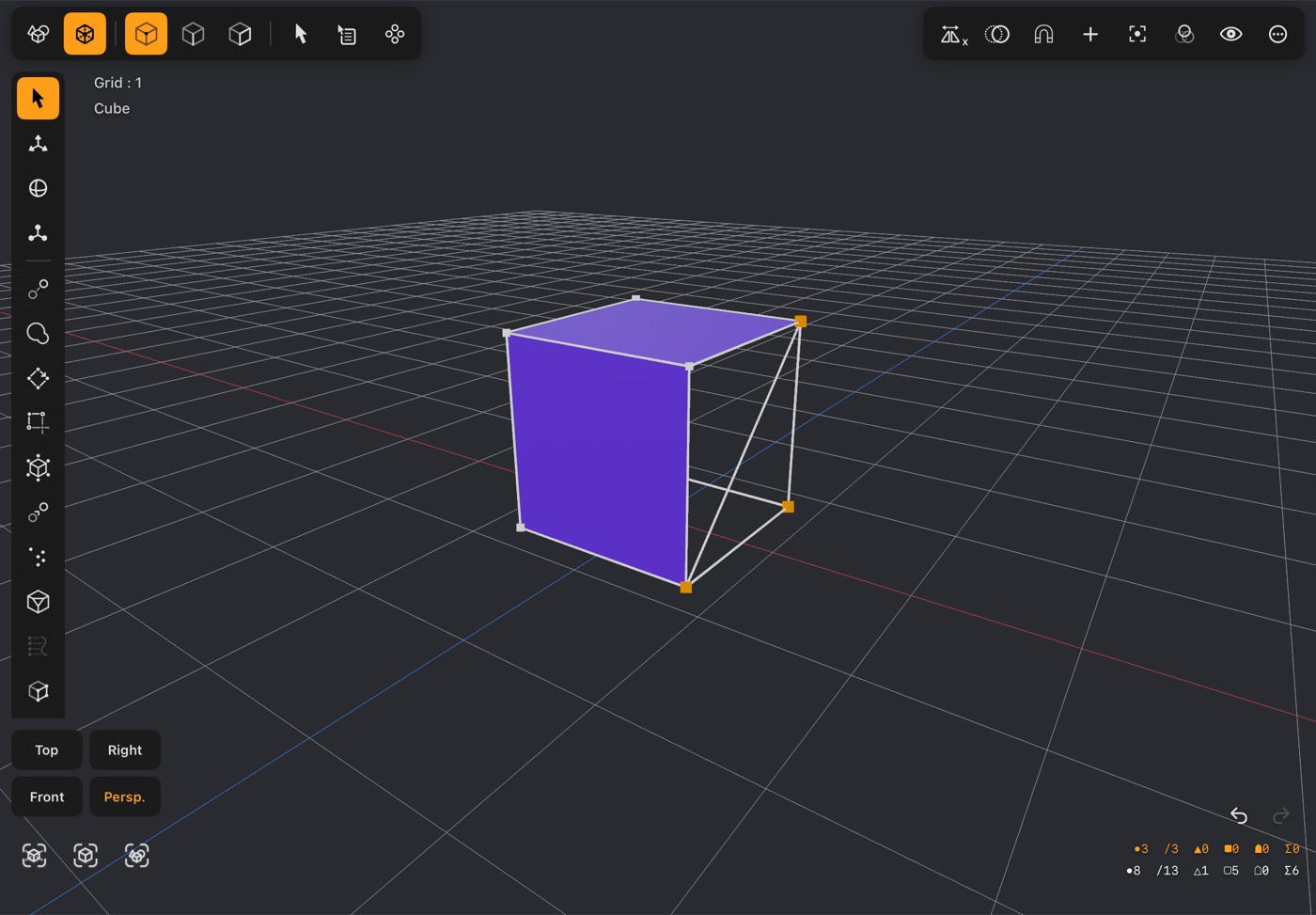
- Select three or more points and tap Make Poly to build a face across them.
- The order you pick them in sets the winding, and therefore which way the new face points: anticlockwise faces you, clockwise faces away.
- Tapping the points one by one, or painting round them with Paint select, picks them in that order, so the face follows the outline you traced, even an L or other indented shape. Points taken in bulk (Rect, Draw, All…) are arranged into a tidy loop for you, and an order that would make the face cross over itself is tidied too.
- Use it to close a gap by hand where Cap or Bridge cannot work out what you want.
43Split Poly
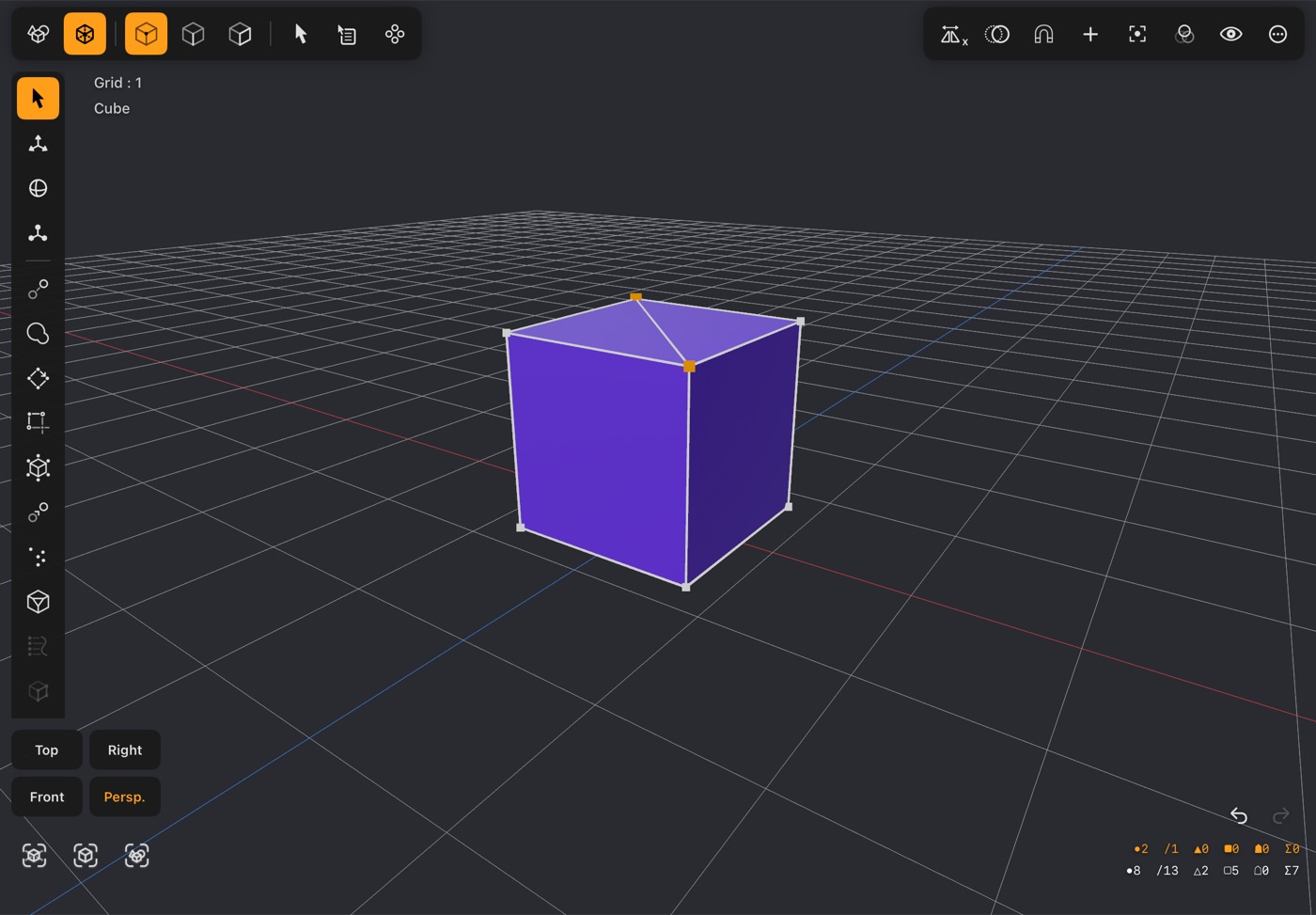
- Select exactly two points on the same face and tap Split Poly to draw a new edge between them, cutting the face in two.
- The usual way to turn one awkward n-gon into two clean quads, or to add a diagonal you can then move.
44Extend
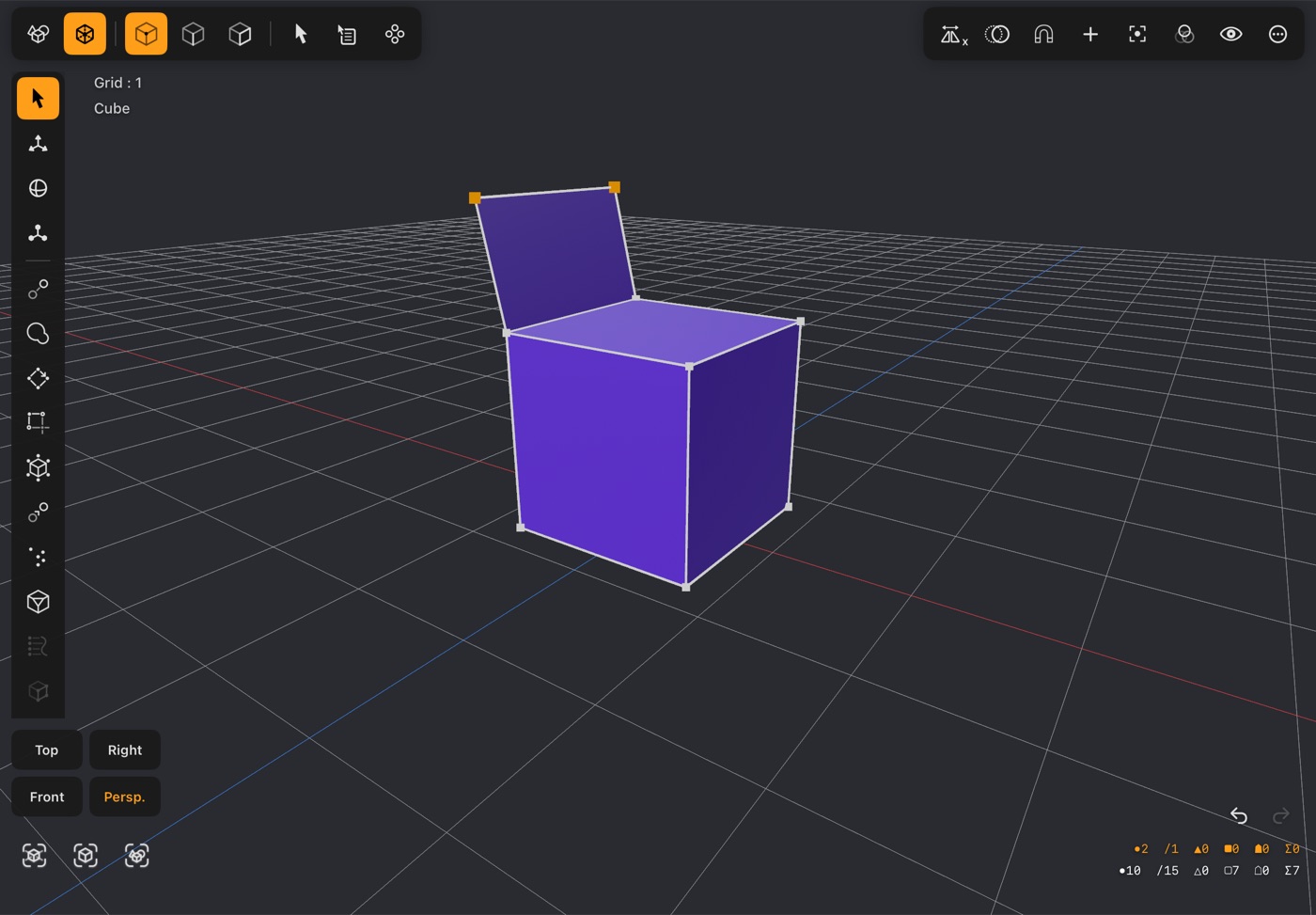
- Select a run of connected points and tap Extend to build a strip of new quads off them — n points give n−1 faces.
- The new points are left selected with the Move tool ready, so you can pull them straight into place.
- Tap Extend again from there to keep building a surface out one row at a time.
- In edge mode, Extend Edges does the same with edges: each selected edge grows a quad.
45Add Point
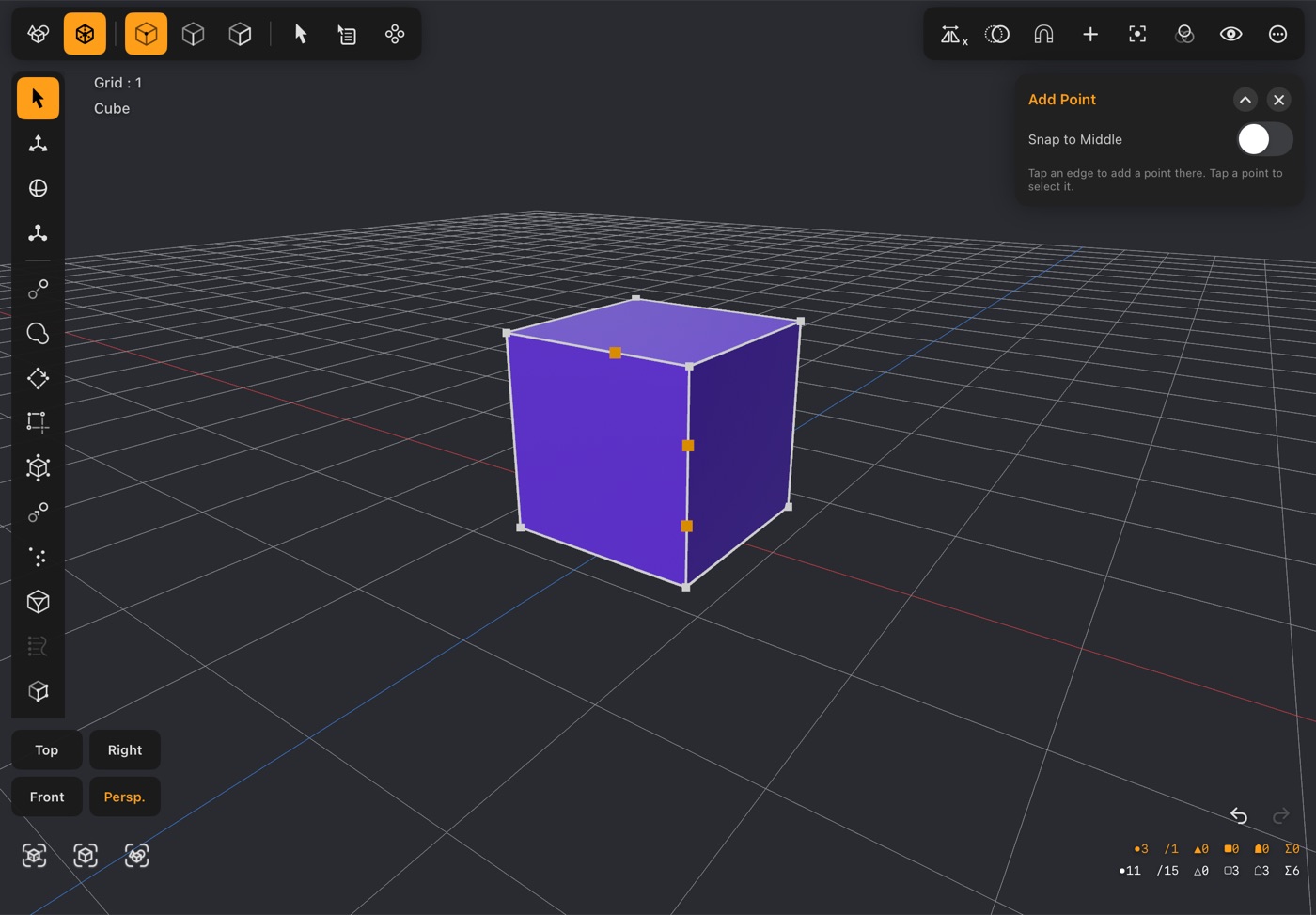
- Tap Add Point (under Extend) to turn it on, then tap any edge: a new point goes on the edge right where you tapped. Tap as many edges as you like; tap the button again or ✕ in its popup when you're done.
- The faces on both sides of the edge take the new point, so the surface stays joined — a square face beside the edge now has five corners. It changes no shape until you move the point.
- Each new point is added to the selection, so you can go straight on: two new points on the same face, then Split Poly, cut the face between them; or move them with the gizmo.
- Turn on Snap to Middle in the popup to put every new point exactly halfway along its edge, wherever you tap it.
- A tap on an existing point still selects it, and a tap on empty space clears the selection, as usual. With mirror editing on, the mirrored edge gets its point too.
- Every point is its own undo step. Switching to Edge or Poly mode, or picking another tool, turns Add Point off.
46Smooth
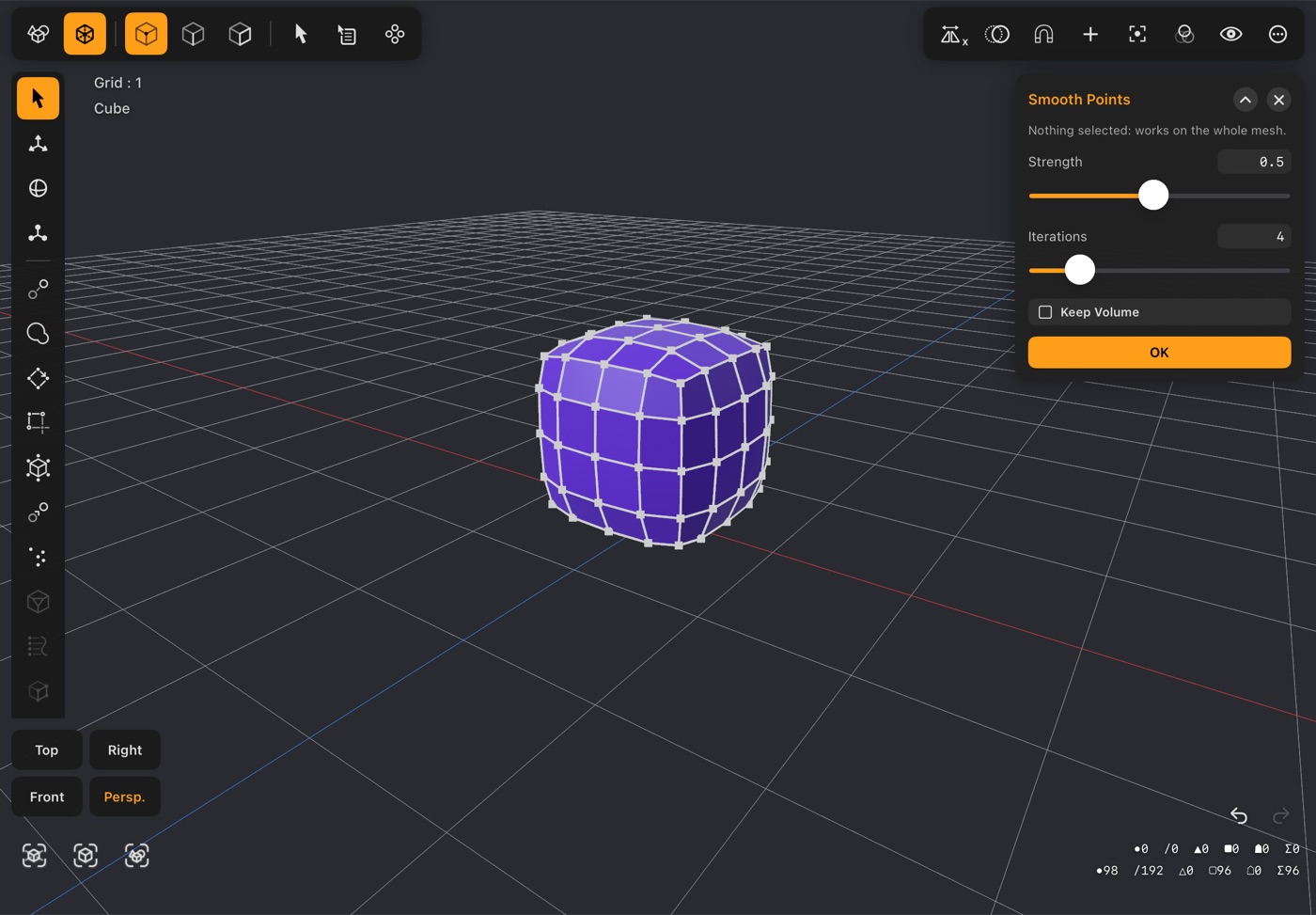
- Relaxes the selected points toward their neighbours, evening out lumps, kinks and uneven spacing — or the whole object when nothing is selected. Works on whatever is selected in any mode; the button is in point mode, under Extend.
- Strength is how far each pass moves a point toward the average of its neighbours; Iterations is how many passes (1–20). The view updates as you drag.
- Plain smoothing also shrinks a shape a little with every pass. Keep Volume pushes it back out after each pass, so the shape relaxes without getting smaller.
- Points on an open edge only follow the other edge points, so a straight border stays straight. Unselected points stay where they are, so a smoothed patch blends into the rest.
- It moves points; it adds none. Give a shape more points first (a few segments, or Subdivide) for a rounder result.
- OK keeps it as one undo step; ✕ cancels. The settings are remembered for next time.
47Warp Cylinder
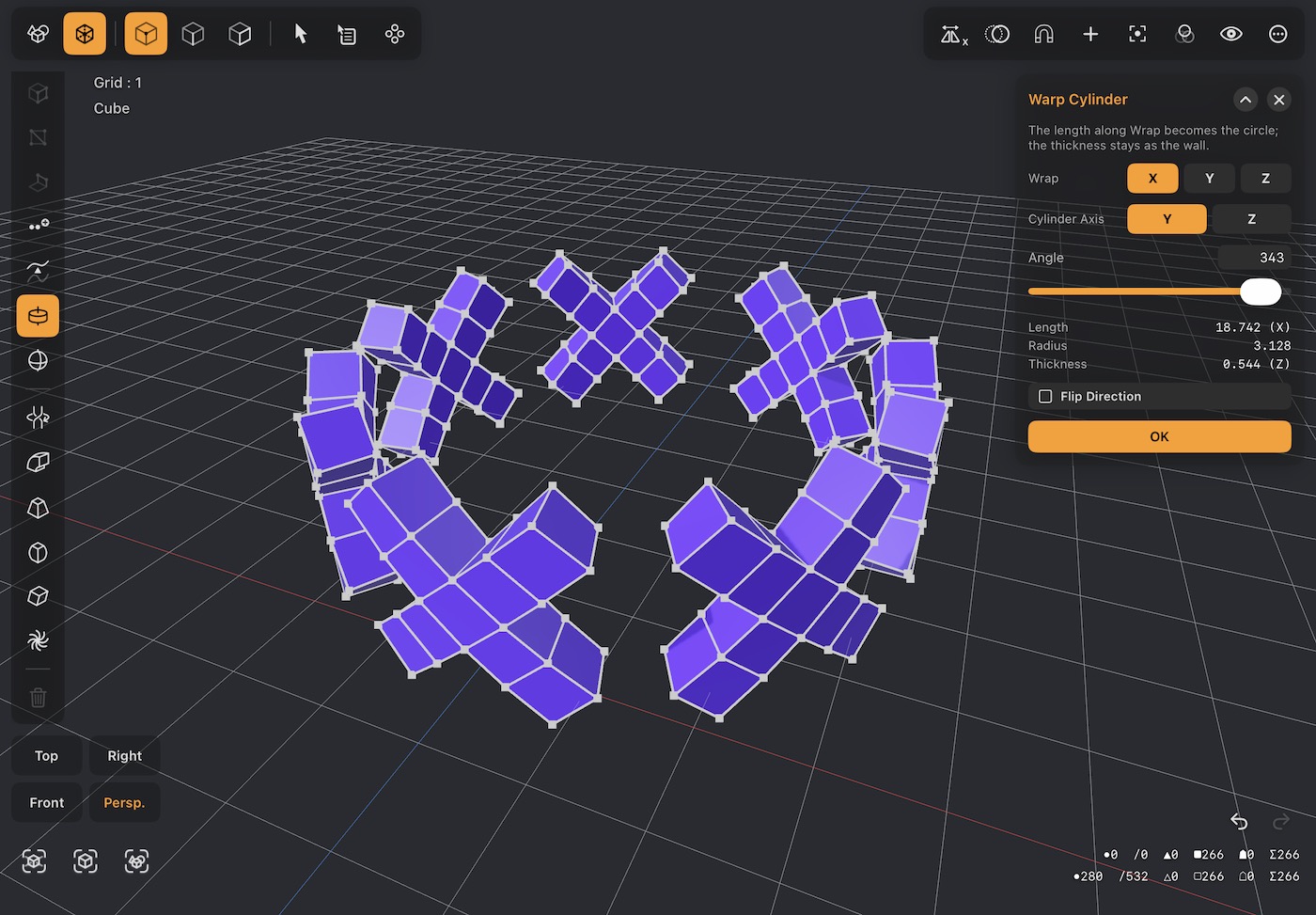
- Rolls the selected points — or the whole object when nothing is selected — round into a cylinder: a flat strip becomes a ring, a panel a tube, a straight rail a hoop. A single selected point has no length to roll, so it dims the button.
- Wrap picks the length that goes round the circle (X, Y or Z); Cylinder Axis the way the cylinder runs. It starts on the longest side.
- Angle is how far round it goes: 360 closes the ring, less leaves an arc. The length becomes that much of the circle, so the radius follows from it; Length, Radius and Thickness are shown below.
- Thickness stays: the shape's depth becomes the wall of the cylinder.
- Close Seam joins the two ends where a full turn brings them together. Flip Direction curls it the other way.
- It bends at the points, so give the shape cuts along its length first — a warning says when there are too few to bend smoothly, or when the wall is thicker than the circle can hold.
- OK keeps it as one undo step; ✕ cancels.
48Warp Sphere
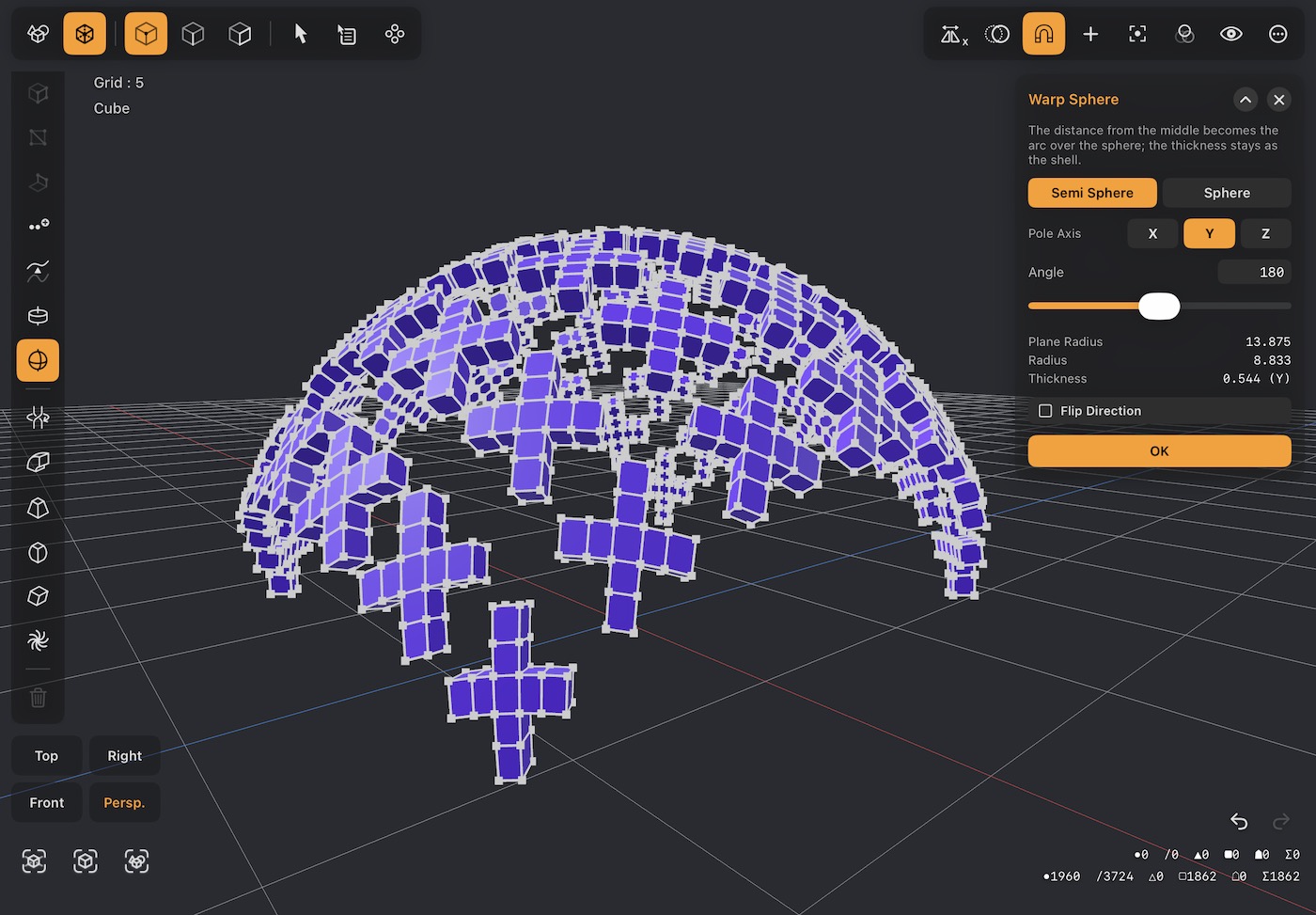
- Bends a flat shape over a sphere: Semi Sphere makes a dome, Sphere takes it all the way round into a ball. Angle sets anything in between, for a shallower or deeper dome.
- How far a point is from the middle of the shape becomes how far it is over the sphere from the top, so rings round the middle become lines of latitude. A square's corners are further out than its sides, so they reach further round.
- Pole Axis is the way the dome rises; it starts on the thinnest side. Flip Direction hangs it the other way, as a bowl.
- Thickness stays as the shell. At a full sphere, Close Seam joins the rim where it closes up.
- Works on the selected points, or on the whole object when nothing is selected (a single selected point dims the button). Give the shape a grid first — it bends at the points.
- OK keeps it as one undo step; ✕ cancels.
Deformers
The six deformers appear at the bottom of the bar in point and edge mode. They reshape the whole selection at once — or the whole object when nothing is selected — around an axis you pick, and they need geometry to work with: a box with only its eight corners has nothing to bend, so subdivide first. A single selected point has nothing to bend either, so it dims them. Every picture below is a box with four segments a side.
Each deformer's popup has the axis (X / Y / Z) and one slider, Angle ° or Amount, and the result previews live. Apply makes it part of the mesh; Reset puts the slider back to zero.
49Twist
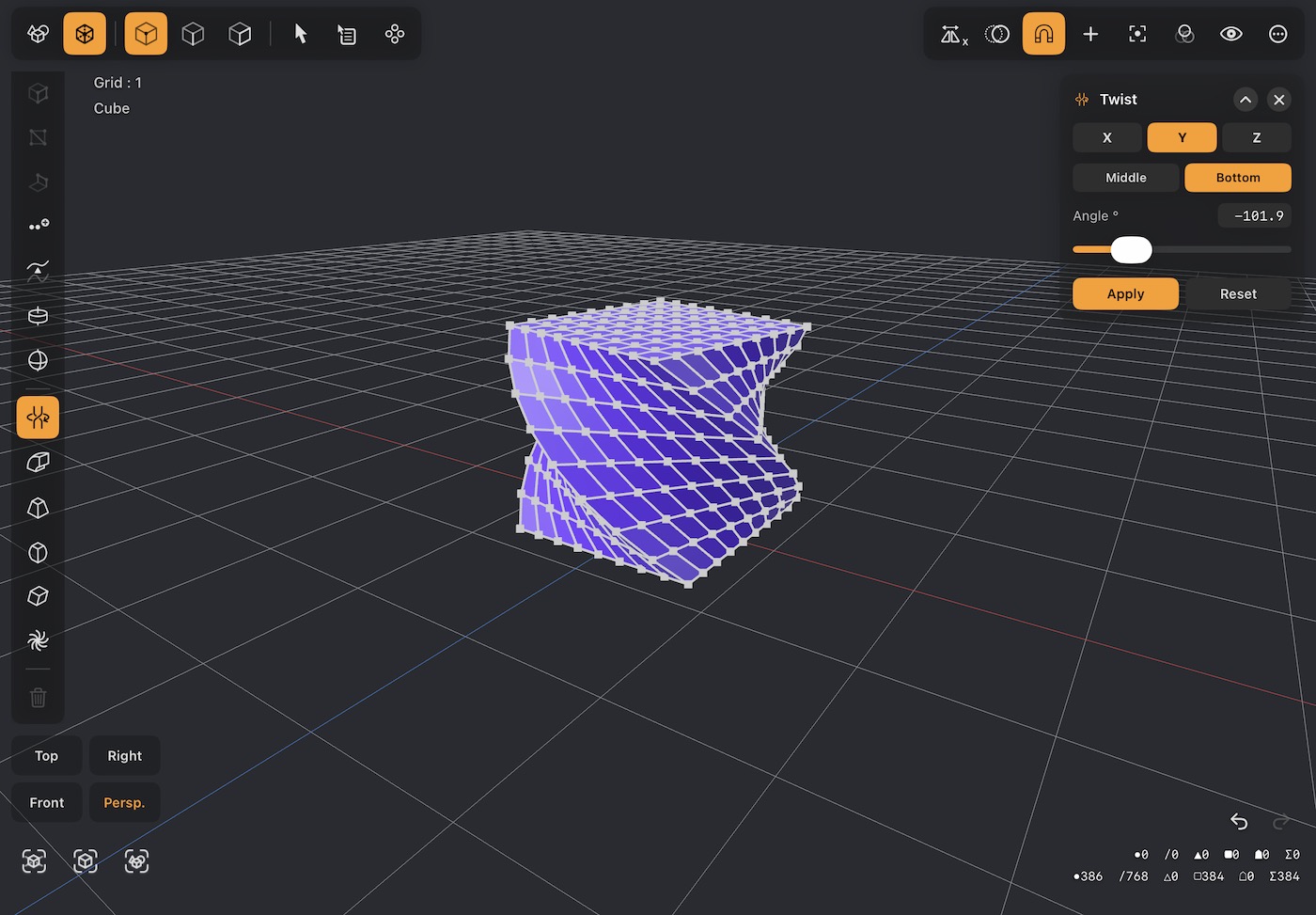
- Rotates the object progressively along the chosen axis, so one end turns relative to the other.
- Angle is in degrees, and can wind well past a full turn for springs and drill bits.
- Pick the axis with X / Y / Z — the twist runs along it.
50Bend
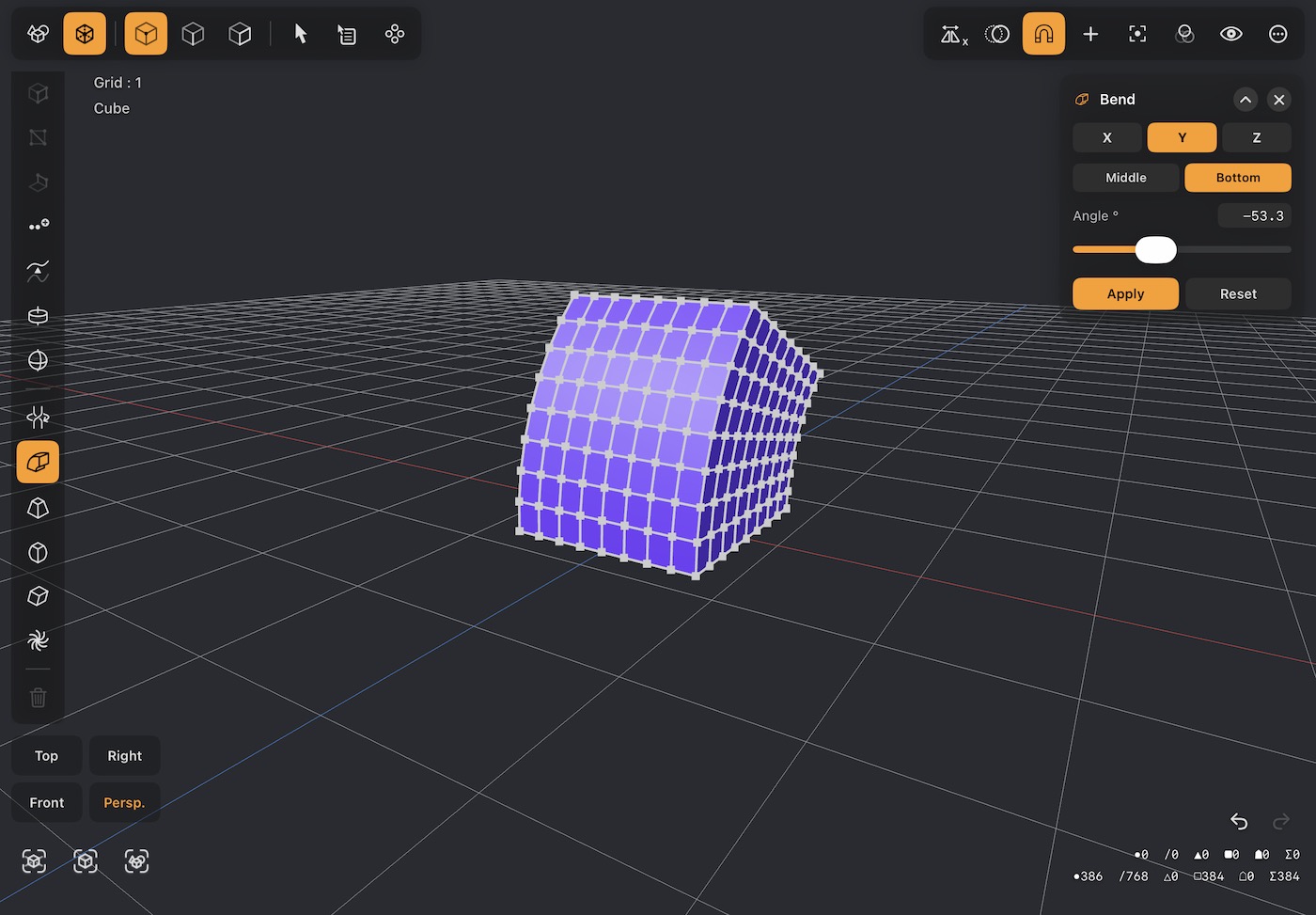
- Curves the object over, like bending a bar in a vice.
- Angle is how far it bends; the axis sets which way it folds.
- Anchor it from Bottom to bend something upright over from its base.
51Taper
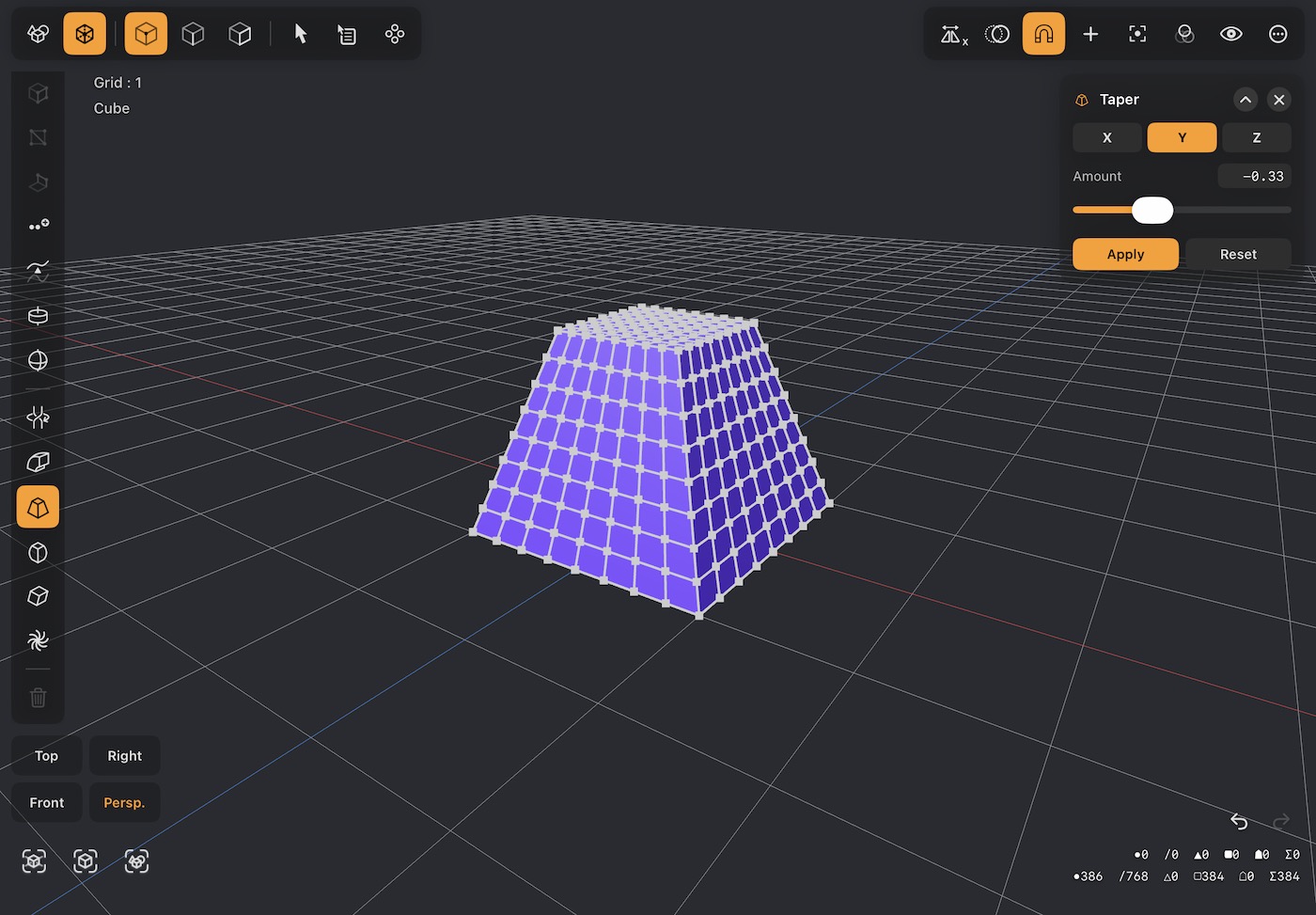
- Narrows one end and widens the other, turning a box into a wedge or a cylinder into a cone.
- Amount is how strong the taper is; negative flips which end narrows.
52Stretch
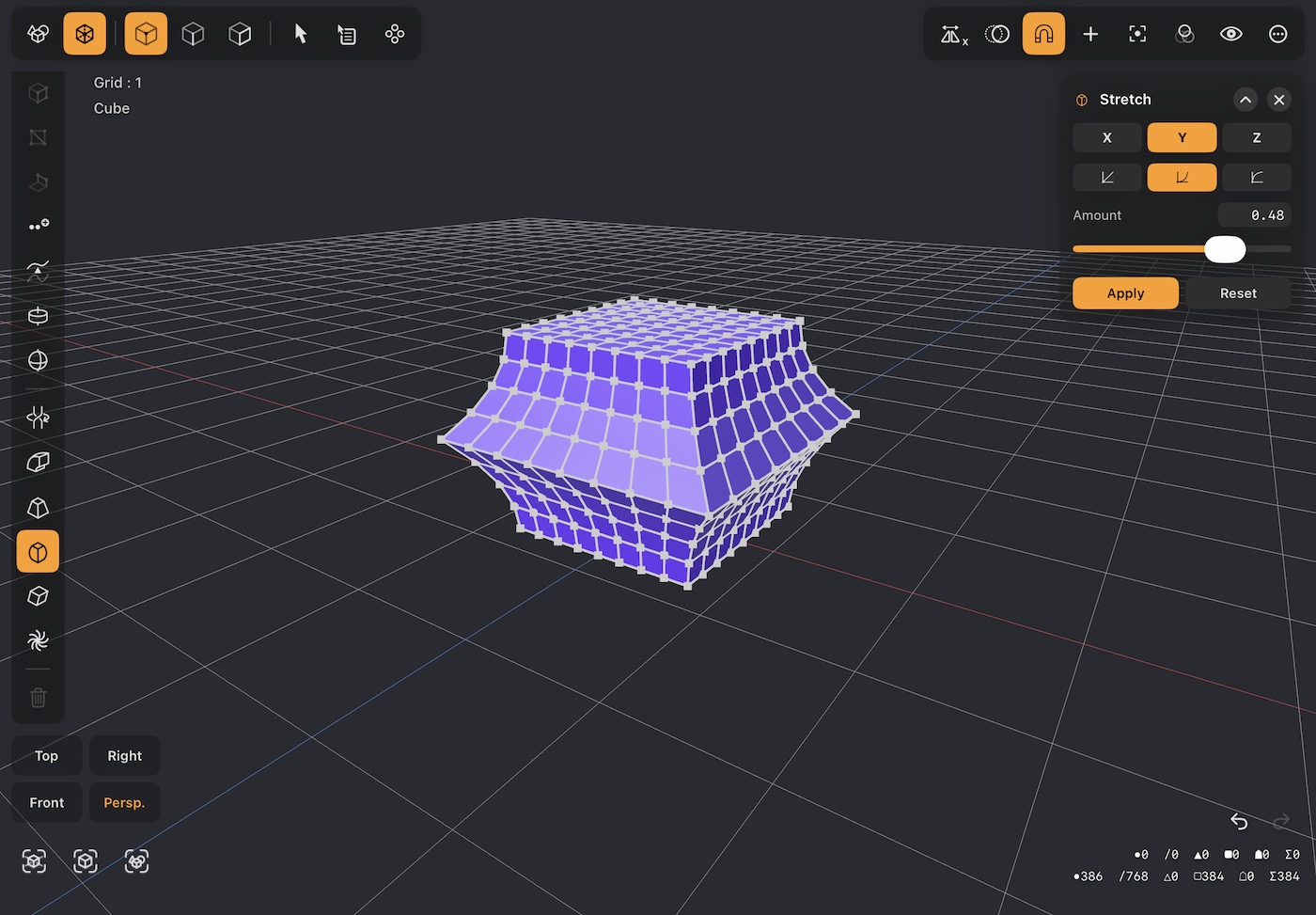
- Pushes the middle of the object out, or draws it in, leaving both ends exactly where they were.
- A positive Amount gives a belly or barrel; a negative one gives a waist.
- The three buttons under the axis set how the belly falls away toward the ends. Linear tapers straight, Quadratic gathers the bulge into the middle, and Exponential gives a full belly that only lets go near the ends.
- The length never changes — this shapes the object, it does not scale it.
53Skew
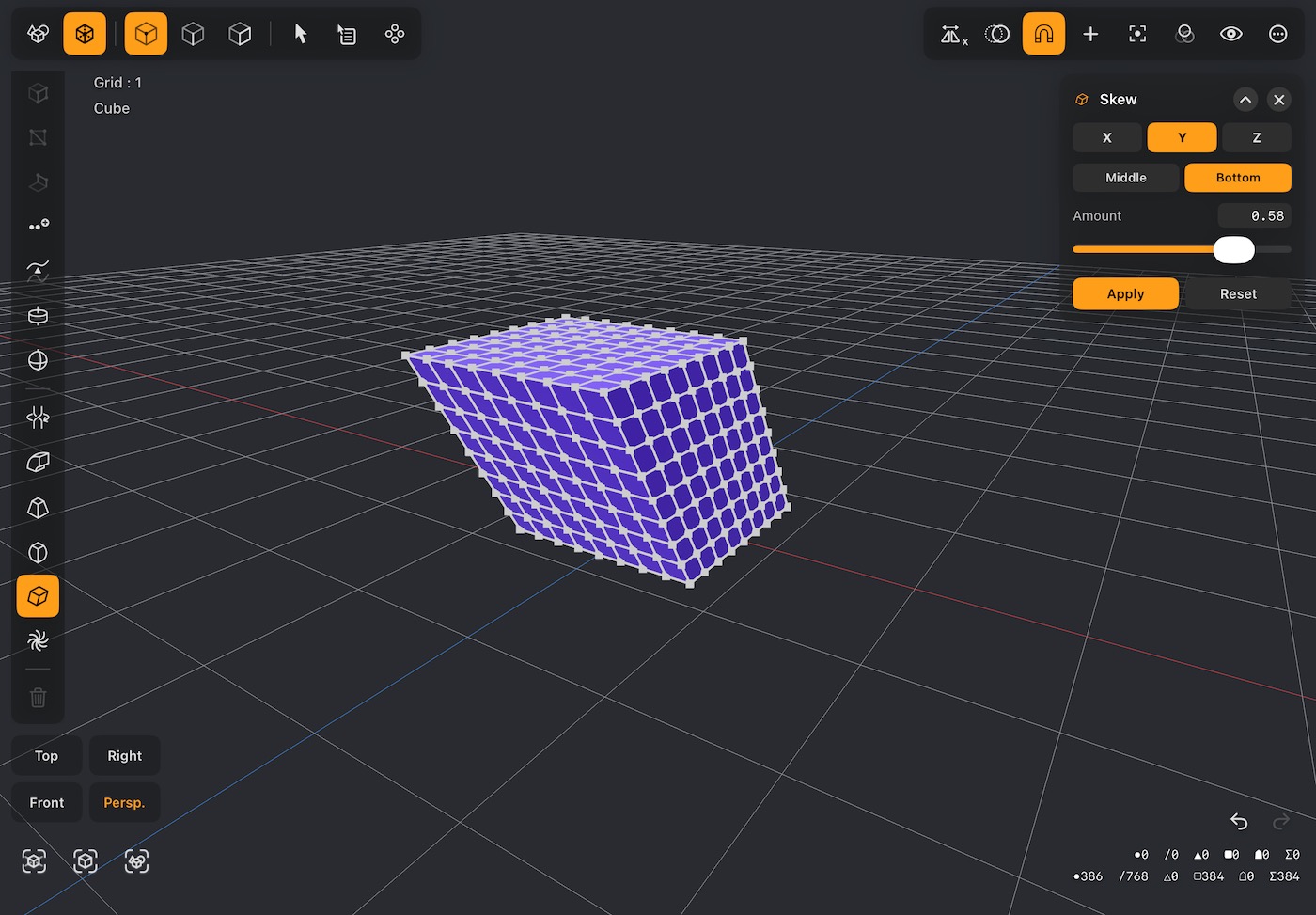
- Slides the object sideways progressively along the axis, so a box leans over into a parallelogram.
- Amount is how far the far end shifts.
- Anchor from Bottom to lean something over while its base stays put.
54Vortex
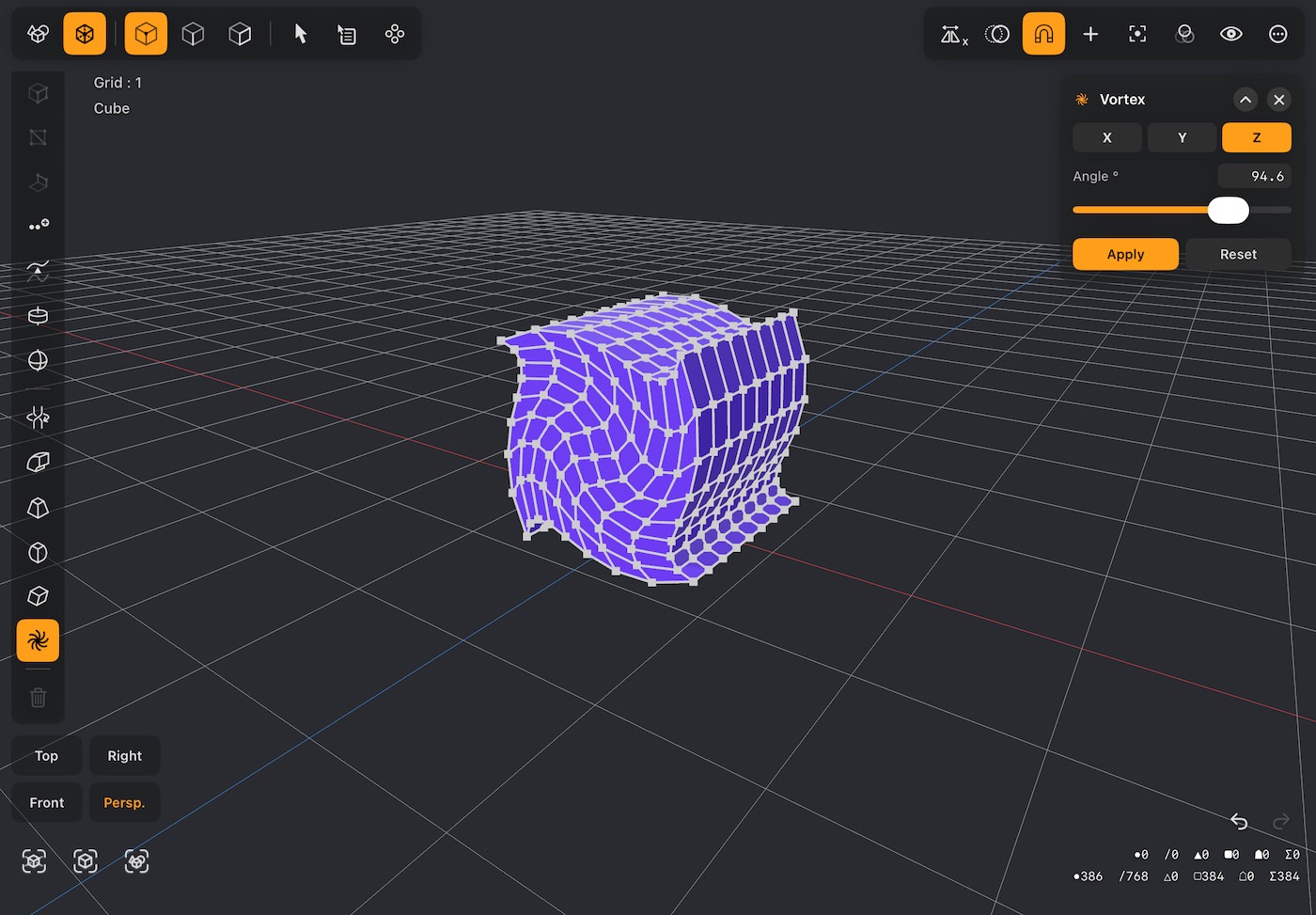
- Twists the object around the axis by an amount that grows with distance from it — the outside turns further than the middle.
- Where Twist winds along the axis, this winds outward from it, giving a swirl or a whirlpool.
- Angle sets how far the outermost points turn.
Painting & materials
A material sets how a whole surface behaves. Painting lets you vary it across the surface — a scuff here, a rust patch there — by drawing directly onto the object or onto its flattened UV map.
Paint on the model
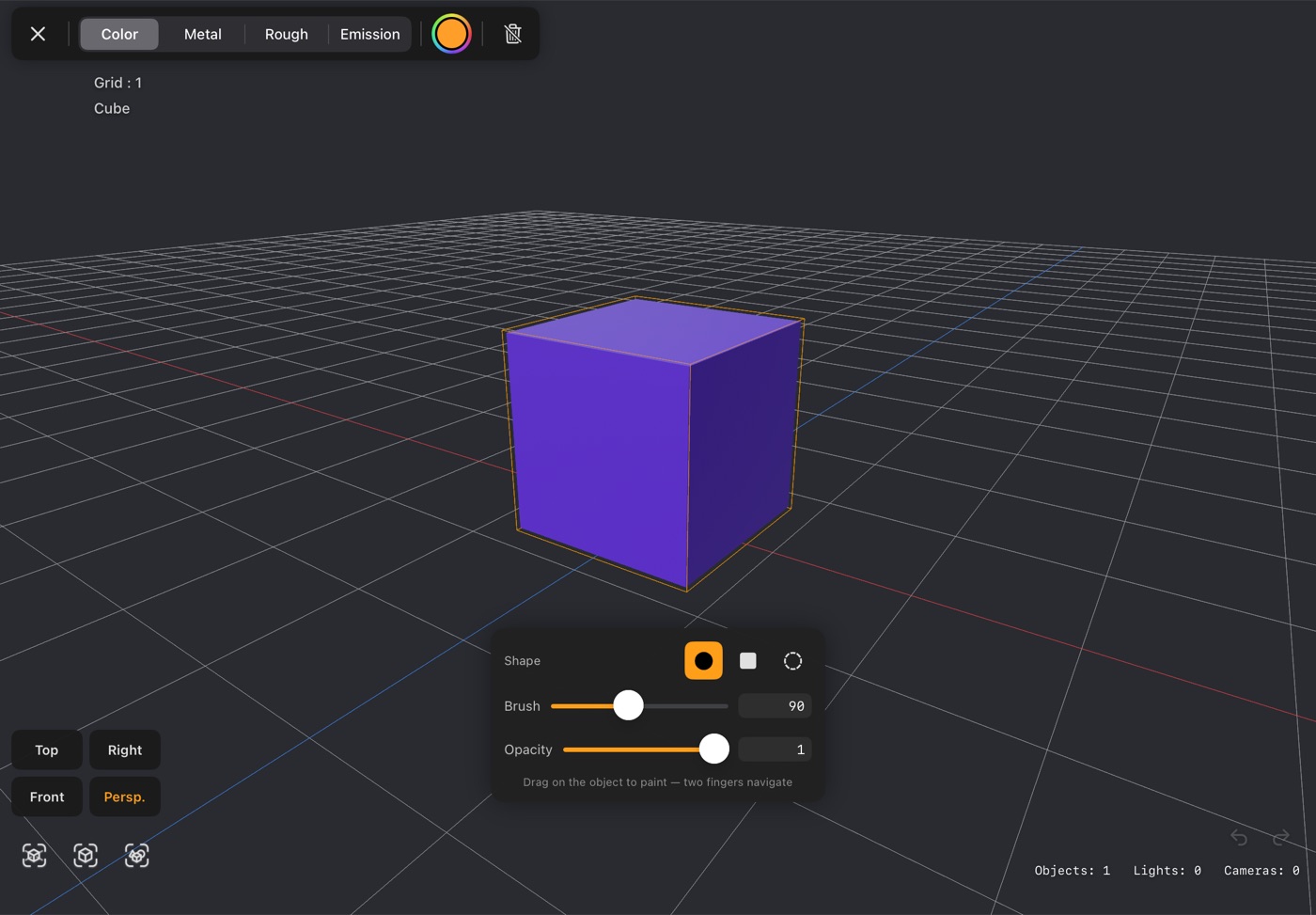
- Select an object and tap the brush in the top bar to enter paint mode, then drag on the model to paint. Two fingers still navigate.
- The bar along the top chooses which map you are painting: Color, Metal, Rough or Emission. Metal and rough paint a grey value rather than a colour.
- Shape picks a hard circle, a square or a soft-edged circle. Brush sets its size.
- Opacity sets how strongly one stroke tints what is underneath. A stroke is laid down once at that strength however slowly you drag it, and going over the same ground again builds up.
- Undo and redo work stroke by stroke while you paint, separately from the rest of the app's undo.
UV editor
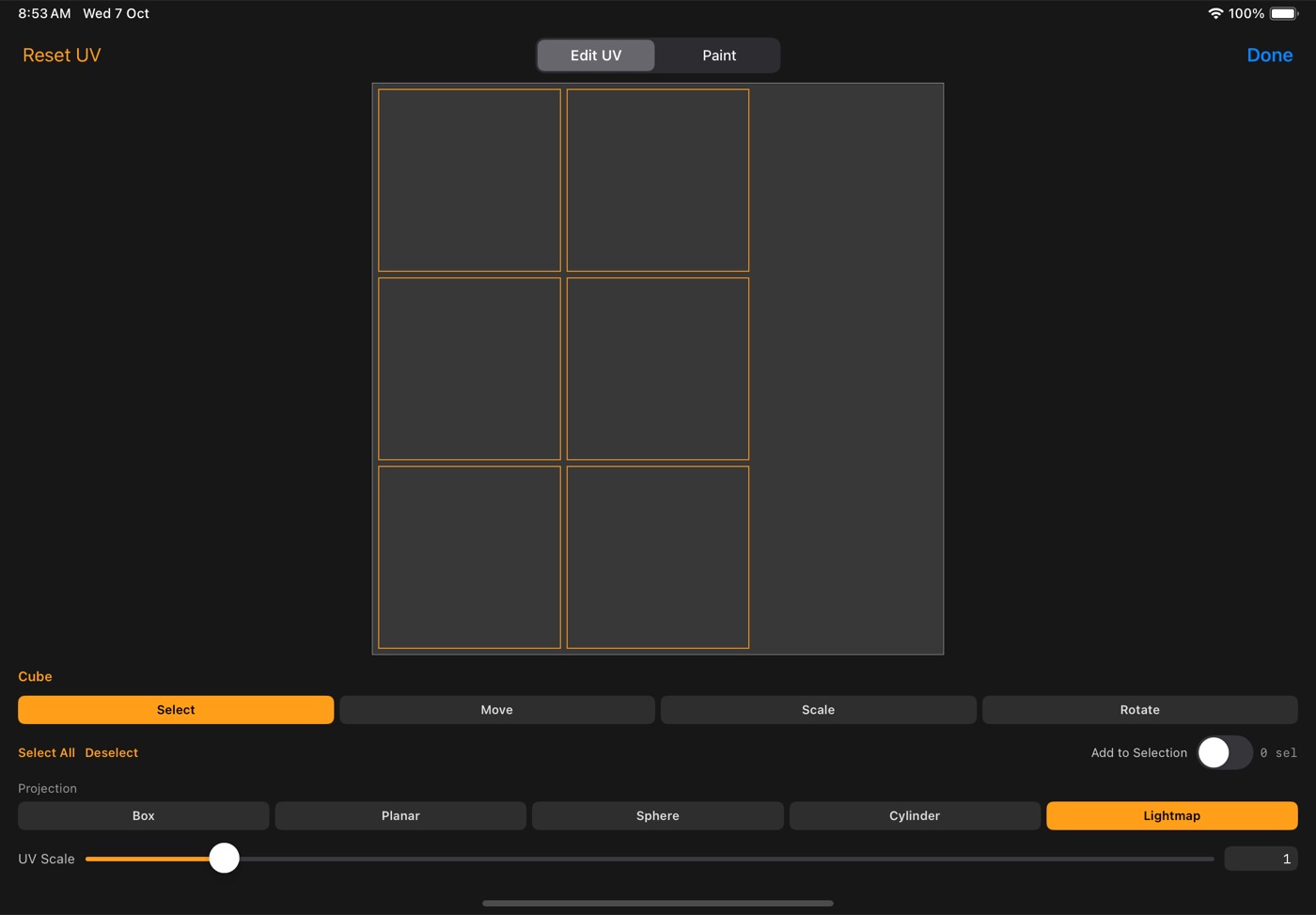
- Shows how the object's surface is flattened out onto its texture — the map every image you apply is laid over.
- Projection picks how that flattening is done: Box, Planar, Sphere, Cylinder, or Lightmap, which unwraps the object into non-overlapping pieces so every face gets its own patch of texture.
- UV Scale tiles the texture; select faces and use Move, Scale and Rotate to adjust just those.
- Reset UV puts everything back to the plain projection.
Painting the UV map
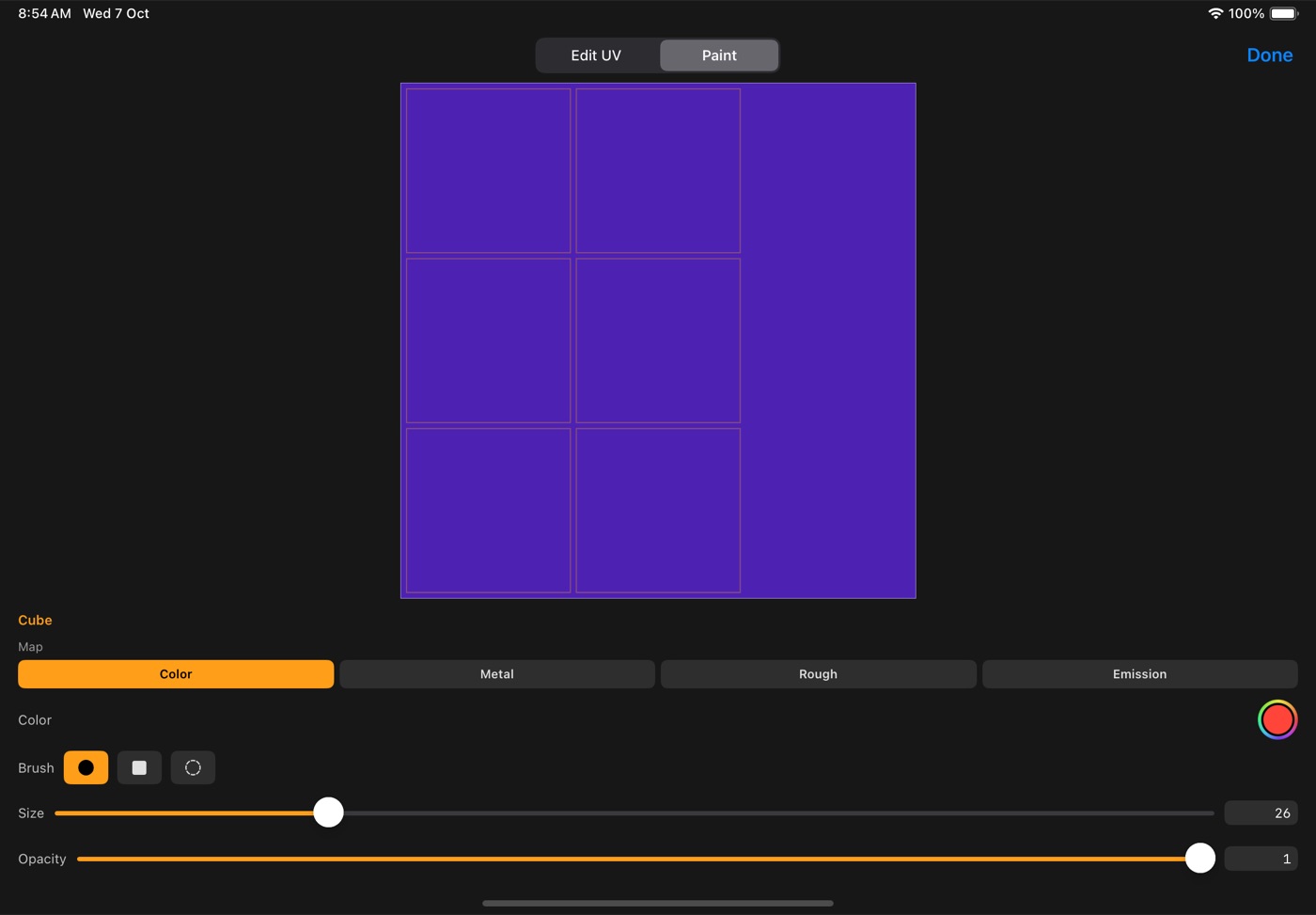
- Switch the sheet to Paint to draw straight onto the flattened map instead of onto the model.
- Easier than painting in 3D for anything with a hard edge, or for reaching a face you cannot see from outside.
- The same channels, brush shapes, size and opacity as painting on the model, and the result is the same texture — you can move between the two freely.
Material presets
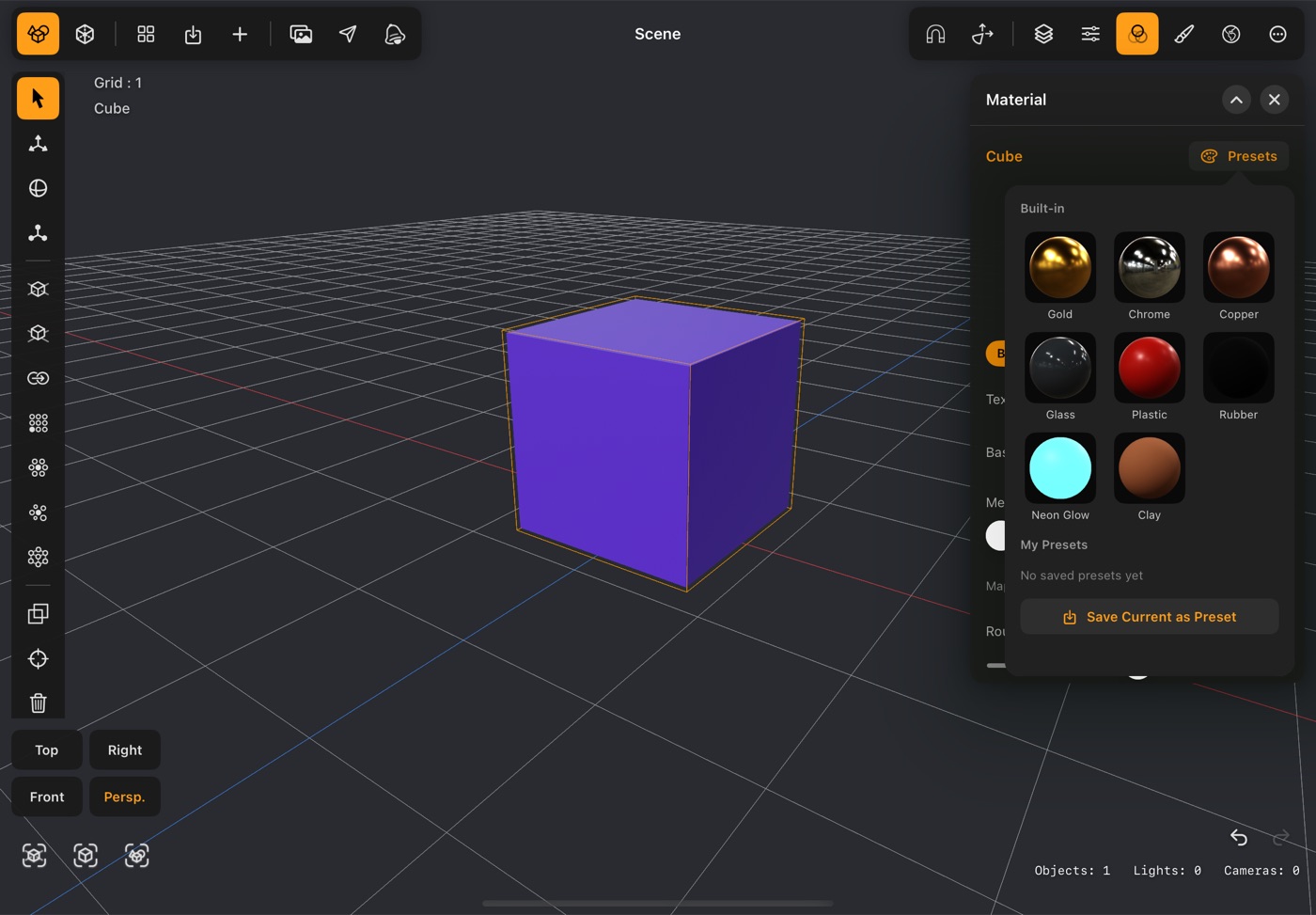
- Presets in the Material panel opens a grid of ready-made materials — gold, chrome, copper, glass, plastic, rubber, neon glow, clay.
- Each swatch is a real render of that material, not an approximation, so what you see is what the object will look like.
- Tap one to apply it. Save Current as Preset adds the object's material to the grid for reuse; long press one of your own to delete it.
Animation
Timeline & keyframes
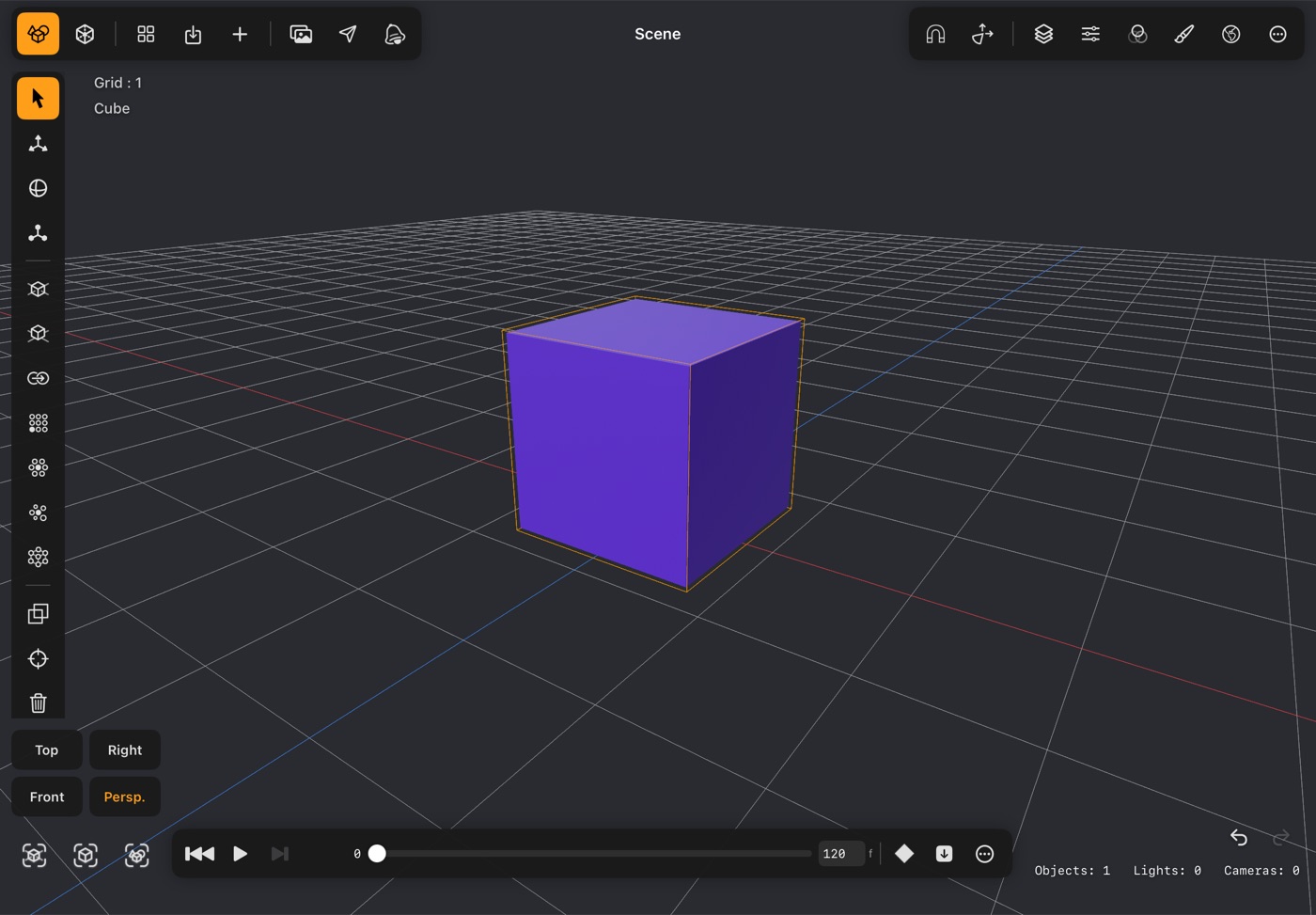
- Turn the timeline on in Settings, and it appears along the bottom in Scene mode.
- Move the playhead to a frame, pose your object, and tap the key button to set a keyframe there. Do it again further along and DGArt fills in everything between.
- Each keyframe can ease in, ease out, both, or run linear, which is the difference between a mechanical move and one that looks alive.
- Keyframes can be copied, pasted and deleted. Play loops so you can watch a cycle.
- Hide the timeline again for a cleaner screen while you model.
What you can animate
- Objects — position, rotation, scale, and visibility.
- Cameras — including the field of view, so you can push in on a shot, and the camera's depth of field: its f-number and manual focus distance (a rack focus). With the timeline open, the key button in the Property panel's Camera section keys these settings without the camera's position; the timeline's own key button keys them along with the move. The aperture blends smoothly, even from Off.
- Lights — intensity and colour.
- Morph targets — blend between shapes you have saved for the same object.
- A motion path is drawn in the viewport for the selected object, so you can see the route it takes rather than guessing from the timeline. It can be curved with Bézier handles — see Shaping the motion path — and the object can turn to face along it — see Orient Along Path.
- Turntable in the action menu spins the view once around the scene without any keyframes at all — the quickest way to look over a finished model. Its speed is in Settings.
- Turntable Preview and Snapshot to Photos show the scene, not the editor: the selected object's orange outline and the move, rotate and scale handles are left out. Settings can leave out the grid too, and give a snapshot a transparent background.
Shaping the motion path
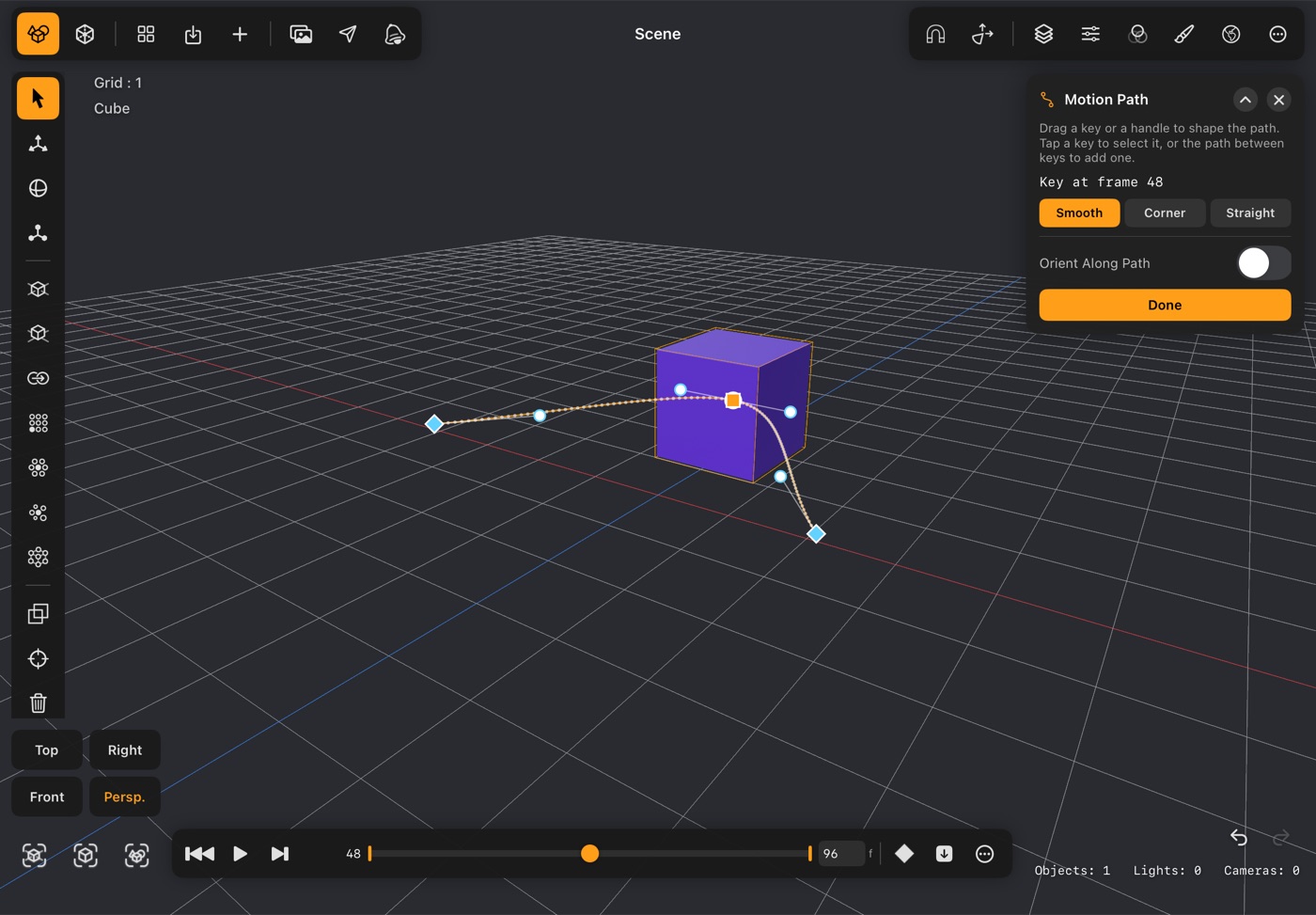
- Between two position keys an object travels in a straight line. To send it round a curve instead, select it with the timeline open and choose Edit Motion Path from the timeline's ⋯ menu. It needs at least two position keys.
- Each key on the path gets a marker and a pair of handles. Drag a handle to bend the path; drag a key's marker to move that key itself. The move, rotate and scale handles are put away meanwhile, so nothing else grabs your finger.
- Tap a key to select it — the playhead jumps to it — and choose how the path passes through it: Smooth rounds it off and follows the keys either side as you move them, Corner lets its two handles point different ways, and Straight takes the curve away again.
- Tap the path between two keys to add a key there. The path keeps its shape, so you can add a key just to have another point to pull on.
- The object keeps an even pace along the curve: bending the path changes the route, not the timing, and each key's easing still sets how it speeds up and slows down.
- Playback, renders, video export, the AR preview and USD export all follow the curved path. Press Play any time to watch it; editing picks up again when you pause. Tap Done when you are finished. Each drag or tap can be undone.
- To have the object turn and face along the path as it travels, switch on Orient Along Path. A path can't be edited while the object's parent is itself animated, or while you are looking through the camera whose path it is.
Orient Along Path
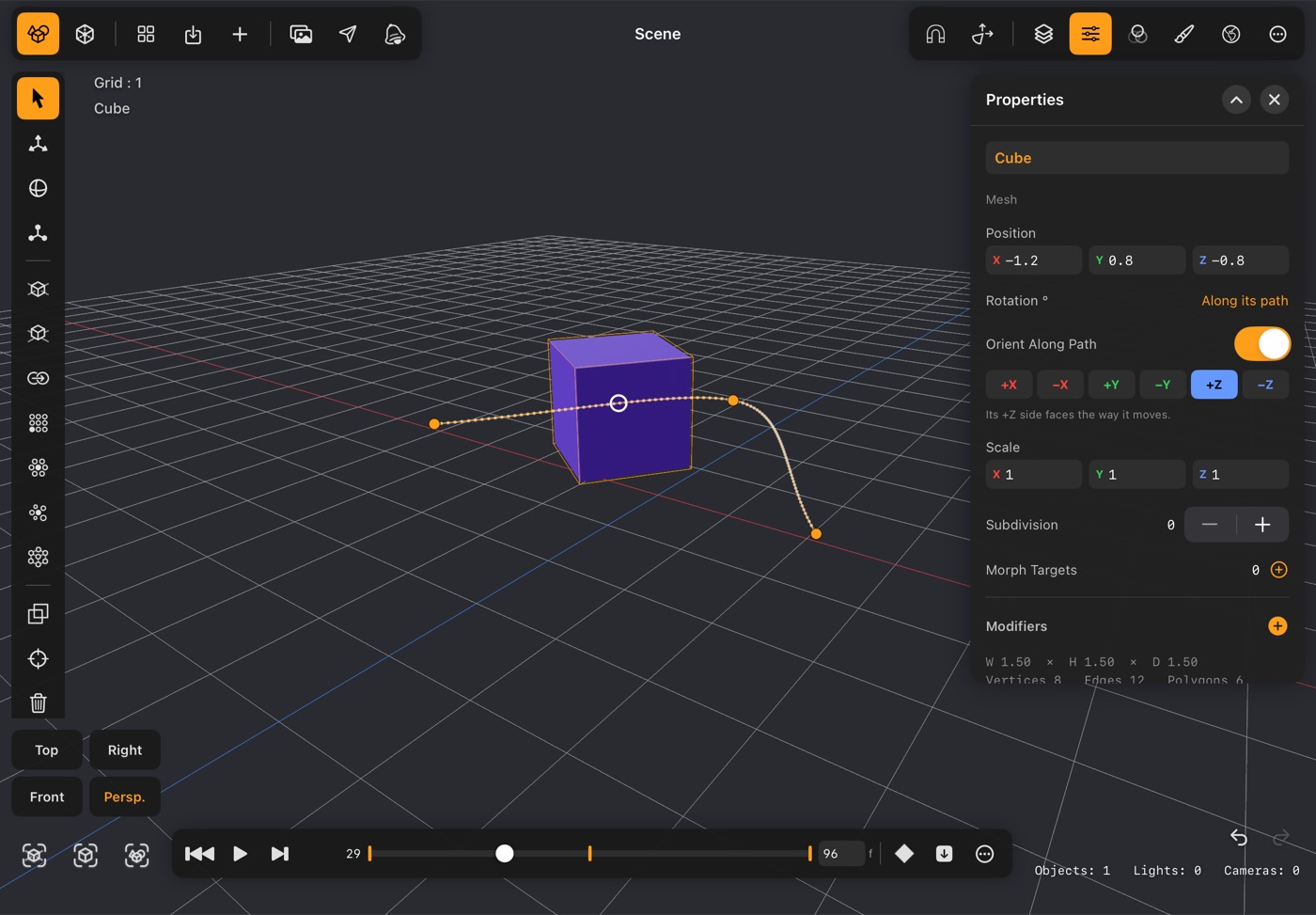
- Turn on Orient Along Path and an object turns to face the way it is moving: a car follows the road, a fish follows its swim, a camera looks ahead along a fly-through. It needs at least two position keys.
- The switch is in the Properties panel, under Rotation, and in the Motion Path popup. While it's on, the Rotation row reads Along its path.
- Pick which side of the object leads: +X −X +Y −Y +Z −Z. Objects start with +Z, the side the Front view looks at; cameras and lights start with −Z, the way they point. If your model faces another way, pick that side and it turns to match.
- The object stays upright: it tips up and down slopes but never leans over sideways. Going straight up or down, it keeps the heading it had, so it doesn't spin.
- It turns smoothly through Smooth keys; at a Straight or Corner key it turns to the new direction right at the key. Easing changes when it gets somewhere, not which way it faces, and where it waits at a spot it keeps facing the way it came.
- While it's on, the object's rotation keys wait and the key button doesn't key rotation. Switch it off and the rotation keys take over again, or with none, the object turns back to how it was before you switched it on.
- Playback, renders, video export, the AR preview and USD export all turn with the path. Not available for point lights.
Rendering
RT:Render
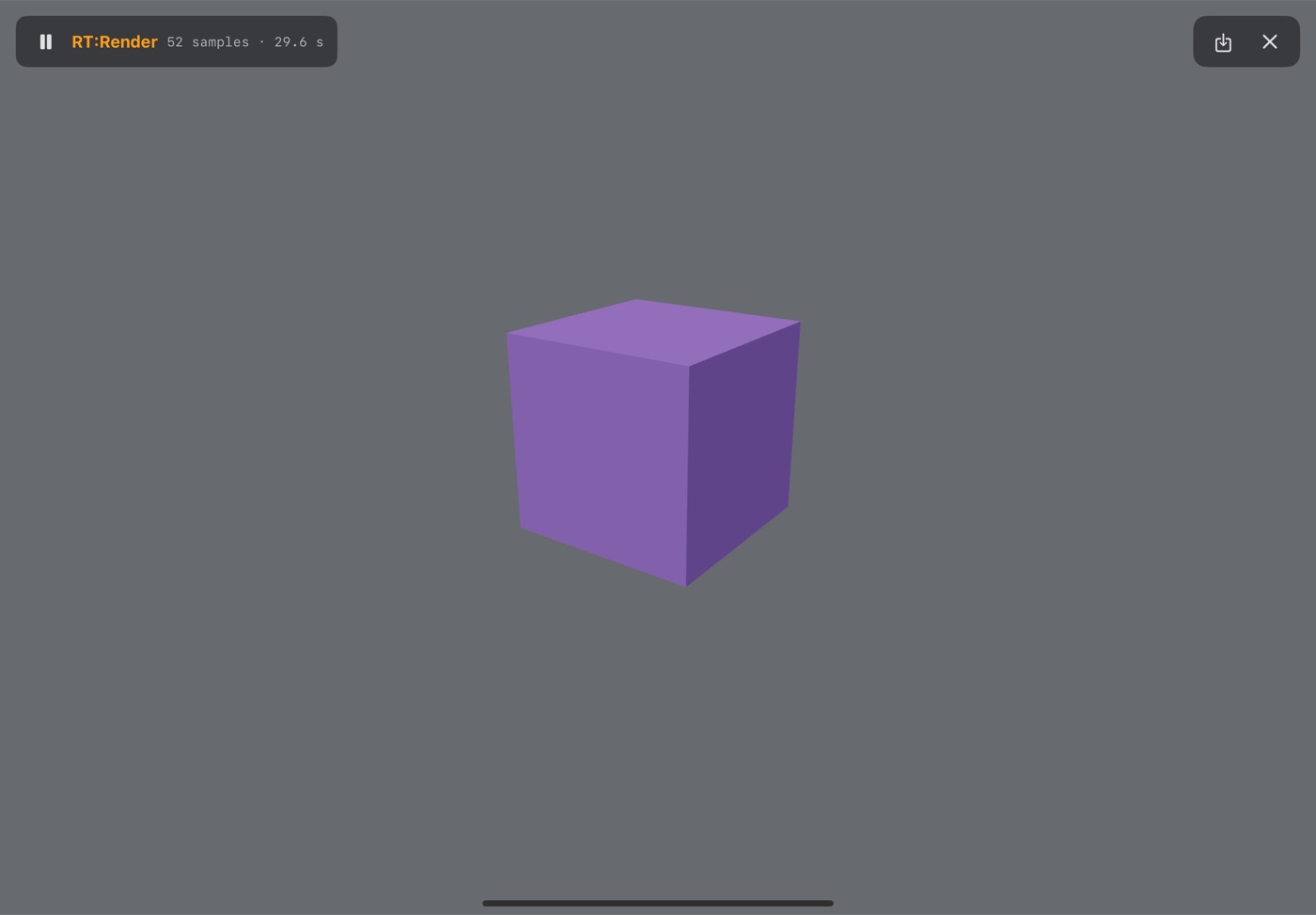
- Tap RT:Render in the top bar to render the scene with the built-in ray tracer.
- The image starts noisy and cleans up as it goes. Let it run until the noise has gone, then pause and save — or set a Still Render Target in the render settings and it stops by itself (there is no pause button then).
- The counter shows how many samples have been traced and how long it has taken, so you can judge when it has settled.
- The save button puts the finished image straight into Photos.
- Ray tracing follows light the way it behaves in the world, so you get soft shadows, light bouncing colour between surfaces, glass that bends what is behind it, and real depth of field.
- Hide from Camera (Property panel) takes an object out of the render's view while keeping its effect on the scene: it still shows in mirrors, metal and glass reflections, and if it glows, its light still falls on what is around it — a hidden light card or softbox. It casts no shadow and bounces no colour onto its surroundings, and it stays hidden when you look at it through glass. The editing view keeps showing it, and a small crossed-out camera marks it in the Layer panel. If it sits on a surface, the patch of floor inside it can show — lift a hidden light card clear of the floor.
- A hidden glowing object lights the scene through bounced light, so it needs Light Bounces of 2 or more and clears a little slower than an Area light.
Render settings
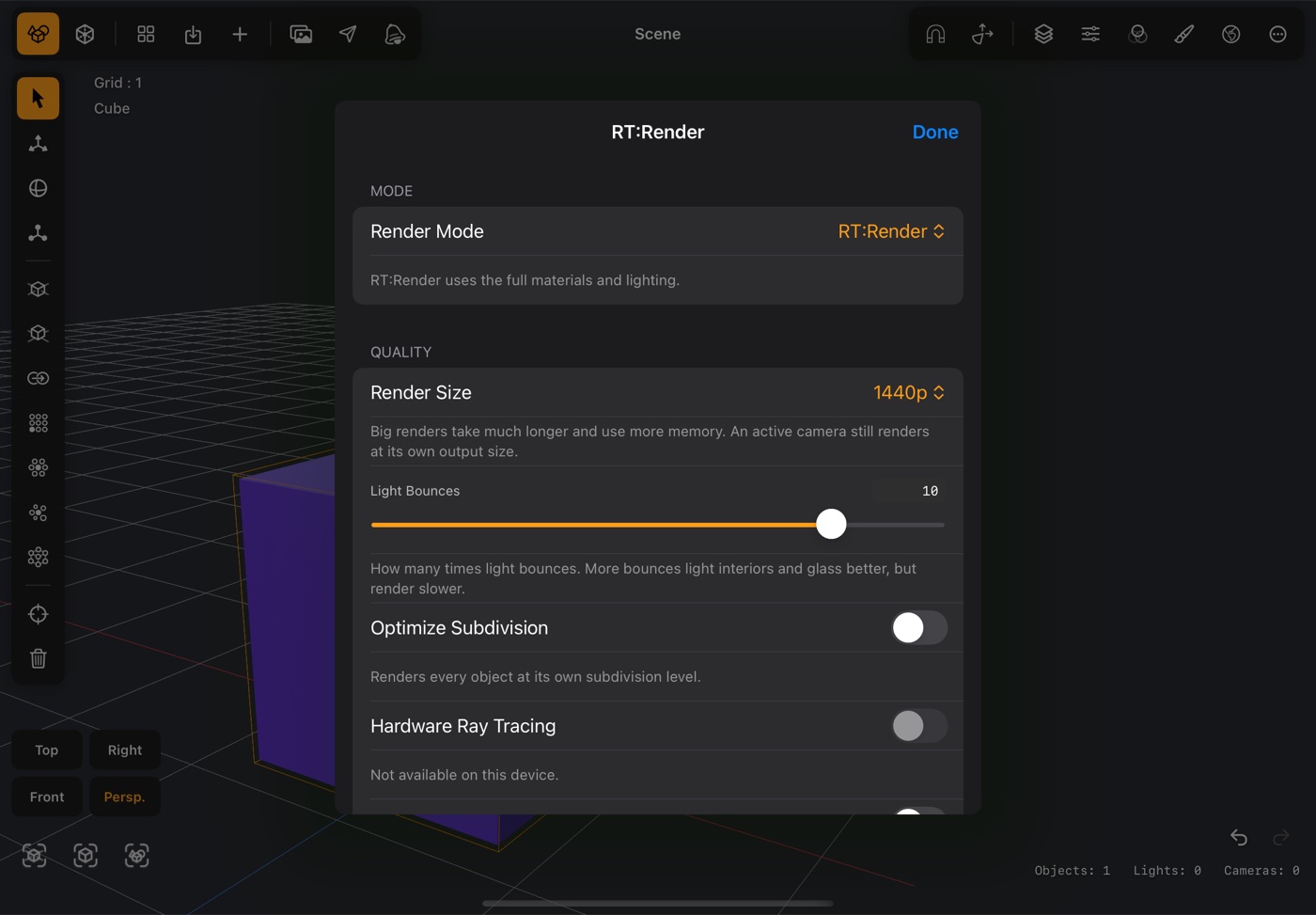
Mode
- Render Mode picks the look: RT:Render uses the full materials and lighting; Ambient + renders everything white but keeps each material's metalness and roughness; Ambient is plain white surfaces; Clay AO ignores the scene lights and lights white clay from the sky alone, so shape and contact shadows read clearly; Normals shows which way each surface faces as colour, handy for checking geometry; Depth shades by distance from the camera; Viewport skips ray tracing entirely and renders the editor look instantly with no noise.
Quality
- Render Size trades resolution against time. An active camera still renders at its own output size.
- Light Bounces is how many times light is allowed to bounce. More opens up interiors and makes glass convincing, and costs time. One is direct light only.
- Optimize Subdivision lowers the detail of objects that are small on screen or out of frame, which speeds up the setup for a heavy scene.
- Hardware Ray Tracing traces the render on the ray-tracing cores built into the newest Apple chips — A17 Pro, A18, A19, M3 and later — which makes renders much faster: in our test an iPhone 17 traced about 3.4 times as many samples per second with it on. Chips from A13 and M1 on can turn it on too; they have no ray-tracing cores, so the tracing runs in software and may come out faster or slower — try a render both ways. It starts off, it's greyed out on a device that can't run it, and while it's in use the render's header says Metal RT. The picture is the same either way, except for the odd pixel where two surfaces lie exactly on top of each other.
- Firefly Clamp suppresses the stray bright pixels that a few unlucky light paths can leave behind. Clamp Brightness sets how hard it clamps — lower removes more speckle but also dims real highlights.
Still Render Target
- Stops the render automatically instead of refining until you stop it — either Stop at Samples or Stop after Seconds. The header shows samples, elapsed time and the estimated time left. With a target set, the pause / resume button is left out of the header: the render ends by itself.
Output
- Save Render to Files also writes a PNG to the Export folder, visible in the Files app, keeping transparency.
- Save HDR File additionally writes a Radiance
.hdr, which keeps the full brightness range for editing elsewhere. - HDR Preview shows the render in high dynamic range on screens that support it, so highlights read brighter than white. The tone curve is skipped while it is on; saved images are unaffected.
- Denoise Render Image applies to saved images and exported video frames — the live preview stays unfiltered.
- Show Environment Map puts the environment behind the scene. With it off the map still lights the scene and appears in reflections, but the background stays the scene colour.
- Transparent Background renders the empty background as alpha instead of the scene colour, so saved PNGs composite cleanly over other images. Reflections still show the environment.
Animation
- Save Animation Image Sequence writes every frame as a PNG to the Export folder alongside the video.
- A video uses the same depth of field as a still: the active camera's own, or the Environment panel's with no camera active. Focus is worked out again for every frame, so Selected stays on its object while the camera or the object moves.
- Video Frame Rate (12, 24 or 30 fps) and Video Width set the output. Higher values mean more frames and more time for each; Camera uses the active camera's own width, up to 1920.
- Animation Frame Limit decides how each frame is capped: Samples per Frame gives every frame the same quality and lets the export time vary with the scene, while Seconds per Frame fixes the time and lets the quality vary.
Files & settings
Files, import & export
- Everything DGArt makes is reachable in the Files app, under DGArt.
- Projects holds your projects. Each is a
.usdafile — plain-text USD — beside a folder of its own images, so a project is self-contained and nothing is locked in. - Import is where you drop models for the app to open: OBJ, STL, GLB, USDZ and SVG. They then appear in the Add Object sheet.
- Export collects what you send out: OBJ, STL, GLB and USDZ — for AR Quick Look, a game engine, another 3D app, or a slicer for 3D printing.
- CustomObjects is your own parts shelf, and MaterialPresets the materials you have saved.
- Opening a
.dgartfile sent from another device brings the whole project across, images and all.
Settings
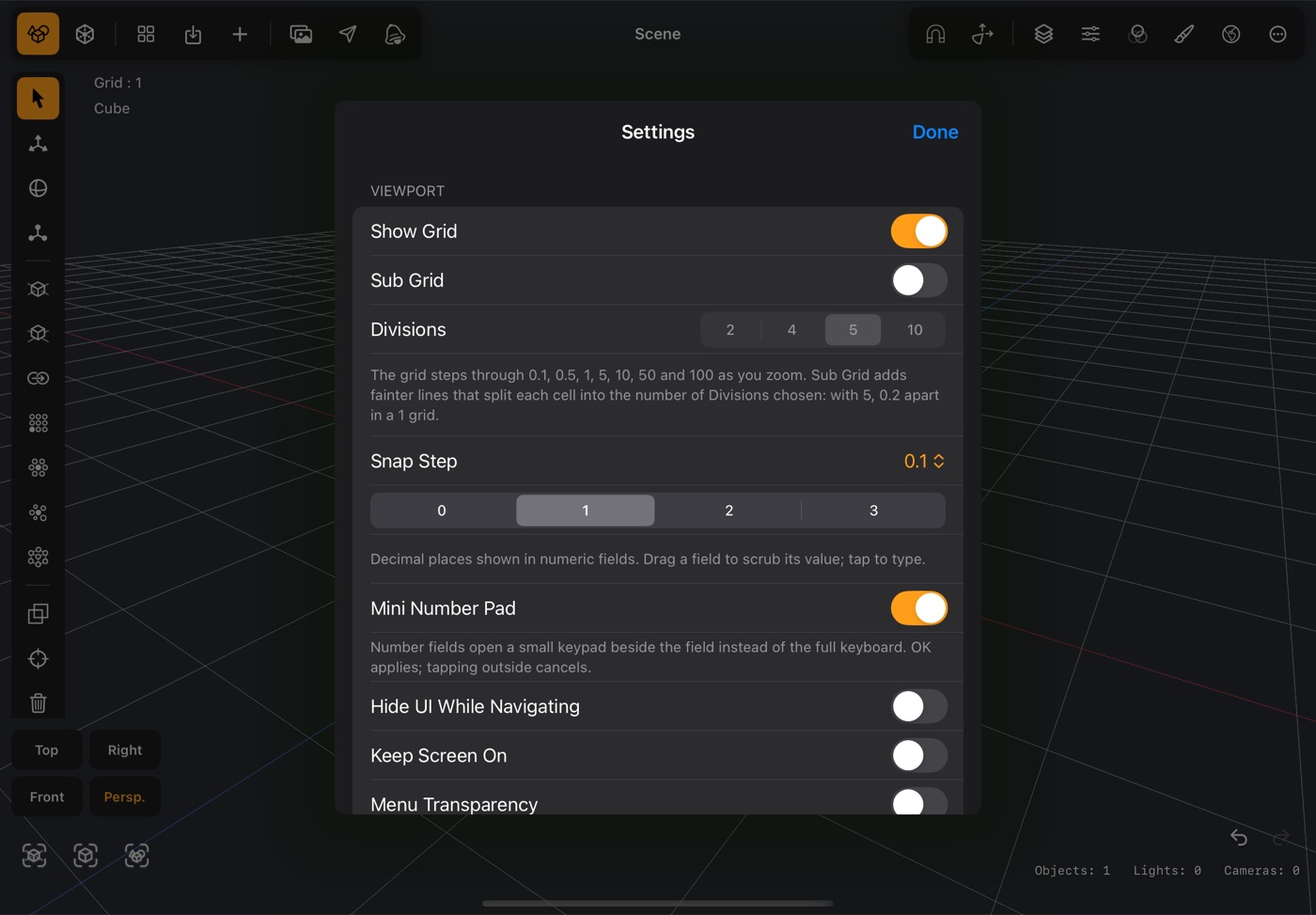
- Show Grid and Snap Step control the grid and how far each snapped move travels. Sub Grid adds fainter lines inside each grid cell, fading out toward the horizon, and Divisions (2, 4, 5 or 10) sets how many parts each cell is split into — with 5, 0.2 apart in a 1 grid. Both are kept on this device for every scene.
- Decimal places sets how precise the numeric fields are. Drag a field to scrub its value, or tap to type.
- Mini Number Pad (iPad) — a tap on a number field opens a small keypad instead of the full keyboard. See Number fields.
- Hide UI While Navigating clears the bars out of the way while you orbit, for an unobstructed look.
- Keep Screen On stops the display dimming while you work — useful when you are studying a model rather than touching it.
- Accent Colour and Menu Transparency adjust the look of the app, and Turntable Seconds per Turn how fast the turntable spins.
- Hide Grid in Turntable & Snapshot leaves the grid out of Turntable Preview and Snapshot to Photos (the scene's own Show Grid is untouched). Transparent Snapshot Background saves snapshots as a PNG with a clear background, for laying the objects over another picture; off, the background is the scene's colour, as on screen.
- Under Modeler, Quick Menu turns the long-press circle on and off, and Customize Quick Menu picks its buttons — see Quick Menu.
- Also under Modeler, X-Ray Opacity sets how see-through the mesh is while X-ray is on.
- Auto-Save Project (Project) saves every 30 seconds while there are unsaved changes. Playhead Display (Timeline) shows the playhead in frames, at 24 a second, or in seconds.
- AI Command Palette picks the service behind the palette in the ⋯ menu — Claude, Gemini, or any OpenAI-compatible service, including a server on your own network — and holds its key. The key stays on this device and is sent only to that service. In the palette, type what you want in plain words, such as adding objects, arranging them or keying a move; the result is one undo step.
- Advanced holds the limits that cap how much geometry one operation may create: Selection Op Limit, Whole-Mesh Op Limit, Mesh Subd Limit and Clone Array Limit.
Number fields & the Mini Number Pad
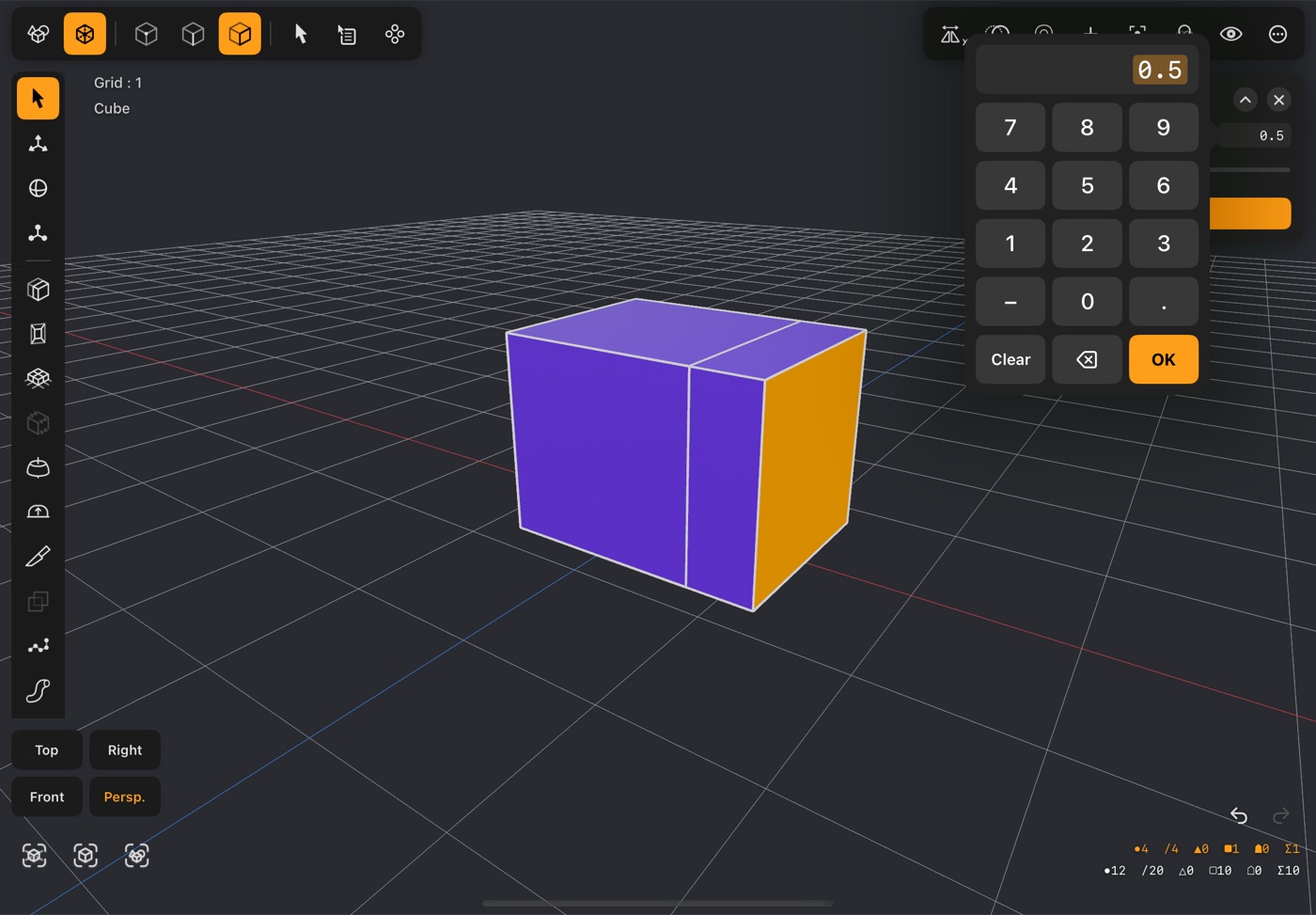
- Every number field in a popup or panel can be dragged sideways to scrub its value, or tapped to type one.
- Counts work the same way: the number beside − and + — a cylinder's or sphere's segments, a clone count — is a field too. Tap it and type 48 rather than tapping + two dozen times, or drag across it to sweep through the range; − and + still step it by one. A typed value is kept within what the setting allows (a cylinder takes 3 to 60 segments, so 200 becomes 60).
- On iPad, a tap opens the Mini Number Pad beside the field instead of the full keyboard, which would cover a third of the screen. It has 0–9, the decimal point (a comma in German), − where the value can be negative, Clear, ⌫ and OK.
- The value it opens with is highlighted: the first digit you type replaces it, and ⌫ clears it. − flips the sign of whatever is there.
- OK applies the value — one undo step, like Return on a keyboard. Tapping anywhere outside closes the keypad and leaves the old value. A hardware keyboard types into it too, with Return for OK.
- Settings ▸ Viewport ▸ Mini Number Pad switches it off to bring the full keyboard back. iPhone keeps its own number keyboard, which is small already.