DGArt:RT Tools Rendering Animation Manual Get the app
DGArt:RT app icon
DGArt:RT
iPhone · iPad · iOS 18+

From one point to a path-traced frame.

Place a point, pull an edge, extrude a face. Paint the surface, light the scene, key the motion, and hand the last step to a real path tracer. It's the whole 3D pipeline, in one app, on the device in your hand.

no account · no tracking

Still on the original DGArt? Here's why to move to DGArt:RT.

RT:Renderpath tracedMetal · on device
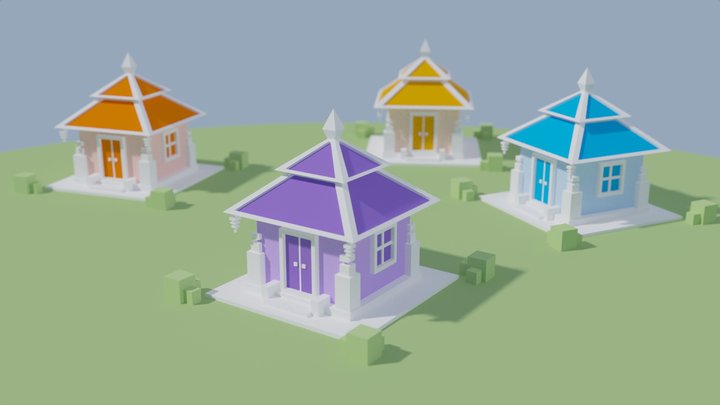
Two timber stilt houses with steps and shingled roofs on a square base, rendered in DGArt:RT
Modelled, textured and traced on an iPad.
Modeling tools
54
Edit modes
3
Primitives
17
Render modes
7
File formats
6
Trackers
0
Key 01Scene mode

Lay out the world first.

Scene mode is the stage. Pull in any of 17 primitives, a line of text, a part from your own shelf or a model from another app, then add lights and cameras and arrange the lot.

The layer panel groups and parents, locks and hides. Top, Front, Right and Perspective are one tap each, and the grid steps from 0.1 to 100 as you zoom, with a fainter sub grid inside it if you want one.

  • ARRAYA grid of copies, up to 24 × 24. A heavy object gets fewer, so the scene stays light.
  • RADIALA ring of copies around a centre: columns, petals, gear teeth.
  • RANDOMA scatter: rocks, crates, a crowd of trees.
  • POINTSA copy on every point of another object.
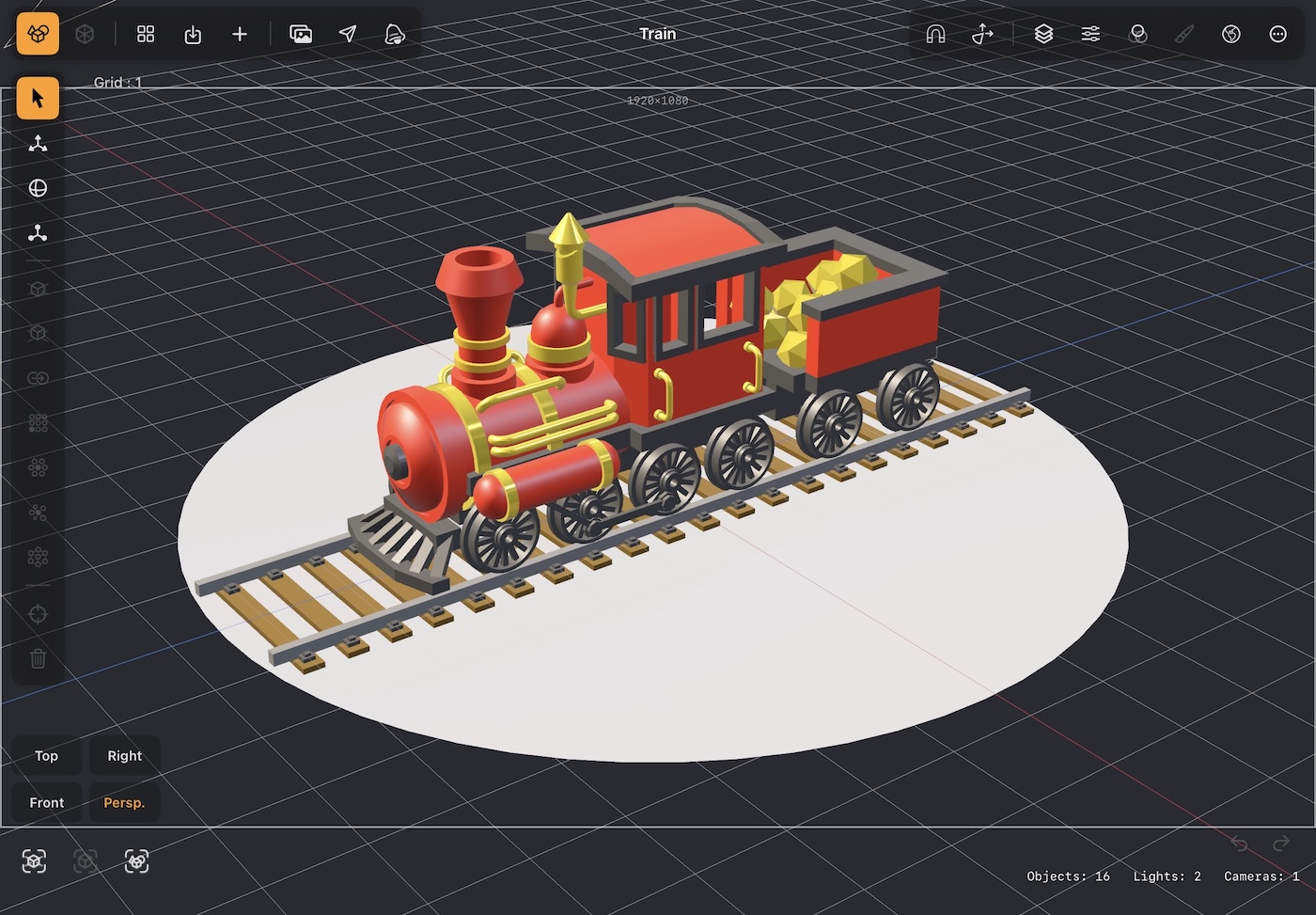
Scene mode showing two stilt houses on a base, with the tool bars around the viewport
Scene mode: the stage, with the tool bars round the viewport and the view buttons at the bottom left.
Key 02Modeler mode

Points, edges or polygons: choose what you're holding.

Open any object in the Modeler and the tool bar changes with the edit mode. Fifty-four tools in all, numbered as in the manual. Every slider shows its result while you drag, nothing is final until you tap OK, and a single undo takes back the whole adjustment.

Tap a tool to read its page in the manual

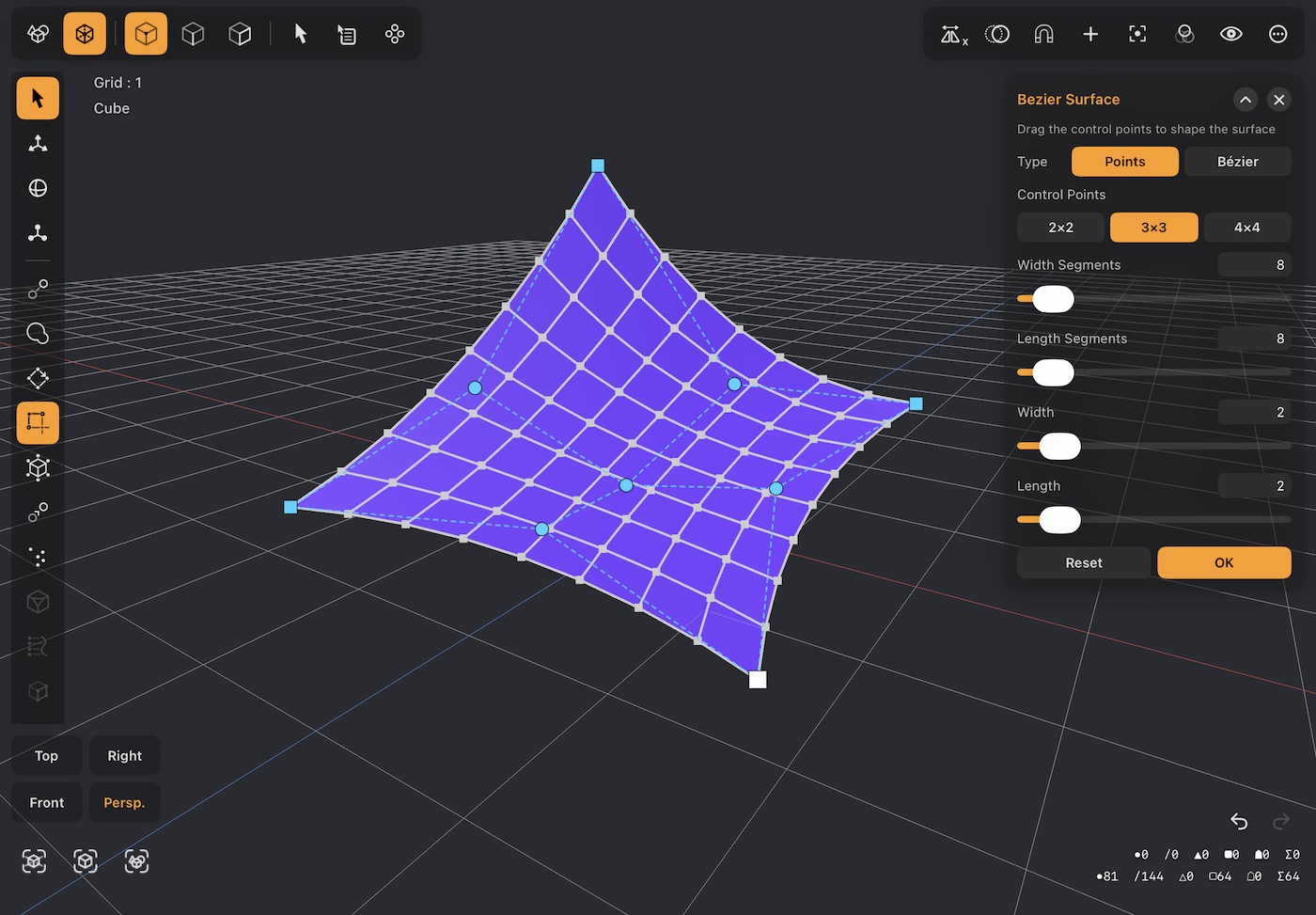
Bezier Surface

36 · Point
A curved sheet bent by a 3 by 3 control net, floating above a cube

Lay a flat sheet over the object and bend it into a hood, a sail, a canopy or a hillside. Pull it with a net of 2×2, 3×3 or 4×4 control points, or switch to Bézier nodes with handles that the surface passes through. Switch either way and the shape carries over as closely as it can.
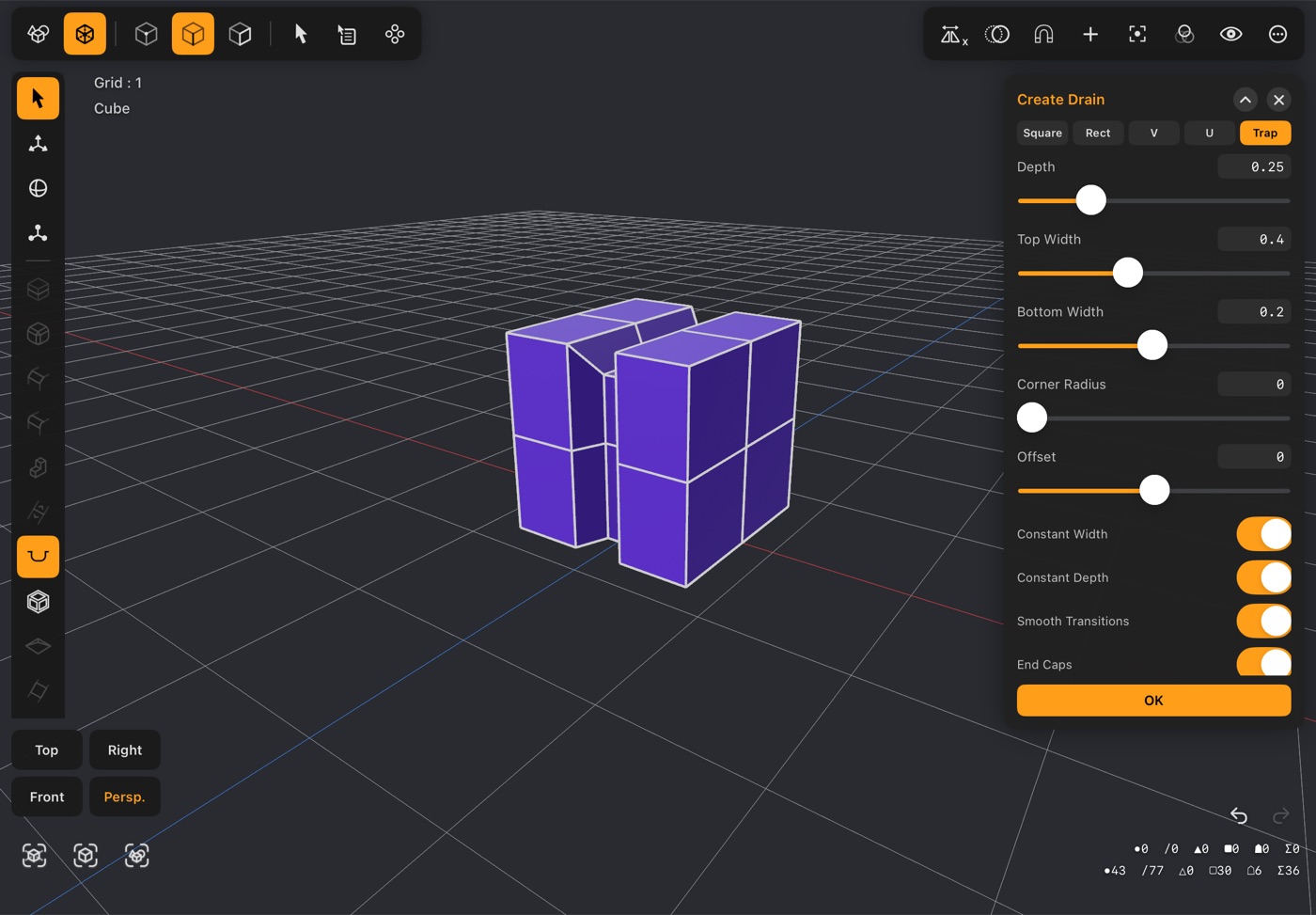
Create Drain

25 · Edge
A box with a channel carved down its front and over its top

Carve a gutter, a groove or a cable slot along the edges you pick, round corners and right round a bent pipe. The walls can be square, rectangular, V, U or sloped.

Boolean

08 · Polygon
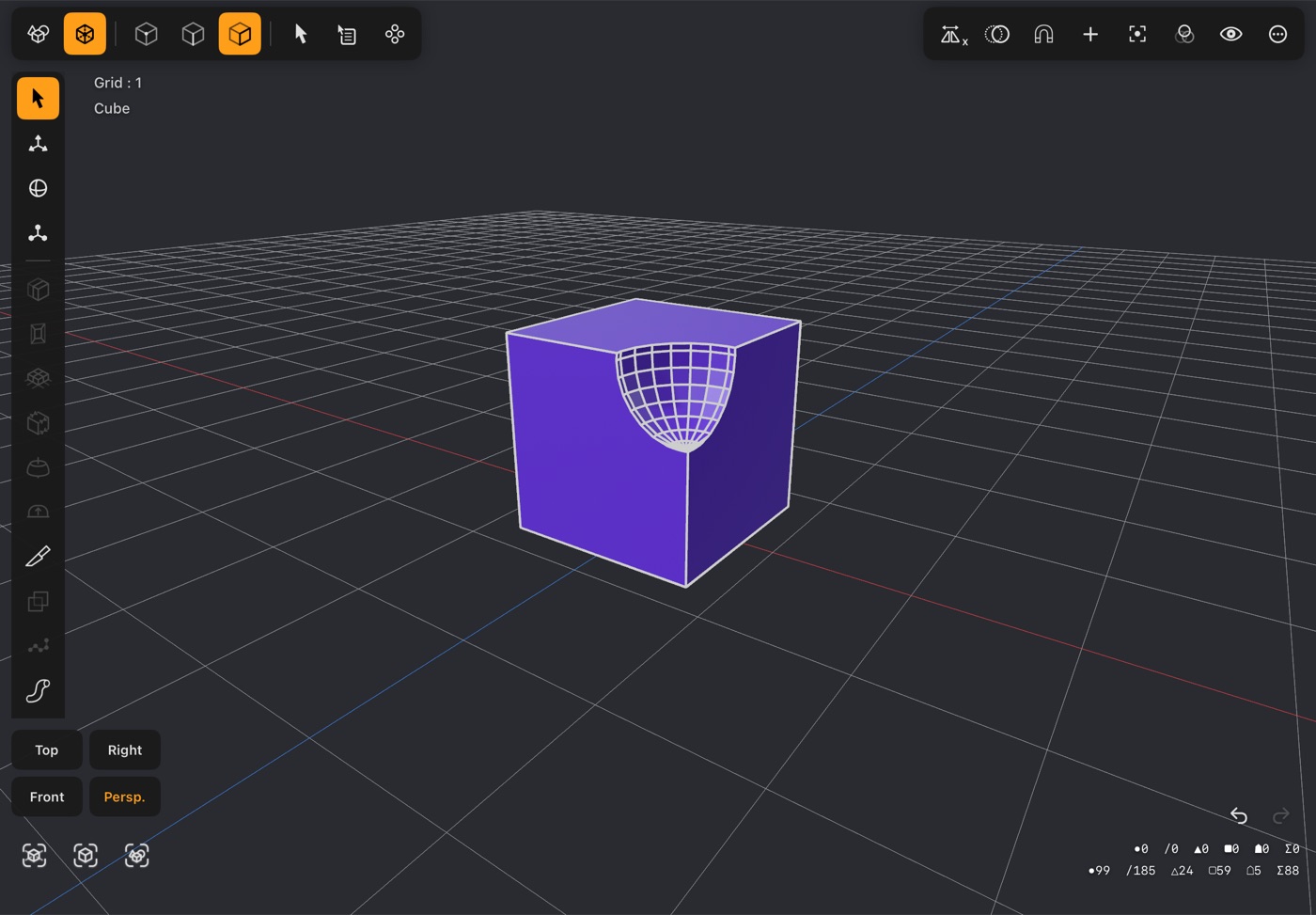
A box with a round hollow cut into its top by a sphere

Union, Subtract or Intersect, inside one mesh. Add the second shape with + while you're in the Modeler, select its faces, and choose.

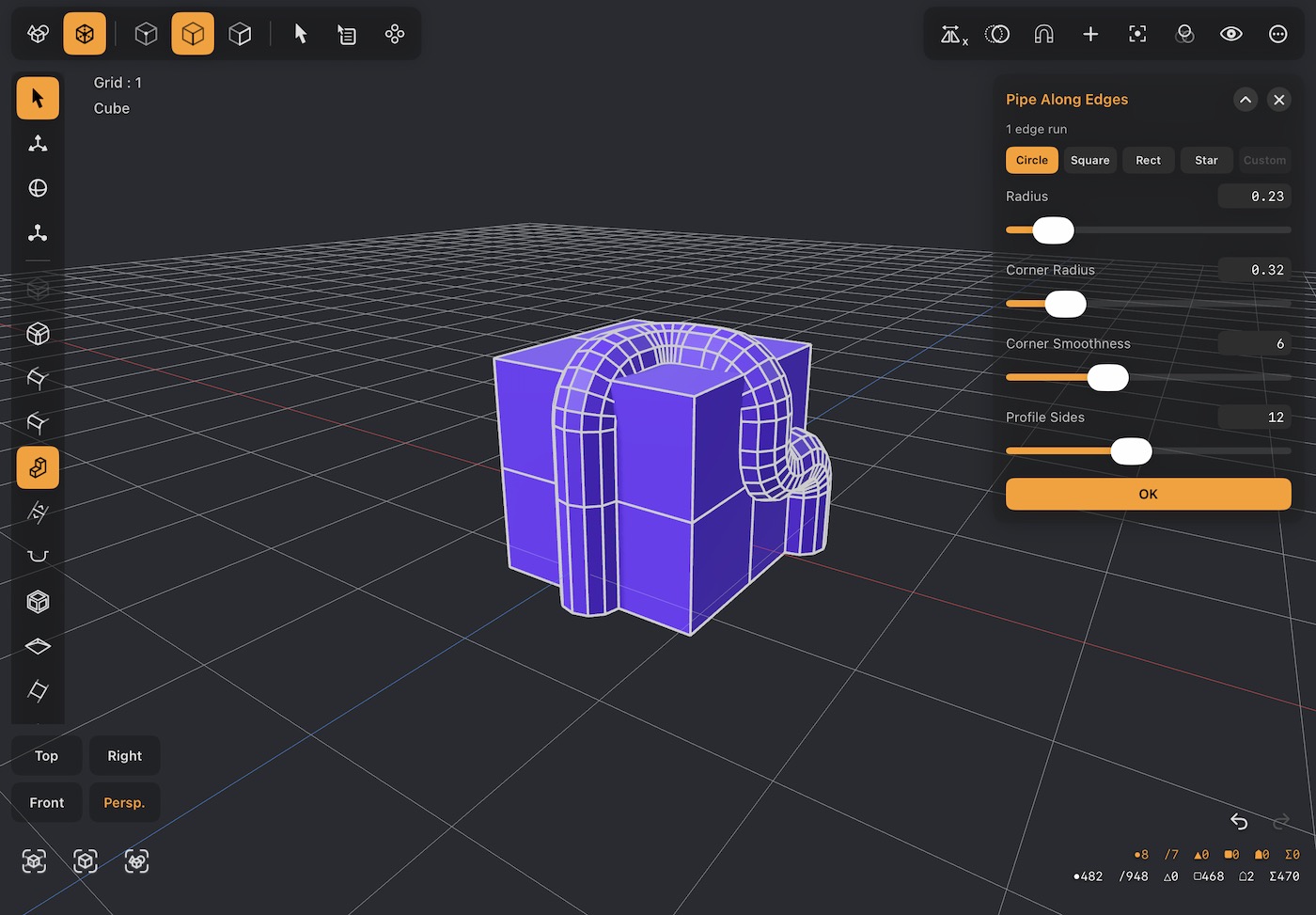
Pipe Along Edges

23 · Edge
A tube running round the top ring of a cylinder's edges

Run a round, square, rectangular or star-shaped tube along any edges, for railings, frames and wiring. Loops close into rings; open runs get caps.

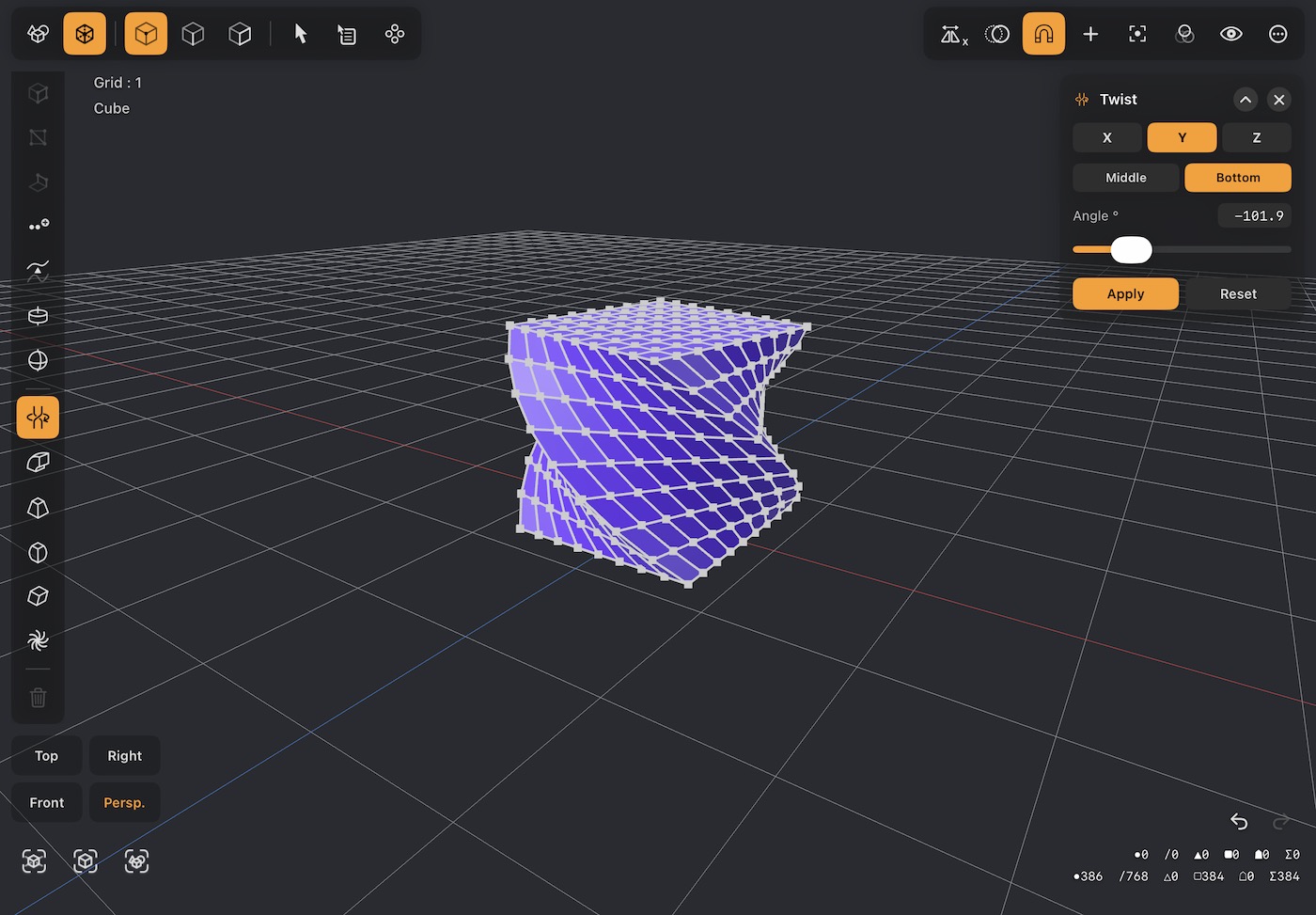
Twist & five more

49–54 · Deform
A box twisted 90 degrees around its vertical axis

Twist, Bend, Taper, Stretch, Skew and Vortex reshape a selection around X, Y or Z. Twist winds well past a full turn, for springs and drill bits.

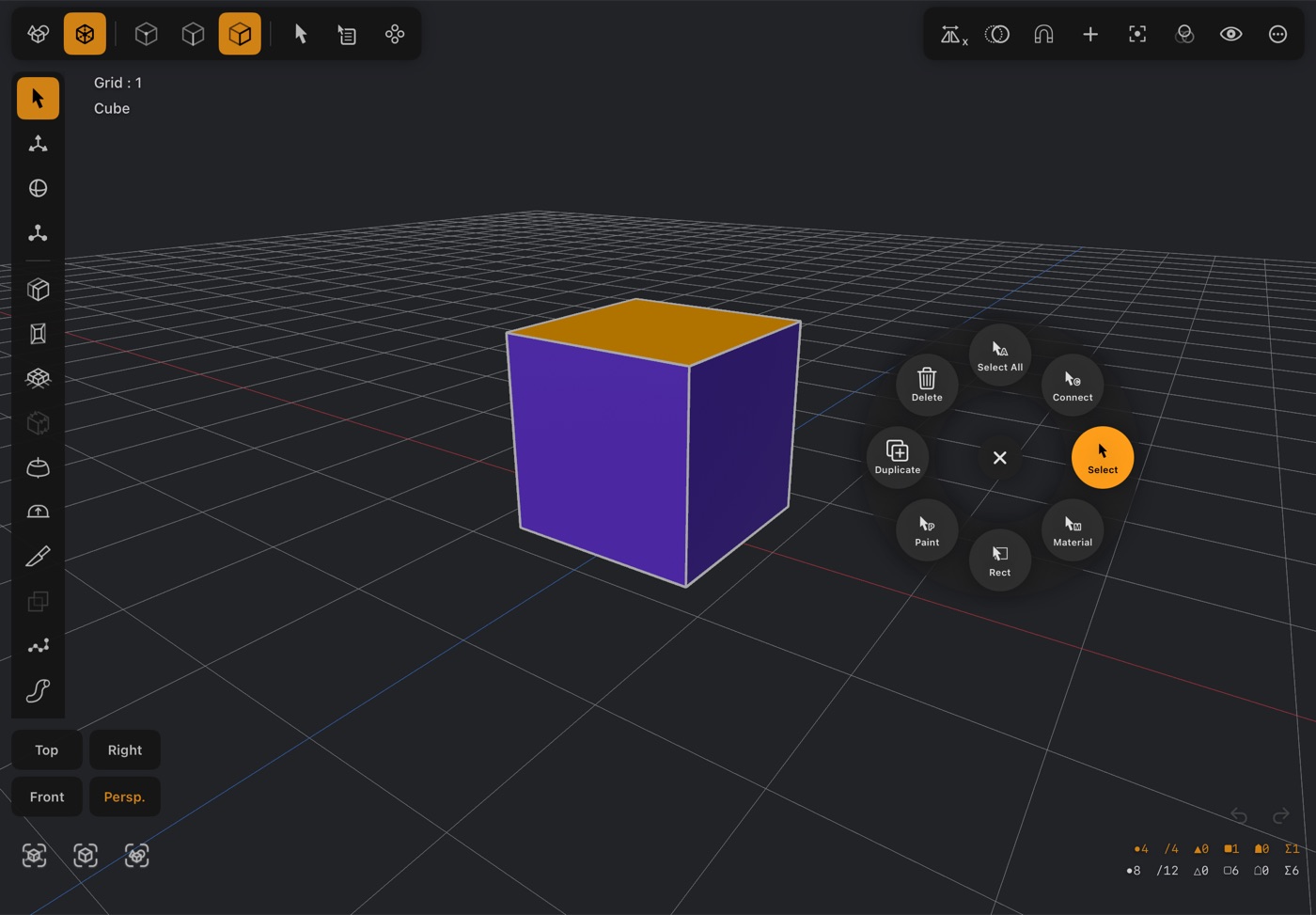
Quick Menu

Hold · Modeler
A circle of eight command buttons open beside a cube in the Modeler

Hold a finger still on the viewport for half a second and eight commands ring your fingertip. Slide onto one and let go: a single movement, with no reaching for the bars. Point, edge and polygon mode each have their own eight.

Key 03Paint & materials

Colour goes where your finger goes.

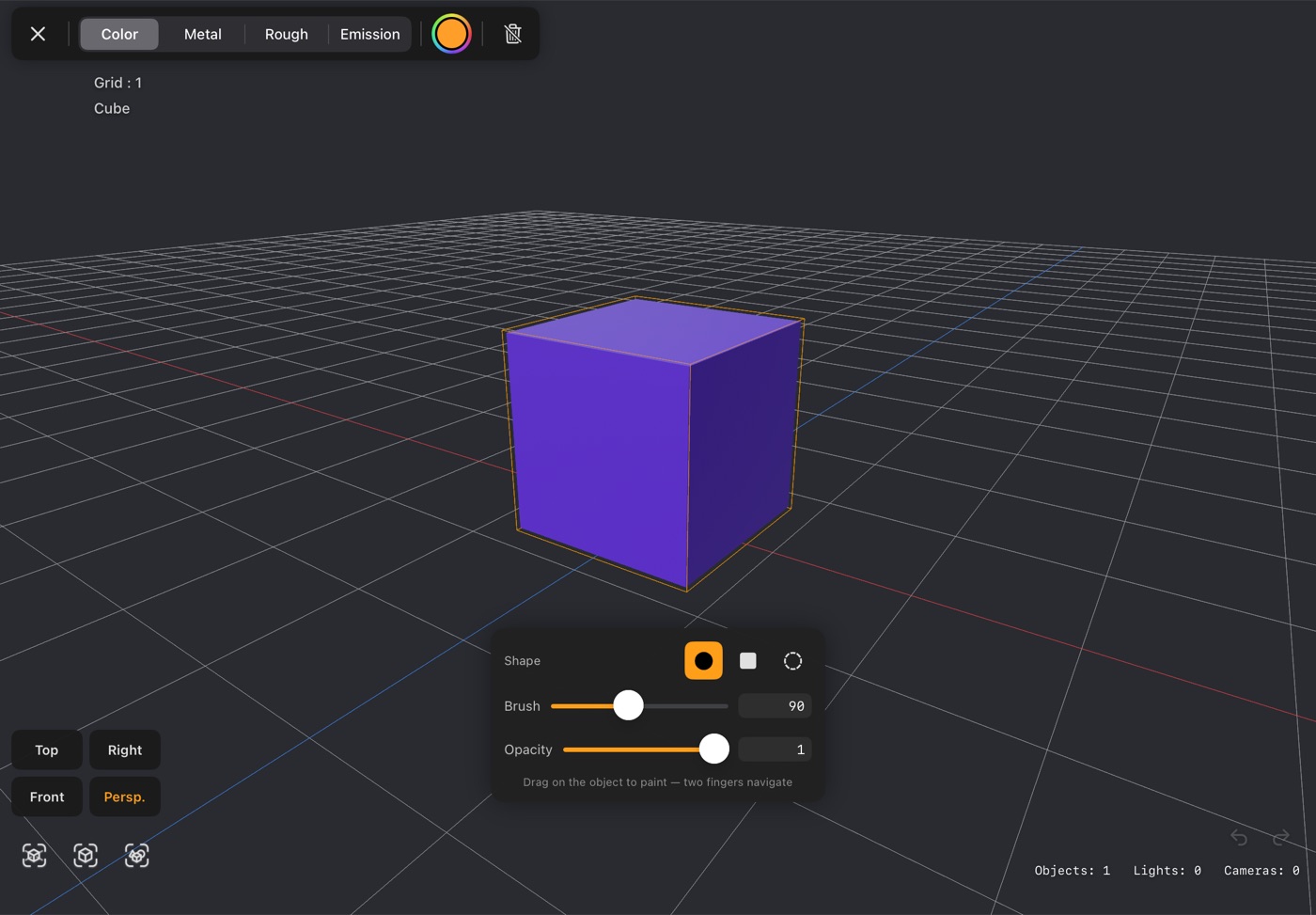
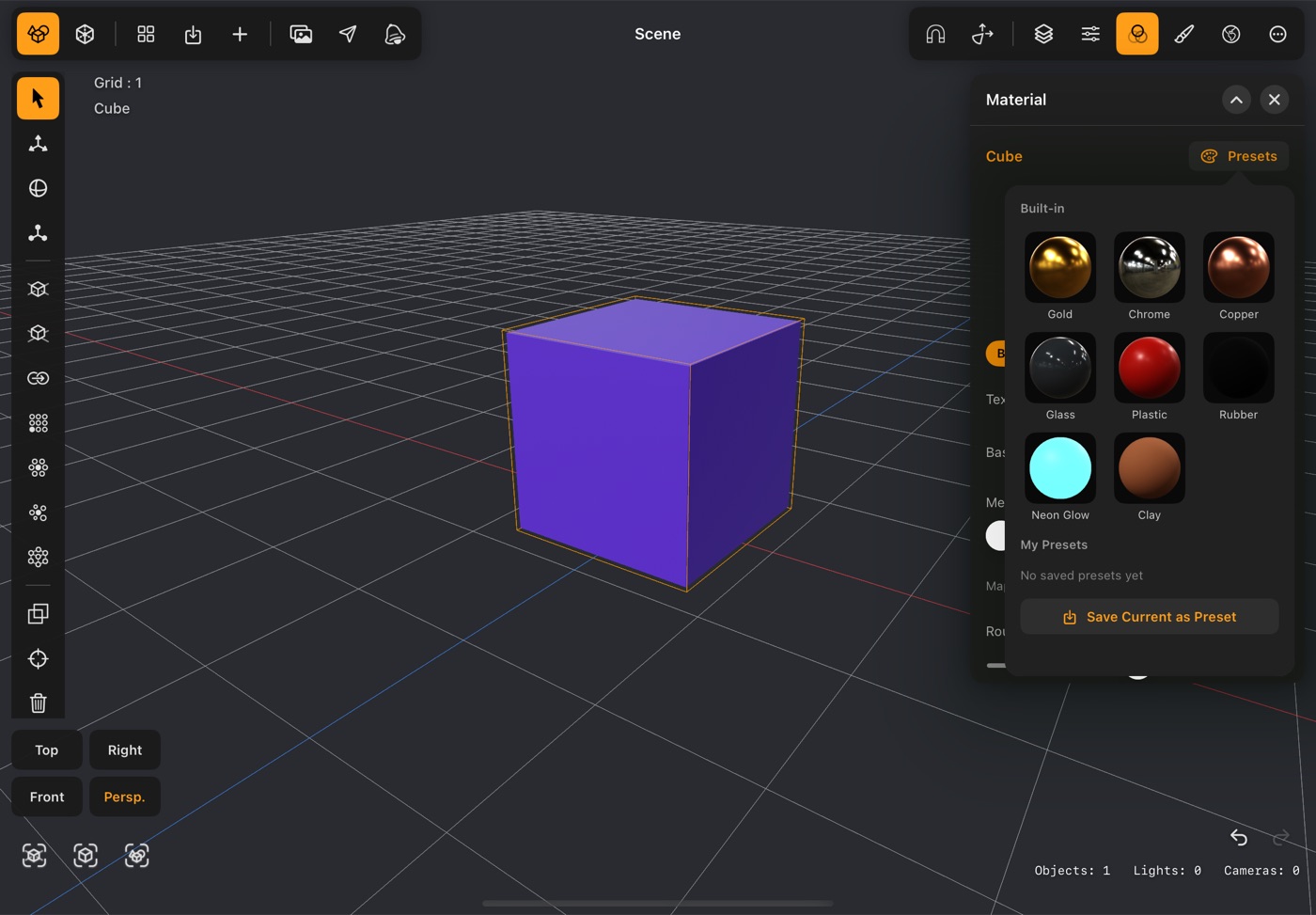
Start from a preset: gold, chrome, copper, glass, plastic, rubber, neon or clay. Each swatch is a real render, not a guess. When one material isn't enough, paint straight onto the model.

Maps
Colour, metal, roughness and glow, each painted on its own
Brush
Hard round, square or soft round, with size and opacity
UV editor
Box, Planar, Sphere, Cylinder or Lightmap, then paint the flat map
Glass
A real index of refraction for the path tracer
Shadow catcher
A surface that drops out of the render but keeps the shadows on it, to set a render over a photo
Your presets
Save any material to the grid and reuse it in every project
Paint mode on a cube, with the brush shape, size and opacity controls
The material preset grid with metal, glass and glowing swatches
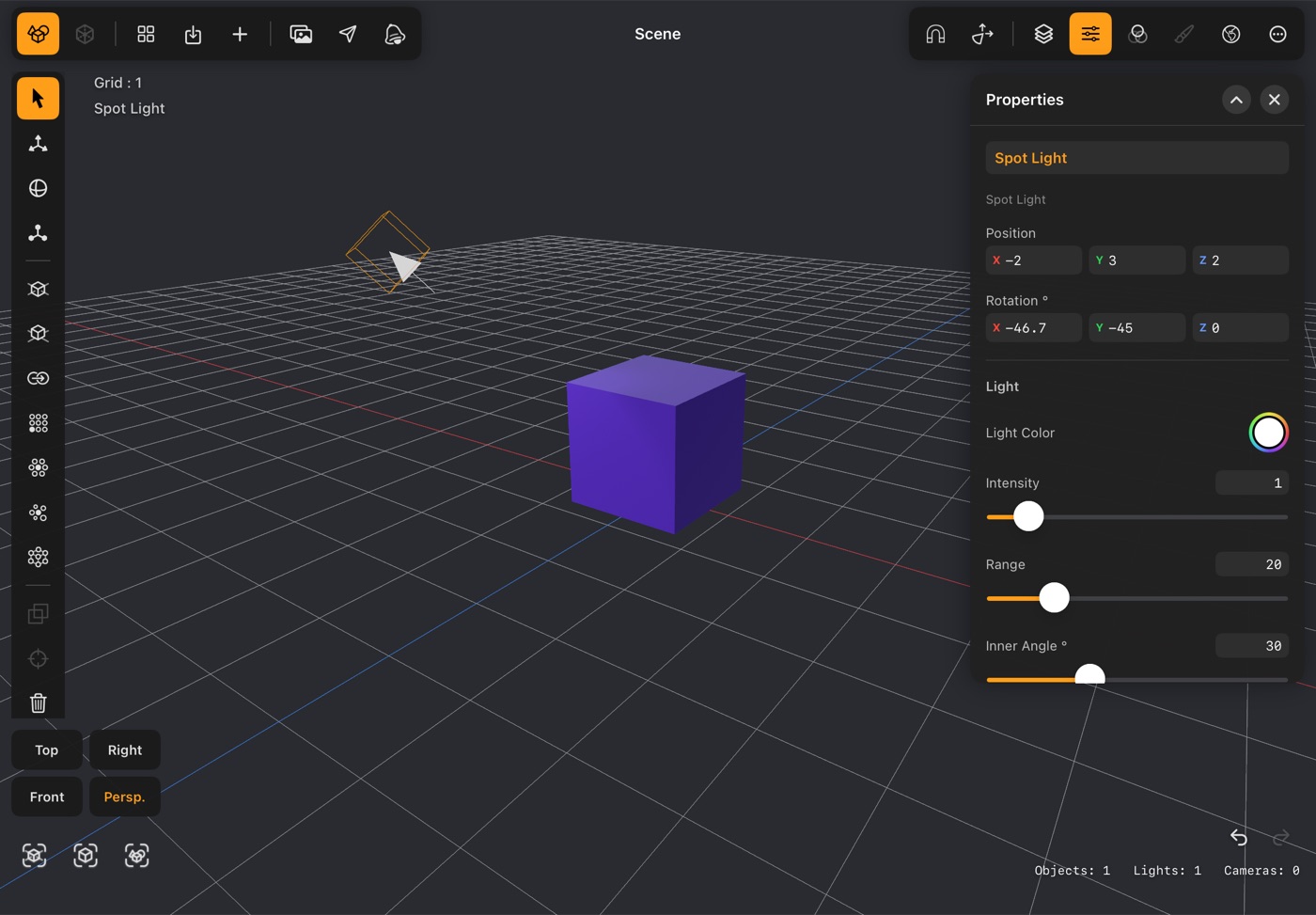
A spot light aimed at a cube, with its settings in the Property panel
A spot light, aimed at the middle of the scene as it arrives.
Key 04Lights & cameras

Four lamps, a sky, and a lens.

  • Directional. Sunlight: parallel rays, the same everywhere.
  • Point. A bare bulb, shining every way at once.
  • Spot. A torch or a stage light, in a cone.
  • Area. A softbox or a window: the softest shadows.

Or light everything from an HDR environment map, and turn it until the highlights land where you want them. A camera starts exactly where your view is, so frame the shot first, then add one. Pick the lens, an output size from square to 4K, and an aperture and focus distance for real depth of field.

Key 05RT:Render

It starts as grain. Then the light settles.

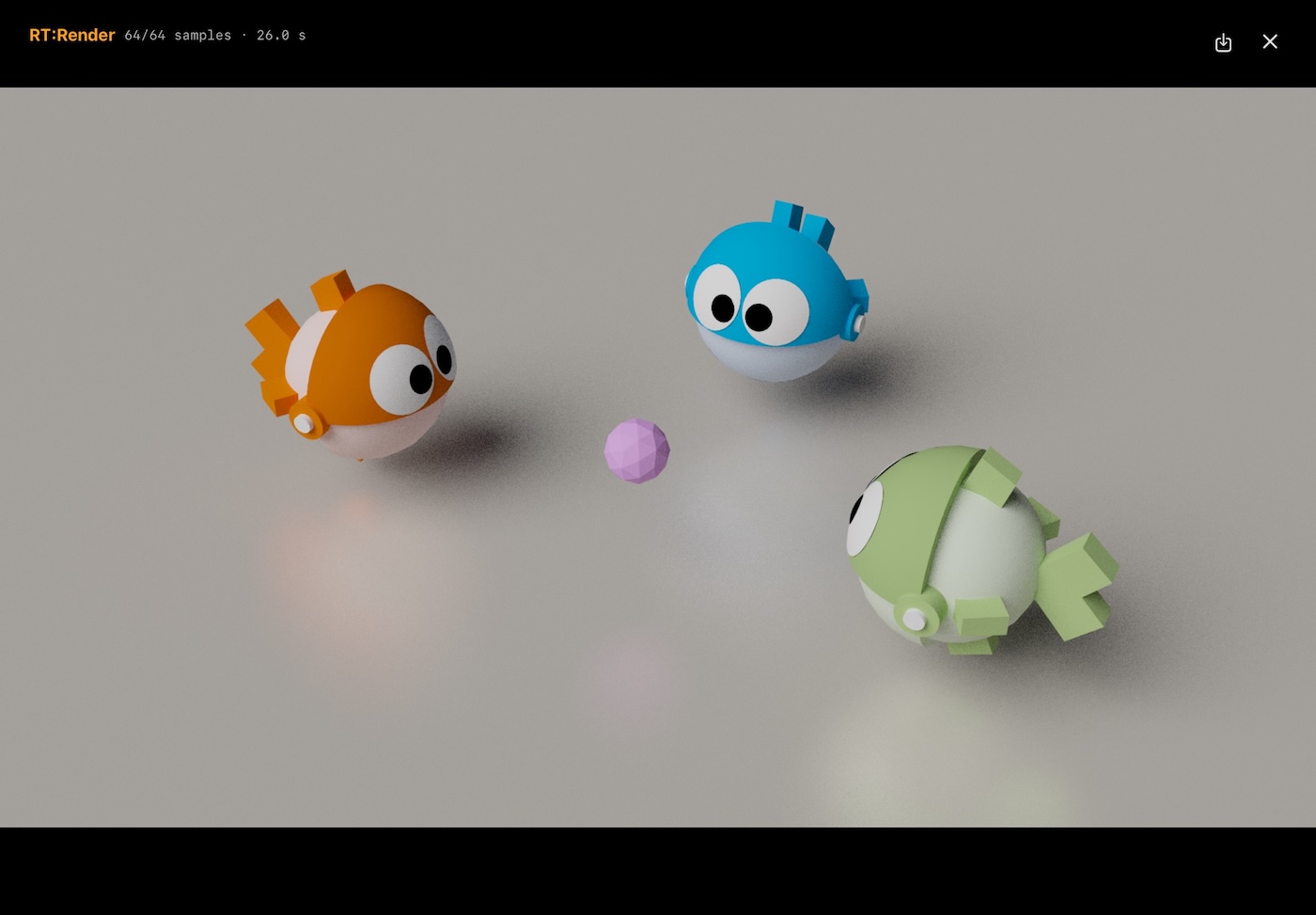
RT:Render is a progressive path tracer, written in Metal and built into the app. It follows light the way light behaves: shadows soften with distance, colour spills from one surface onto the next, and glass bends whatever is behind it. Watch the counter. Stop when it's clean, or set a sample count or a time and let it stop by itself.

RT:RenderiPad
RT:Render showing 78 samples after 10.2 seconds on two stilt houses
The counter at work: show samples count and render time in seconds, on an iPad.
  • RT:RenderEvery material and light, path traced.
  • Ambient +All white, but metal and roughness kept.
  • AmbientPlain white: the form and nothing else.
  • Clay AOWhite clay under an open sky.
  • NormalsFacing as colour. Flipped faces show up.
  • DepthNear is light, far is dark.
  • ViewportThe editor's look, at once, with no noise.
⚡

Faster again on the newest chips. From the A17 Pro and M3 on, Apple's chips carry ray-tracing hardware. Turn on Hardware Ray Tracing in the render settings. Older chips draw the same picture, just over more time.

  • A17 Pro
  • A18
  • A18 Pro
  • A19
  • A19 Pro
  • A20 Pro
  • M3
  • M4
  • M5
  • M6

Stills

Straight to Photos. Make the background transparent for a PNG that sits over anything, and keep a Radiance .hdr alongside with the full brightness range.

Motion

The whole animation as a video at 12, 24 or 30 fps, or as a numbered PNG sequence. Each frame can be capped by samples or by time.

Control

Light bounces for interiors and glass. Hide from Camera keeps a glowing softbox out of shot, while its light still falls on the scene and it still shows in reflections.

Key 06Timeline

Key it, curve it, point it down the road.

Move the playhead, pose, tap the key. Each key eases in, eases out, does both, or runs linear, which is the difference between a machine moving and something alive. Loop the playback and watch the cycle.

  • Position
  • Rotation
  • Scale
  • Visibility
  • Camera field of view
  • Aperture & focus
  • Light colour & strength
  • Materials
  • Morph targets
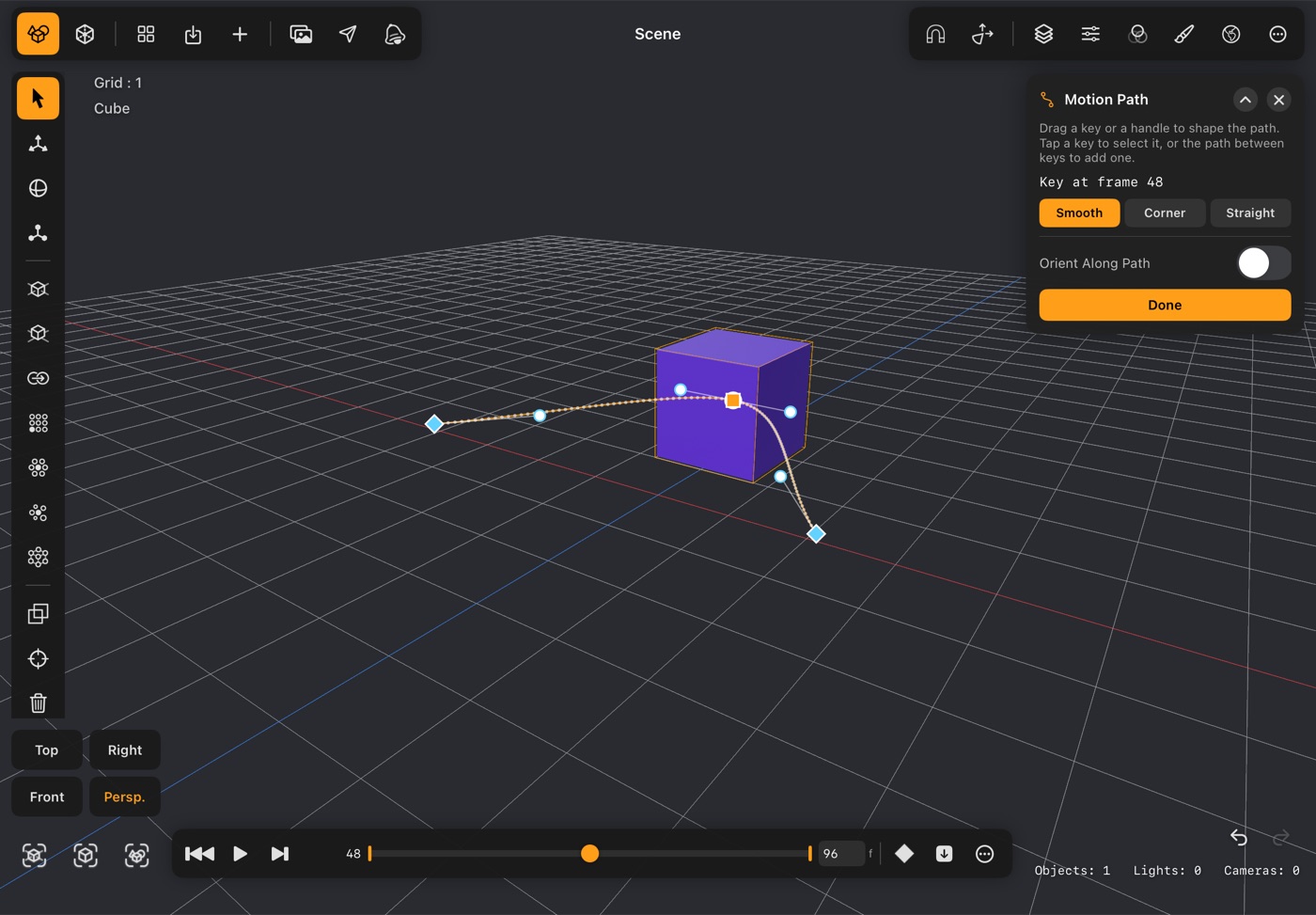
A box's motion path with Bézier handles on its middle key
Edit Motion Path: the middle key set to Smooth, its handles showing.
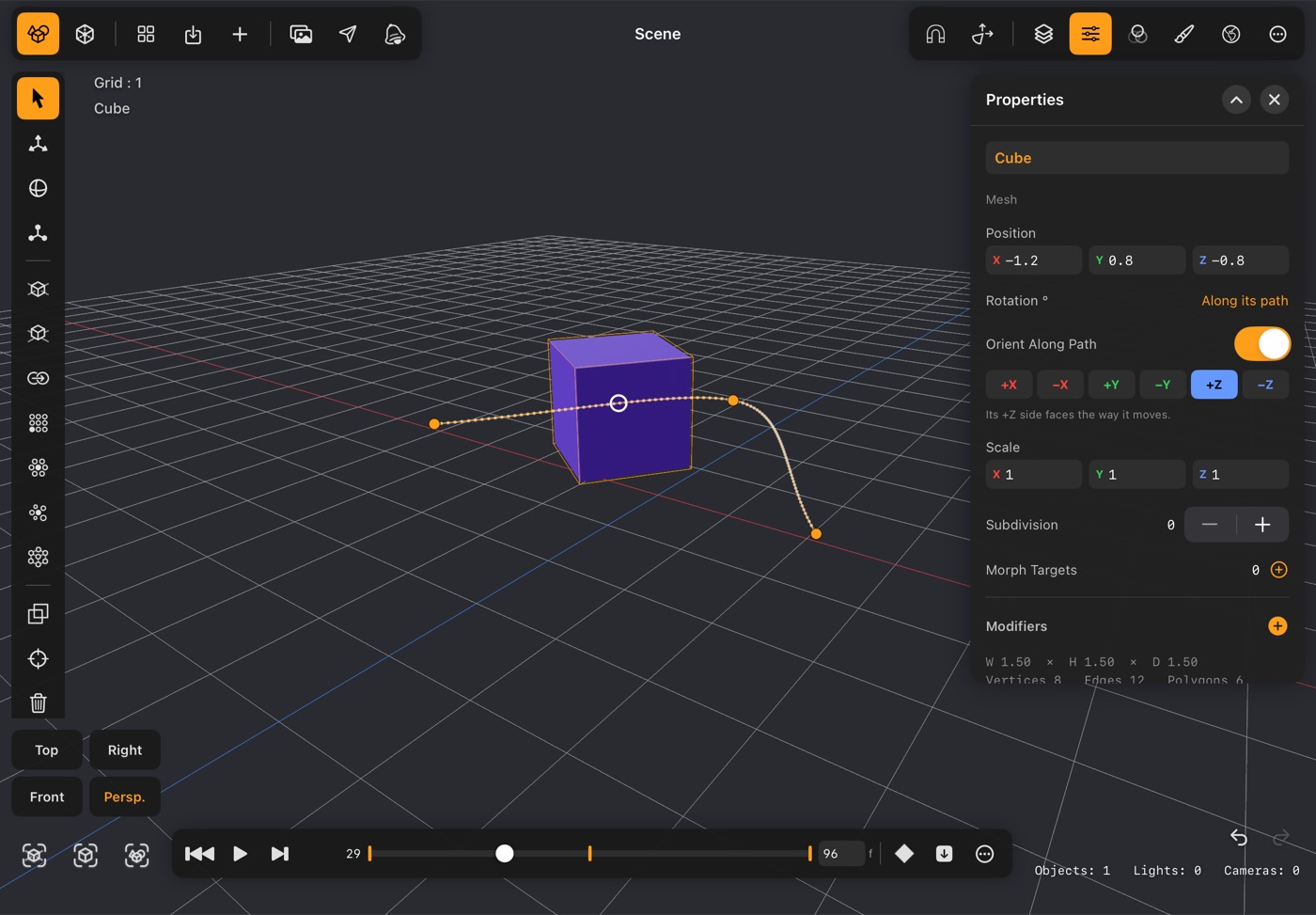
A box turned to face along its curved path
Orient Along Path: the box faces the way it travels.

Bend the route

Between keys an object travels in a straight line, until you choose Edit Motion Path. Then drag Bézier handles to curve the way, and tap the path to add a key without changing its shape. Bending the route doesn't change the timing.

Face the way it's going

Orient Along Path turns an object toward its direction of travel: a car follows the road, a fish follows its swim, a camera looks ahead down a fly-through. It tips up and down slopes but never leans over.

Everything follows

Playback, the render, video export, the AR preview and USD export all take the curved path. Turntable Preview spins the scene once without a single key.

Key 07AR & files

Set it on the table, then send it anywhere.

AR Preview puts the scene on a real surface through the camera. Tap to place it, pinch to scale it (100% is real size), twist two fingers to turn it, and press play to watch it move in the room.

Open

  • OBJFrom Blender, Maya, 3ds Max, Cinema 4D and the rest
  • GLBGame-engine and web assets
  • USDZApple's AR Quick Look format
  • STLParts from 3D-printing libraries
  • SVGVector outlines, made into geometry

Send

  • USDZAR Quick Look, Reality Composer, Swift Playgrounds
  • GLBGame engines and the web
  • OBJAny other 3D app
  • STLA slicer, then a 3D printer
  • .dgartA whole project, images and all, to another iPhone or iPad

Projects live in the Files app as USD: a plain-text .usda beside a folder of its own images. It's readable, portable, and never locked inside the app.

  • 0 accounts
  • 0 ads
  • 0 trackers
Where it runs

The phone you carry. The tablet on your lap.

iPhone

The whole app, pocket-sized

The whole app runs on iPhone, and the newest iPhones are quick renderers: an iPhone 17 finished our test scene in about 15 seconds, where an M1 iPad Air took about 30.

iPad

Room to spread out

Panels and model side by side, a Mini Number Pad for typing exact values without the full keyboard, and Apple Pencil wherever a finger works.

Coming from the original DGArt?

Move to DGArt:RT. The original is built on SceneKit, which Apple has deprecated in favour of RealityKit, so its road ends there. DGArt:RT is rebuilt on RealityKit and Metal, with an edge mode, texture painting, a full path tracer and USD files, and it's where every tool to come will land. They're separate apps: bring your DGArt work across as OBJ or USDZ.

Questions

Asked before you even open it.

Anything else: write to us.

What do I need to run it?

An iPhone or an iPad with iOS 18 or later.

Will an older device ray trace?

Yes. RT:Render runs on every device the app runs on. A newer chip clears the noise sooner, and from the A17 Pro and M3 on, Hardware Ray Tracing speeds it up again.

I've never built anything in 3D. Where do I begin?

Add a cube, open it in the Modeler, pick a face and try Extrude. Sliders show the result as you drag, and undo takes it back. The manual goes through every tool in the order it sits on screen, each with a picture. Also check out our youtube channel for tutorial for it.

How detailed can a model be?

That depends on the device. A newer chip with more memory carries heavier models and bigger scenes. You can raise the polygon limit in Settings ▸ Advanced.

Can I get my work back out?

Always. Projects are plain-text USD in the Files app, and any model exports as OBJ, STL, GLB or USDZ for other apps, game engines and 3D printers.

DGArt:RT app icon

Your next frame starts with one point.

For artists, game designers and makers who'd rather build where they are than wait until they're back at a desk.